
In-Process: Scoring Review
Read KPI Review articles in order
Start KPI Scoring (Change Status to In-Process)
Once everything is ready, Admins or Managers can change the review status to In-Process.
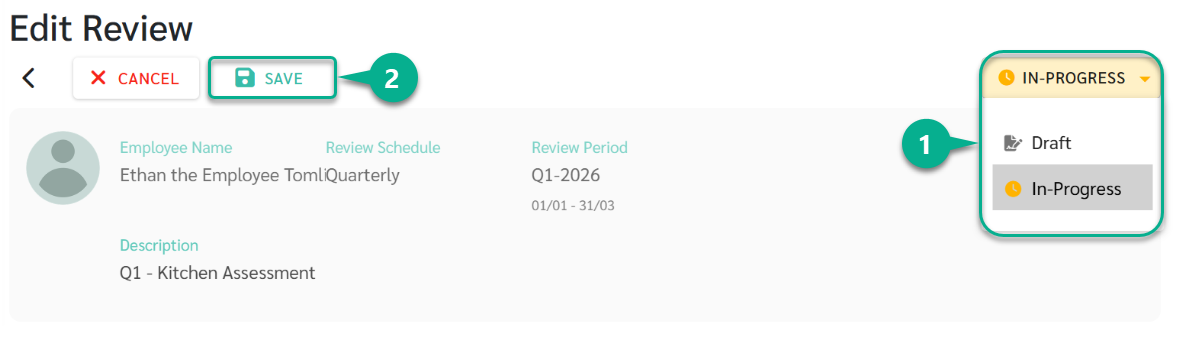
When the status changes to In-Process:
- The KPI scoring process officially begins
- The system sends email notifications to all assigned reviewers, inviting them to submit KPI scores according to their roles
After the review enters In-Process status:
- Reviewers can start scoring KPIs
- Core evaluation structures, such as KPIs and weightage, can no longer be freely edited as in Draft status
Start Scoring (In-Process)
Admins or Managers can change the review status to In-Process to officially start KPI scoring.
When the status is changed to In-Process:
- The scoring phase begins
- The system sends email notifications to all assigned reviewers, inviting them to submit KPI scores according to their roles
After the review enters In-Process status:
- Reviewers can start scoring KPIs
- Core evaluation structures, such as KPIs and weightage, can no longer be freely edited as in Draft status
Scoring Review Page
The Scoring Review page is used to score employee KPIs while the review is in In-Process status.
Reviewers can submit scores, add remarks, and attach supporting evidence based on their assigned permissions.
Go to Reviews > Score Reviews

Scoring KPIs
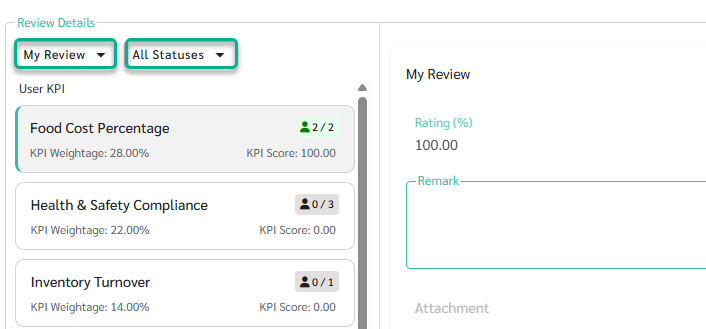
When a KPI is selected, the system displays its details in the My Review section.
Reviewers can:
- Enter KPI scores based on the configured rating type
- User KPI
- User KPIs require reviewers to manually enter scores.
- Scores can be given using the configured rating type, such as Percent, Level, Number, or Pass / Fail, along with remarks and file attachments if needed.
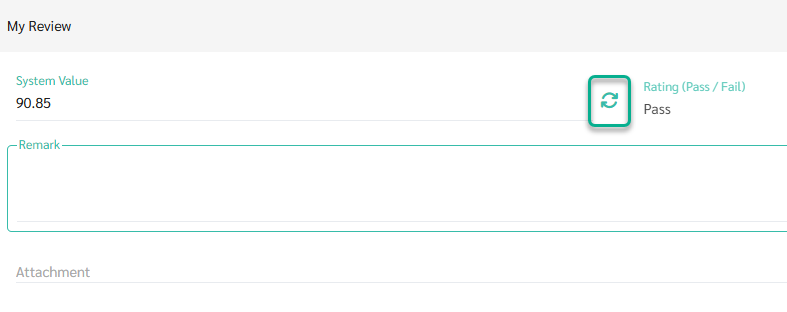
- System KPI
- System KPIs are automatically calculated by the system using existing system data, such as work activity or behavior records.
-
Reviewers can click Recalculate to fetch the latest data and recalculate the KPI score.
- User KPI
- Add Remarks to explain the reasoning behind the score
-
Attach supporting files or documents (Attachments)
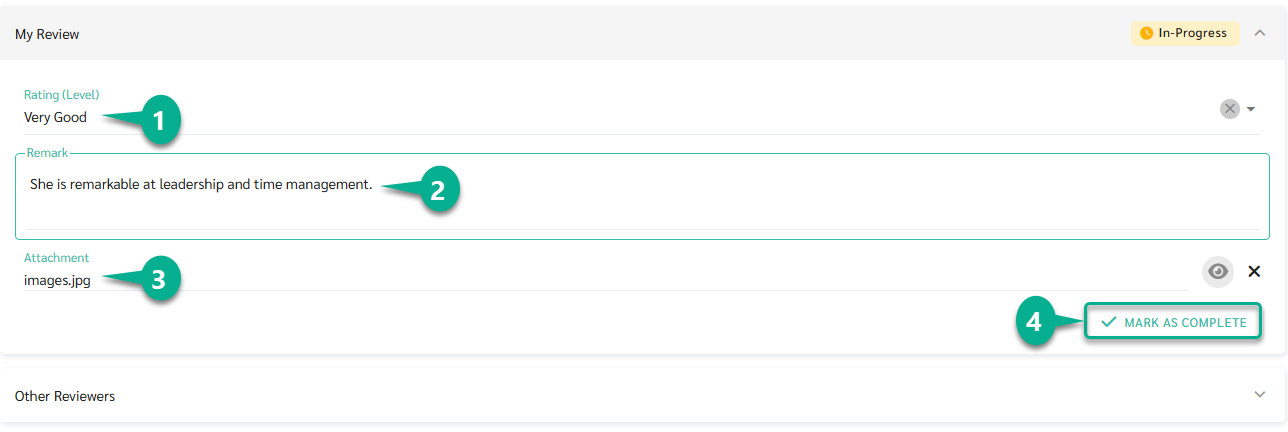
After completing the evaluation:
- Click Mark as Complete to confirm the KPI score
- Click Save to save the scoring result
After scoring a KPI, reviewers can click Re-open to edit the score again.
Re-opening a KPI is allowed only while the employee’s review status is still In-Process.

KPI Status Indicators
In the KPI list on the left-hand side, the system displays reviewer progress using color indicators:
- Gray – No reviewer has started scoring
- Yellow – Scoring has started but is not yet completed by all reviewers
- Green – All reviewers have completed scoring (Completed)
A numeric indicator such as 1 / 3 means 1 out of 3 reviewers have completed scoring for that KPI.

Reviewer and Manager Views
- Reviewer (Peer and Self)
- Can see and score only the KPIs assigned to them
- Can add remarks and attachments as part of the evaluation
-
Manager
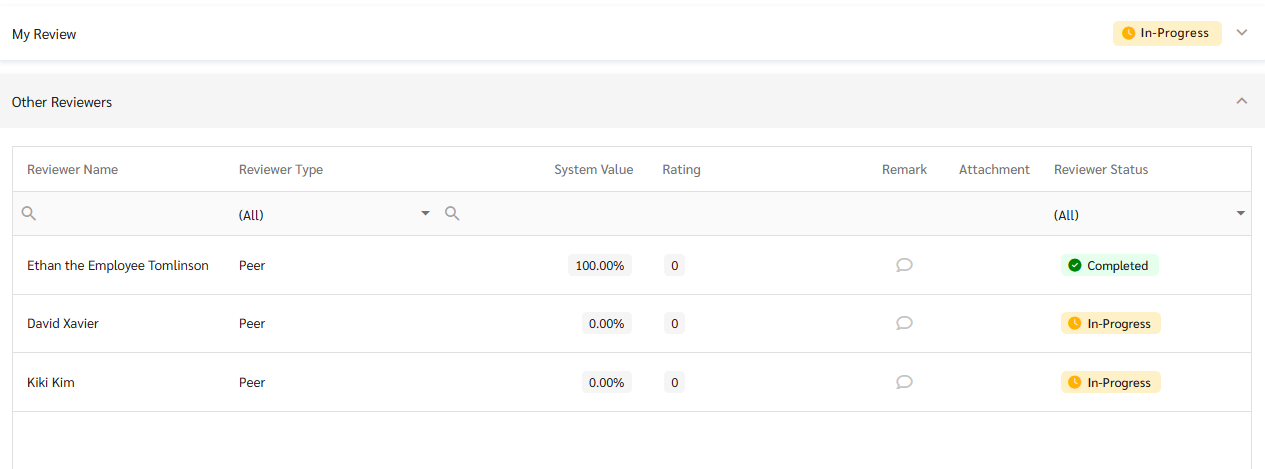
Managers have a broader view and can:
- Score KPIs they are responsible for
- View all KPIs for the employee within the same review round
-
View scores and remarks from other reviewers via Other Reviews
Filters
Filters help reviewers and managers focus on relevant KPIs or switch between detailed and overall views.
- Status Filter
- All Statuses – Show all KPIs
- Pending – Show KPIs with incomplete scoring
- Completed – Show KPIs with completed scoring
- Reviewer Filter
- All Reviews – Show all KPIs in the review
-
My Reviews – Show only KPIs assigned to the current user
Review Status and Notifications
- During In-Process
Admins and Managers can monitor scoring progress and:
- Check which KPIs have already been scored
-
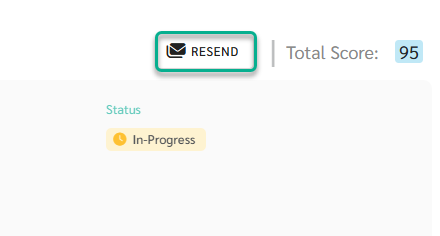
Click Resend to send reminder emails to reviewers who have not completed scoring
- When Scoring Is Completed
When all reviewers have completed scoring for all KPIs:
- The system automatically changes the employee’s review status to Completed
- All scores are locked
- KPIs can no longer be Re-opened or edited
