Create KPI and KPI Template
Read KPI Review articles in order
KPI is the core structure of the evaluation process and must be created in advance before it can be used in a KPI Review.
The creation and management of KPIs and KPI Templates can be done by Admins only, to ensure a standardized evaluation structure across the organization.
Permissions
- Creating, editing, and managing KPIs and KPI Templates can be done by Admins only
- Managers and general users
- Can select and use existing KPIs and KPI Templates
- Cannot create new KPIs
How to Create a KPI
-
Go to Preference > KPI
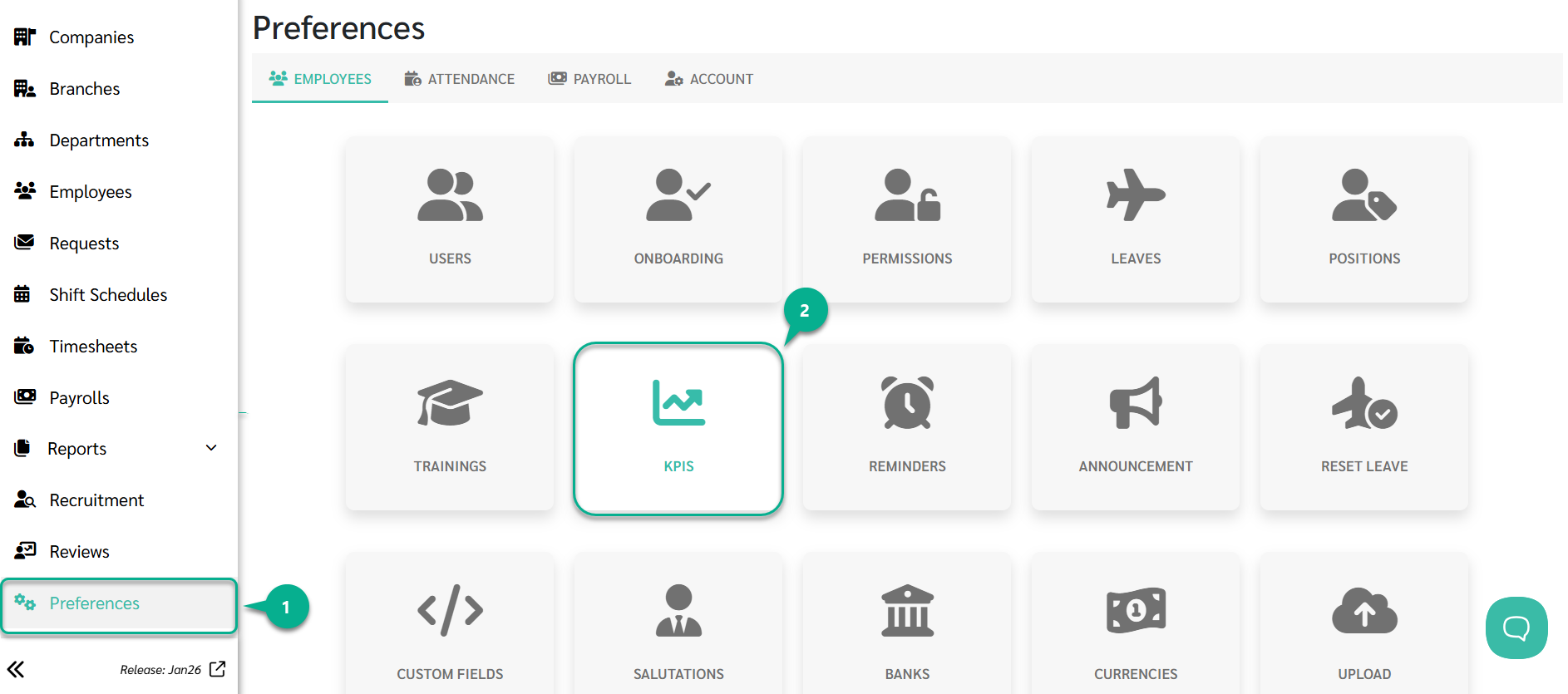
- Click Add
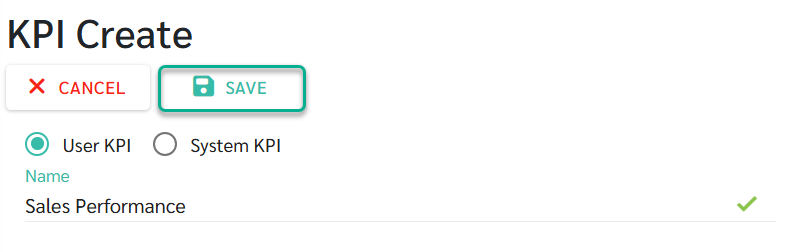
- Define the KPI details
- Review the information
- Click Save to create the KPI
Once saved, the KPI will be available for use when creating a KPI Review or a KPI Template.
KPI Types
The system supports two types of KPIs, each with a different scoring method.
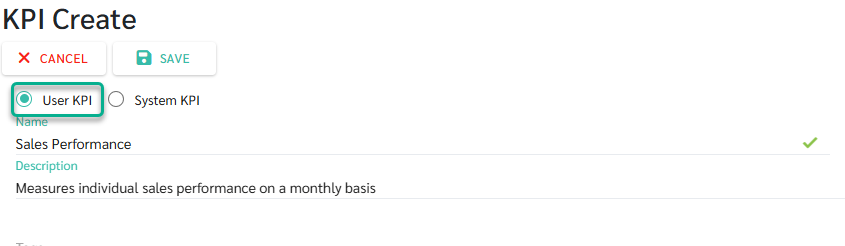
1) User KPI
- User KPI requires reviewers to manually enter scores during the scoring process.
-
This type is suitable for behavioral KPIs, KPIs without system data, or evaluations that rely on reviewer judgment.
2) System KPI
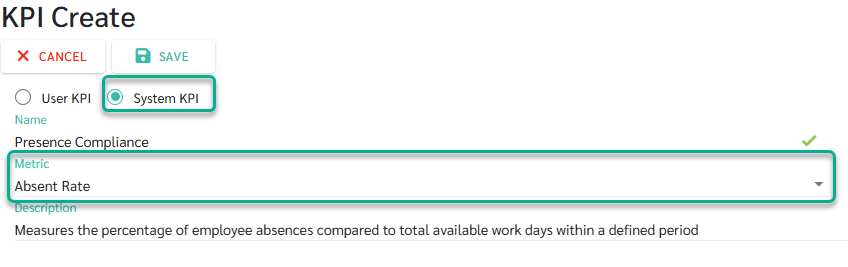
- System KPI is automatically calculated by the system using existing system data.
- This type is suitable for data-driven KPIs such as attendance, leave, or lateness.
- When a Metric is selected for a System KPI, the system will automatically display the calculation Formula for that metric
-
The formula is predefined by the system and reflects how the KPI is calculated based on available data
Rating Types
Admins can configure KPI rating formats to match different evaluation needs.
The system supports four rating types:
- Percent
- Score is given as a percentage.
- Example: If the target is 100% and the result is approximately 85%, the reviewer can assign a score of 85%.
- Level
- Score is given by levels, and the labels can be customized to match business context.
- Example: A sales KPI may use levels such as Exceed Target / Meet Target / Near Target / Below Target.
- Number
- Score is given as a numeric range.
- Example: A quality KPI may use a scale from 1–5, where 5 means excellent quality and 1 means improvement required.
- Pass / Fail
- Score is given as pass or fail.
- Example: A training KPI where completing the training equals Pass, and incomplete participation equals Fail.

How to Create a KPI Template
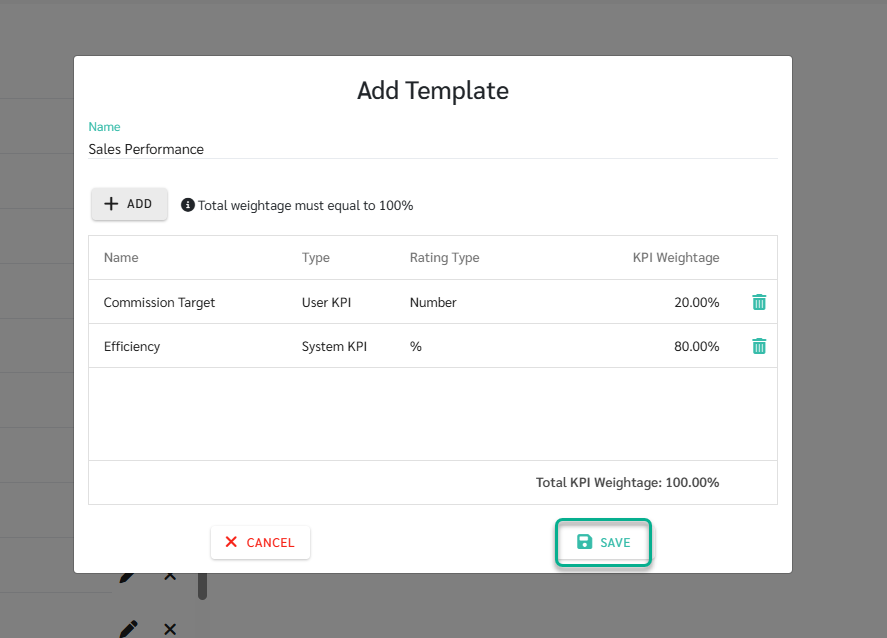
A KPI Template is a predefined structure created by an Admin to standardize KPI evaluations.
Once a KPI Template is created, it can be selected immediately during the KPI Review setup.
The system will automatically apply the KPI set and weightage from the template, eliminating the need to configure KPIs again.
KPI Template Example
Template name: Sales Performance
- Total Sales (50%)
- New Customers (30%)
- Customer Follow-up (20%)
-
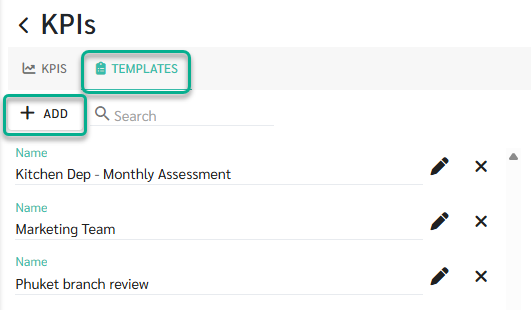
Go to Preference > KPI
- Select the Template tab
-
Click Add
- Define the template details:
- Enter a Template Name (required)
- Select the KPIs to include
- Assign weightage to each KPI
- The total KPI weightage in a template must equal 100%.
- If the weightage does not total 100%, the system will not allow the template to be saved.
- Click Save to create the KPI Template