
Create Review
Read KPI Review articles in order
🚨 Remark
Before starting a KPI Review, Admins must complete the following two required steps:
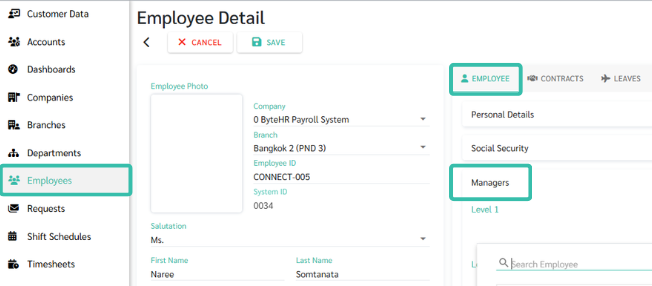
- Assign a Manager for each employee
- Manager assignment cannot be done from the Review page
-
It must be configured in the employee’s Employee Detail page
(Employees → Select Employee → Employee tab → Managers)
-
The assigned Manager will automatically be used as the Manager Reviewer in the KPI Review
- Create KPI and KPI Template
If either step is not completed, the KPI Review cannot be started properly
How to Start a KPI Review (Create Review)
- Go to the Reviews menu
- Click New Review

Step 1: Enter Review Information
The Create Review page is used to initiate a new review round.
At this stage, Admins can enter only the basic information. KPI configuration is not required yet and can be completed later in Draft status.
Admins need to provide the following information:
- Basic Review Information
- Company
- Branch
- Department
- Employee
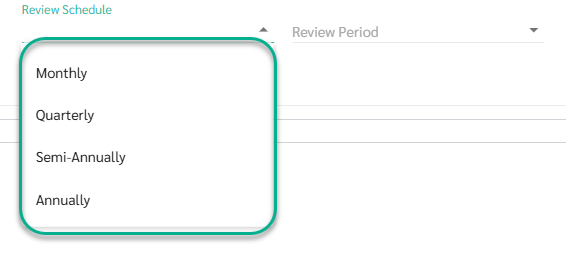
- Review Schedule
- Monthly
- Quarterly
- Semi-Annually
-
Annually
- Description
Admins can add a description to each review to help identify and differentiate review rounds more clearly.

Step 2: Add KPI Information (Optional)
In the KPI Information section at the bottom of the Create Review page, the following options are available:
- KPI
- Used to add KPIs one by one by selecting from KPIs created by Admins.
- Suitable when you want to assign specific KPIs to an individual employee.
- Template
- Used to add KPIs from a predefined KPI Template.
- The system will automatically apply the KPI set and weightage from the selected template.
- Copy KPI
- Used to copy KPIs already configured for one employee and apply them to other employees within the same review round.
- The copied KPIs will replace the existing KPIs of the target employee.
At the Create Review stage, Admins are not required to add KPIs or templates.
The review can be saved first and fully configured later in Draft status.

Step 3: Add Reviewer (Optional)
Each reviewer can be assigned a different Reviewer Weightage for each KPI
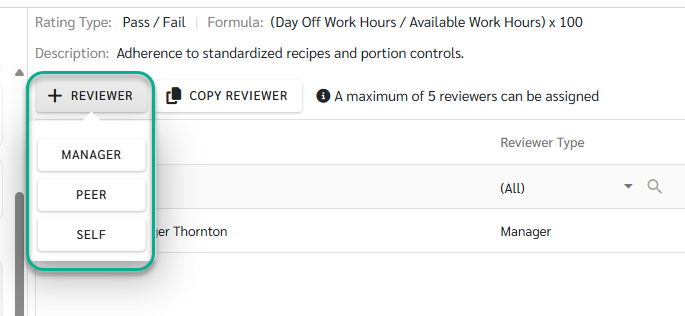
The system allows a maximum of 5 reviewers per KPI
The system supports 3 reviewer roles
-
Manager
The manager is automatically retrieved from the employee’s settings on the Employee Detail page and assigned as the primary reviewer in the KPI review process
-
Peer
Peers can be selected only from employees within the same Branch
-
Self
Allows the employee to perform a self-assessment
Copy Reviewer
The system will automatically copy the Reviewer and Reviewer Weightage from the source KPI and apply them to the target employee’s KPI. This helps reduce repetitive setup and ensures consistency in the review structure.

Step 4: Save Review
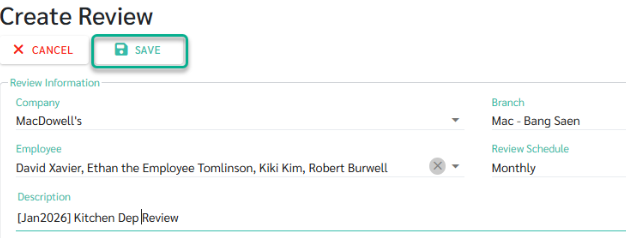
Once the basic review information is completed, Admins can click Save to create the review.
The system will then:
- Create the review and automatically save it in Draft status
- Send notification emails to all related Managers, informing them that the review is in Draft
-
Allow Managers to access, review, and edit the review configuration
What Can Be Done in Draft Status
While the review is in Draft status, Admins and Managers can:
- Add or edit KPIs
- Select reviewers
- Configure KPI Weightage and Reviewer Weightage
- Review and finalize the evaluation structure
KPI scoring is not available in Draft status.
Scoring will only begin once the review status is changed to In-Process.