
Setting Late/Out Early on Day Off, Holiday, and Late After Hours
How to set Late After Hours and display Late/Out Early on Day Off and Holidays
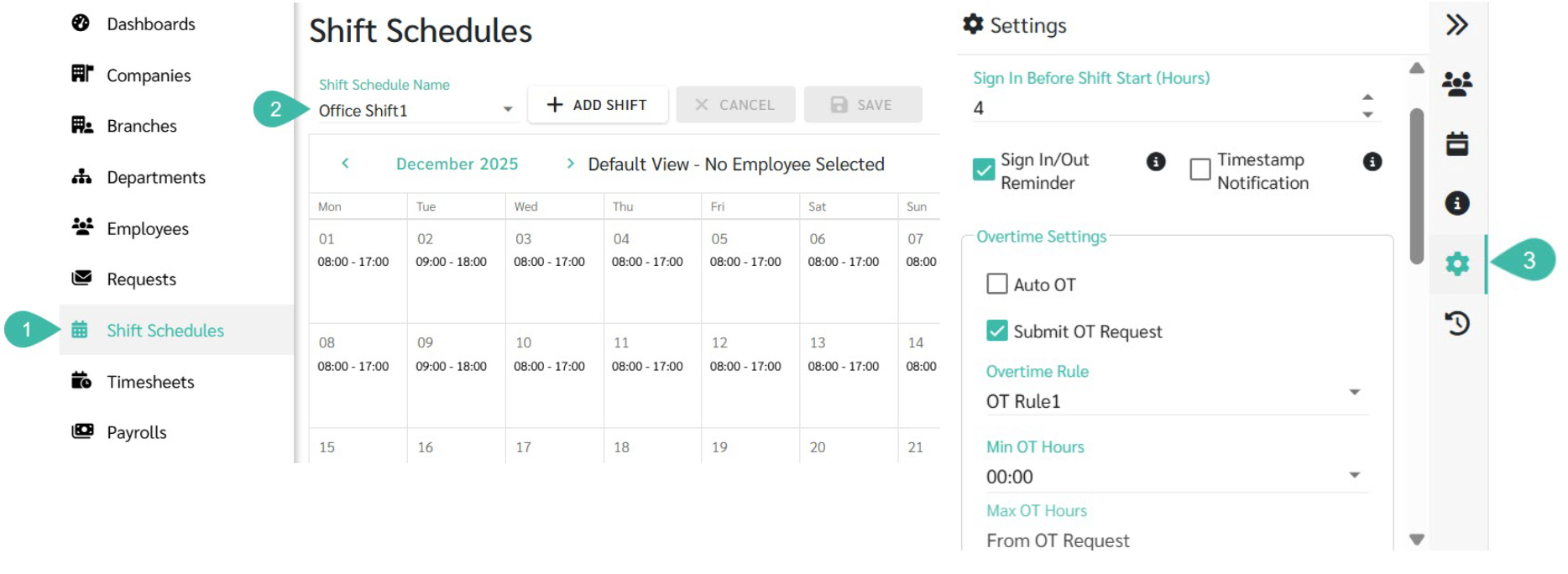
- Go to Shift Schedules.
- Select the Shift Schedule you want to configure.
-
Click the Settings on the right-side panel.
-
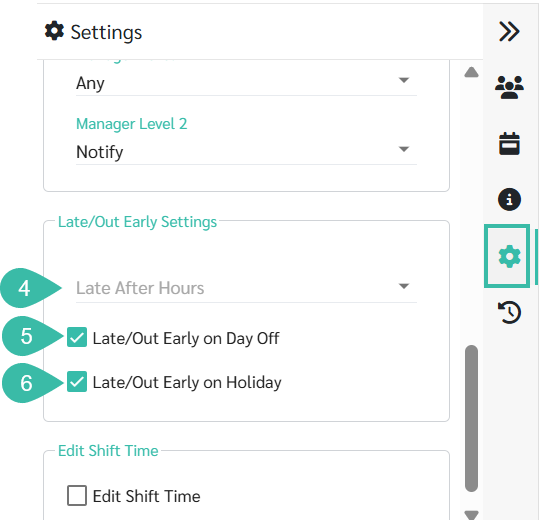
Under "Late/Out Early Settings", set the Late After Hours value to define how many minutes or hours after the scheduled start time the system will begin counting lateness.
Note: The system currently supports 15 minutes intervals by default. However, admin may configure other intervals (e.g. 10 minutes or 20 minutes) based on company policy.
-
Example 1
Late After Hours set to 00:15 (15 minutes)
Scheduled Shift start time = 08:00 AM.
Employee clocks in at 08:11 AM..
The system records 0 minutes of Lateness.
-
Example 2
Late After Hours set to 00:15 (15 minutes)
Scheduled Shift start time = 08:00 AM.
Employee clocks in at 08:17 AM.
The system records 2 minutes of Lateness.
-
- Late/Out Early on Day Off: Admin can control whether Late or Out Early minutes are displayed for Day Off.
- Tick the checkbox (Enable) ➜ The system will display the employee's Late/Out Early minutes on Day Off in the standard report.
- Untick the checkbox (Disable) ➜ The system will not display employees' Late/Out Early minutes on Day Off.
- Late/Out Early on Holidays: Admin can configure the display of Late/Out Early minutes on Public Holidays.
- Tick the checkbox (Enable) ➜ The system will display the employee's late/Out Early minutes on Public holidays in the standard report.
-
Uncheck (Disable) ➜ The system will not display employees' Late/Out Early minutes on Public Holidays.
🗨️ Important Note
- Changes made to past Shift Schedule settings will not retroactively update existing Timesheet data.
- Admin must Regenerate the Timesheet for the new Settings to take effect.
- These Settings apply to all employees assigned to the same Shift Schedule.