
Shift Schedule Information
Admins can specify Shift Schedule details or delete unused Shift Schedules in the Shift Schedule Information tab.
The method for updating Shift Schedule information as follows:
- Navigate to the Shift Schedules menu.
-
Select the relevant Shift Schedule Name.
Refer to How to create a Shift Schedule at LINK
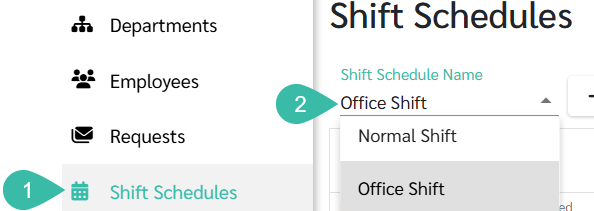
- Click the Information tab.
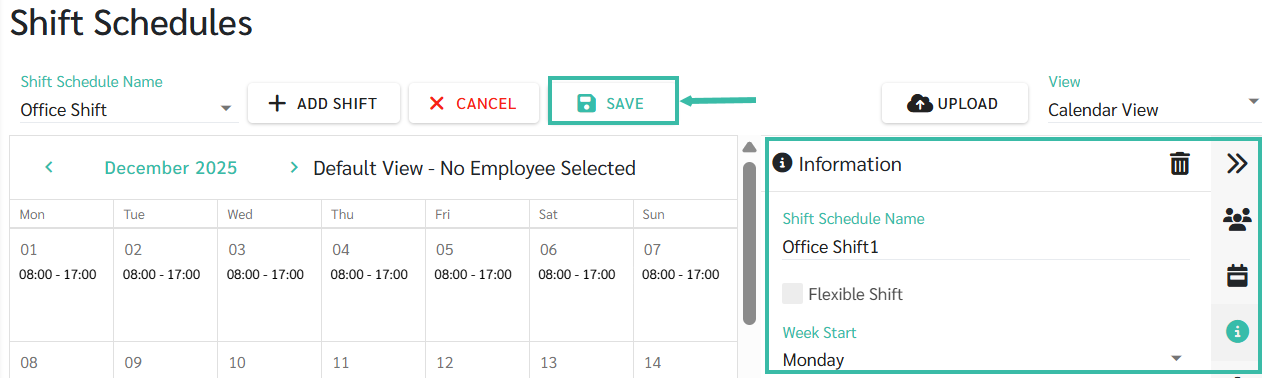
- You can change the Shift Schedule Name if necessary.
-
If it's a flexible shift schedule, there will be a checkmark in the Flexible Shift box.
Refer for more about Flexible Shift Schedules at LINK.
-
Set the Week Start Day to define which day the calendar week begins.

-
Once all changes are completed, click Save.
-
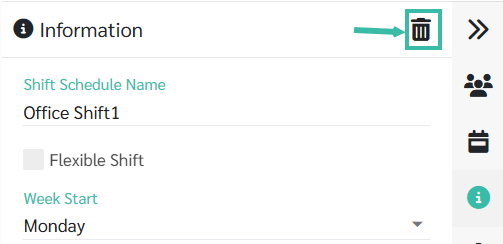
To delete an unused Shift Schedule, click the Trash can icon located in the upper right corner of the Shift Schedule Information bar. If the deleted Shift Schedule already contains data, the existing data will remain unchanged.

🚨Note
- Once a Shift Schedule is deleted, it cannot be restored including its original shift schedule and data.
📃Note
- After successful deletion, the system will also remove the Shift Schedule from Allowance Rules and Approval Workflow.