
Create a Shift Schedule
🔍 Note:
ByteHR's Shift Schedule comes in two versions.
- A standard Shift Schedule sets the start and end times for employees each day.
- A Flexible Shift Schedule assigns a specific number of working hours to employees each day.
Step 1: Add a Shift Schedule
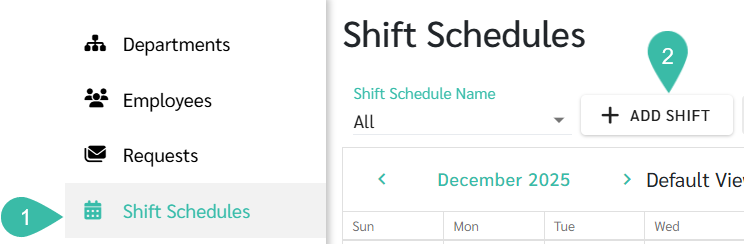
- Go to Shift Schedules.
-
Click Add Shift.
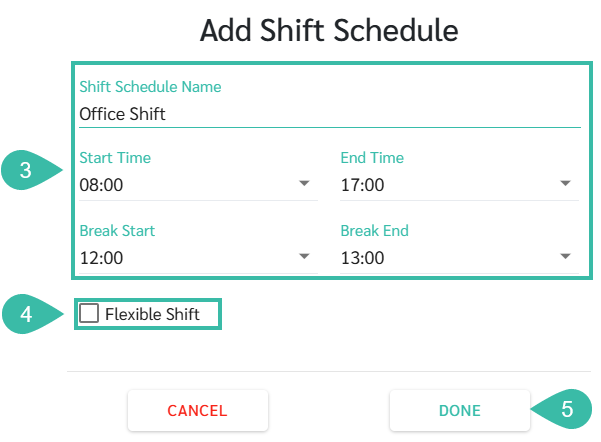
- Complete the following fields:
- Shift Schedule Name
- Start time
- End time
- Break Start Time
- Break End Time
- Tick the "Flexible Shift" checkbox if you want Flexible Shift Schedule
-
Click Done.
See the Flexible Shift Schedule at LINK
Step 2: Define the Details of the Shift Schedule
You can rename the Shift Schedule, set the start day of the week, or delete a Shift Schedule in the Information tab.
See the section on setting up Shift Schedule Information at LINK
Step 3: Set up the Shift Schedule
You can configure the calendar, overtime rules, deductions for breaks during overtime, and the minimum and maximum overtime hours in the Settings tab.
See Shift Schedules Settings at LINK
Step 4: Setting Daily Shift Schedules/ Days Off
For Shift Schedules with changes to Shift times and weekly day off, you can edit the calendar fields to modify the Shift times and days off.
See Setting Weekly Shift Time and Days Off at LINK
💬 Note:
If you want to view the Shift Schedule on a weekly basis, you can adjust the displayed Shift Schedule view.
See Shift Schedule View at LINK
Step 5: Add employees to the Shift Schedules
You can add employees to an existing Shift Schedule by selecting the Employees tab.
See how to Add/Delete employees in a Shift Schedule at this LINK