
Flexible Shift Schedule ***Add On ***
A Flexible Shift can be used when employees have irregular start and end times but need to complete their assigned daily hours. Overtime is calculated only when an employee works more than their allotted hours.
⚠️ Limitations of the Flexible Shift Schedule.
- Shift must have a fixed number of working hours and break hours per day. However, the number of working hours per day can be modified on the Shift Schedule calendar page.
- For Flexible Shift Schedules, the system cuts off time from 00:00 onwards, marking the start of the next day. This means each day runs from 00:00 to 23:59. Therefore, if you sign in before midnight and sign out after midnight, it will be displayed on different days.
- Overtime and overtime hours will only be calculated when an employee works beyond the number of hours per specified day in the shift schedule.
-
The Allowance Rules and Deduction Rules cannot be calculated in these cases:
- Late from shift start time - Late from break time
- Early from shift end time
- Early from break time
- Total late minutes (month)
- Total late times (month)
-
Unable to submit an attendance request
- Edit Shift
- Swap Shift.
- It is not possible to set up "Sign In Before Shift Start".
Creating a Flexible Shift Schedule
Refer How to create a Shift Schedule at this LINK
How to set up the Flexible Shift Schedule
- Go to the Shift Schedule.
-
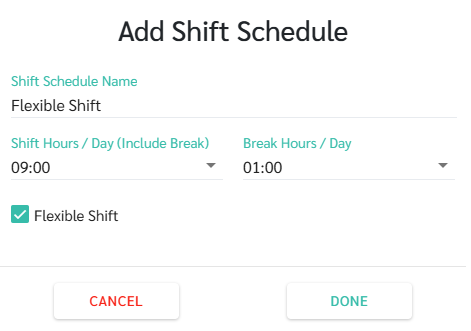
To create a new Shift Schedule, go to +Add Shift
- Enter the Shift Schedule Name
- Tick the checkbox for Flexible Shift
- Enter the number of working hours per day (including breaks)
- Enter the number of break hours per day
- Click Done
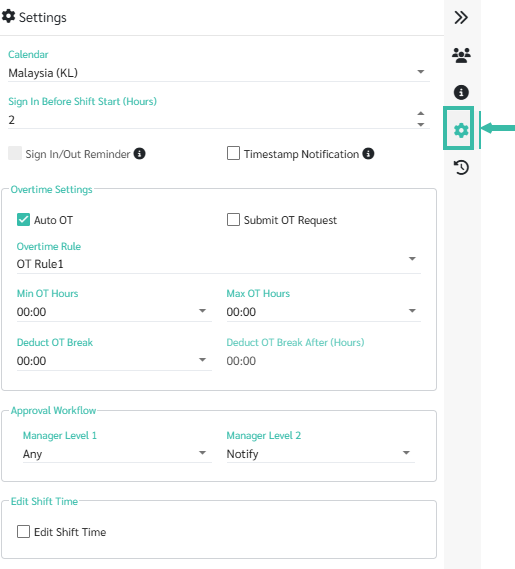
- In Shift Schedule Settings
- Select Calendar
- Select Overtime Rule
- Deduct OT Break
- Enable/Disable Submit OT Request - Enable /Disable Auto OT
- Set Minimum OT Hours
- Set Maximum OT Hours
- Set Approval for Level 1 Managers
-
Set Approval for Level 2 Managers
- Add employees to an existing Shift Schedule in the Employees menu.
See how to add employees to a shift schedule at this LINK
📃Note
- For Flexible Shift Schedules, the system will not calculate Lateness or Out Early.
- There will be two statuses:
- "Complete Shift" means the employee has worked the required number of hours.
- Incomplete Shift means that an employee has not worked the required number of hours.
The pricing for the Flexible Shift feature depends on the number of employees in your package and will prorate according to your billing cycle.