
Shift Schedule Settings
Here's how to set up public holidays, overtime, lateness, and more:
- Click on the Shift Schedules menu.
-
Select the Shift Schedule Name.
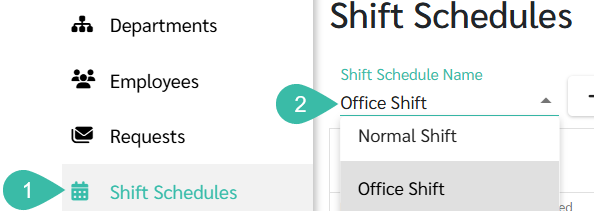
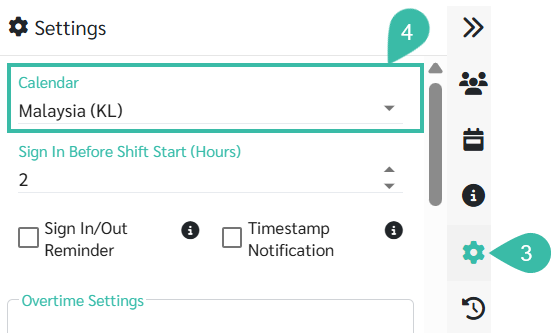
- Click the Settings tab.
- Select Calendar to set a public holiday calendar for the shift schedule.
-
If employees follow different Public Holiday Calendars, create separate Shift Schedules and assign the appropriate Calendar to each Shift Schedule.
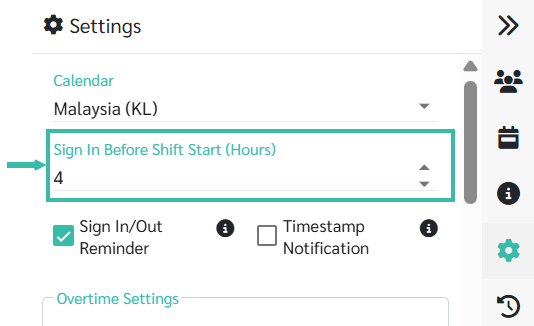
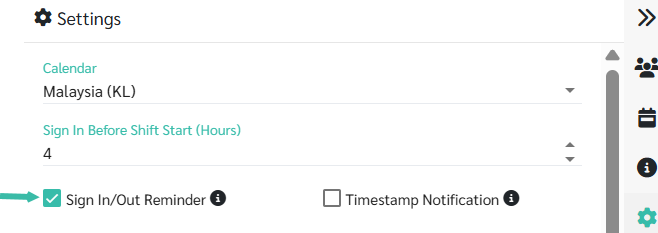
Set Sign in Before Shift Start.
-
Configure Hours to Sign In Before Shift Start. Set the number of hours employees are allowed to clock in before the shift start time.
The setting determines the earliest allowed sign in time for each shift.
-
Example, the shift schedule has the following setting:
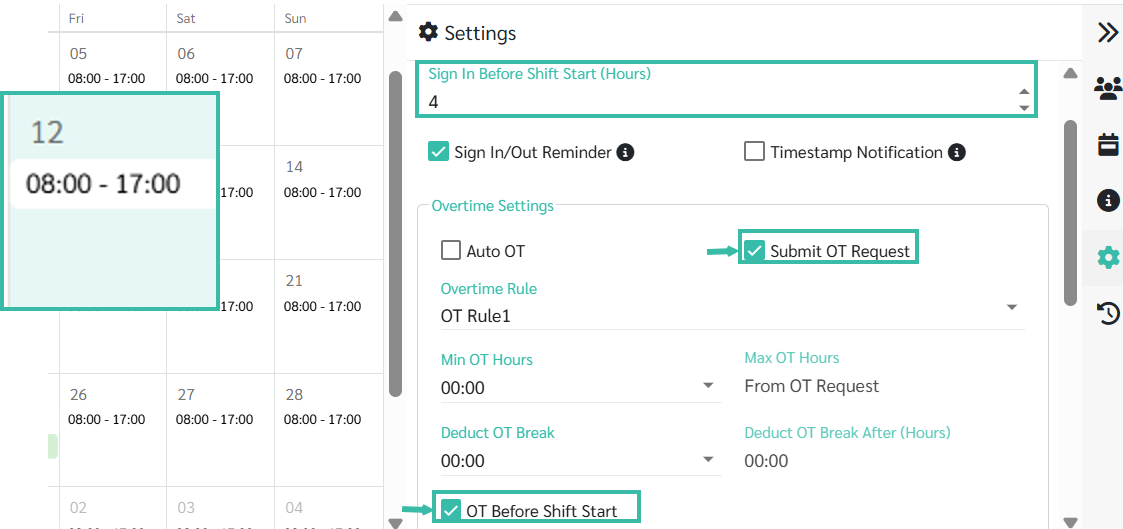
Hours to Sign In Before Shift Start = 4 hours.
Shift Date = 12/12/2025
Shift Time = 08:00-17:00
-
Therefore, the system allows Sign in starting 04:00 calculated as 4 hours before the shift start time, which does not start the new day at midnight).
In the case where the employee clocks in and out accurately:
Shift Date = 12/12/2025
Sign In = 03:00
Sign Out = 17:00
When submitting an overtime request,
employees must submit separate requests as follows:
-
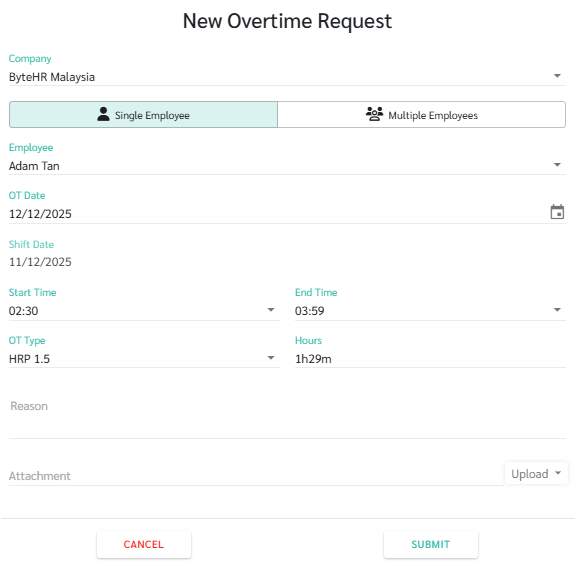
Request 1
Actual overtime date (OT Date) = 12/12/2025
Start time = 02:30
End time = 03:59
The system will display the Shift Date= 11/12/2025 as this time is considered Overtime after the previous day's work end.
Click Submit.
-
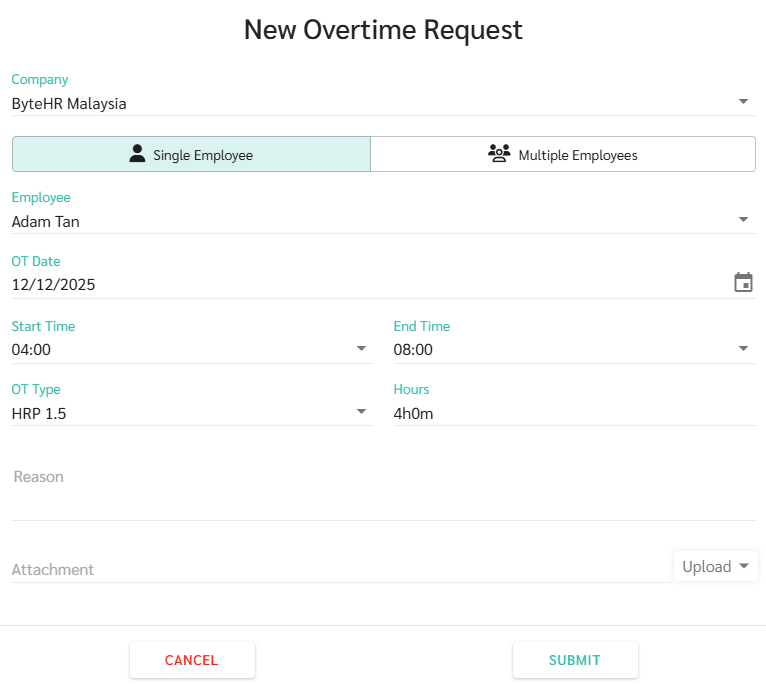
Request 2
Actual overtime date (OT Date) = 12/12/2025
Start time = 04:00
End time = 08:00
Click Submit.
If an employee clocks in but the system records the time as the previous day, the admin should verify Hours to Sign in Before Shift Starts and the employee's shift time settings.
-
-
- Turn on/off Sign In/Out Reminder
-
If enabled, the system will send a notification to employees' mobile apps 10 minutes before the start/end of their shift. This notification will be sent to both employees using online time clocking (eCheckin) and those using finger scanners.
Note: The system does not send notifications to employees on weekends, leave days, and public holidays.
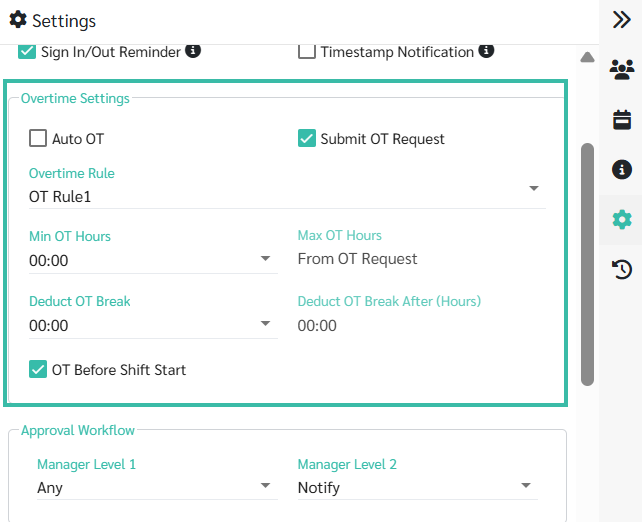
Configure Overtime settings.
-
- Set up Automatic Overtime (Auto OT) to turn on/off.
- On : The system will automatically calculates Overtime when employees work beyond their normal hours.
- Off : The system does not automatically calculate Overtime.
- Enable/Disable Submit OT Request
- Enabled : Allows employees to submit Overtime requests, and the system will calculate overtime once the request is approved.
-
Off : Employees on the Shift Schedule will not be able to submit Overtime requests.
Note: If Auto OT and Submit OT Request are enabled simultaneously, Overtime hours will be combined from both approved requests and the employee's Timestamp data.
- Select the Overtime Rule.
- Set the Minimum number of hours for Overtime pay in the Min OT Hours field.
- Set the Maximum number of Overtime hours in the Max OT Hours field.
- Example:
- If the company requires employees to work Overtime exceeding 2 hours before overtime pay is calculated, the (Min OT Hours can be set to 02:00.
- If the company limits employee overtime to a maximum of 3 hours per day, the maximum overtime hours (Max OT Hours) can be set to 03:00 .
- Example:
- Enter the number of Break Hours during overtime in the "Deduct OT Break" field.
- Enter the number of Overtime hours required before deducting break time in the "Deduct OT Break After (Hours)" field.
- Example:
-
if an employee works overtime for more than two consecutive hours after their regular working hours, the employer allows employees to take a break of at least 20 minutes before continuing the overtime work.
Settings can be configured:
Deduct 20 minutes of overtime break time ( 00:20 ) .
Deduct 20 minutes of overtime break time after (hours) ( 02:00 ) .
When an employee works more than 2 hours beyond normal working hours, the system will deduct 20 minutes of overtime. This overtime break time will be deducted from the total overtime hours for the day.
- Therefore , even if an employee submits multiple overtime requests, the system will only deduct 20 minutes from the total overtime requests.
-
- Example:
- Turn on/off overtime before the shift starts (OT Before Shift Start).
- On : Time before Shift Start is counted as Overtime.
-
Off : Time before Shift Start is not counted as Overtime.
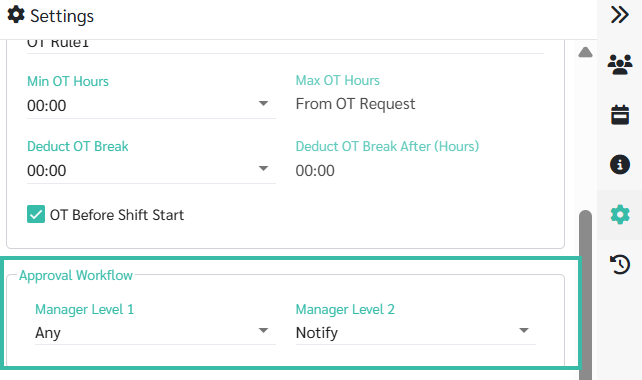
Define the Approval Workflows for Shift schedule Requests
Establish Approval Workflow procedures for Level 1 and 2 managers to approve Attendance-related requests.
- Level 1 Manager
- "Any" means that any Level 1 manager can approve it. This applies even if there is more than one Level 1 manager.
- "All" means that all Level 1 managers must approve the request. This applies even if there is more than one Level 1 manager.
- Level 2 Manager
- "Notify" means that once the Level 1 manager approves the request, a notification will be sent to the Level 2 manager.
- "Any" means that once a Level 1 manager approves the request, one of the Level 2 managers must approve it again. This applies if there is more than one Level 2 manager.
-
"All" means that once a Level 1 manager approves a request, all Level 2 managers must approve it again. This applies even if there is more than one Level 2 manager.
-
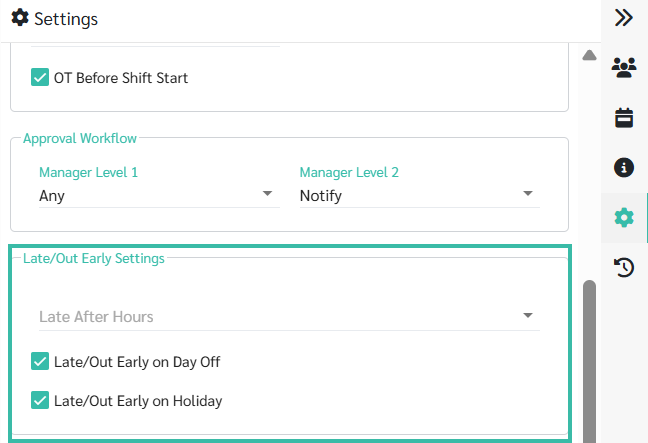
- Set Late In and Out Early times
-
Define a grace period for late in (Late After Shift Start Time) in cases where the company allows employees to be late for work. Specify the number of minutes to be allowed. The system will then calculate late arrivals after the set minutes.
*Note: This setting only affects late in calculated from the start time. Late in calculated from the end time of the break will still be counted as usual.
-
Turn on/off the calculation of lateness and out early on weekends (Day Off) or public holidays.
-
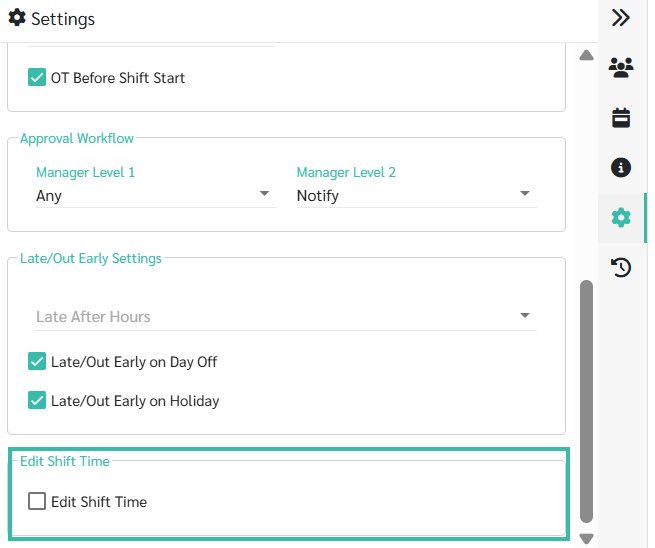
- Edit Shift Time
-
To add an employee as a shift manager, check the "Edit Shift Time" option and select the employee's name.
-
-
Save shift schedule
