
Create Shift Pattern
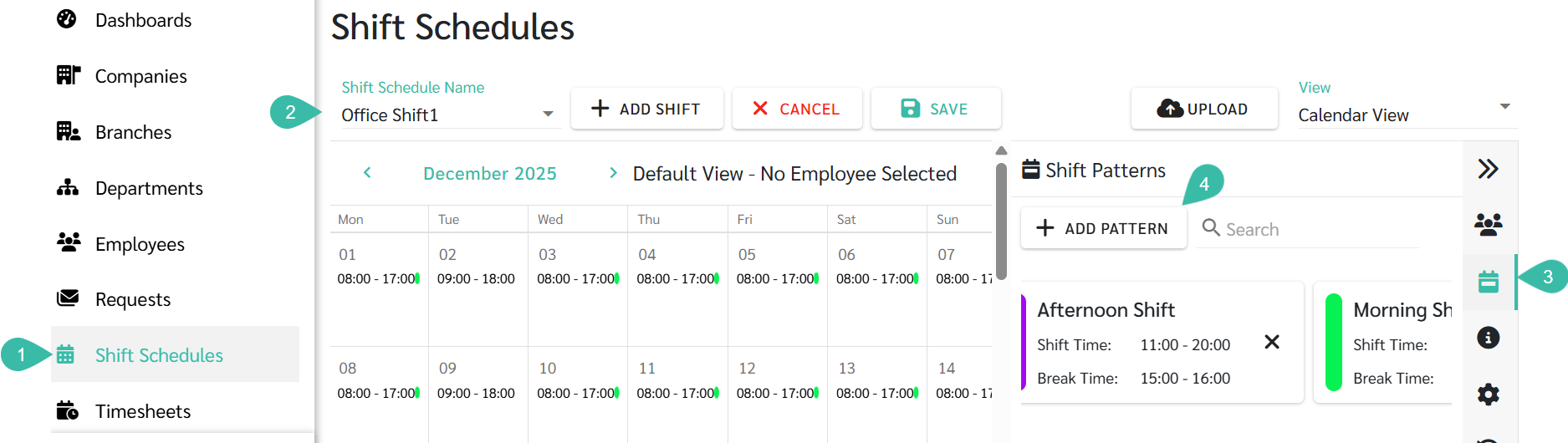
Shift Schedule -> Select the Shift Name -> Add Shift Pattern
Add Shift Schedule
- Navigate to the Shift Schedules tab.
- Select the desired Shift Schedule Name to add the Shift Pattern.
- Click on the Shift Pattern menu.
-
Click "+ Add Pattern" to add a Shift Pattern.
- A pop-up window will open, prompting you to fill in the following information:
- Pattern Name
- Start time
- End time
- Break Start Time
- Break End Time
-
Pattern Colour

- Click Done.
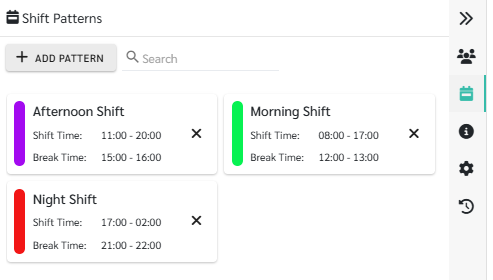
- The created Shift Pattern will be displayed on the right-side panel.

🗨️ Note
Shift Patterns are displayed in alphabetical order (A-Z) and Numerical Order.
📢 Important Note
- The Shift Pattern names, start and end times, and break times cannot be the same as any existing Shift Patterns.
-
Example 1
If a Shift Pattern named "Morning" already exists, you cannot create another Shift Pattern with the same name.
-
Example 2
If a Shift Pattern has the following configuration:
- Start Time: 08:00
- End Time: 17:00
-
Break Time: 12:00 - 13:00
You cannot create another Shift Pattern with the same start time, end time, and break time combination.
- Shift Pattern name cannot begin with the words "DAY OFF".
How to Add the Shift Pattern to the Shift Schedule
Once a Shift Pattern has been created, the admin can add it to the shift schedule in two ways.
-
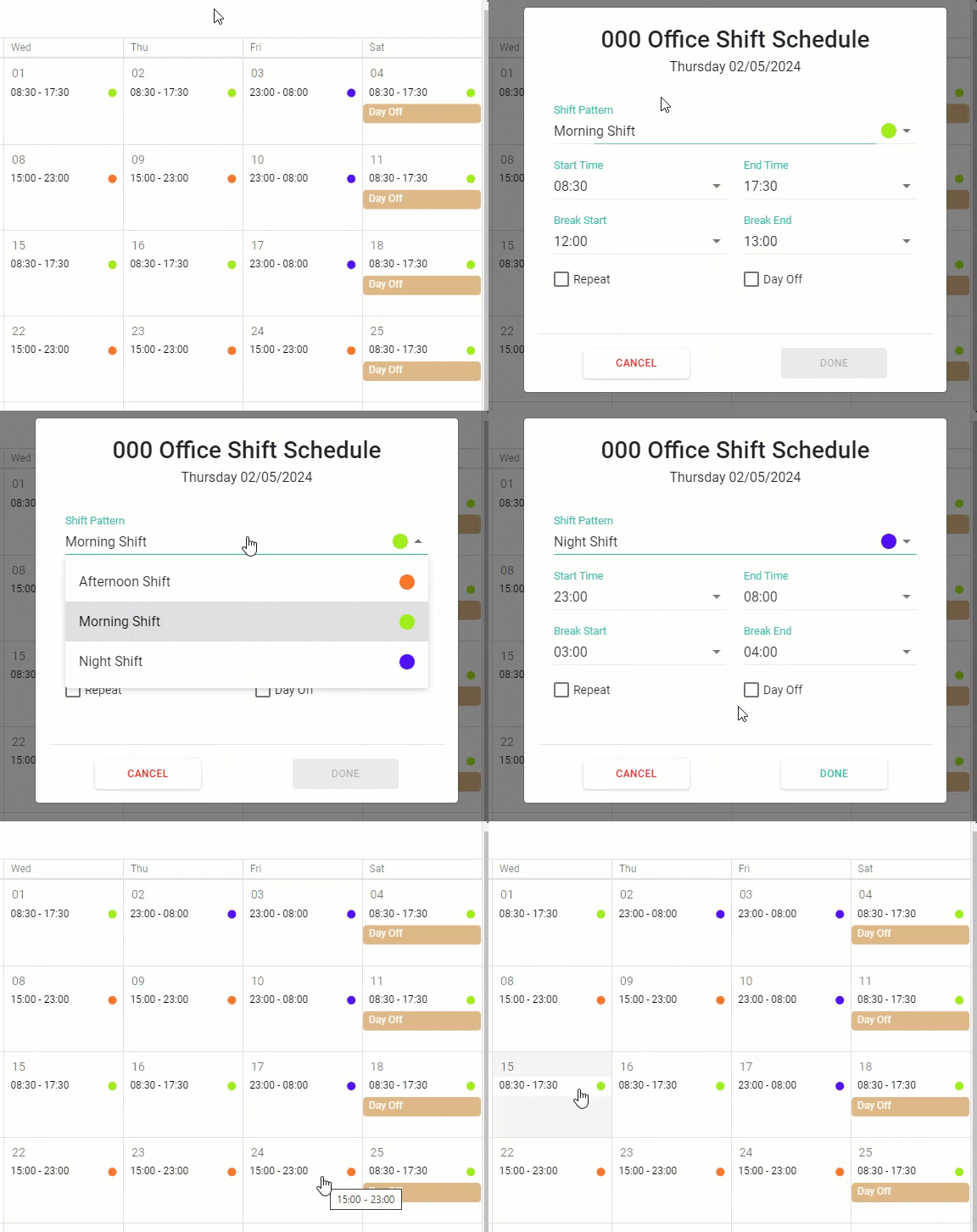
Click and hold the desired Shift Pattern, then drag and drop it onto the date you want to change the Shift time on.

- Click on the day of the Shift Schedule you want to change the Shift time, and select the desired Shift Pattern.
🗨️ Note
Once the admin has successfully applied the Shift Patterns to the Shift Schedules, they can repeat the pattern, both daily and weekly, on other working days as usual.
📢 Important Note
- The Shift Patterns does not have a box for marking weekly days off.
- The administrator must manually check the box for marking weekly days off in the Shift Schedule according to the normal procedure.