
Add a Contract
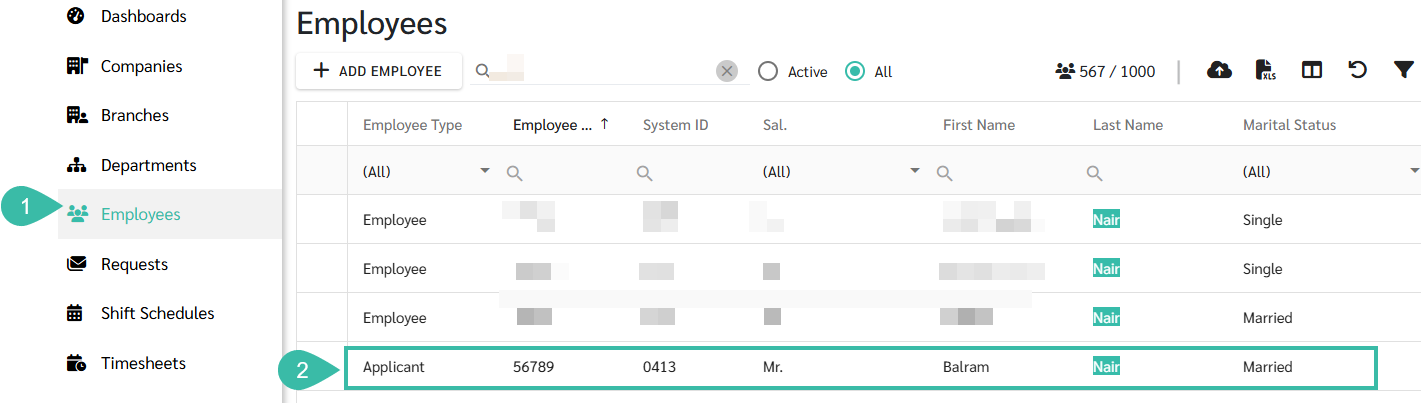
- Go to Employees menu
-
Select an employee you would like to Add employee contract.
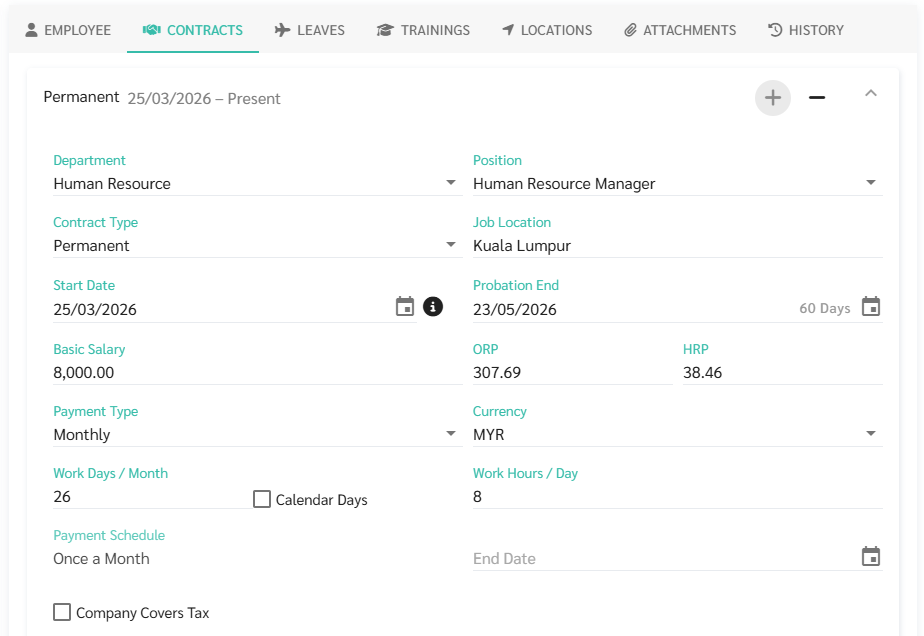
- Click the Contracts tab in the Employee Details page.
-
Click + Add Contract.

-
Fill in all the required information, such as Contract Type, Start Date, Basic Salary, Payment Type, etc.
-
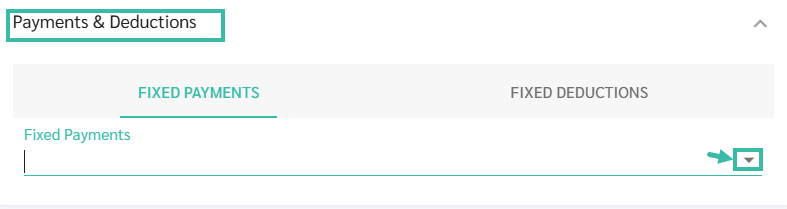
Add Fixed Payments and Fixed Deductions by clicking the downward pointing arrow to select the payments or deductions from the dropdown list that the admin has already created in the system.
-
Add tax deductions (if any).
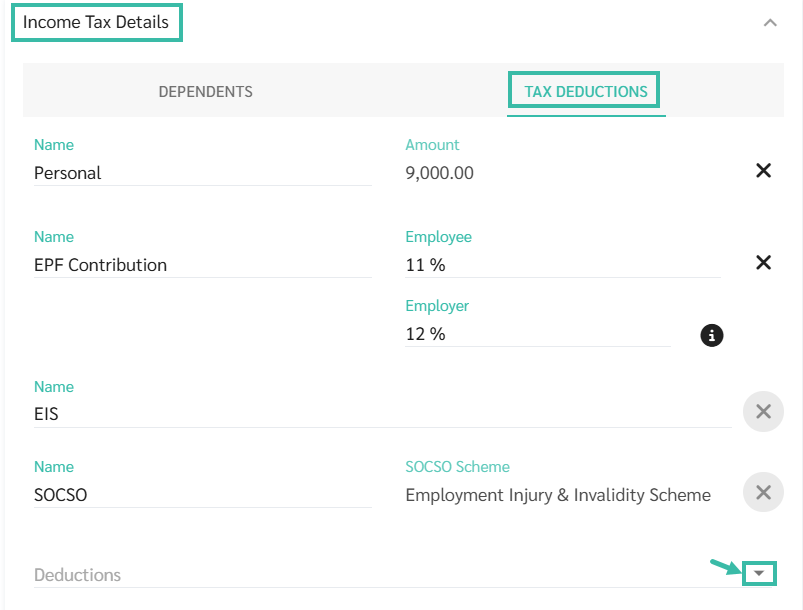
- Refer to the Link to learn more about Add Tax Deductions.
💬 Note
-
Admin can set a company-level initial probation period to ensure consistent new employee information setup.
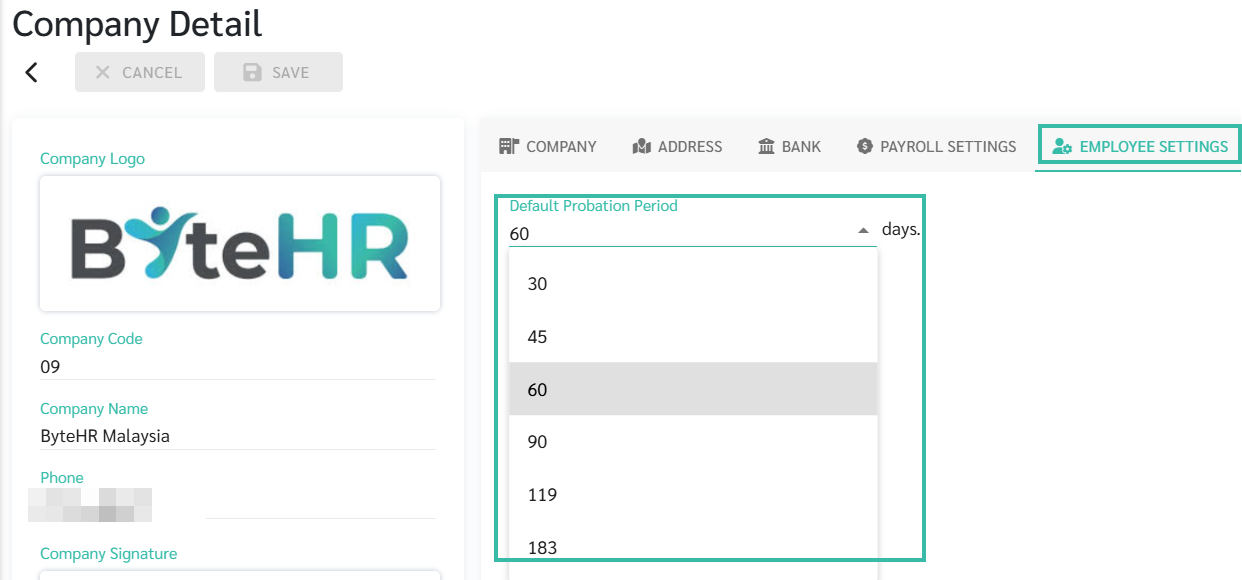
- The system will automatically calculate the end date of the probationary period, with the default value being 119 days.
- This setting will only affect newly created employees and will not impact existing employee data.
- For employees with their first contract, the official start date can be edited to ensure that HR information, such as probationary period and length of service, is more accurate.
- Changes to the start date are only possible with the first contract. When changes are made, the system will automatically adjust the probationary period end date. This change will not affect existing leave days.
🏷️ Case
If an employee joined the company during the year, they can report their income received and taxes withheld by their previous company. Income from the previous company will only be included as assessable income for tax calculation purposes, and taxes withheld by the previous company will be included as taxes already paid. This income and tax will not be included in the current company's EA report.