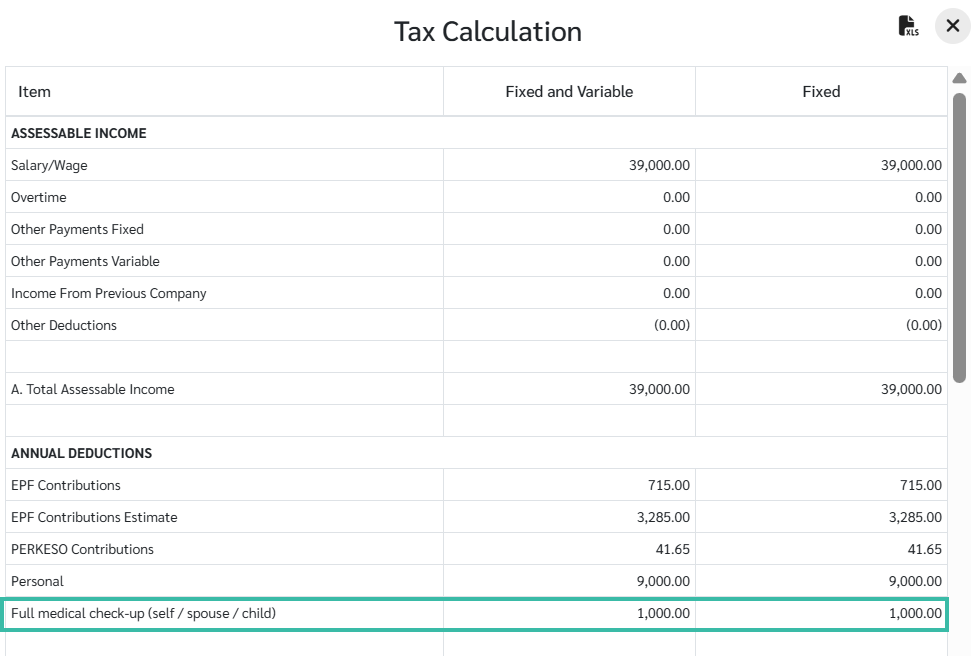
Add Tax Deductions
🔍 Note
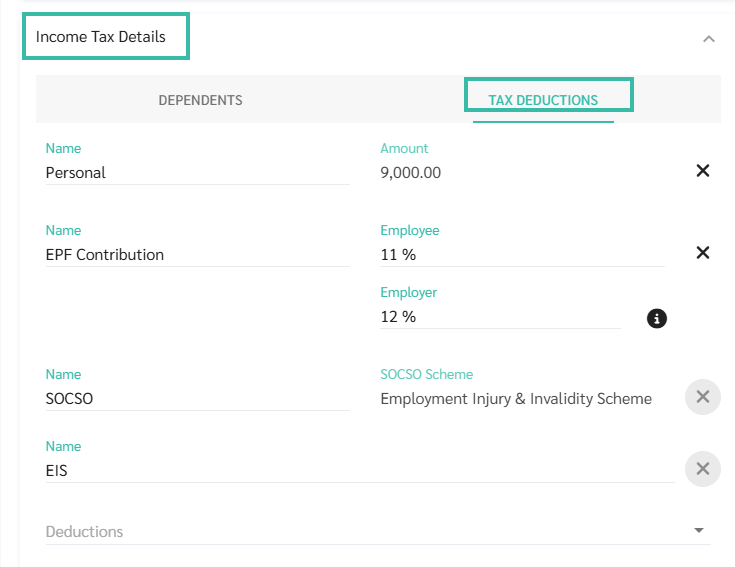
ByteHR automatically adds tax deductions for all employees:
- Personal: RM 9,000
- EPF: 11% (Limited to RM 4,000)
- SOCSO
- EIS
How to Add Tax Deductions for Employees
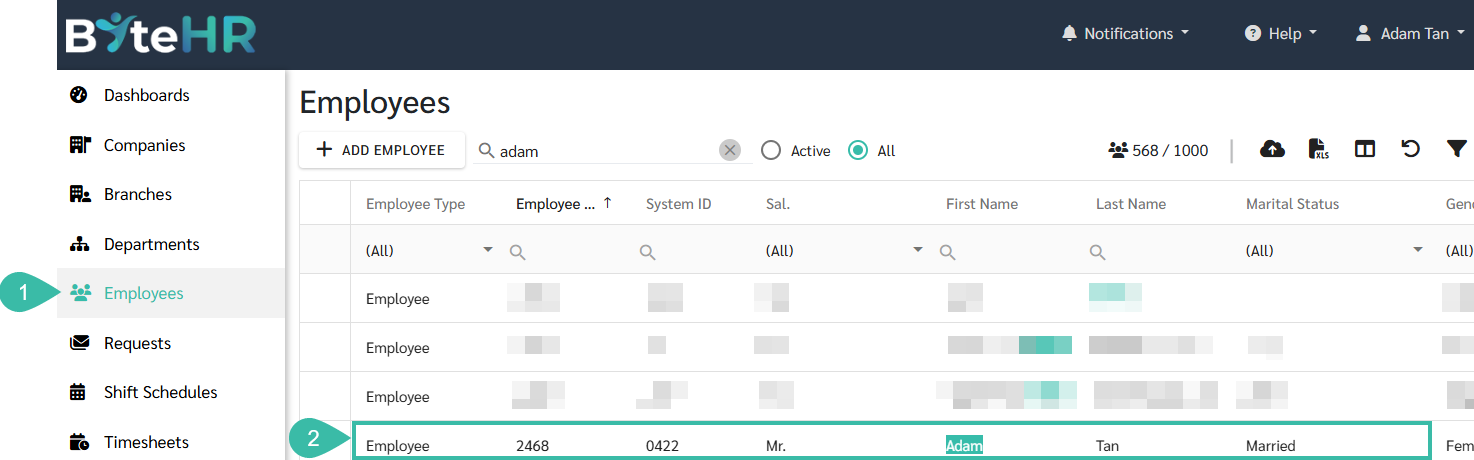
- Navigate to the Employees menu.
-
Select the employee you would like to add tax deductions.
-
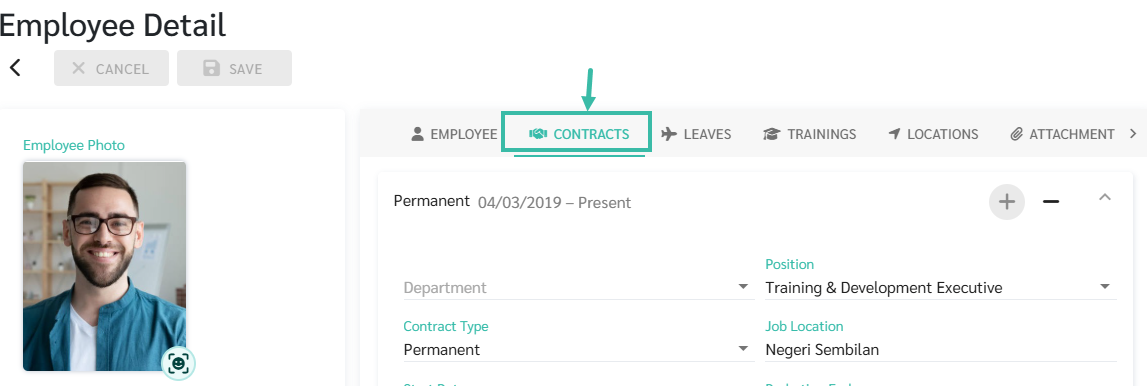
Click Contract, in the Employee Details page.
-
If the employee doesn't have an employment contract yet, add one for them first.

-
Scroll down to Income Tax Details and click Tax Deductions
- Tax Deductions can be added in 2 methods:
- Add Tax Deduction to each employee's contract individually
-
Add Tax Deductions for multiple employees via Upload Employees Tax Deduction template
See how to upload tax deductions for employees at LEARN MORE
-
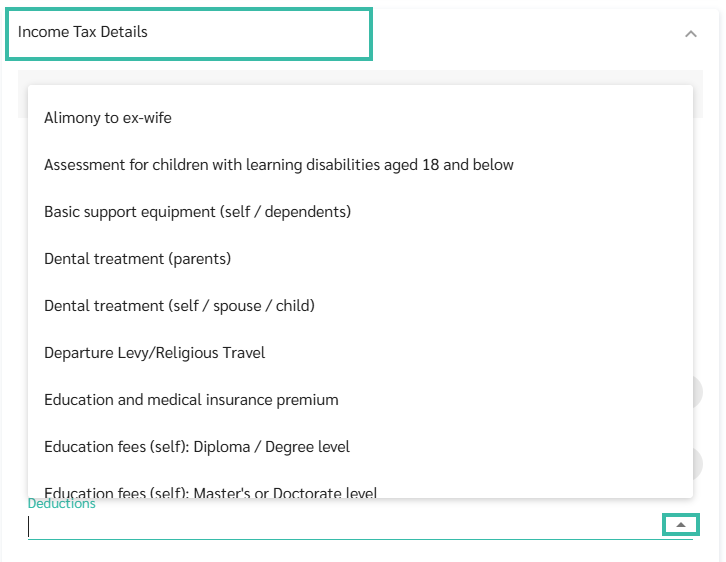
Click on the dropdown list to select a Tax Deduction type to add.
-
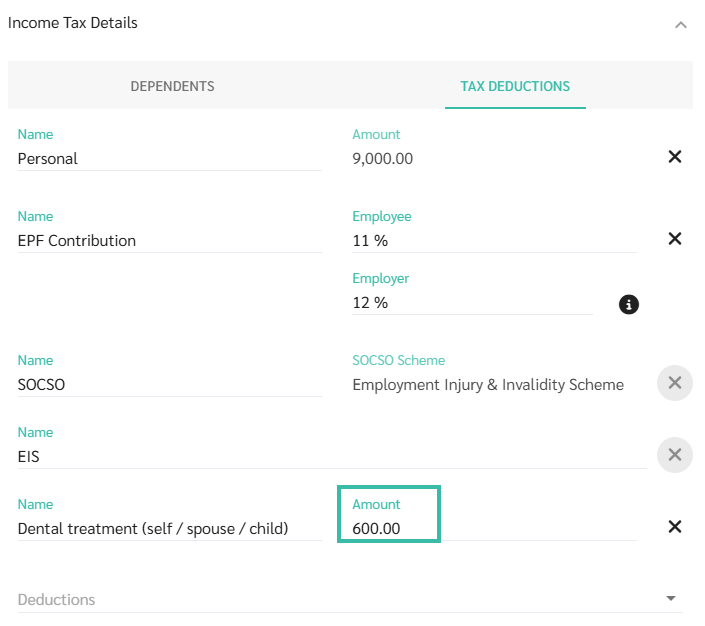
Enter the amount.
-
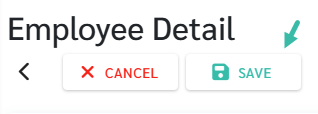
Once completed, click Save
Note
Updating Tax Deductions
- If there are multiple expenses under the same Tax Deduction category throughout the year, the amounts should be accumulated and updated accordingly in the system.
- For new expense, you should add the new amount to the existing amount under the same tax deduction type.
- Example:
-
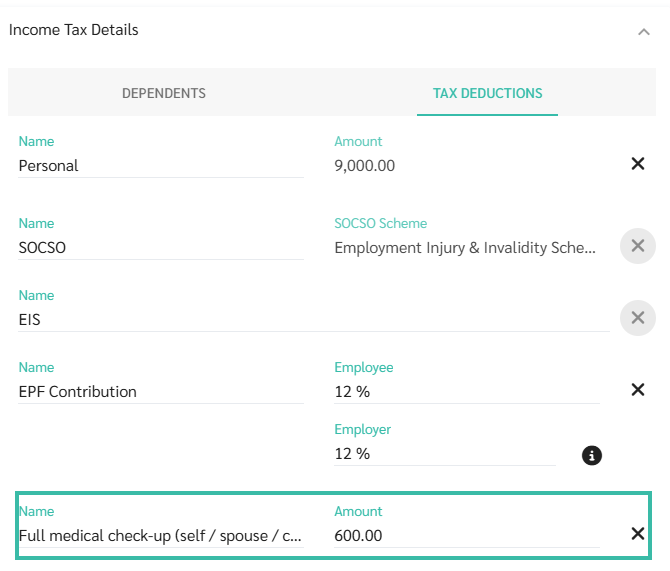
March: Medical Check-up Self = RM 600
Enter RM 600 under Tax Deduction category Full medical check-up (self / spouse / child.
-
July: Medical Check-up Child = RM 500
Total amount to be entered under tax deduction category Full medical check-up (self / spouse / child in July is RM 1,100.
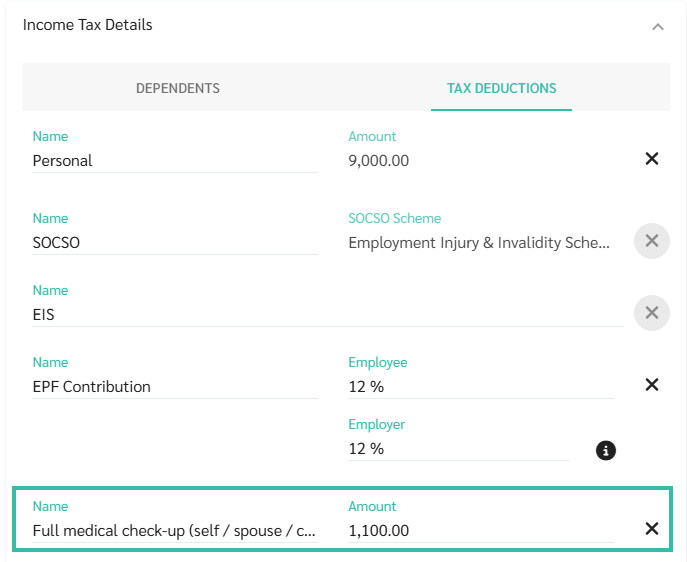
-
Although the total entered amount is RM 1,100, the tax relief applied will be capped at RM 1,000, based on the maximum allowable limit for medical expenses (self/spouse/child.