
Generate Payroll from Contract (Non-Shift Employees)
This is a method to generate Payroll that does not require Timesheet data. The system retrieves Basic Salary, Payments and Deductions, and the number of working days from the employment contract, and it doesn't include Absenteeism, Allowance Rule, or Deduction Rule, such as Attendance Allowance or Deductions for Lateness.
How to Generate Payroll by Extracting Data from the Employment Contract
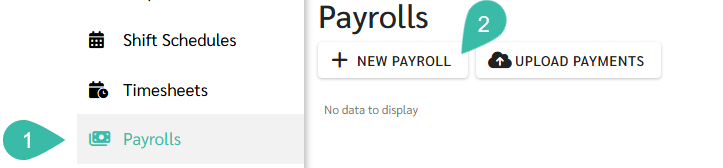
- Navigate to the Payrolls tab.
-
Click "+ New Payrolls."
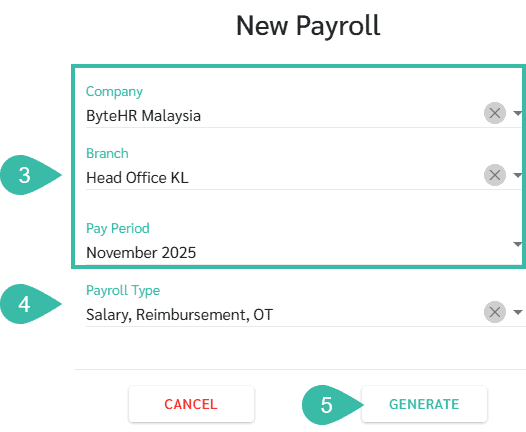
- Fil in the details like Company, Branch, Pay Period, and Pay Cycle.
-
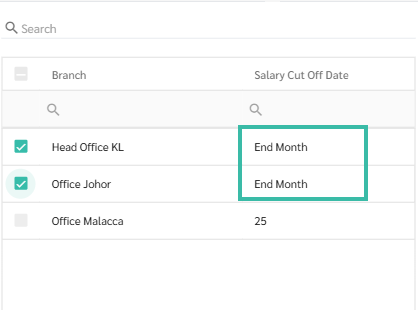
You can select multiple branches simultaneously, provided that each branch has the same salary cut-off date.
-
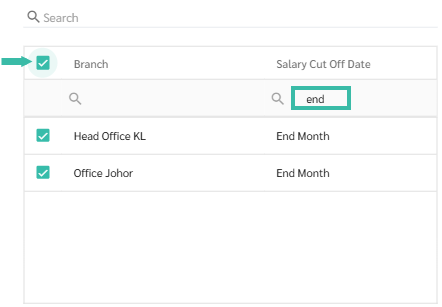
You can also filter the Salary cut-off date column then select all.
-
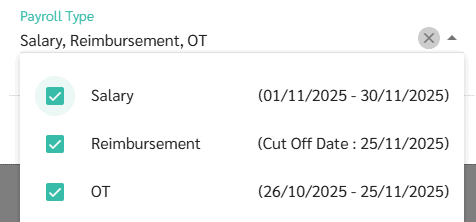
- You can select the Payroll Type from the following options:
- Salary includes all Payments and Deductions as stipulated in the employment contract.
- Reimbursements includes requests that has already been approved.
-
OT includes the Overtime pay from the approved requests.
-
Click Generate to process the Payroll data.
-
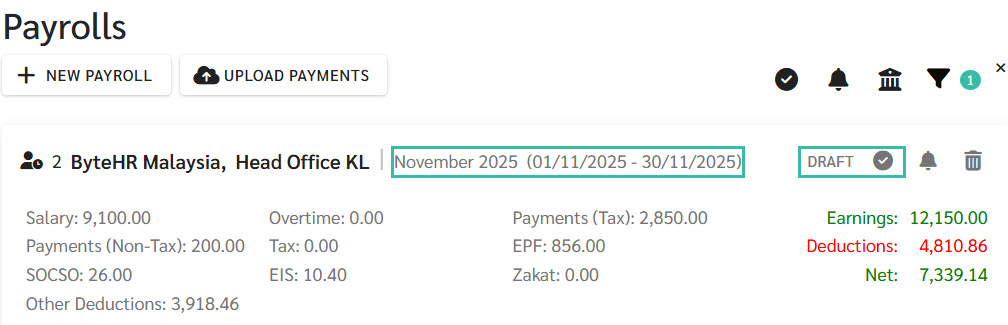
Once the Payroll is generated, the system will display the Payroll Block for that branch with its Pay period and Pay cycle. The payroll block status will be shown as "Draft".
For example, a Payroll Block with a pay period of November 2025 and a pay cycle of 01/11/2025 - 30/11/2025.
-
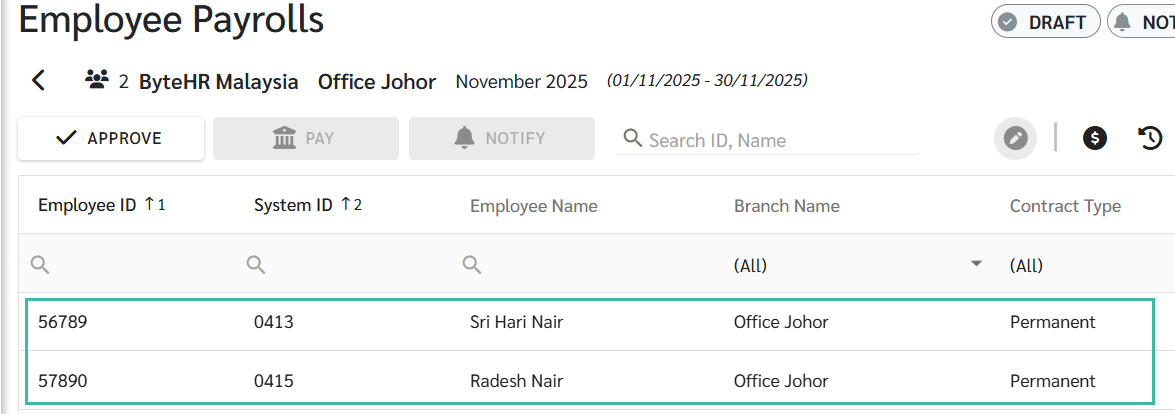
You can view or edit Payroll details by selecting the desired Payroll Block. The system will then display the Payroll details for each employee in the Employee Payrolls page.
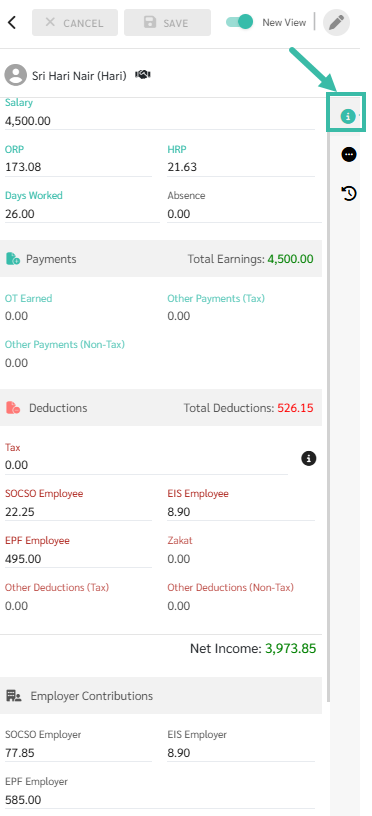
- To view or edit the Payroll details of a specific employee, click on that employee's row. The system will display their Payroll details on the right-side panel. The Pay Details reveals:
- The Details Tab:
- Displays information such as Salary, Ordinary Rate Pay (ORP), Hourly Rate Pay (HRP), number of Days Worked, number of Absence Days, Overtime Pay, other Payments, other Deductions, taxes, EPF, SOCSO, EIS, etc., as well as the Comments.
- The Info Icon under the Deductions shows Tax Calculation.
-
The new Details tab view will be displayed when the toggle is turned on.
- The Related Tab:
- Displays details of Payments and Deductions, Overtime ORP, Overtime HRP, and Leaves. Clicking the Info Icon "i" button next to the Payments or Deductions allows you to view the settings for that specific type of Payments or Deductions.
- Tax: Is this Payment/Deduction subject to Tax?
- Company Covers Tax: Is this Payment/Deduction subject to Company Covers Tax?
- SOCSO: Is this Payment/Deduction subject to SOCSO?
- EIS: Is this Payment/Deduction subject to EIS?
- EPF: Is this Payment/Deduction subject to EPF?
-
HRDF Employer (HRD Corp): Is this Payment/Deduction subject to HRDF?
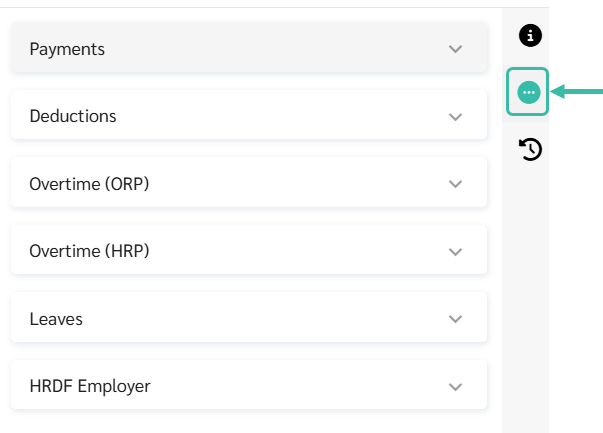
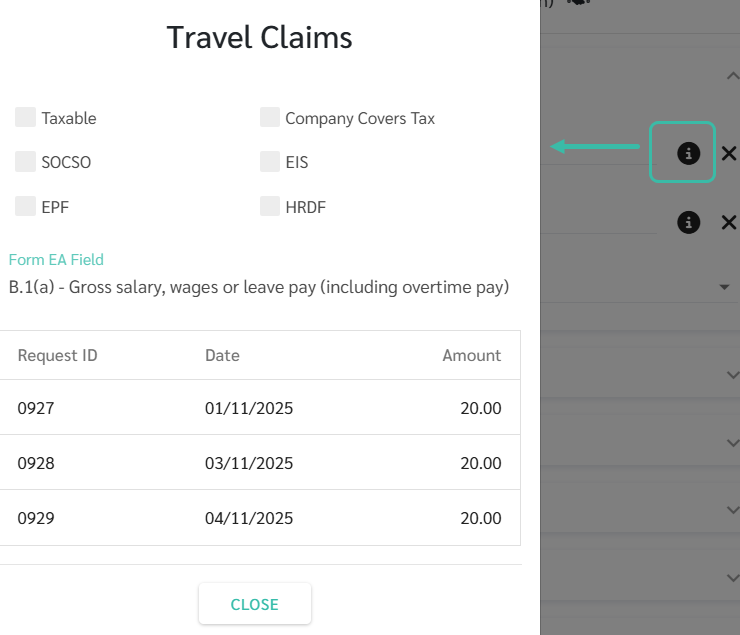
- Displays details of Payments and Deductions, Overtime ORP, Overtime HRP, and Leaves. Clicking the Info Icon "i" button next to the Payments or Deductions allows you to view the settings for that specific type of Payments or Deductions.
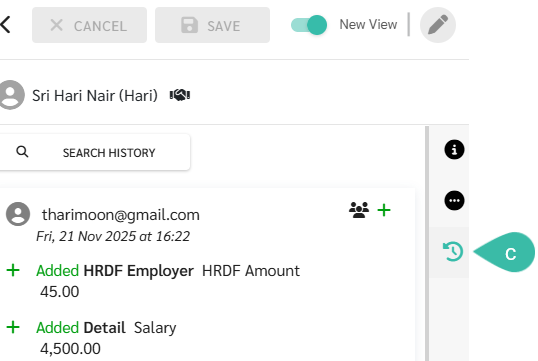
- The History Tab:
-
Shows the log of all changes made by users under this Payroll details for Payroll transparency.
-
- The Details Tab:
🚩Warning
- Generating Payroll from Employment Contracts will not calculate unrequested absences, Allowance or performance rules, or Deductions such as performance bonuses or lateness deductions. Therefore, if such rules are set up but the system does not calculate them when generating payroll, please verify that the correct payroll method is used.
- To include performance bonuses, lateness deductions, and other rules, payroll must be generated using the Approve Timesheet function.
💡 Tip
- Generating Payroll from the contract is suitable for paying salaries to employees who don't need to clock in or out.