
Payroll Approval
There are two Methods to Approve Payroll
Approve Single Payroll Block
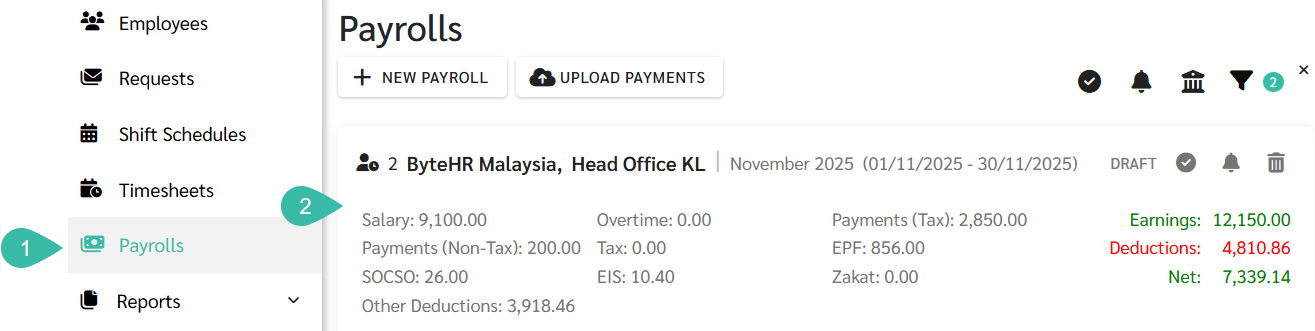
- Go to the Payroll tab.
-
Click on the Payroll block you want to approve.
-
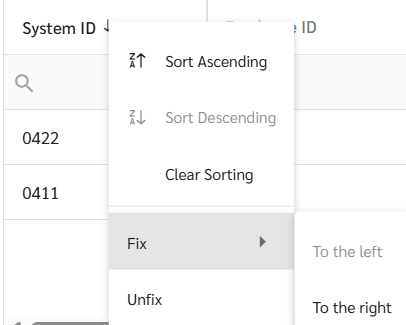
To easily check Employees' Payroll information, the admin can right-click on the desired column in the Payroll table and select "Fix Column" either To the Left or To the Right.
-
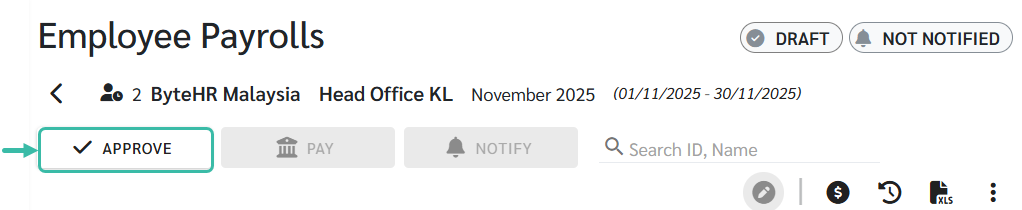
Once you have reviewed the Payroll Details, click the Approve button.
-
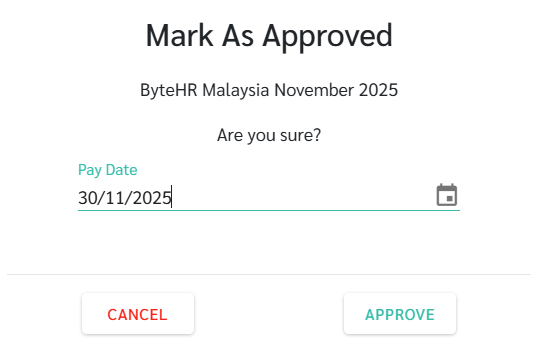
Specify the Pay date and click Approve.
- The status of the Payroll Block will be updated to Approved, allowing the admin to generate Bank Files and Notify Payslips to the employees.
-
To notify Payslips, click Notify.
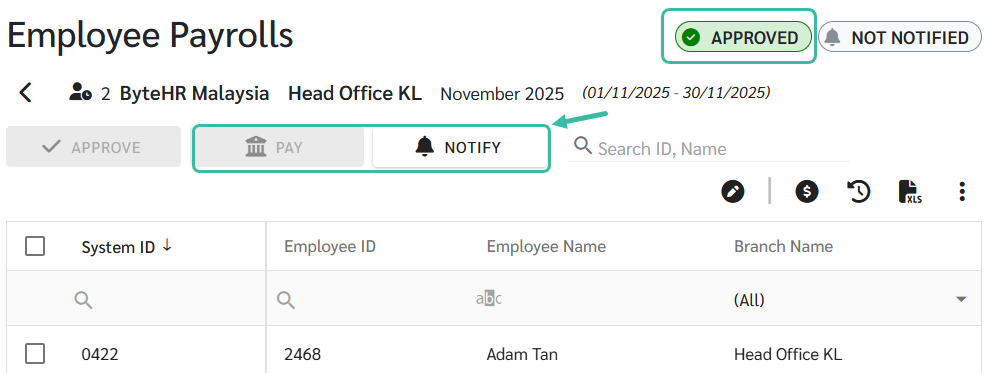
- You can choose to Notify Payslip Now or to Schedule it to a future date. Once the selection has been made, click Proceed to continue.
-
Employees will be able to view their payslips in their ByteHR Mobile Application.

Approve Multiple Payroll Blocks simultaneously
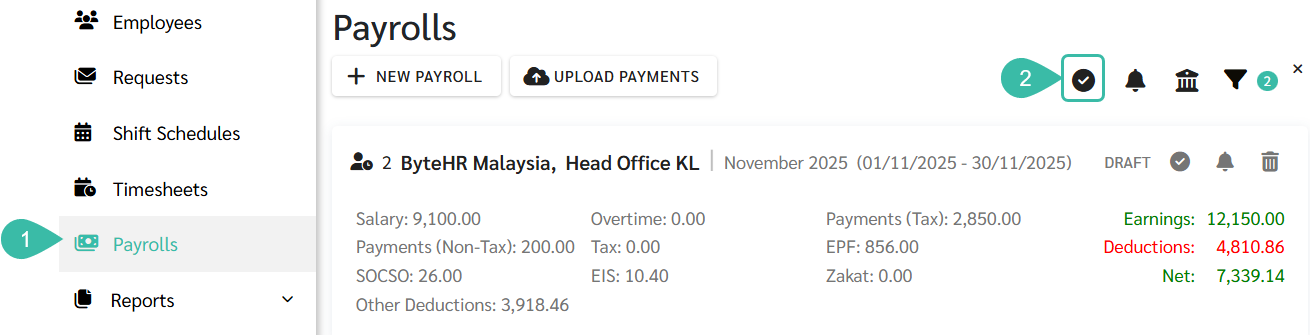
- Go to the Payrolls tab.
-
Click the Approve Payrolls button.
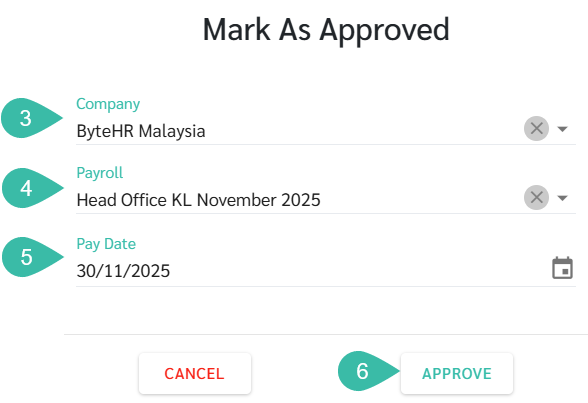
- Select a Company.
- Select the Payroll Block you want to approve. The system will then display all Draft Payroll blocks of the chosen Company.
- Select the Pay Date.
-
Click Approve.
-
The status of the Payroll block will be updated to Approved and the chosen Pay Date will be displayed. You can now proceed with generating bank files and notifying payslips to employees.


💬 Note
Approve Payrolls involves approving each Payroll block before generating Bank Files and Notifying Payslips.
If the status of Payroll block is Draft, the option to Generate Bank File and Notify Payslips will not be available.
📃Note
- If a Branch has designated a Payroll Approver, only that Payroll Approver can approve Payrolls.