
Create Multiple Overtime Request
💬 Note
- To submit Overtime Requests, Overtime Rules must be configured according to company policies.
- For example, Overtime on Regular Weekday may be paid at the OT rate of HRP 1.5.
-
For employees assigned to Shift Schedule, in the Shift Schedule Settings tick the Submit OT Request to allow employees to submit their Overtime requests.
Refer to the article on Shift Schedule Settings at this LINK.
How to Submit Multiple Overtime Requests
- Navigate to the Requests tab..
- Select Overtime.
-
Click + New Request.

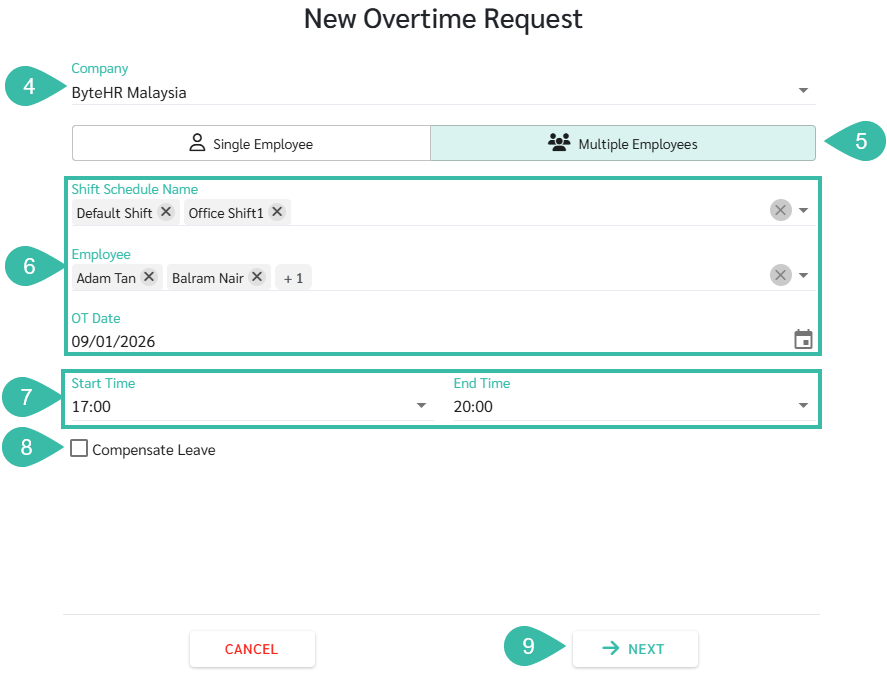
- Select a Company.
- Select the Multiple Employees option.
- Select the Shift Schedule Name, Employees Name, and OT Date.
- Enter the Start Time and End Time.
- If you want to convert Overtime to Compensate Leave, tick the Compensate Leave checkbox.
- If not applicable, proceed to the next step.
-
Click Next.
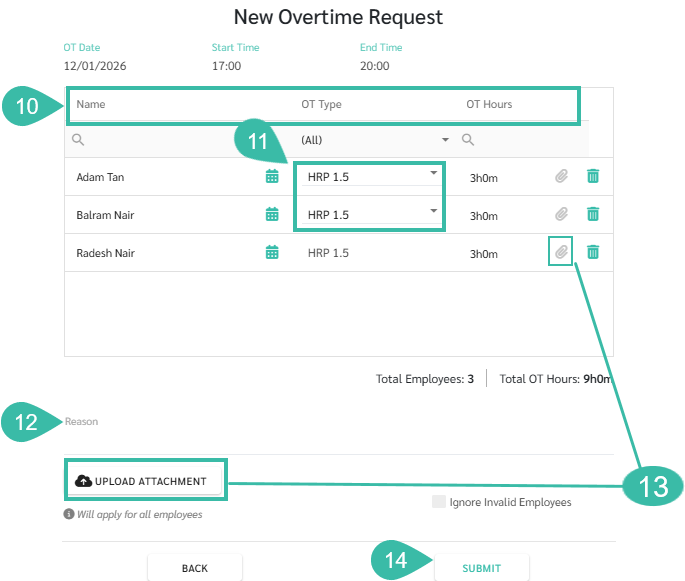
- Review the displayed information, including Employee Name, OT Type, and OT Hours.
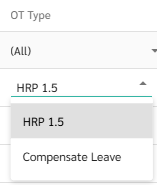
- Select the OT Type from the dropdown in the table.
-
Weekdays, Day Off, Rest Day and Public Holidays for Shift Employees:
The system automatically displays the applicable OT Type.
-
You have option to choose the OT Type as OT Rate or Compensate Leave.
-
- Enter the Reason for requesting Overtime.
- Attach supporting documents using one of the following methods:
- Click the paper clip Icon to attach documents for individual employees.
- Once a document is attached, the Icon will turn green.
- To remove an attachment, hover over the icon and click Remove Attachment.
- Click Upload Attachment to attach supporting document for all selected employees at once.
-
If multiple files are uploaded, the button will change to Remove All Attachments.
***File must not exceed 7MB, Image size must not exceed 10MB.***
-
- Click the paper clip Icon to attach documents for individual employees.
-
Click Submit.
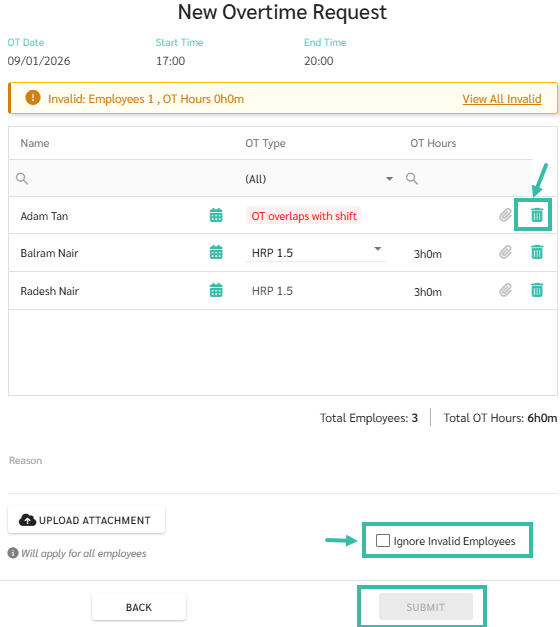
- If you are unable to click Submit due to invalid information, the admin has to submit a separate request. Two methods to resolve this:
- Click the Trash Icon to remove employees with Invalid Data.
-
Tick Ignore Invalid Employee to exclude that employee from the Request.
- The meaning of symbols:
| Symbol | Meaning |
|
|
Employee has a Shift Schedule. Hover to view Shift Dates and Shift Time. |
|
|
Employee does not have a Shift Schedule. |


Note:
If you are unable to click Submit due to Invalid information, the system will display the submission page as follows:
- Click the trash icon to remove employees with Invalid Data.
- Tick the Ignore Invalid Employee to exclude that employee from the Request.
- Click View All Invalid to filter and review only invalid records.
- Return to submit the Request.

🏷️ Case
- For Regular Shift Schedules, Overtime is calculated after the scheduled Shift End Time, unless there is Deduct OT Break ticked in the Shift Schedule Settings. In this case, the Overtime is calculated after the specified hours in Deduct OT Break.
- For Flexible Shift Schedules, Overtime is calculated after the Total required working hours (Including Breaks) are completed.
Example
Regular Shift Schedule
| Shift Time | Timestamp | Overtime Request (Normal Working Day) | Timesheet |
|---|---|---|---|
|
Start Time: 09:00 End Time: 17:00 |
Sign In: 08;22 Sign Out: 19:45 |
Start Time: 17;00 End Time: 19:00 Overtime Type: HRP 1.5 Deduct OT Break: 00:30 |
OT Hours:1:30 (Calculate OT from 17:30 to 19:00) |
Flexible Shift Schedule
| Shift Time | Timestamp |
Overtime Request (Normal Working Day) |
Timesheet |
|---|---|---|---|
| Shift Hours/Day (Include Break): 09:00 |
Sign In: 08:22 Sign Out: 19:45 |
Start Time: 16:30 End Time: 19:00 OT Type: HRP 1.5 Deduct OT Break: 00:30 |
OT Hours: 1:38 (calculate OT from 17:22 to 19:00) |
Flexible Shift Schedule
| Shift Time | Timestamp | Overtime Request (Rest Day) | Timesheet |
|---|---|---|---|
| Shift Hours/Day (Include Break): 09:00 |
Sign In: 14:30 Sign Out: 20:30 |
Start Time: 14:00 End Time: 17:00 OT Type: ORP 0.5 Deduct OT Break: 00:30 |
OT Hours: 02:30 (calculate OT from 14:30 - 17:00) |
| Shift Hours/Day (Include Break): 09:00 |
Sign In: 17:00 Sign Out: 20:00 |
Start Time: 17:00 End Time: 20:30 OT Type: ORP 0.5 Deduct OT Break: 00:30 |
OT Hours: 02:30 (calculate OT from 17:00- 20:00) |