
Employee Submitting Report Requests via Web App
Steps to Submitting a Report Requests/Certificates:
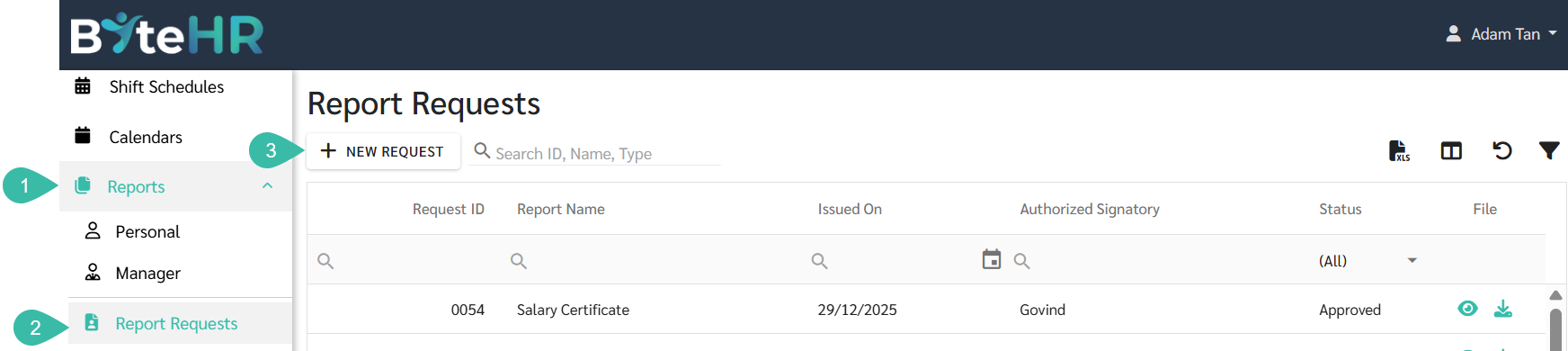
- Go to Reports Menu.
- Select Report Requests.
-
Click on "New Request".
-
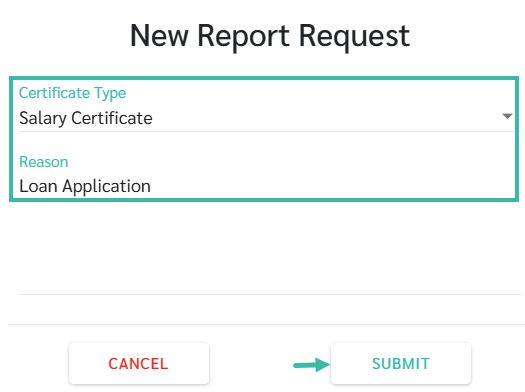
Select the Certificate type. Enter the Reason for the Request. The reason provided will be displayed in the generated report.
Click Submit.
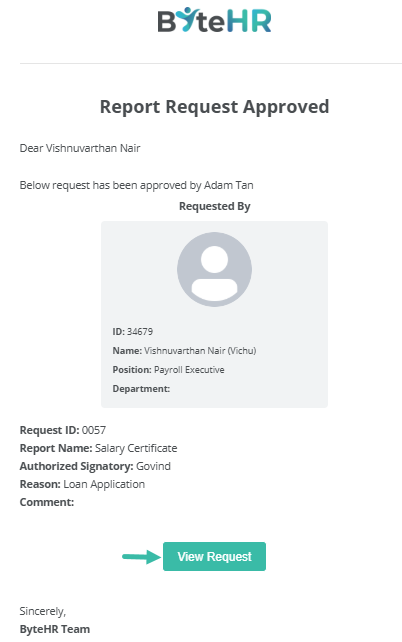
- Once approved by the Admin an email notifications will be sent to the employees
-
Click "View Report" to view the required details.
-
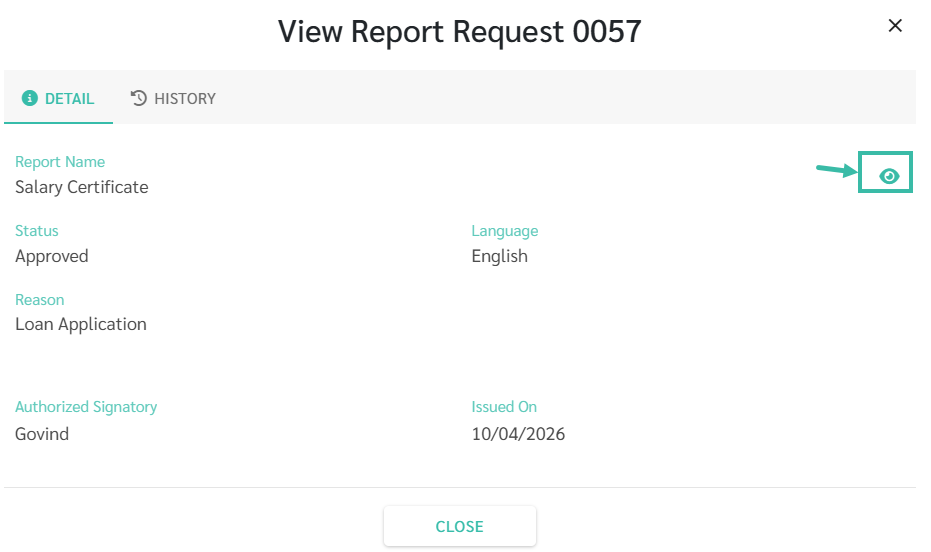
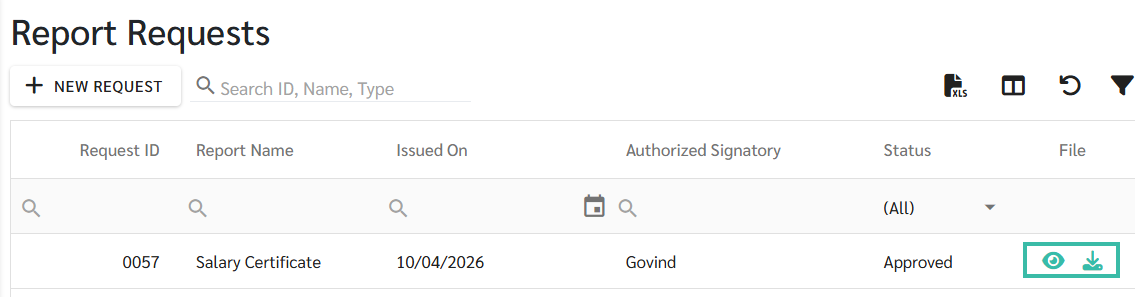
The Certificate will be available under the Reports menu. Employees can click View or Download to view the certificate from both the Requests page and the Requests table.
Click the eye icon to open the document.
You can:
-
Rotate the document using the arrow icon.

-
Zoom in/out using the magnifying glass icons(+/-). You can also slide the bar left and right to zoom in and out.

-
Click Download to download the document.

-
-
Report Requests table.
-
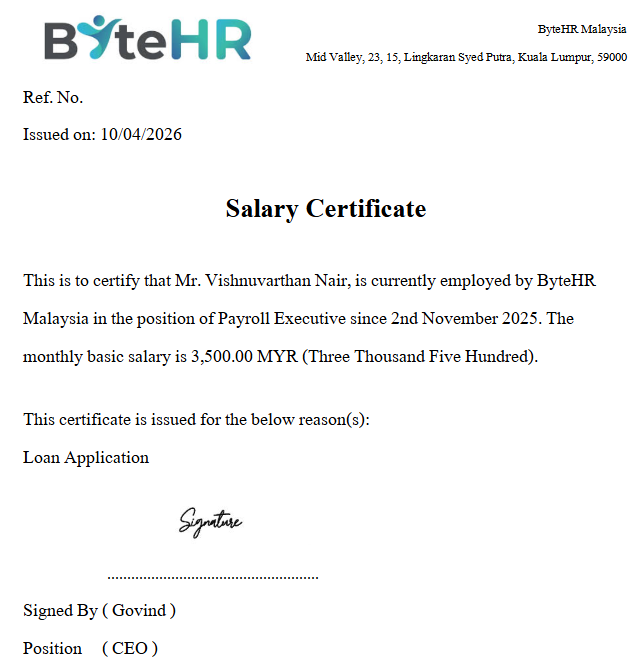
Example of document.


🗒️NOTE
- The language of the certificate will be displayed in English.
- When an employee submits a certificate request, the system will automatically send an email notification to the admin listed under Preferences - Employees - Permissions.
- The issuance date of the certificate will be the date the application is approved.
- For information on submitting a certificate request via the mobile app, see LEARN MORE.