
Report Requests via Mobile App
Employees can view the Form EA following the below steps:
-
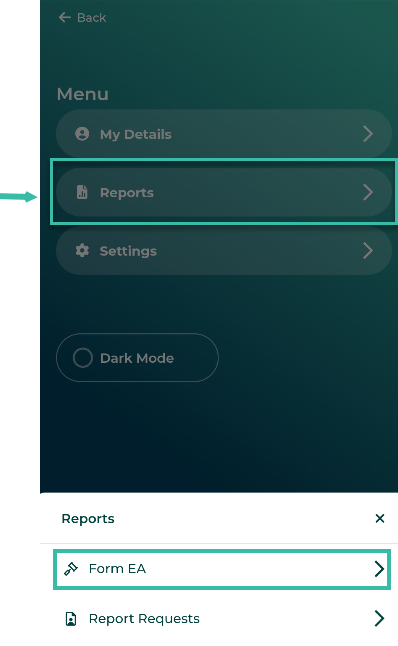
On the Homepage, tap the Menu Icon.

- Tap Reports.
-
Select Form EA to view the form.

Employees can request a Salary Certificate and Employment Certificate from the Admin.
Procedure for submitting Salary/Employment Certificate Request.
-
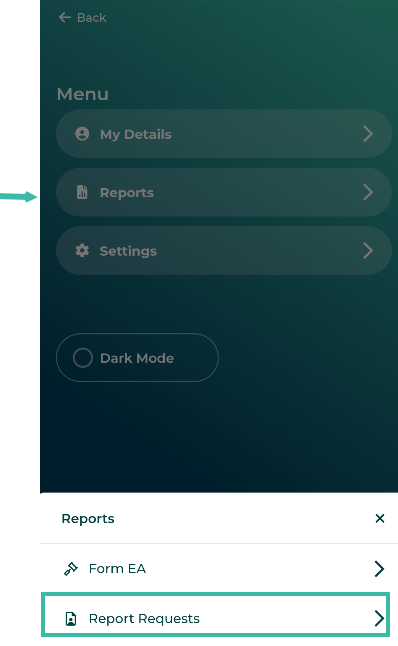
On the homepage, tap the Menu icon.
- Tap Reports.
-
Tap "Report Requests".
-
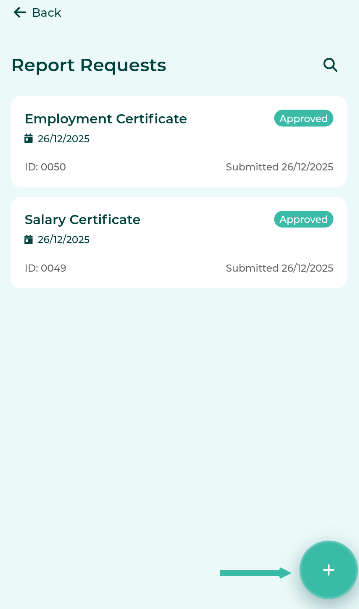
Tap the + sign to request a certificate.
-
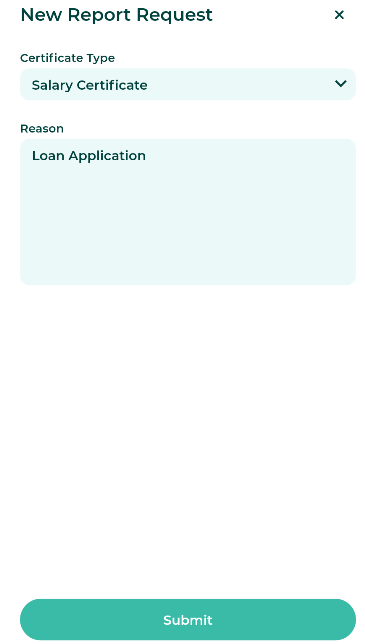
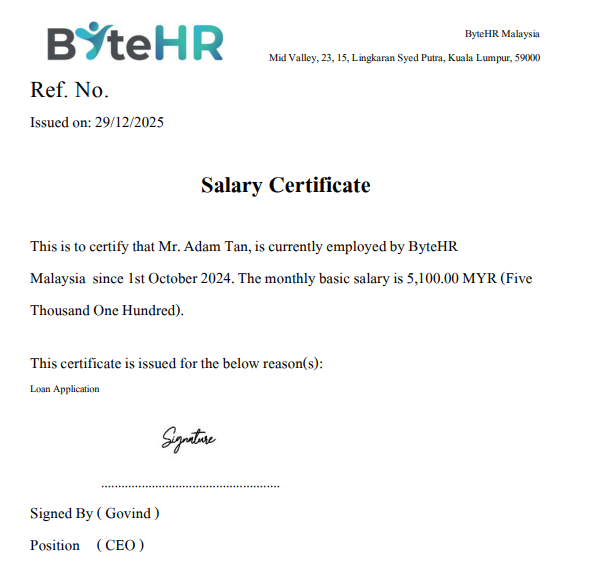
Select the certificate type and enter the reason, then tap Submit. The entered reason will be displayed on the certificate.
-
Once the request is approved by the admin, the system will send an email notification to the employee. The employee can then tap "View Request" to view the report.
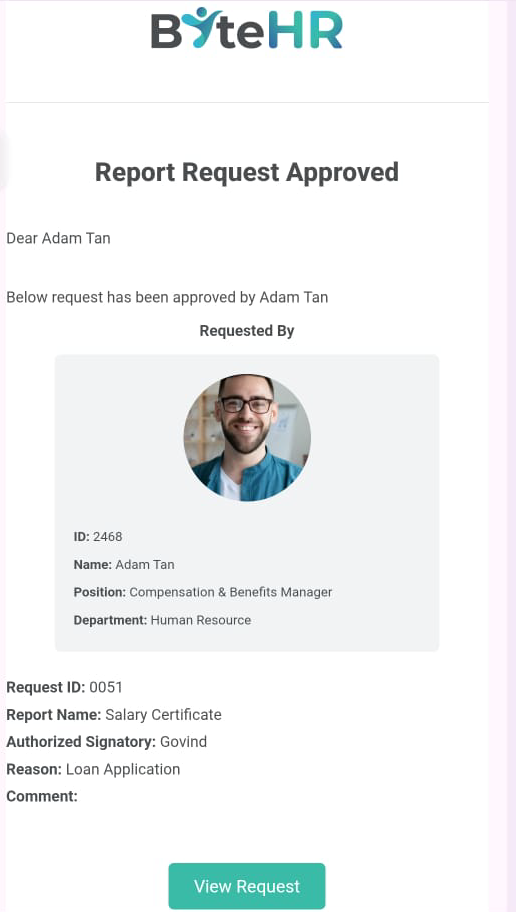
- All certificate Requests will be displayed in the Reports menu.
-
The certificate issued date (Issued On) will be indicated on the Request Block.
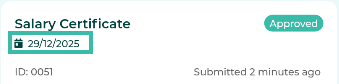
-
-
Tap request to view request details, approval history, and download the report.
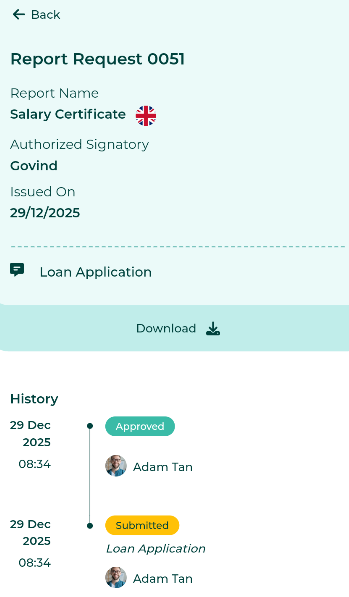
-
If "Lock Payslip" is enabled, employees must verify their identity before downloading the report.
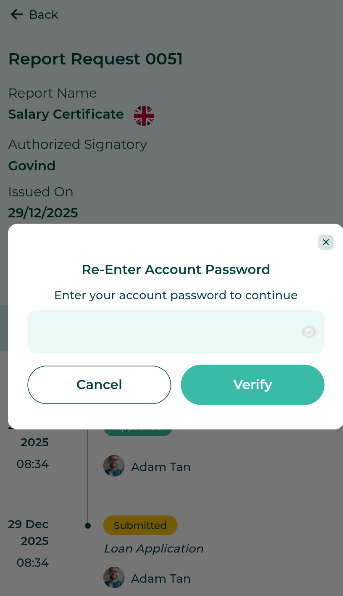
Example document
Notes
- The language of the certificate will be displayed in English.
- When an employee submits a certificate request, the system will automatically send an email notification to the admin listed under Reports > Standard Reports > Documents > Notify Users.
- Only documents with Submit Request enabled by the administrator will be available for employees to request.