
Compensatory Leave using OT Multipliers
This feature allows employees to choose "Compensatory Leave" instead of receiving overtime payment. The system automatically calculates the accrued leave hours based on the multiplier defined in the Overtime Rule, ensuring accurate leave management according to company policy (e.g., 1 hour of holiday OT equals 3 hours of leave based on a 3.0 multiplier)
Setup Guide
The administrator must ensure the following three components are correctly configured:
1. Configure Overtime Rules (Overtime Rule):
- Go to: Settings > Attendance > Overtime Rule
- Create/Select OT Rule then fill in Compensate Leave tab
- Verify the multipliers of compensate leave (e.g., 1.0, 1.5, 3.0)

2. Create Leave Type (Leave Type):
- Go to: Settings > Leave
- Create a new leave and set the category to Compensatory Leave
- See Add New Leaves at LEARN MORE
3. Assign Leave Entitlement to Employees (Employee Entitlement):
- Go to: Employee > Employee Profile
- Select the Leave tab and add the "Compensatory Leave" type to the employee's profile
How to Request
Employees can submit requests by following these steps:
- Complete overtime (OT) work according to the assigned shift.
- When submitting a request in the system, select Compensatory Leave.
- The system will automatically pull the multiplier from the Overtime Rule for calculation.
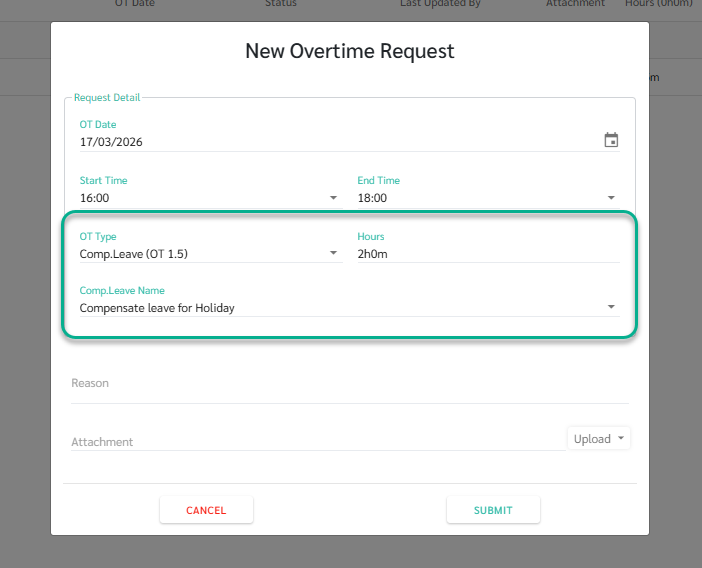
Calculation Example:
If an employee works 2 hours of Compensate Leave OT with a 1.5 multiplier:
2 hours (Actual) × 1.5 (Multiplier) = 3 hours
Request Conditions
To ensure the system calculates compensatory leave hours accurately, employees can only submit compensate leave request when the following conditions are met:
- Assigned Shift: The employee must have a designated shift scheduled for that specific date.
- Auto OT Disabled: The "Auto OT" feature must not be enabled for the employee.
- Past Date Request: Requests can only be submitted for dates in the past (historical records).
- Existing Extra Hours: There must be actual sign-in/out data showing hours worked beyond the normal shift (Extra Hours).
- Compensate Leave Entitlement: The employee must have the "Compensate Leave" type assigned in their Employee Profile.
Note 📝
- Timesheet: Displays the actual overtime hours worked for time tracking and auditing purposes
- Leave Balance: Displays the calculated leave hours after the request has been approved
- See Overtime Compensate to Leave Hours at LEARN MORE