
Add New Leaves
How to Add New Leave Types
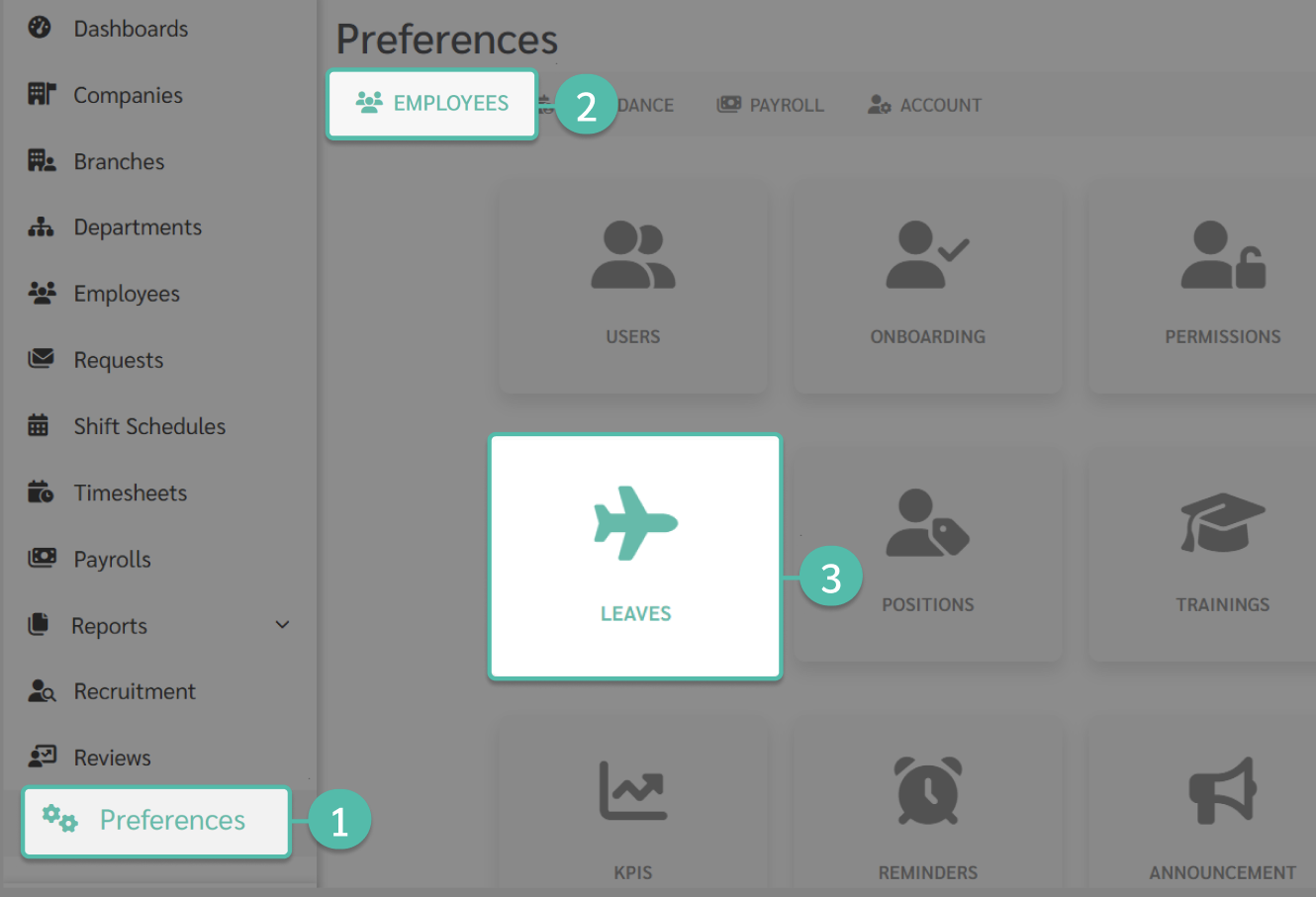
You can add a new leave type by following these steps:
- Go to Preferences
- Click Employees
- Click Leaves
-
Click + Add
After clicking + Add, the system will display the Information page for entering leave details.
Leave Information Details
-
Name
Leave name
Default
If the Default checkbox is selected, this leave type will be automatically added to the employment contract when a new employee is created.
This leave type will not be added to existing employees in the system.
Entitlement
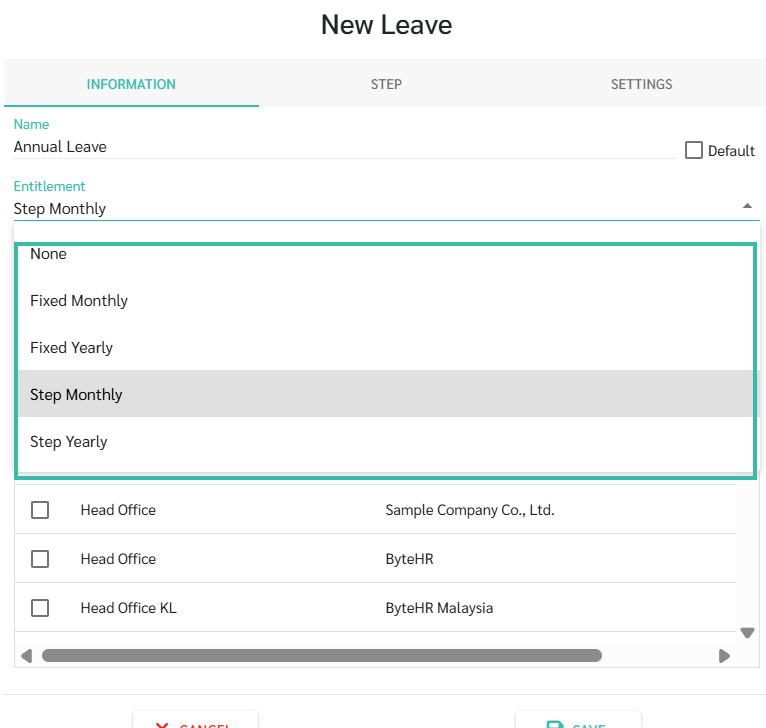
There are 5 entitlement types:
-
None
No annual leave limit is defined. Employees can submit Leave requests without any leave balance restrictions.
-
Fixed Monthly
A fixed number of leave days is defined per month.
The system will add leave entitlement on the 1st day of each month.
Employees can request leave only within the available balanced
-
Fixed Yearly
A fixed number of leave days is defined per year.
Employees can request leave only within the defined entitlement.
-
Step Monthly
Leave entitlement is accrued monthly based on employee's length of service.
There are two configuration methods:
Entitlement by Years: Configure leave entitlement based on years of service. The system automatically accrues the annual leave entitlement on a monthly basis.
Entitlement by Months: Configure leave entitlement based on months of service. Different leave entitlements can be assigned for specific service period.
-
Step Yearly
A fixed number of leave days is defined per year, and leave entitlement increases based on length of service.
-
- Leave Types
-
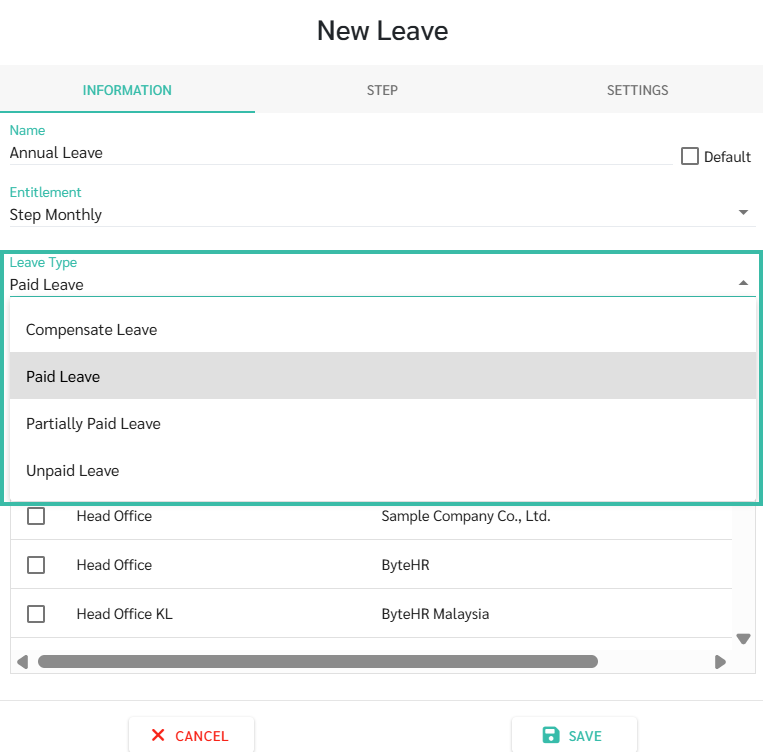
Compensate Leave
Employees can convert their approved Overtime hours into Leave entitlement instead of receiving Overtime pay.
-
Paid Leaves
If the leave is approved, the system will not deduct employee salary during payroll processing.
-
Partially Paid Leave (50%)
This leave type is recorded as a full leave day in the leave system.
In the payroll system, one leave day is calculated as 0.5 day, and 50% of the daily wage is paid.
This leave type supports full-day leave only.
Hourly or half-day leave is not supported.
-
Unpaid Leaves
If the leave is approved, the system will deduct employee salary during payroll processing.
-
-
Branch
Select the branch where this leave type will be applied.
If no branch is selected and the leave is saved, the leave type will be available for all branches.
Step
When the Step Monthly or Step Yearly is selected under Entitlement, only then there is the tab named "Step" would appear to configure the Steps for the leave entitlement.
- Refer to Leave Days based on Length of Service (Step Yearly) to Learn More.
- Refer to Accrued Leave Entitlement based on Length of service (Step Monthly) to Learn More.
Settings
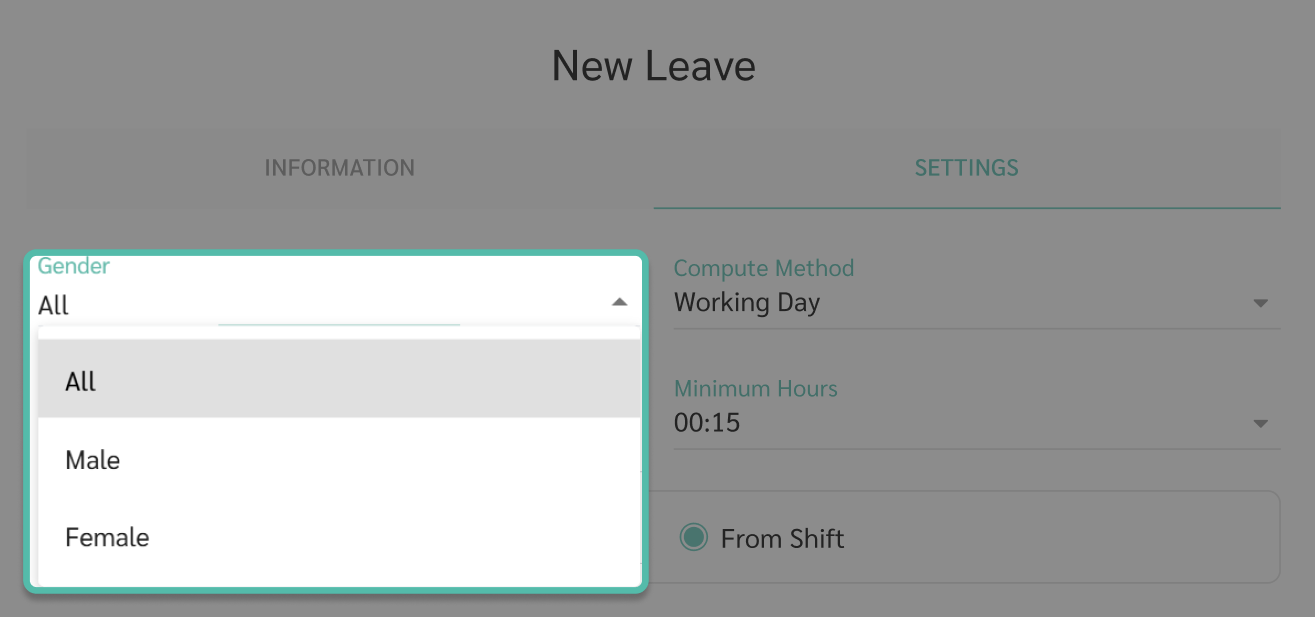
- Gender
-
All
This leave type applies to both male and female employees.
- Male
-
Female
-
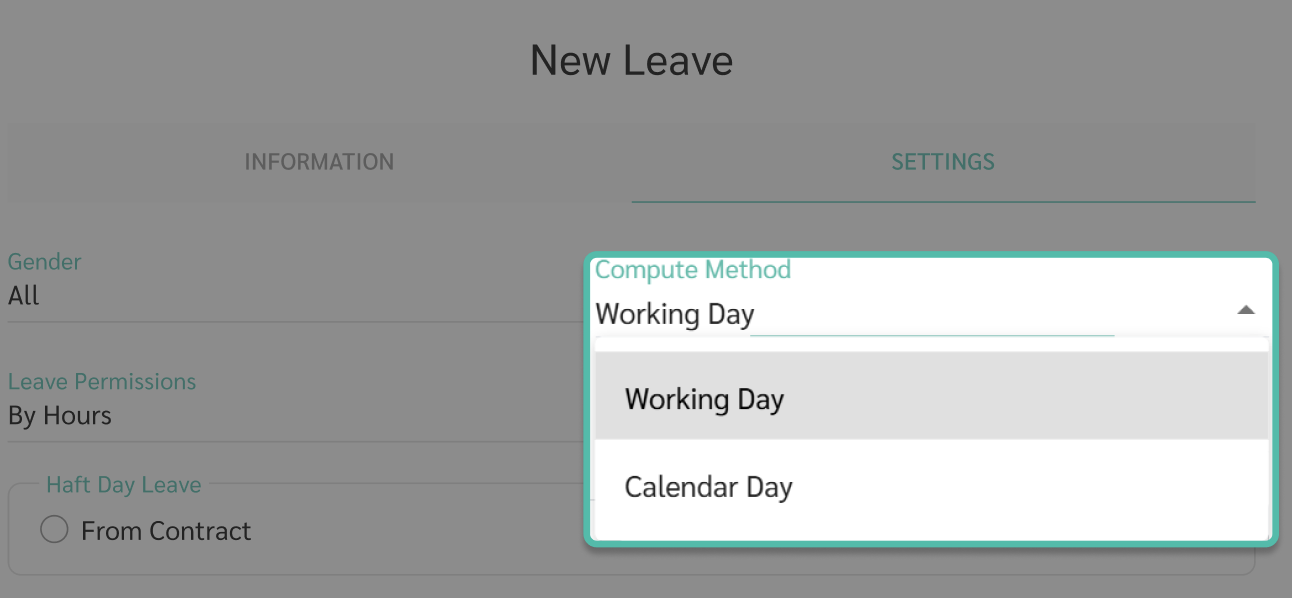
- Compute Method
-
Working Day
Leave is calculated based on working days only. Employees cannot select weekends or public holidays as leave days.
-
Calendar Day
Weekends and public holidays are included as leave days when the leave period includes them, such as Maternity Leave, Paternity Leave, Bereavement Leave and Hospitalization Leave.
-
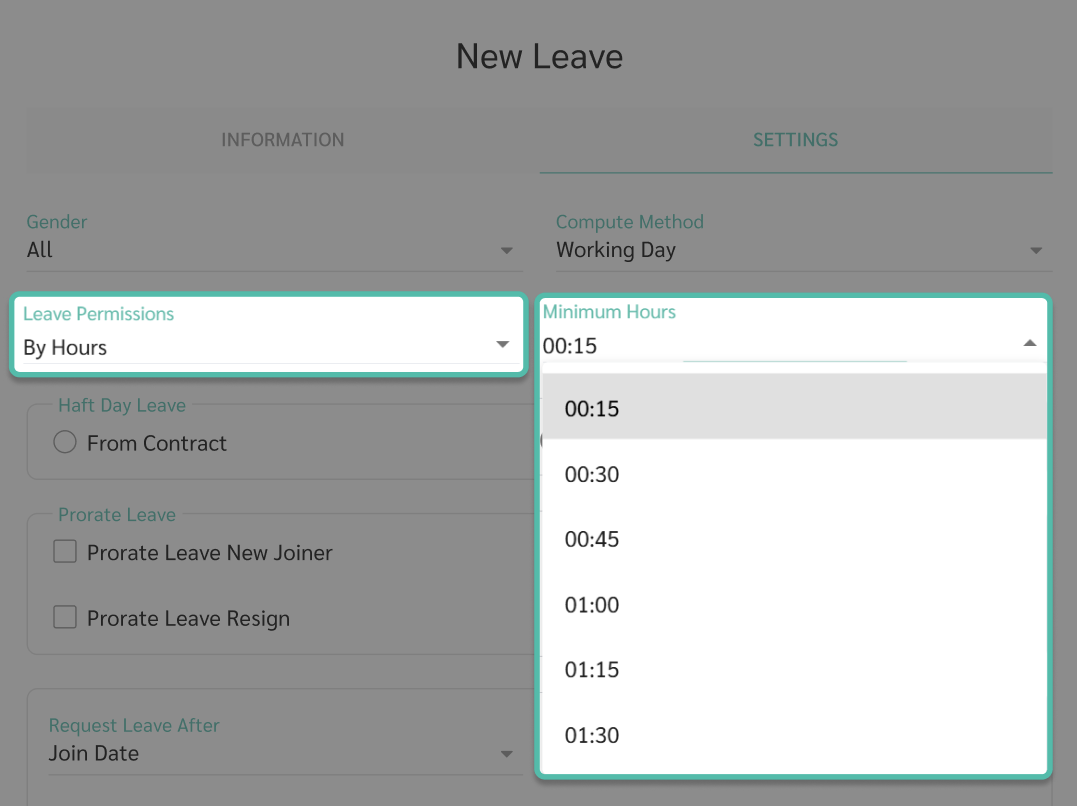
- Leave Permissions
-
By Hour
This leave type allows hourly leave. Employees can request hourly, half-day, or full-day leave. Minimum hours can be configured.
-
Full Day
This leave type allows full-day leave only. Half-day or hourly leave is not allowed.
-
Half Day
This leave type allows half-day or full-day leave only. If By Hour or Half Day is enabled, the system will ask whether half-day hours are calculated based on the employment contract or shift schedule.
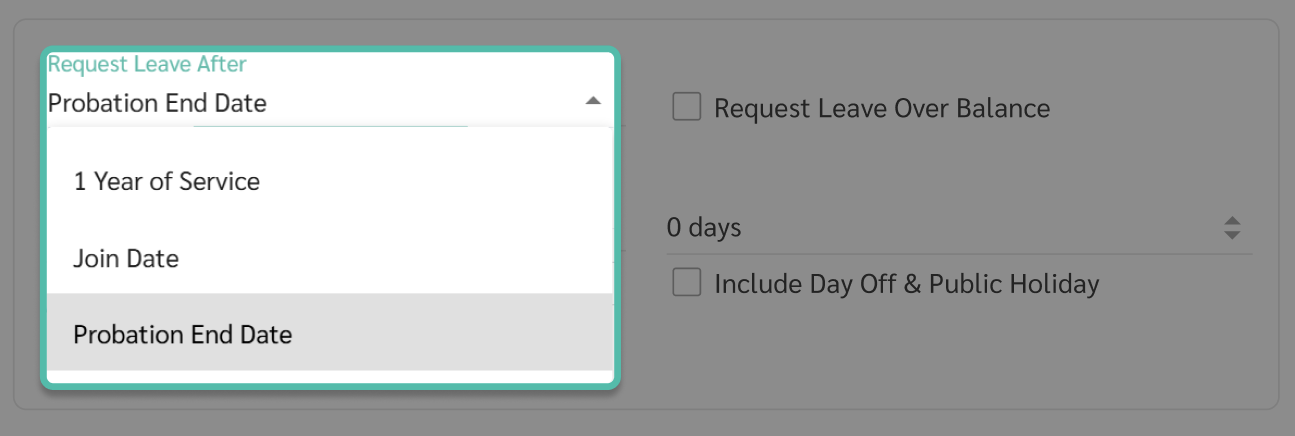
Request Leave After
Defines when employees are allowed to start submitting leave requests.
-
Join Date
Employees can submit leave requests immediately upon joining.
-
Probation Date
Employees can submit leave requests only for dates after the probation end date. The request can be submitted before the probation period ends.
-
1 Year of Service
Employees must complete 1 year of service before submitting leave requests.
-
-
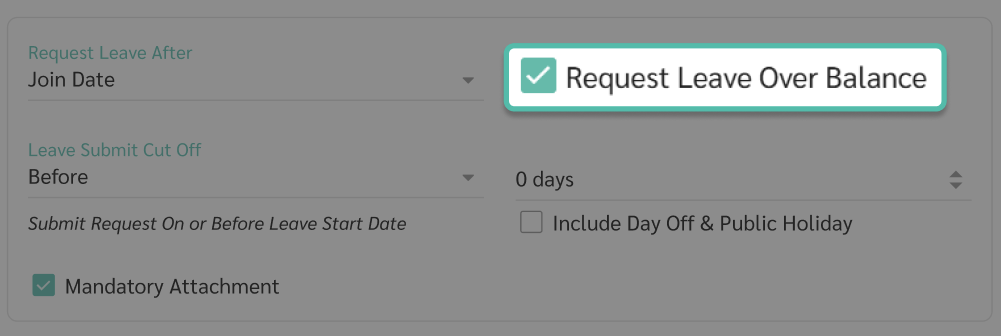
Request Leave Over Balance
Enable this option to allow employees to request leave exceeding the remaining balance. If leave exceeds the balance, the remaining leave balance will be displayed as a negative value.
This option applies only when Entitlement is set to Fixed Yearly or Step Yearly.
-
Prorate Leave New Joiner
If enabled, the system will prorate leave entitlement based on the employee’s join date for that month or year.
-
Prorate Year 2 And Above
For Step Yearly leave types, if enabled, the system will prorate leave entitlement based on the employee’s length of service for that year.
-
Prorate Leave Resign
If enabled, the system will prorate annual leave entitlement and remaining balance based on the employee’s resignation date. This applies only to Fixed Yearly and Step Yearly leave types and does not apply to Compensate Leave.
- Leave Submit Cut Off
-
No
Employees can submit leave requests at any time.
-
Before
Employees must submit leave requests in advance. You can define how many days in advance, including whether weekends and public holidays are counted. Submitting 0 days before means employees can submit the request on the first leave date.
-
After
Employees can submit leave requests after the leave date. You can define how many days after, including whether weekends and public holidays are counted.
-
If employees cannot submit leave requests, the system will display a message such as:
“Sorry, leave must start from 30/04/2025.”
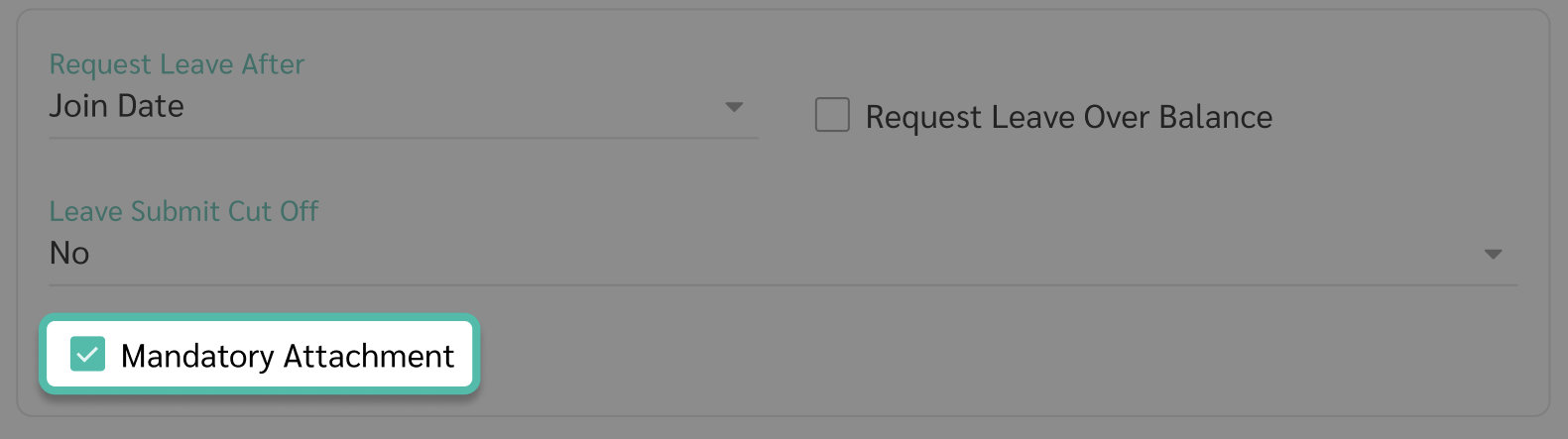
Mandatory Attachment
Enable this option to require employees to attach supporting documents before submitting a leave request.
Approval Workflow
Defines the approval steps for this leave type.
-
Manager Level 1
If there is more than one Level 1 manager, you can define whether approval is required from Any or All managers.
Manager Level 2
After Level 1 approval, Level 2 managers can be configured to:
- Notify only
- Any manager approves
-
All managers approve

Leave Reset
Defines the leave reset date and carry-forward rules.
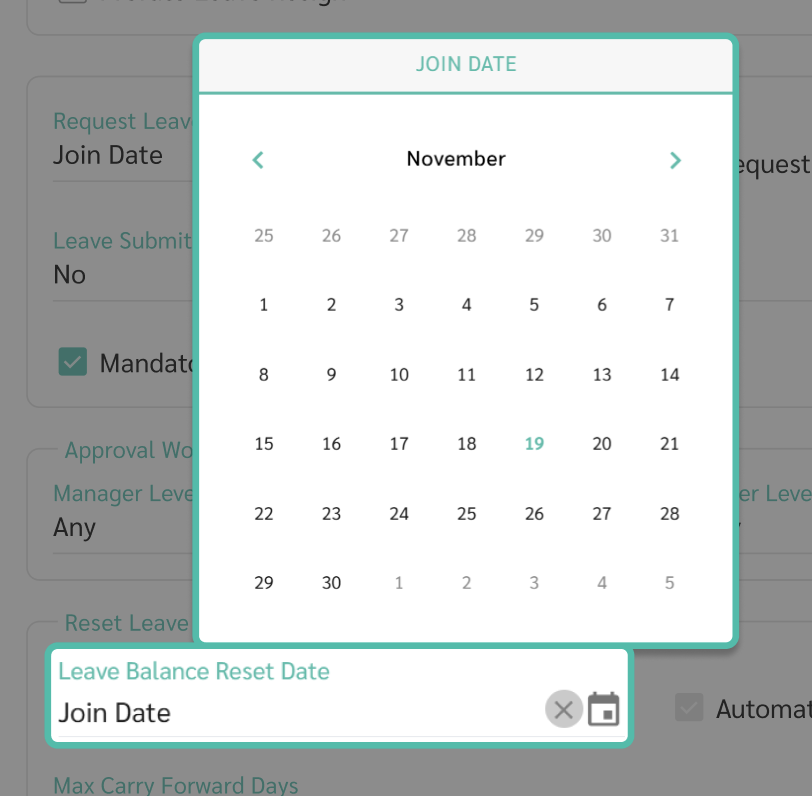
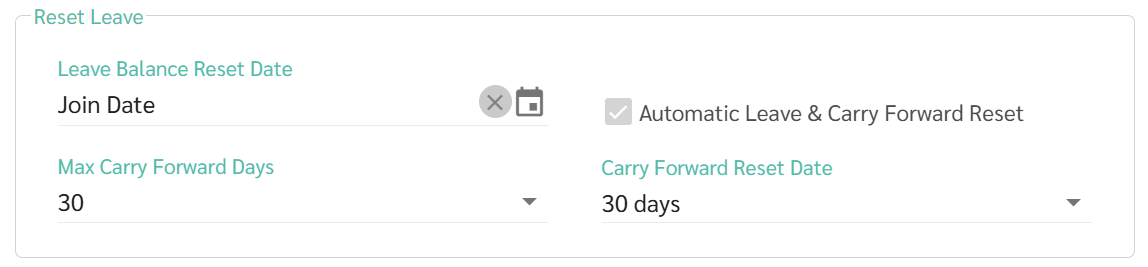
- Leave Balance Reset Date
- Specify the reset date for leave entitlement, used leave, remaining balance, and carry-forward balance.
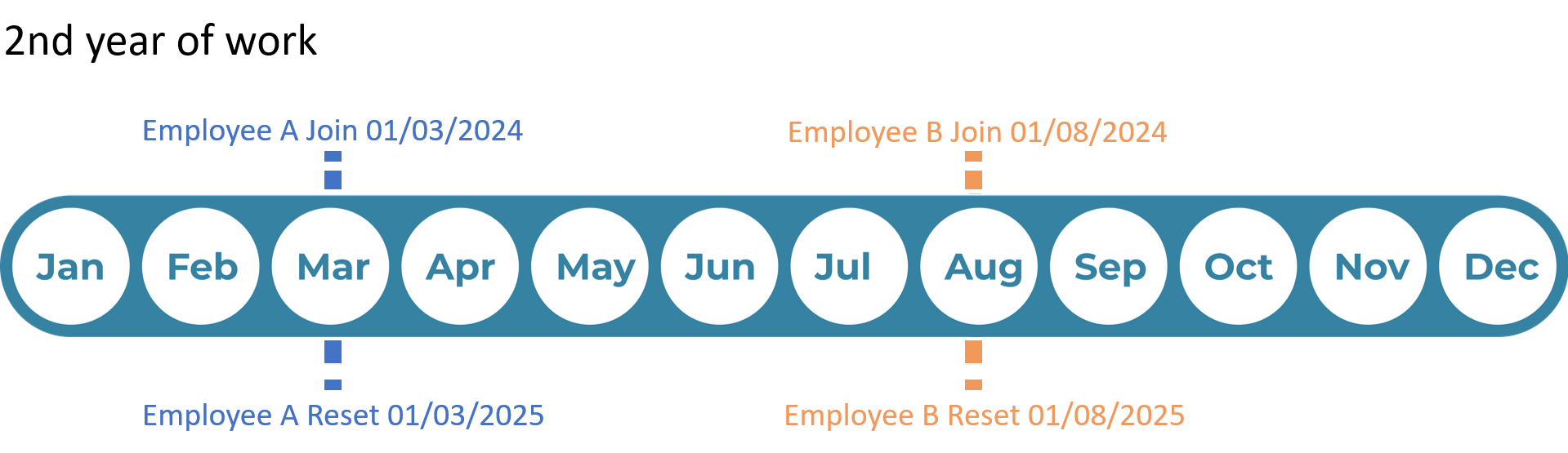
- You can specify a fixed date or Join Date. If Join Date is selected, leave will be reset individually on each employee’s join date every year.
- Automatic Leave & Carry Forward Reset
- The system automatically resets leave and carry-forward balances based on the reset date and carry-forward expiration date.
- If not enabled, admins must reset leave manually.
- utomatic reset is mandatory when Reset Date = Join Date or Entitlement = Fixed Monthly.
-
Max Carry Forward Days
Define the maximum number of carry-forward leave days from the previous year.
-
Carry Forward Reset Date
Specify the date when carried-forward leave will expire.
-
Example: If the carry-forward reset date is 1 April, the last day employees can use carried-forward leave is 31 March. If Reset Date = Join Date, the system will require the number of usable carry-forward days instead of a date.
- After completing the leave configuration, click Save.
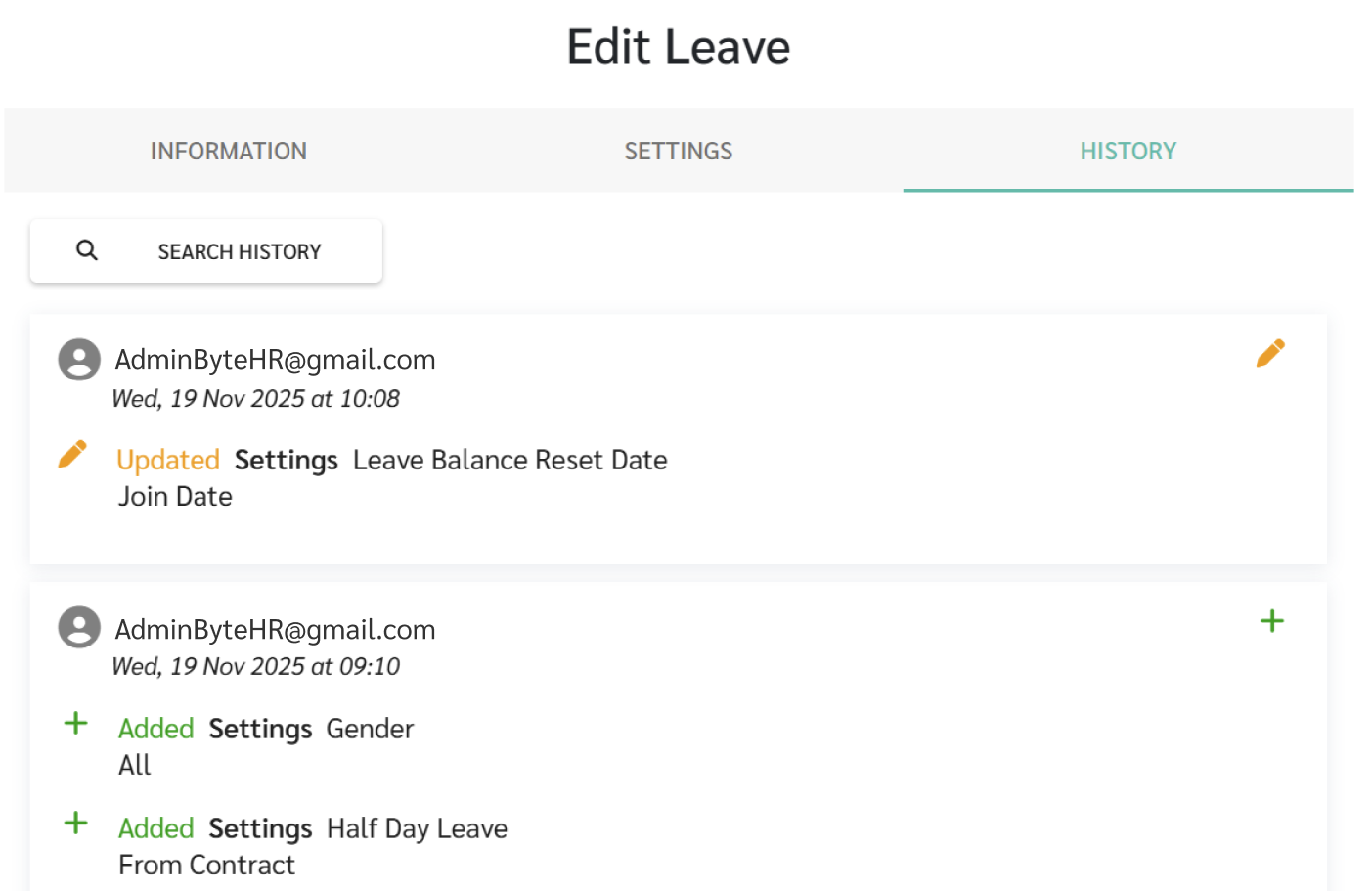
- Any changes made will be recorded in the History tab.
Remark:
- Setting Entitlement as Fixed Yearly or Fixed Monthly currently cannot be configured as 0 days.
- The only exception is when the leave type is set as Compensate Leave, where the system will automatically assign Fixed Yearly entitlement of 0 days.