
Create New Candidates
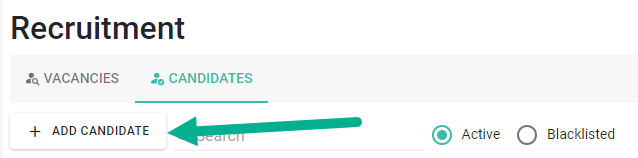
Option 1: From Candidates Tab
- Go to Recruitment → Candidates
-
Click [+ Add Candidate]
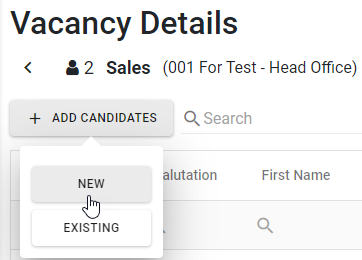
Option 2: From Vacancies Tab
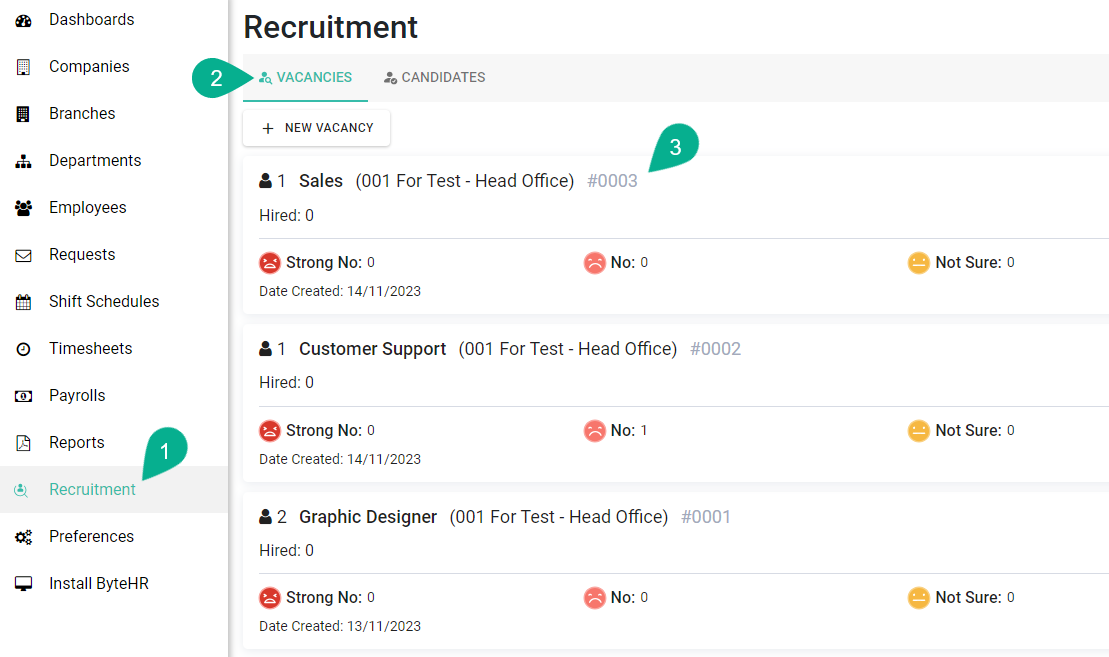
- Go to Recruitment → Vacancies
- Select a vacancy
-
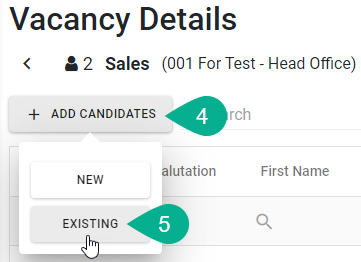
Click [+ Add Candidate] → [New]
Candidate Information
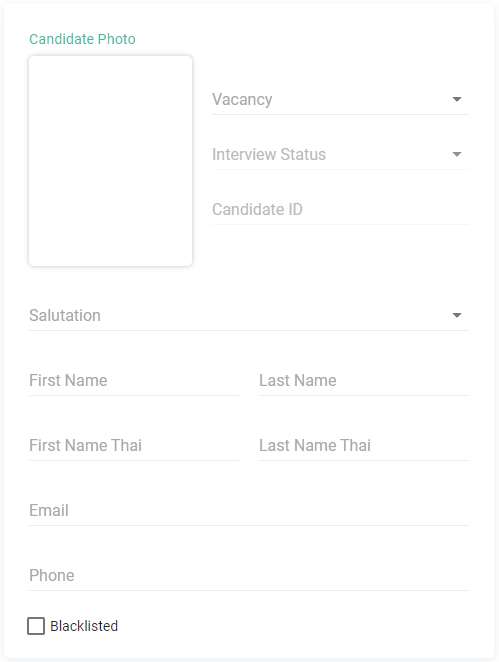
Basic Information (Left Panel)
- Profile photo
- Applied position
- Interview status
- Candidate ID (auto-generated)
- Title (Required)
- Full name (Required)
- Email (Required)
-
Phone number
Profile Tab
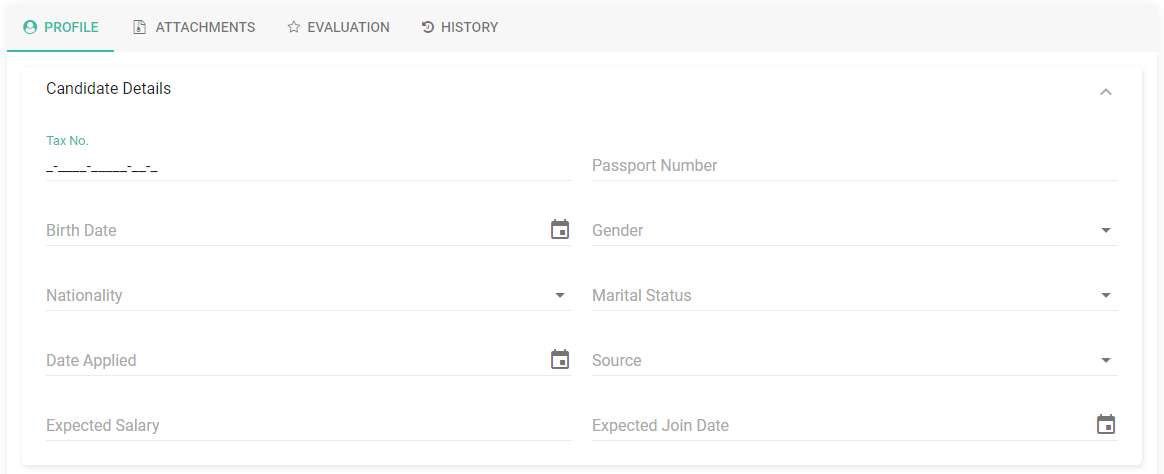
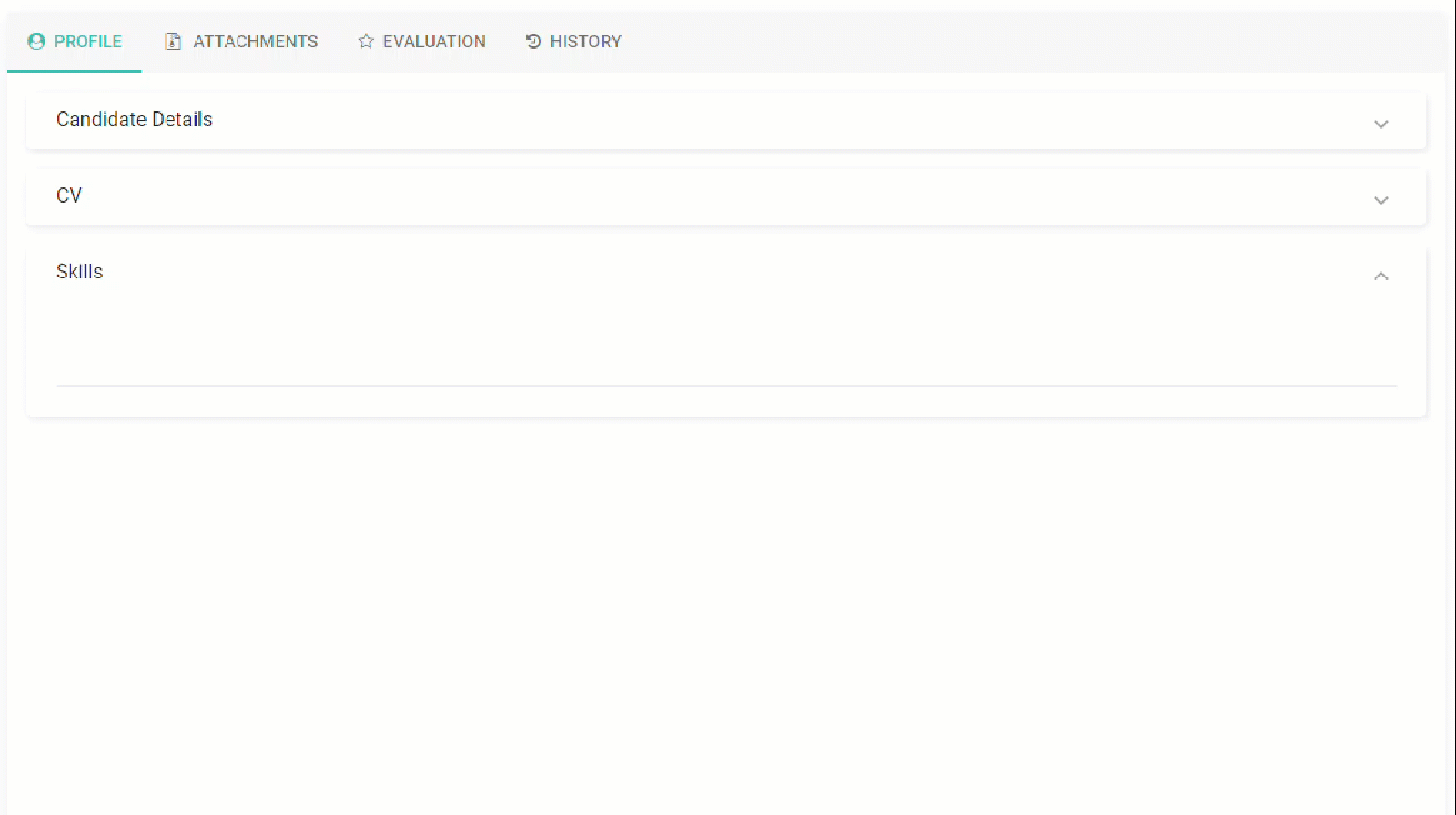
Candidate Details
- Tax ID
- Passport number
- Date of birth
- Gender
- Nationality
- Marital status
- Application date
- Source
- Expected salary
-
Expected start date
CV
- Upload candidate CV
- Supported formats: doc, docx, pdf, images
-
CV preview is available

Skills
- Add candidate skills
-
Previously entered skills will be saved for reuse
Attachments Tab
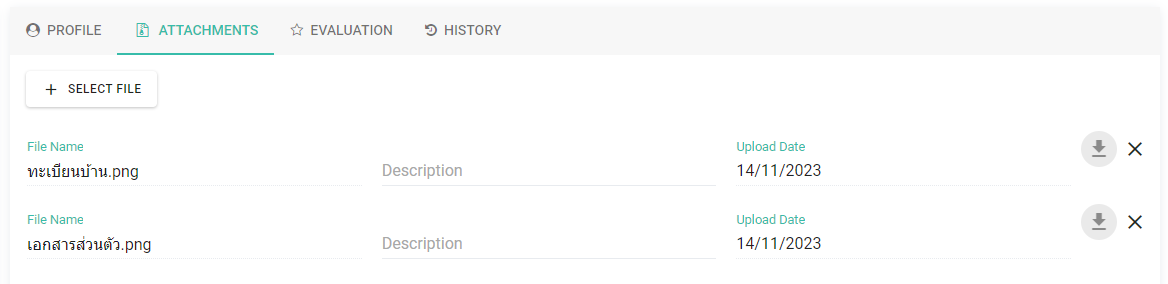
- Upload supporting files
- Supported formats: Word, Excel, PDF, ZIP, images
-
Max file size: 7 MB per file
Evaluation Tab
-
Set evaluation level
Add notes
System records:
- Author
- Date & time
- Changes made

History Tab
- Displays all updates and changes to the candidate profile
Save Candidate
Click Save → The candidate will be saved and displayed in the list
You can click to view or edit the details anytime
Add Existing Candidate to a Vacancy
- Go to Recruitment → Vacancies
- Select a vacancy
- Select the vacancy position
- Click [+Add Candidates]
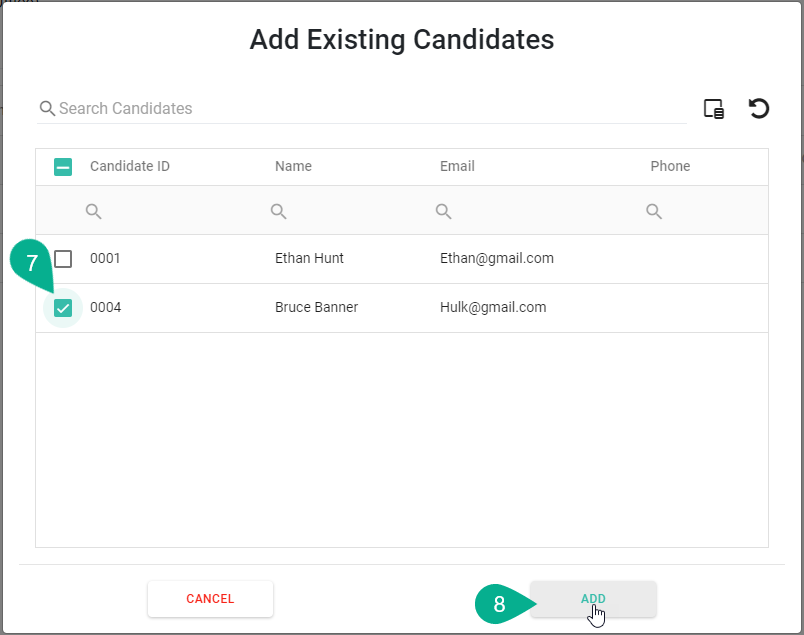
- Click Existing
- The system will show existing candidates
- Select candidate(s)
-
Click Add
Note 📝
-
If a candidate is already assigned to another vacancy:
→ The system will remove the candidate from the previous vacancy automatically
- Candidate ID is generated automatically after saving
- Required fields: Title, Full Name, Email