
Employee Edit Personal Details
How to Edit Personal Details via Website
-
The admin must first grant employees permission to edit their personal information
Refer to Allow Employee to Edit Personal Details and Approving Update Request at this LINK.
-
When an employee logs in, the system will display an Edit button. Click Edit.
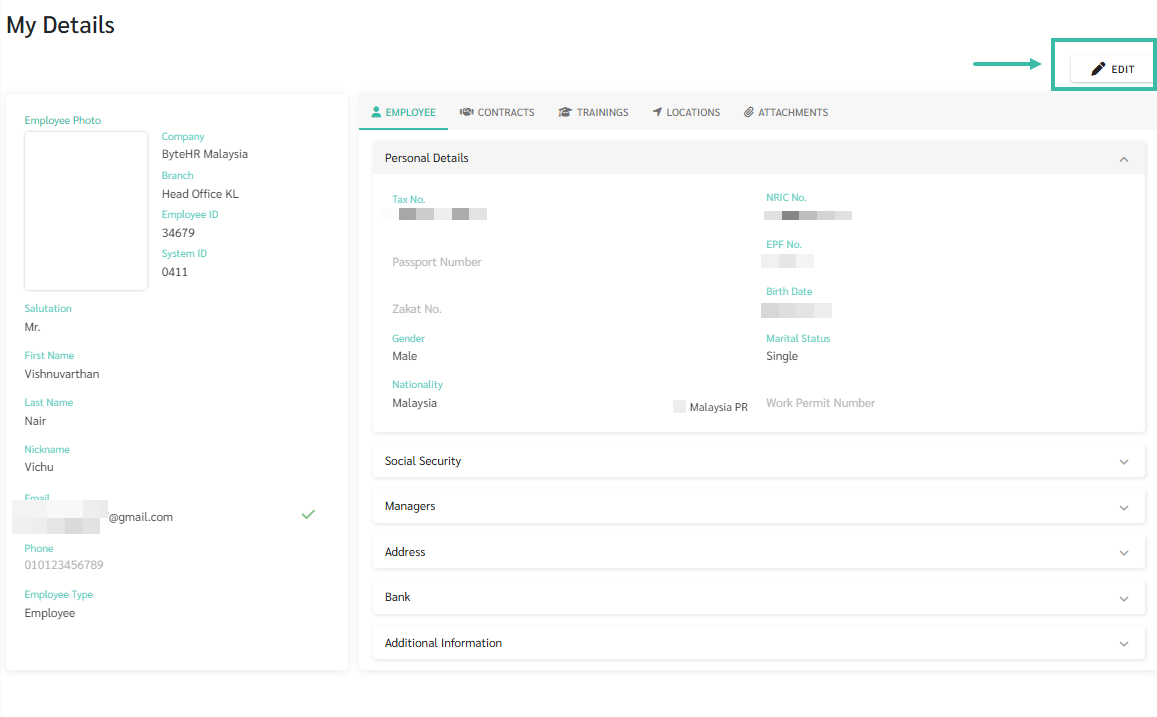
- Update the required desired field.
-
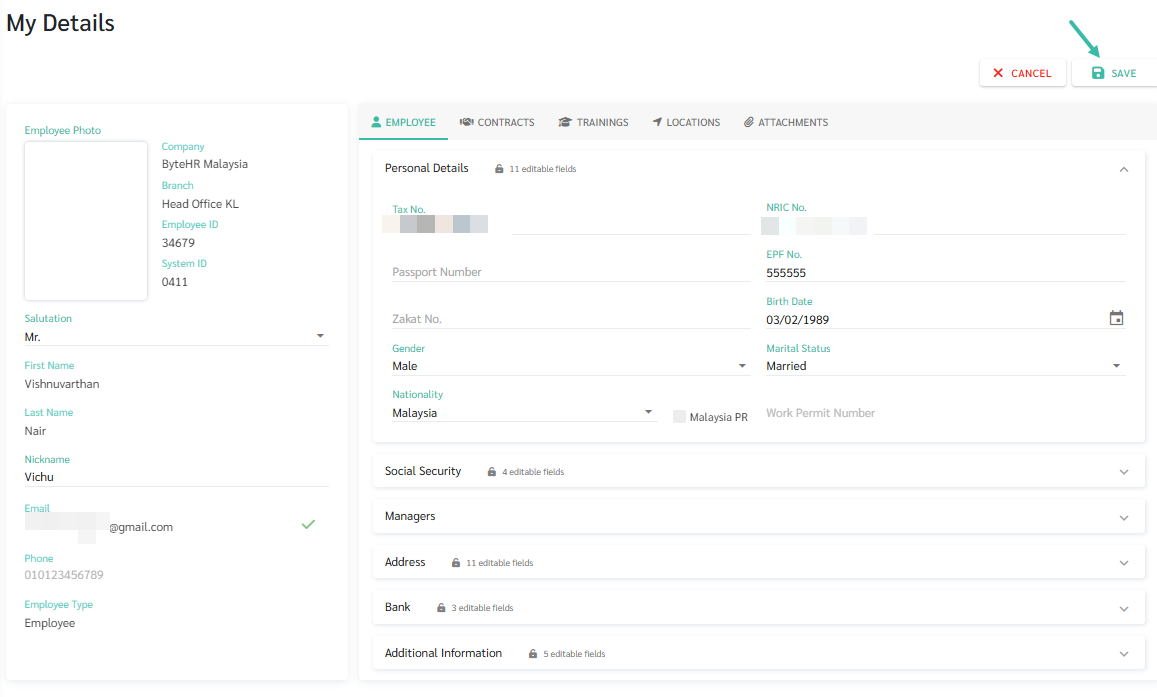
After completing the updates, click Save.
-
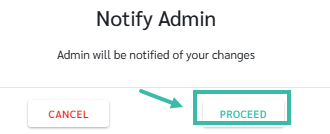
A pop-up notification will appear informing the employees that the changes require admin approval. Click Proceed to submit the request.
📃Note
- When an employee updates the employee information, the system sends an email to the admin for approval of the Updated Employee Information.
How to Edit Personal Information via ByteHR Mobile App
-
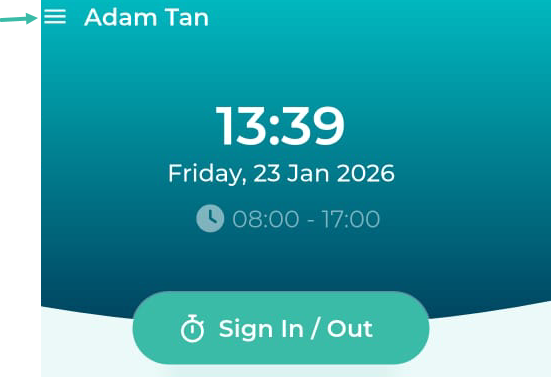
Log in to the ByteHR Mobile App. On the Home page, tap the three-line (menu) icon in the upper left corner.
-
Select My Details.
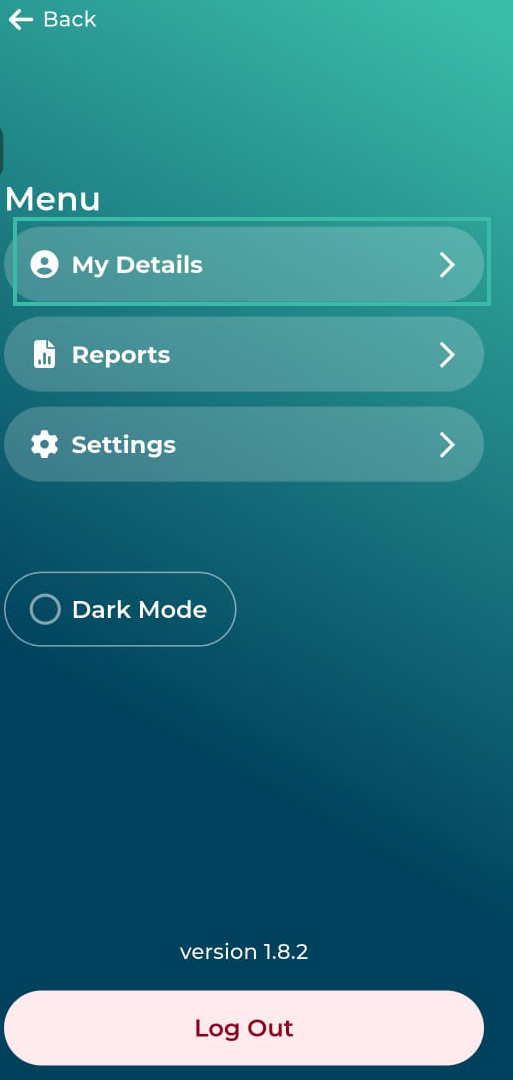
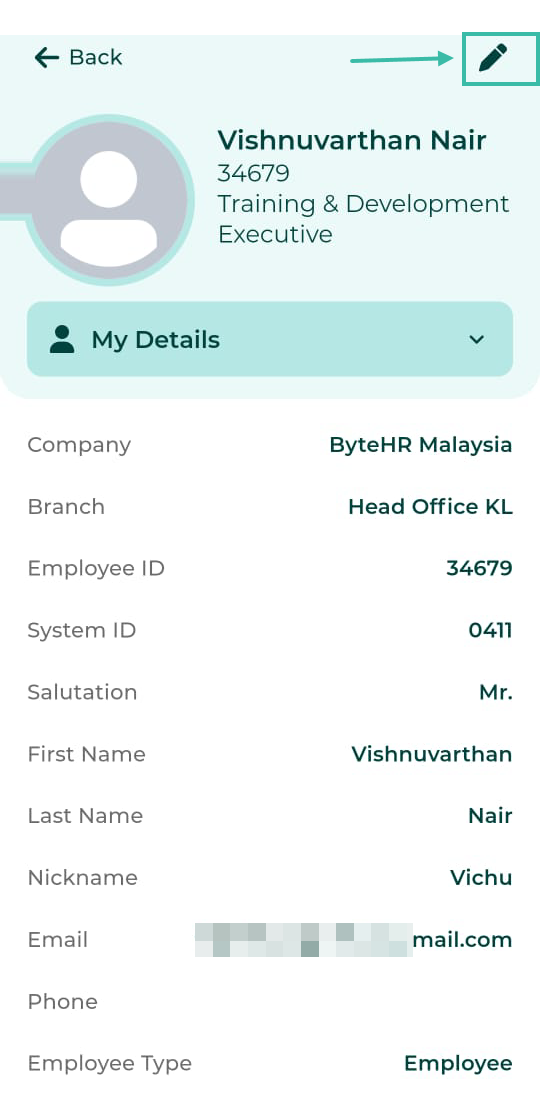
- The system will display employee information based on the Permission settings configured by the admin.
-
To edit employee information, tap the Pencil (Settings) icon.
-
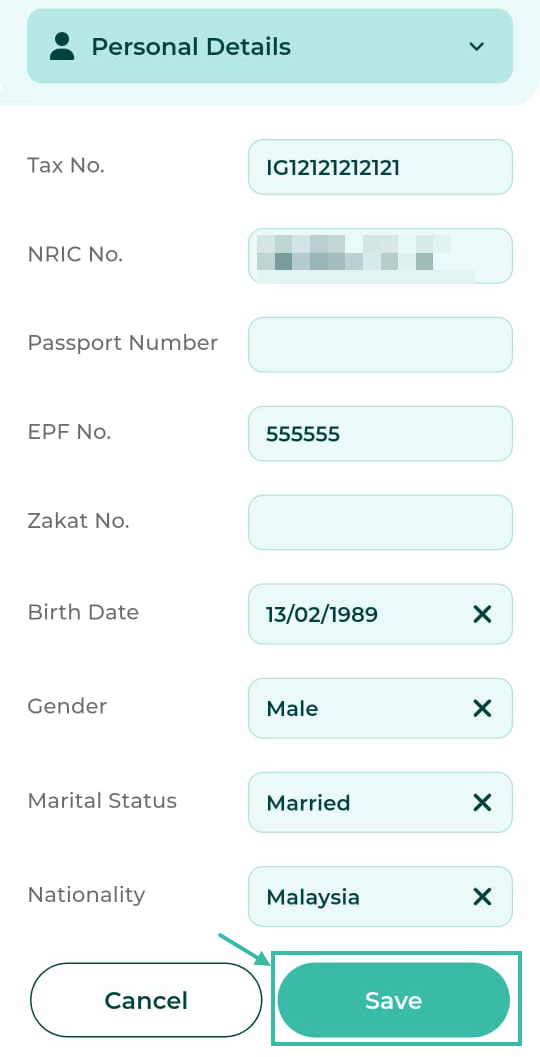
After completing the changes, tap Save.
-
A pop-up notification will appear informing the employees that the changes require admin approval. Click Proceed to submit the request.
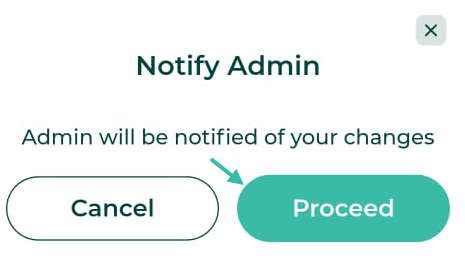
- The system will send an email notification to the admin for approval.
📃Note
- When an employee updates the employee information, the system sends an email to the admin for approval of the Updated Employee Information.