
Allow Employee to Edit Personal Details and Approving Update Request
The Permission tab allows the Admin to configure which personal information employees are allowed to view and edit, as well as define the approval process for submitted changes.
.How to Set Up Permissions for Employees to Edit Personal Information
- Go to the Preferences tab.
- Select Employee.
-
Click Permissions.
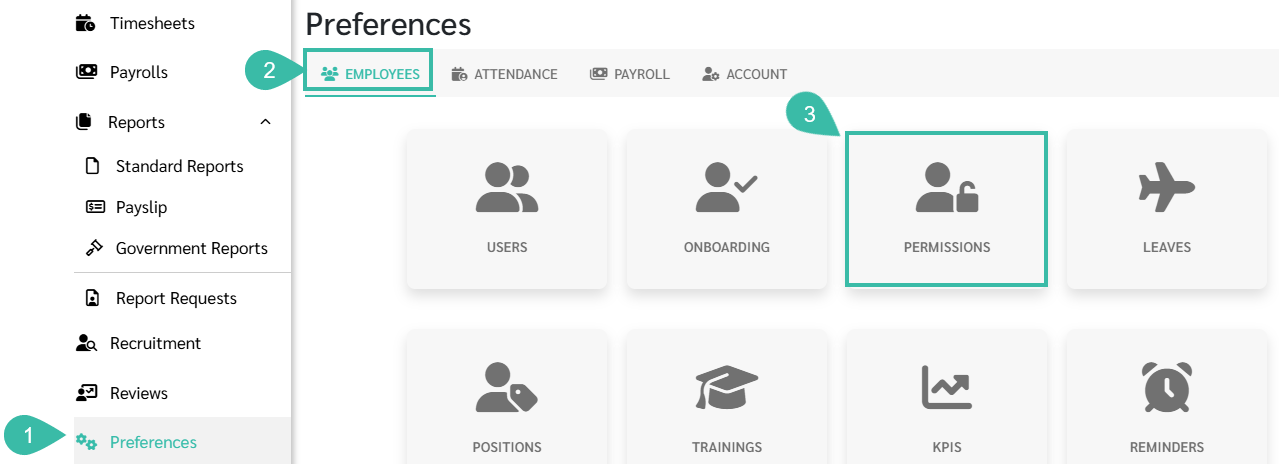
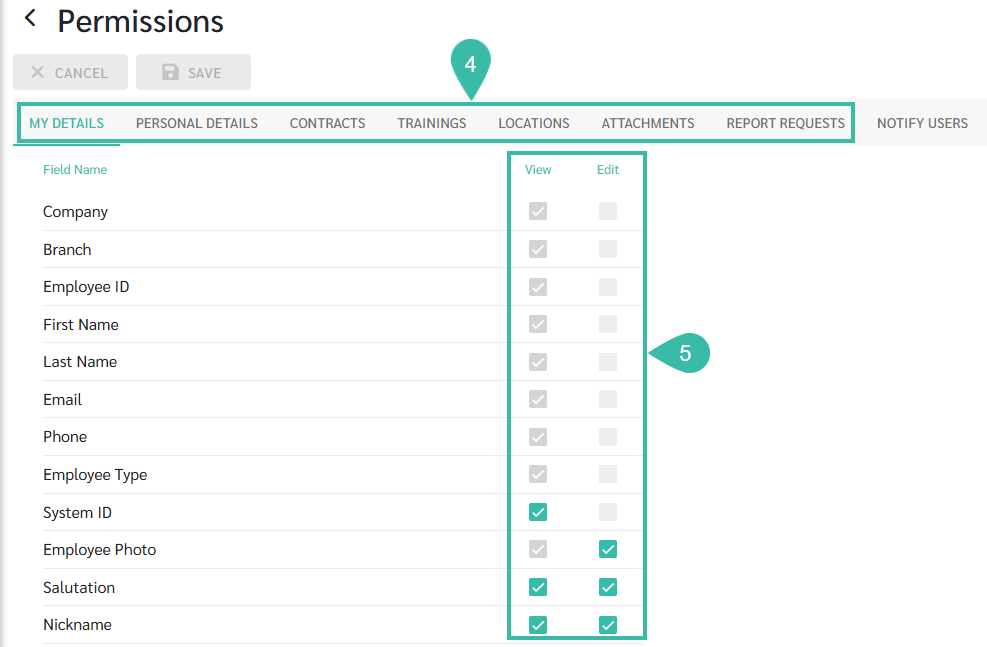
- The system will display the Permission settings page, showing sections employees can view or edit, categorized by Employee Details such as My Details, Personal Details, Contracts, Trainings, Locations, Attachments, and Report Requests.
-
Tick the checkboxes to specify which information employees are allowed to view or edit.
-
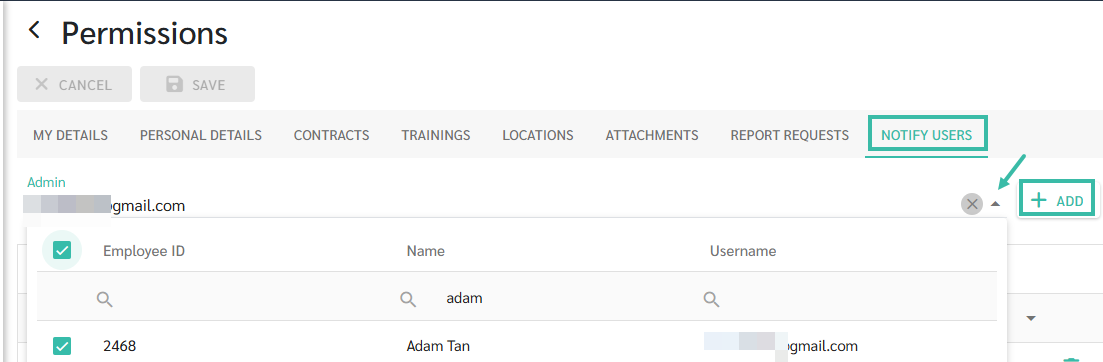
Under the Notify Users, select the Admin authorized to Approve employee's Data changes/updates.
From the dropdown of Admin list, select the Admin and click + Add.
-
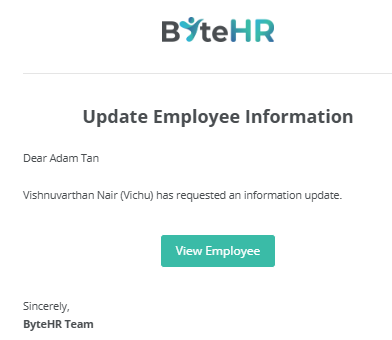
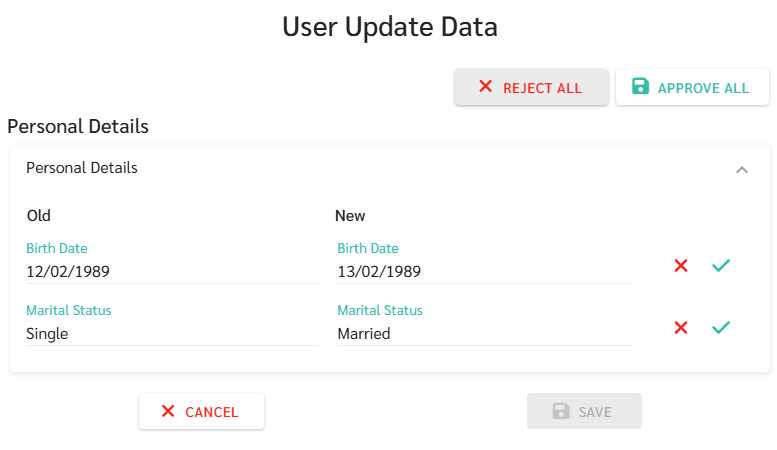
When an employee makes changes to their Employee Details, the system sends an email notification to the designated admin for approval. The admin can review the requested changes by clicking View Employee from the email or by accessing the employee's profile directly in the system.
- The system will display a pop-up window allowing the admin to choose one of the following actions:
- Reject All
- Approve All
-
Approve Selected Topics Only
📃Note
- User roles that can approve employee data updates include Account Owner, Admin, HR User Edit, Payroll User Edit.
- For steps on how employees can submit personal information updates, refer to this LINK.
Employee are not allowed to edit the following information:
- Company
- Branch
- Employee ID
- First & Last Name
- Phone Number
- Employee Type
- System ID
- Employment Contract Information, except family information and custom fields, can be edited if enabled.
- Training Information
- Work Location
These fields require an admin to make changes on behalf if the employee.