
Regenerate Timesheet
If the Shift Schedule has been edited retrospectively, the admin can Regenerate Timesheet to reflect the Shift Schedule changes on the Timesheet.
Here's how to Regenerate Timesheet
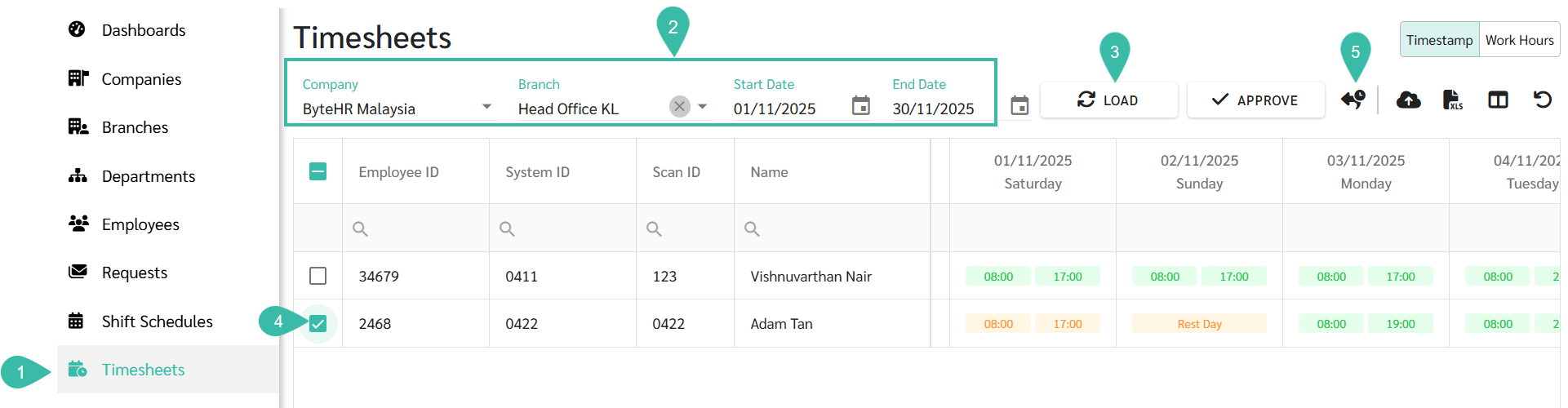
- Go to Timesheets.
- Enter the required fields like the Company, Branch, Start Date, and End Date. *Note: Select only the date range where the Shift Schedule has been modified retrospectively.
- Click "Load" to display the list of employees.
- Tick the checkbox next to the employees whose Timesheet you want to regenerate.
-
Click the "Regenerate" button to update the Timesheet with the latest Shift Schedule.
-
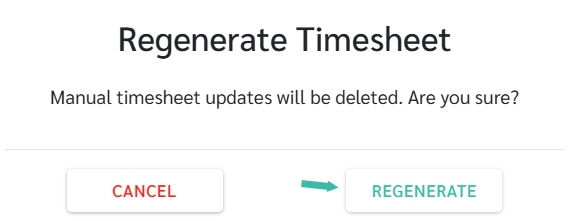
A pop-up message will appear, notifying that manually edited data from Timesheet page, Text file upload, Excel File Upload, Uploads from Sync App or uploads from the fingerprint scanner will be overwritten. Click " Regenerate" to confirm.
-
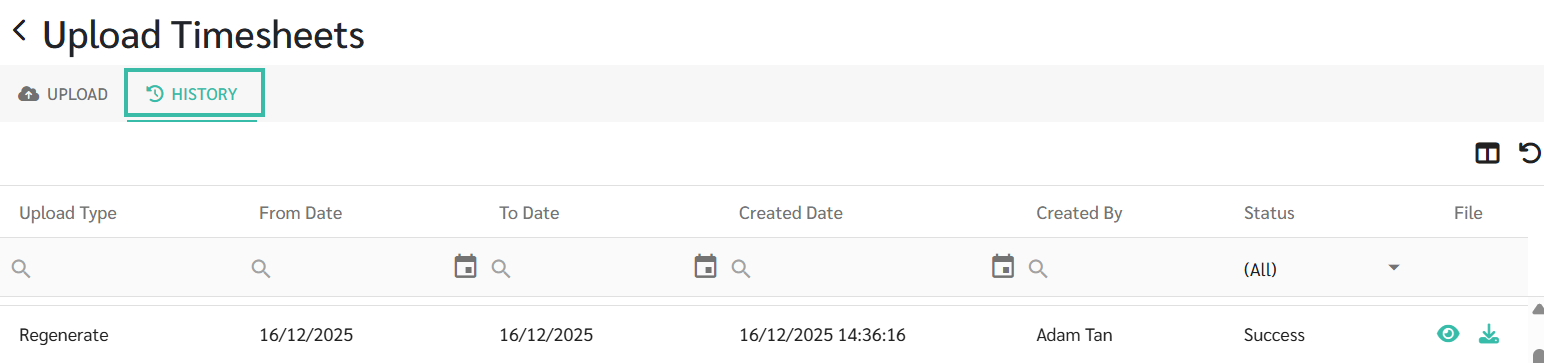
The system will redirect you to the History tab under the "Upload Timesheet" page. You can view the Regenerated record.
-
Click "Eye Icon" to view the list of employees Timesheet that has been successfully regenerated.
The list will only show the names of employees for whom the system has updated new schedules.

- Click "Back" to return to the Timesheet page and refresh. The system will now display the updated schedule reflecting your latest changes.
Regenerate Timesheet Rule
- The system will not regenerate timesheets if:
- The selected period covers only future schedules.
- No employees have been selected.
- Selected employees do not have a registered fingerprint scan code.
-
If a Timesheet has already been approved, Regenerate is not possible.
The related payroll block must first be deleted before regenerating the Timesheet.
- If an Edit Shift or Swap Shift Request is approved, the system will use the updated shift time. If the request is rejected, the schedule will revert to the original shift settings.
- For Edit Sign In/Out Requests, the schedule will reflect the latest shift settings, but the employee’s requested timestamp will remain unchanged.
- If Overtime and Shift Changes exist for the same date, delete the previous overtime request and have the employee resubmit it. This ensures the overtime rate corresponds with the new schedule.
🗨️ Note
If you urgently need to adjust a Timesheet without editing from the Shift Schedule, you can upload the "Upload Timesheets" file directly to apply changes.
See "Upload Timesheets - Excel File" for more information at this LINK.