Sign In/ Sign Out on the ByteHR Mobile App
-
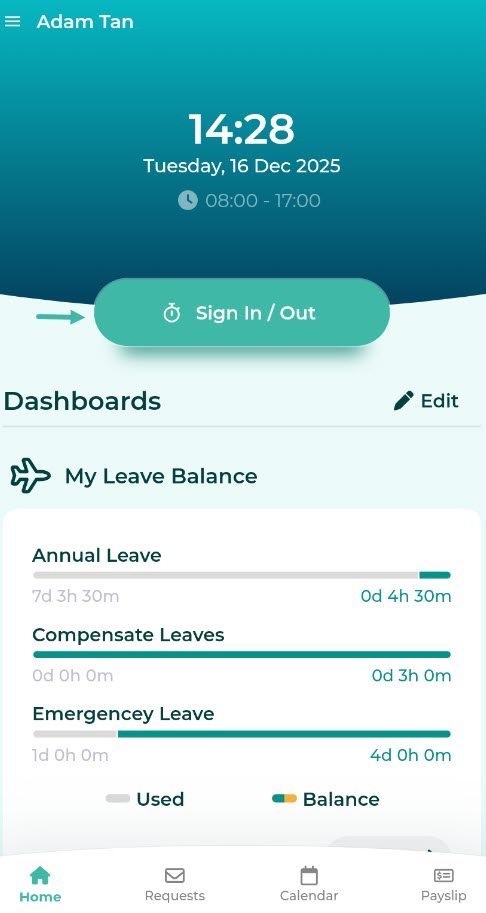
On the Home page of ByteHR mobile app, click the Sign In/Out button to record your working hours.
Note: If this button is not available, the admin should check the employee's profile to see if e-Checkin is enabled and if the employee has been added to the shift schedule.
-
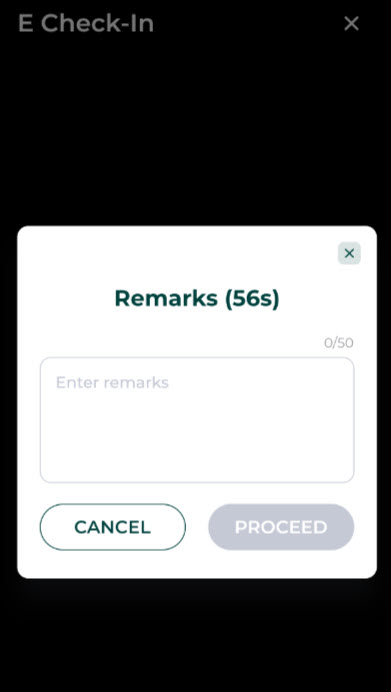
If Remarks are enabled, employees must fill in additional descriptions (Remarks) and then click Proceed.
-
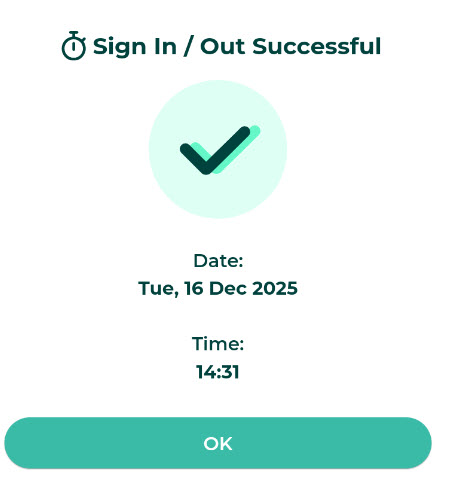
The system will display "Sign In / Out Successful." Click "Ok."
- Employees can Sign in and Sign out an unlimited number of times per day at any time, but the system limits each time entry to 5 minutes.
- For example, if you clock in at 14:31, the system will display "Sign In/Out successful."
-
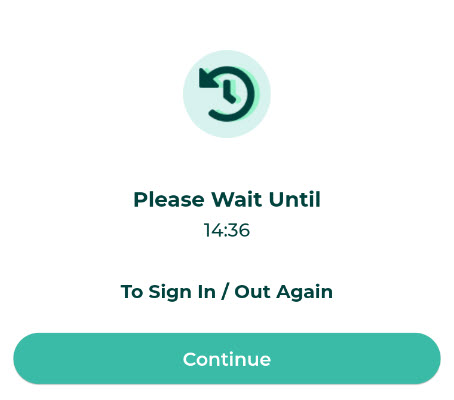
If you clock in again at 14:33, the system will display a message saying "Please wait until 14:36 before you can Sign in/out again."
-
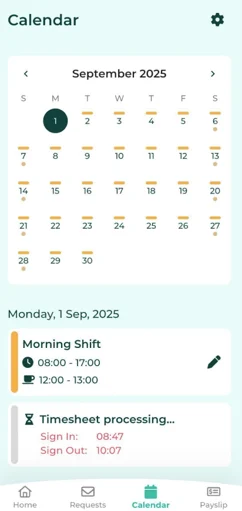
Employees can view their timestamps information in the Calendar page. If they see the message "Timesheet processing," it means the system is processing employee timestamp data into the Timesheet page. This notification may appear if you sign in/out during peak hours, approximately between 8:00 AM and 9:00 AM and between 5:00 PM and 6:00 PM.