
eCheckin Face Scan Mobile App
After the admin activates the Face Scan feature, employees must save a photo of their face before clocking in.
How to use eCheckin Face Scan
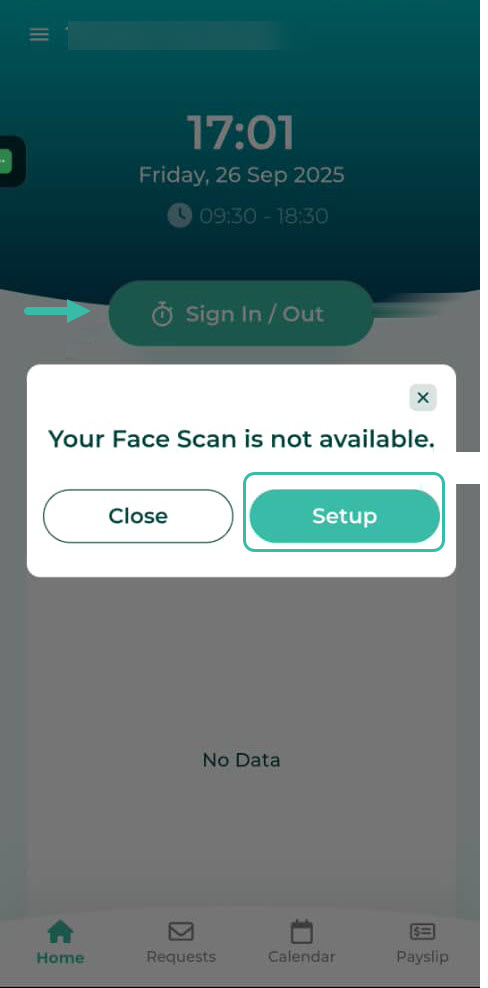
- On the Home page, after the admin has enabled Face Scan, click the Sign In/Out button the system will prompt you a message " Your Face Scan is not available" which indicates you to setup your face scan for the first time. So, select "Setup" option.
-
Employees who are unable to view the "Sign In/ Out" option must approach their admin to have it checked. This is to ensure that the employees profile has enabled the eCheckIn option and allocated to a Shift Schedule.
-
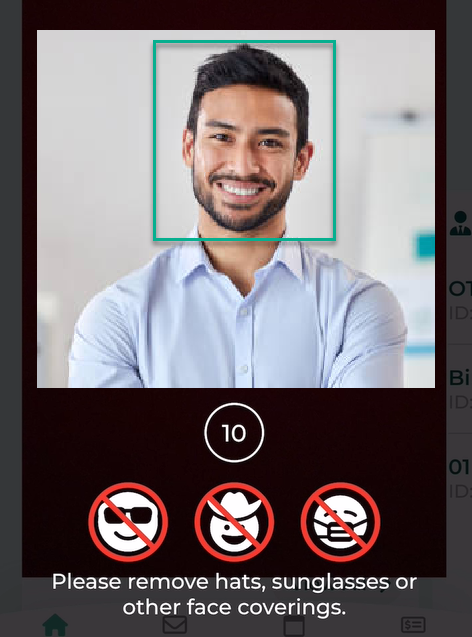
Please adhere to the face scan setup guidelines and avoid wearing any items such as hats, sunglasses or masks that may obscure your face.

- You should position your face in the centre of the photo frame to allow the system capture your picture.
-
Once the system successfully captures your face, you will receive the message "Face Scan Available!".
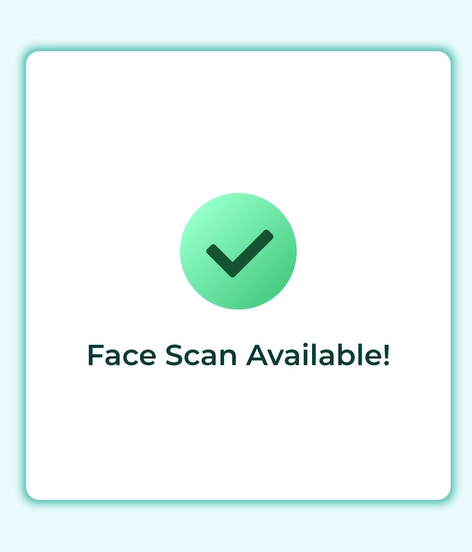
- Once the employee has successfully setup the face scan, they can click Sign In/Out button. The system will then scan the employee's face to record their timestamp.
- You will have 10 seconds for the system to capture your face to record your Sign In/Out of the day.
-
If the system fails to recognize your face within this time (10 seconds), you will need to click "Sign In/Out" again to complete the process.
-
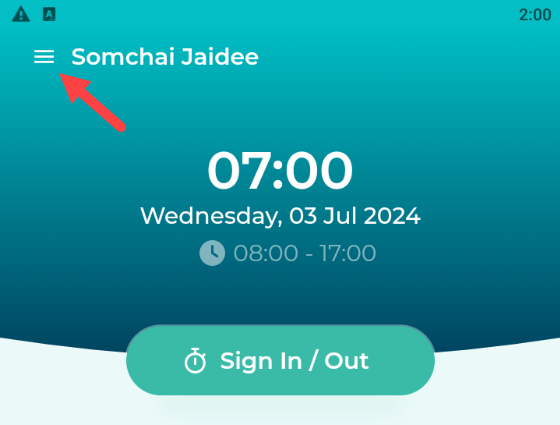
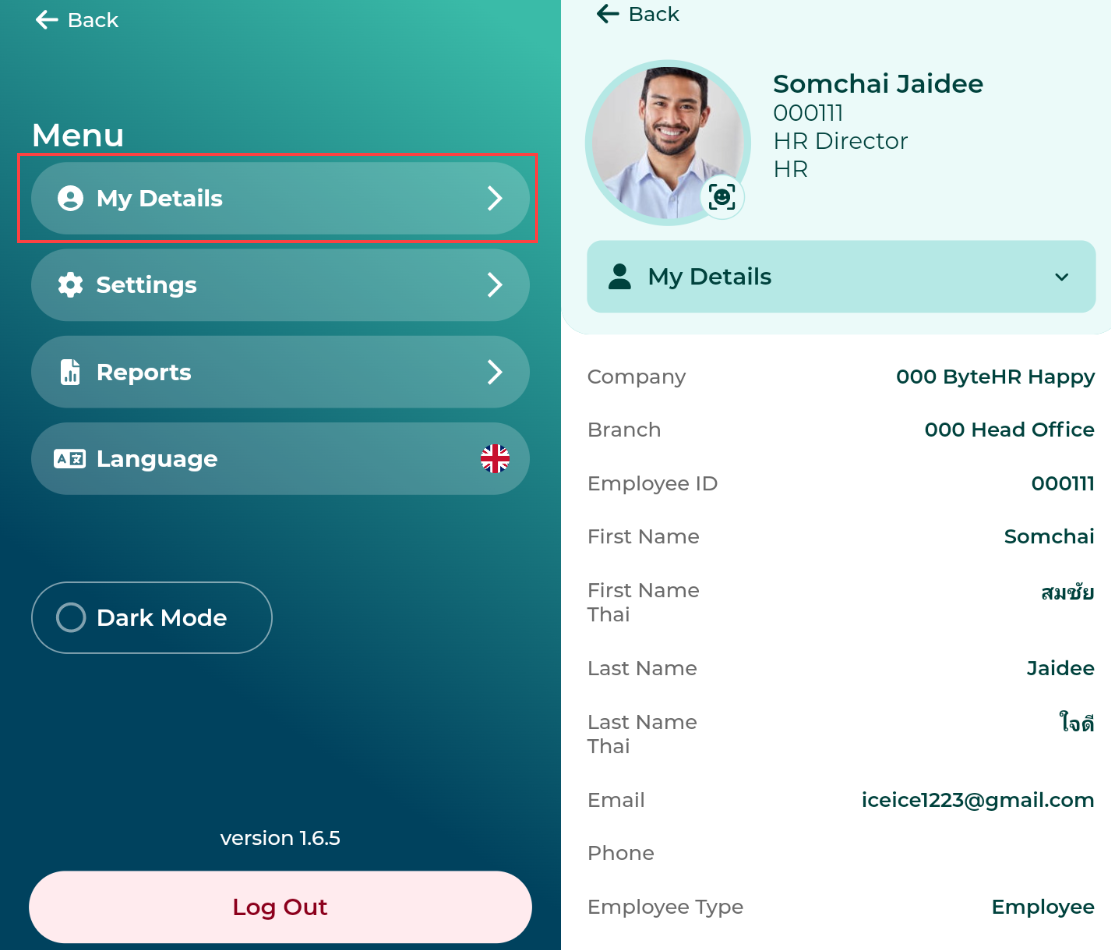
You will be able to view your picture that was captured by the system in Step 4 by clicking on the menu.
-
Click on the "My Details" -> then click the button on the employee's photo.
-
The system will display the face image that was captured and recorded in Step 4.
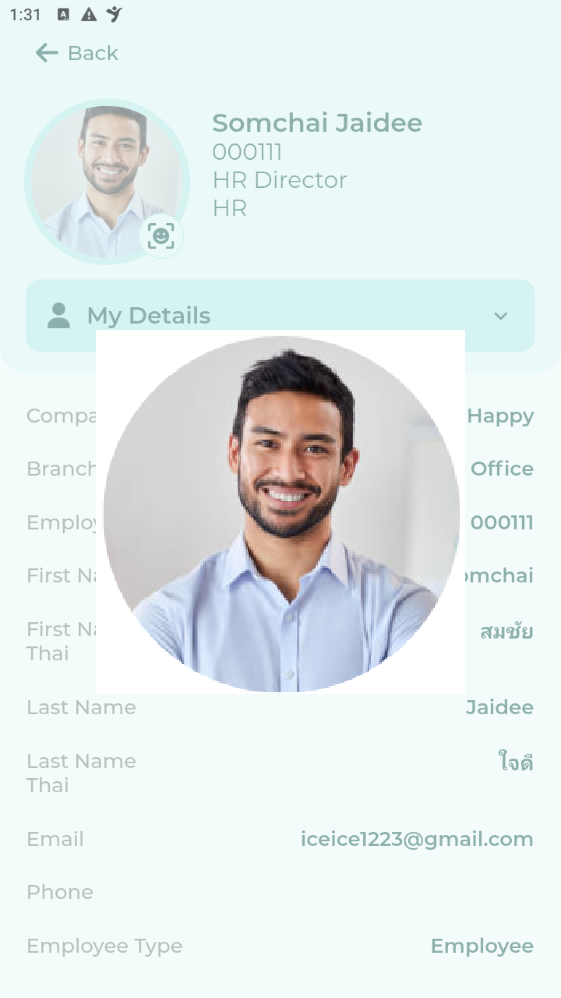
- If you wish to change the captured image on your profile, then you should notify the admin to delete the original picture in order for you to setup your face scan again.
🚩Note
- When Face Scan is enabled by the admin, you can only sign in/out of work via mobile app.
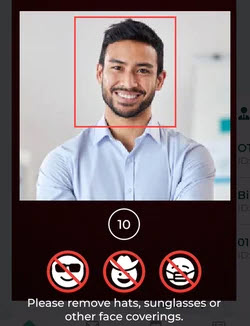
- The system will only detect real faces of people. Photos or videos cannot be used for the face scan.
-
If the system detects that a photo or video has been used, a red frame will appear around the face.
📃Notes
- Employees are required to remove hats, sunglasses, or any other items that may obstruct their face before clocking in.
- If the camera detects multiple faces while signing in, the system will select the closest face for verification.