Create a Compensate Leave (Replacement Leave) Request in the Mobile App
Read how to set up: Convert overtime hours to leave days (OT Compensate Leave Hour) available at LEARN MORE.
To request the conversion of overtime hours into accumulated leave days via the ByteHR application, employees can follow the steps below:
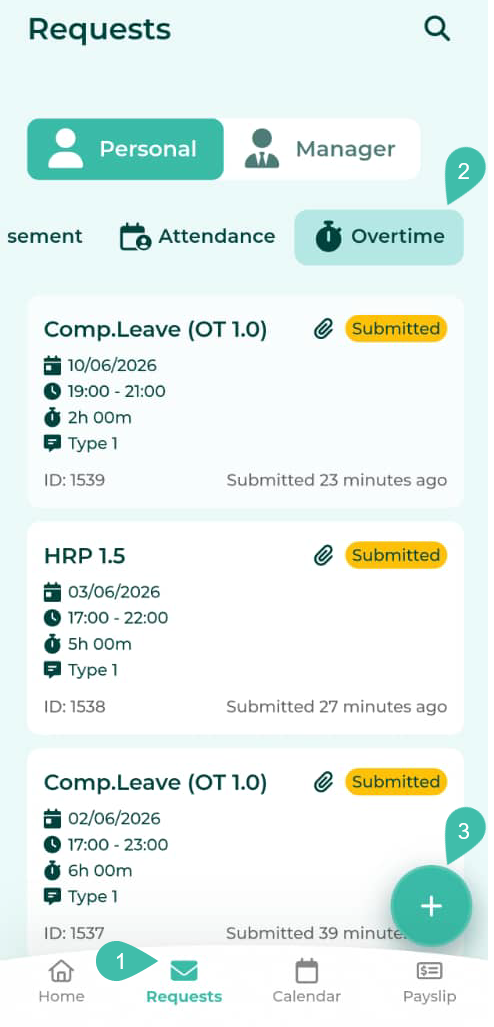
- Click on the Requests menu.
- Select the Overtime tab.
-
Click the "+" button at the bottom right corner to create a new request.
- Fill in the Overtime details:
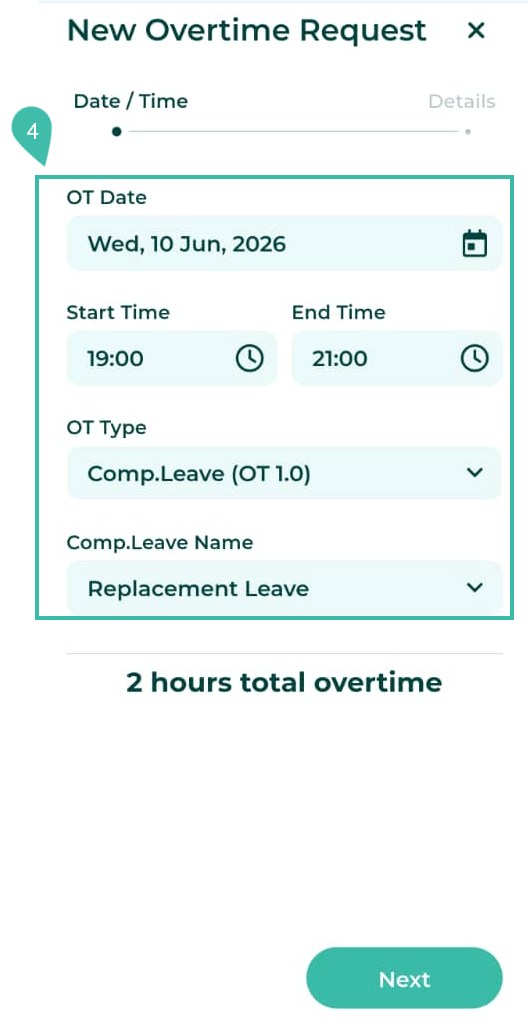
- Overtime Date: Select the date for which you would like to convert overtime into leave (the date must be in the past).
- Start and End Time: Specify the overtime period worked beyond the regular shift.
- Overtime Type (OT Type): Select Comp.Leave. The system will display the applicable multiplier rate (e.g., OT 1.0, OT 1.5, OT 2.0, OT 3.0).
-
Compensatory Leave Name: Select the type of compensatory leave you wish to accumulate (e.g., Holiday compensatory leave or regular workday compensatory leave).
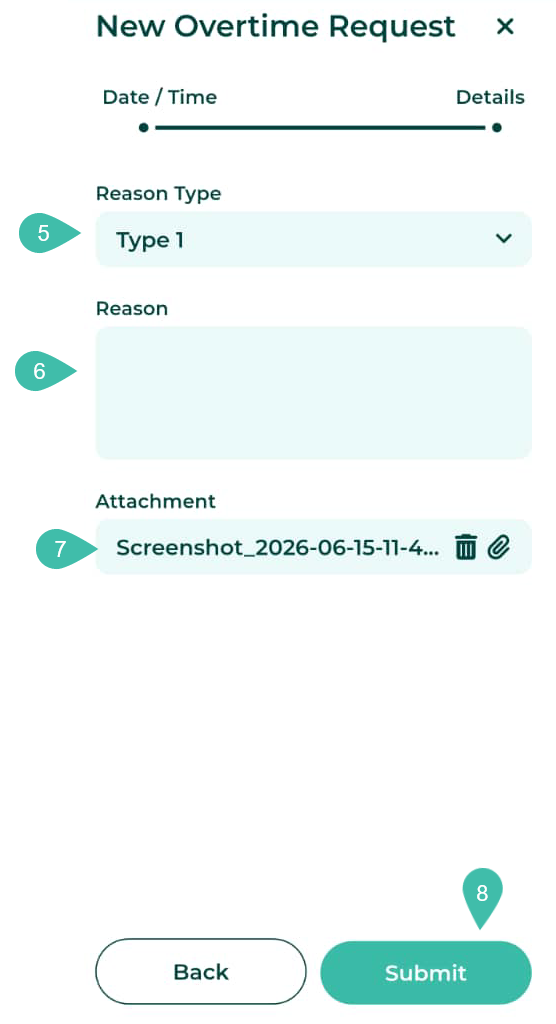
- Select a Reason Type.
- Enter the Reason for your request.
- Upload any supporting documents by clicking Attachment (you can choose to upload from your camera or a file).
-
Click Submit to send the request.
-
Once a request is submitted successfully, the system will display a "Request Submitted" message, and the Request status will appear as Submitted in your profile. You may click on the Request to view its details.

Note 📝
-
Accumulated leave days: Your leave balance will only be updated after the Request has been approved by your Manager or Admin.

- Calculation: The Leave hours you are entitled to will be calculated based on: Actual Overtime Hours x Applicable Multiplier Rate in accordance with your company's OT policy.
💬 Note
-
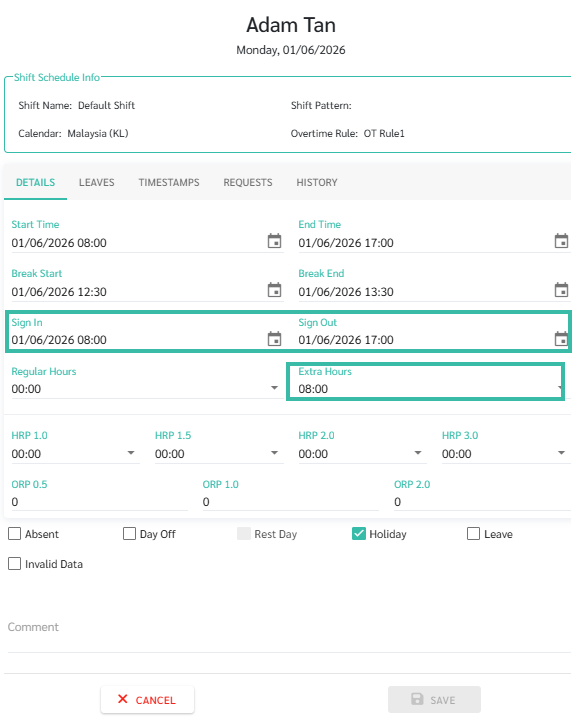
Employees must have actual Sign In and Sign Out records on the day the Extra Hours were performed in order to submit an Overtime Replacement Request.