Setting Up Payslip Lock
How to Set Up Payslip Lock
-
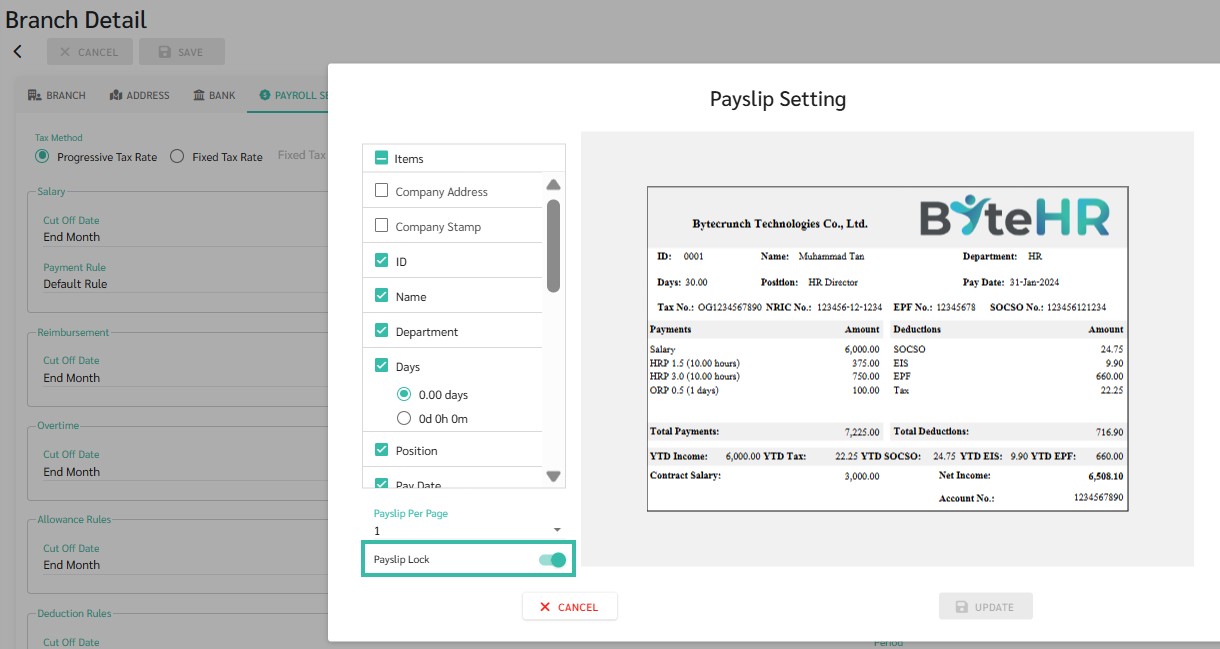
Go to the Company menu or the Branches menu ➜ Payroll Settings ➜ Employee Payslip Format.
For information on Employee Payslip Settings, please see LEARN MORE.
- Enable the Payslip Lock option.
-
Click Update to save.
How to View your Payslip from the Web App
🗨️ Note
There are two ways to view your payslip from the web app.
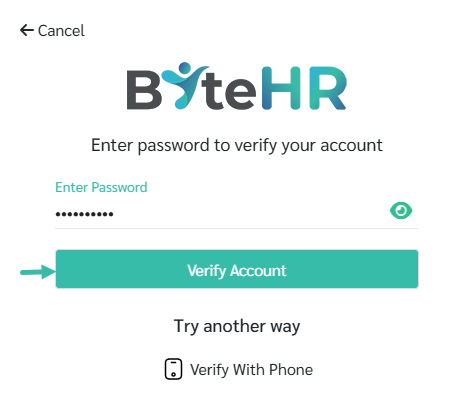
- Password verification ➜ After the employee enters their password, click "Verify Account" to display the payslip details to the employee.
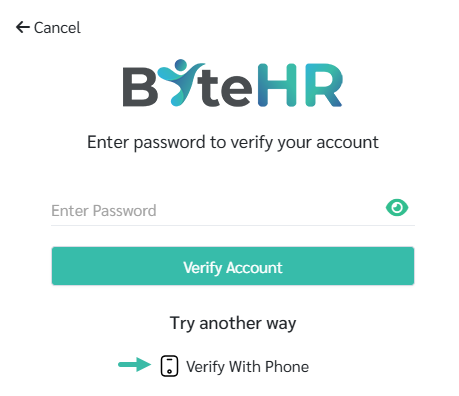
- Verification via mobile application ➜ Employees can choose to verify via phone. The system will prompt the employee to open the ByteHR application to confirm again.
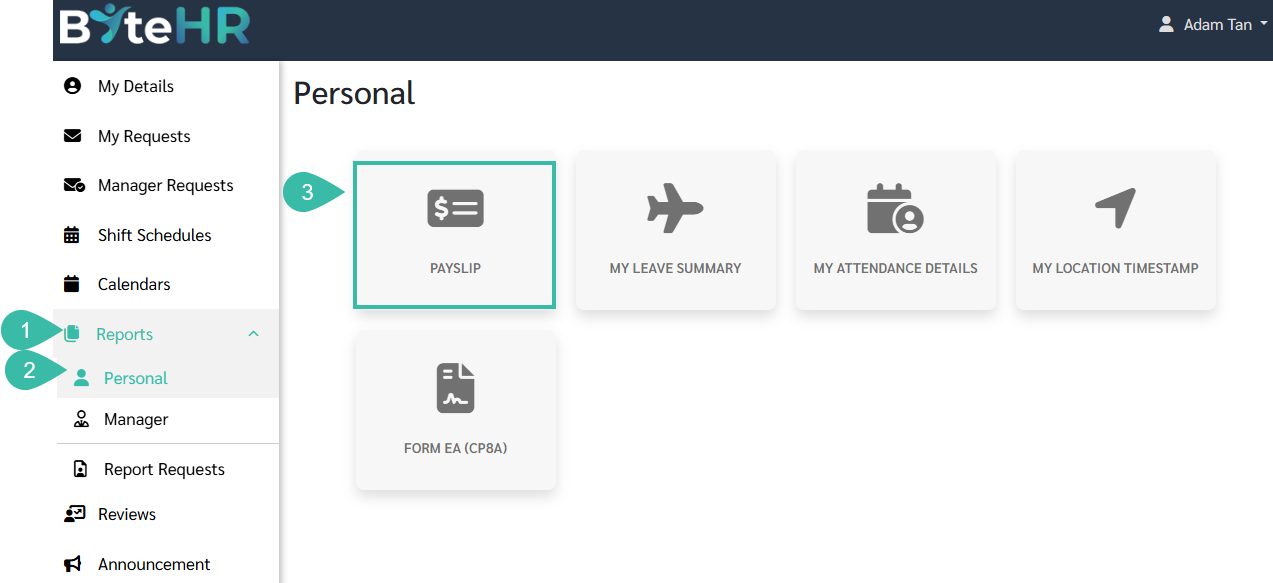
- Go to Reports.
- Select the Personal tab.
-
Click on Payslip.
-
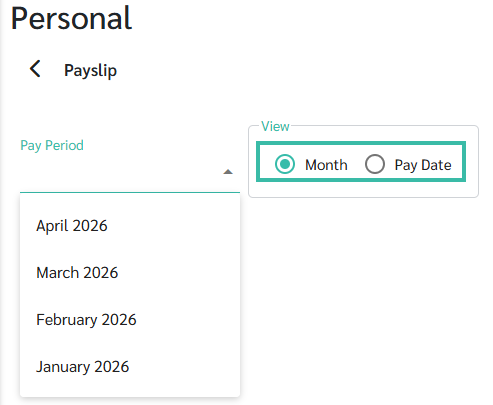
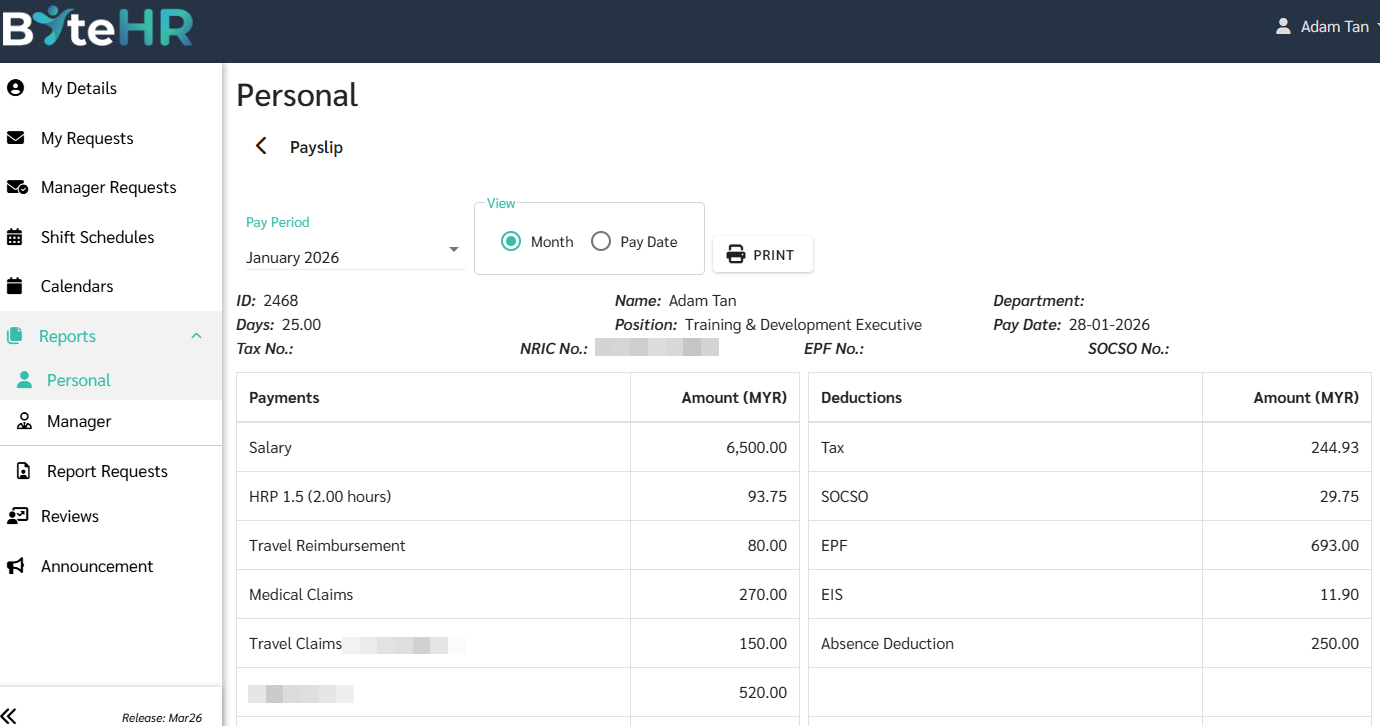
Select your pay period or pay date to view your payslip.
- A verification pop-up appears prompting the user to enter their password for confirmation before viewing the payslip.
-
Password Verification:
Enter your password and click "Verify Account." The system will then display the payslip details to the employee.
- Verification via Mobile Application:
-
Click "Verify With Phone". The system will prompt the employee to open the ByteHR app on their phone and re-verify their account.
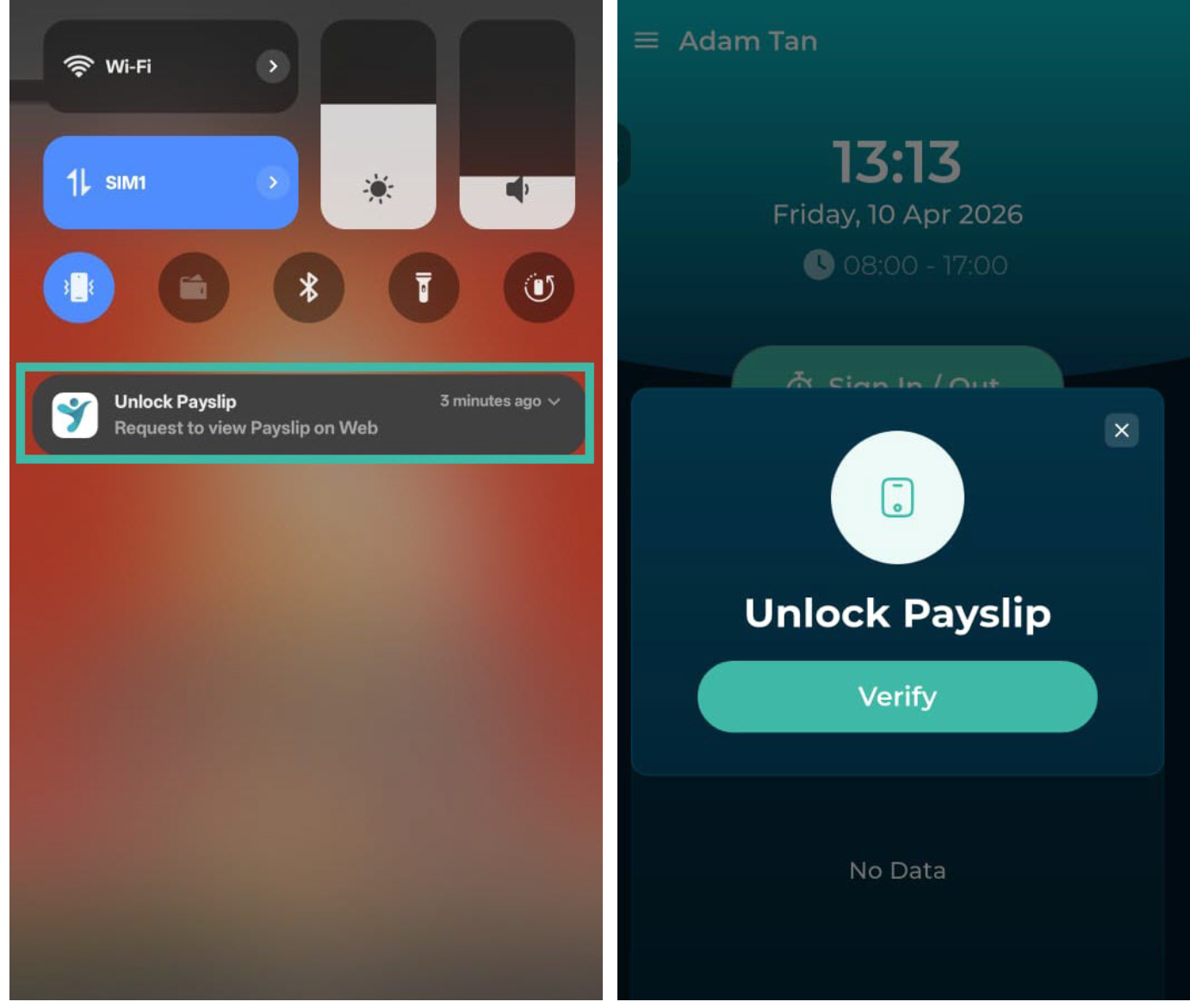
- The employee receives mobile notification, click on it.
-
You will be redirected to the ByteHR mobile app, click "Verify" to unlock Payslip on bowser.
-
-
How to View your Payslip from a Mobile App
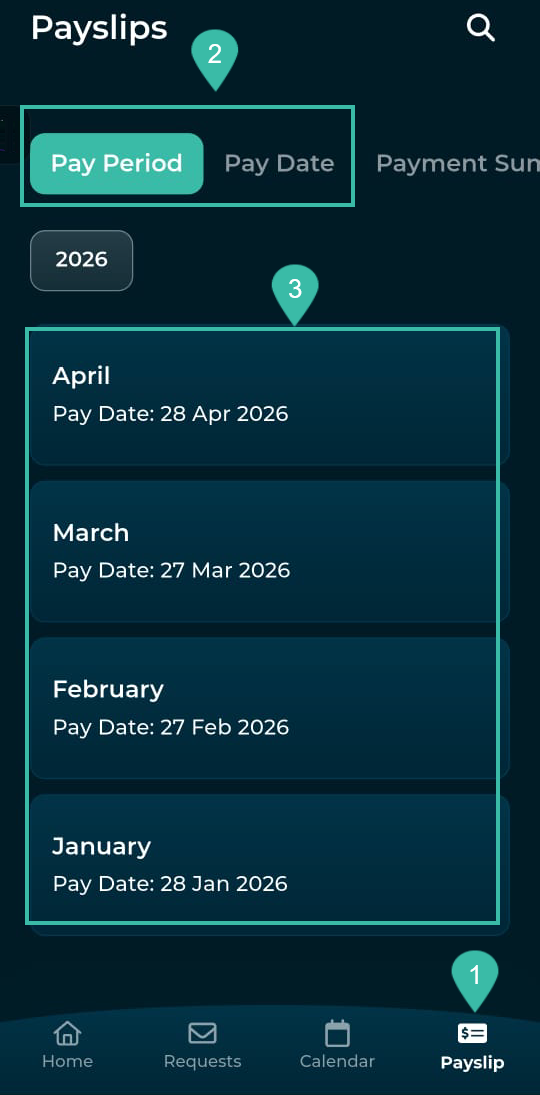
- Tap on Payslip.
- Select how you want to view the Payslip:
- By Pay Period, or
- By Pay Date.
-
Select the desired payslip.
- The system will prompt you to unlock it to view the payslip. The unlock method will depend on your phone's settings.
- Unlock methods
- PIN
- Password
- Pattern
- Fingerprints
-
Facescan
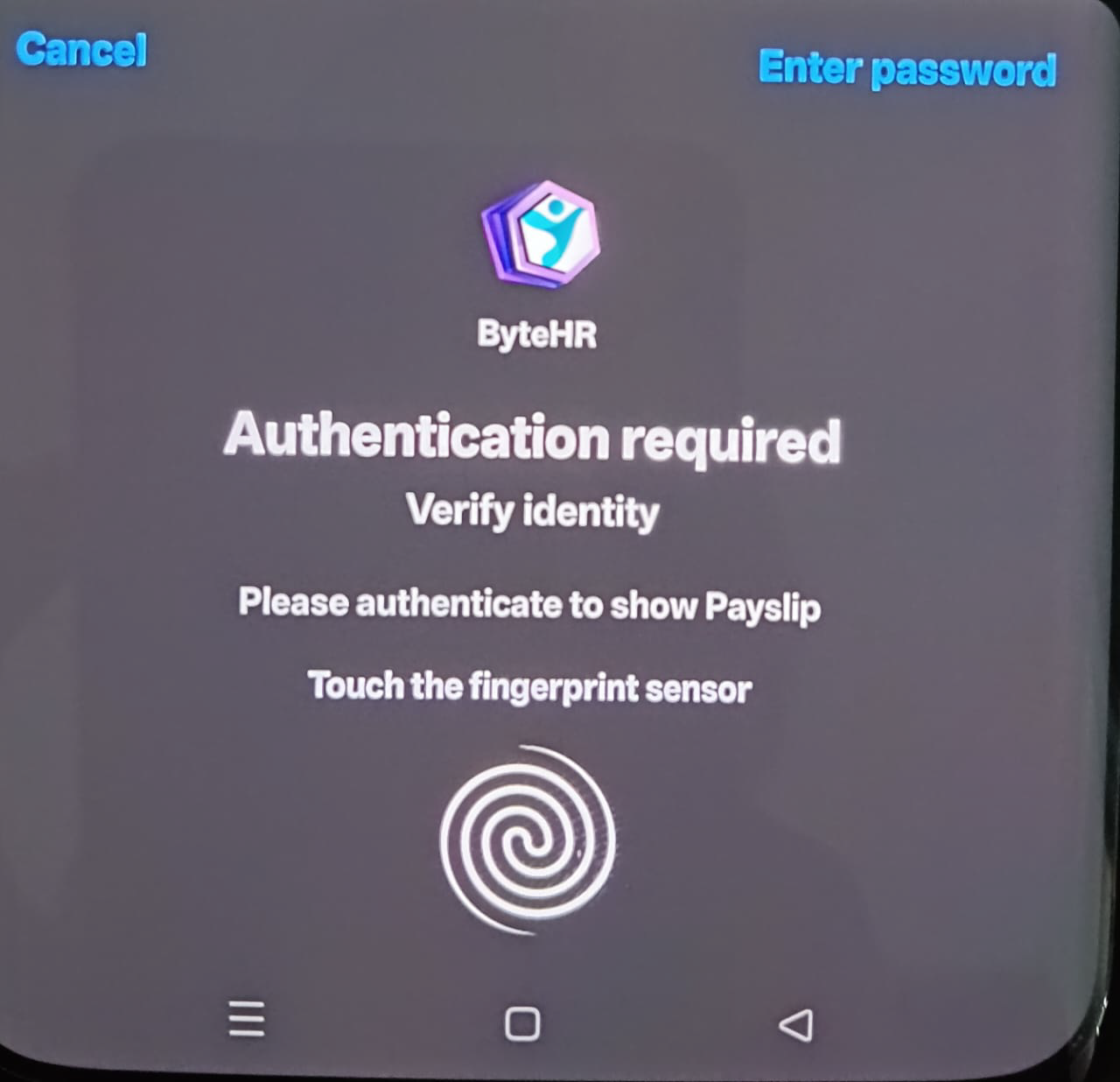
- Unlock methods
- Once verified, you can view and download/print your payslip.
🗨️ Note
-
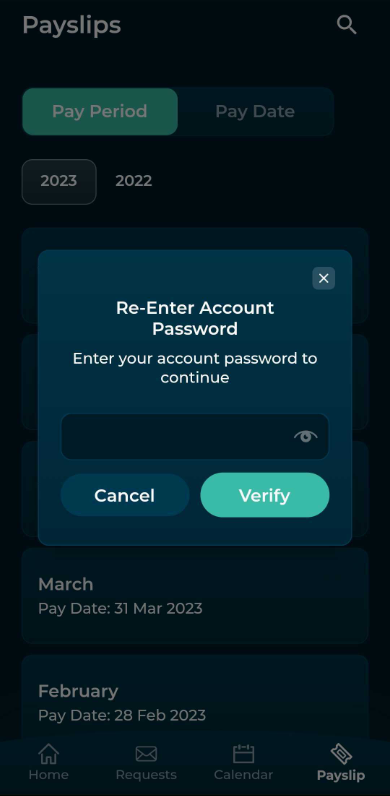
If no mobile unlock method is set up, the system will prompt you to enter your ByteHR account password instead.