
Add Leaves to Employees
💬 Note
Adding leave days to employees can be done individually or by uploading template. This is useful when adding new leave type to multiple employees at once.
For information on uploading leaves , please see LEARN MORE
🏷️ Case
When creating a new employee, the system will automatically display the Leave Name and Leave Allowance for the leave type that has been set as the default in the leave type settings.
How to Add Leave Days to Employee Details:
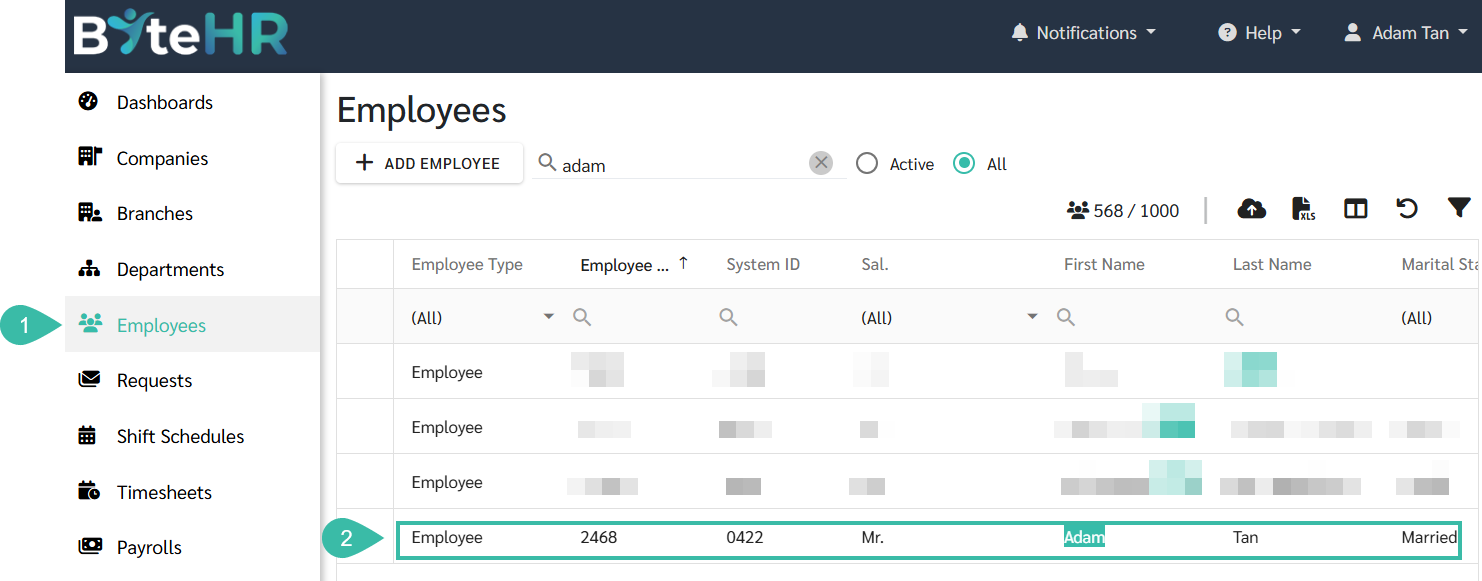
- Navigate to the Employees menu.
-
Select an employee you wish to add a Leave type.
-
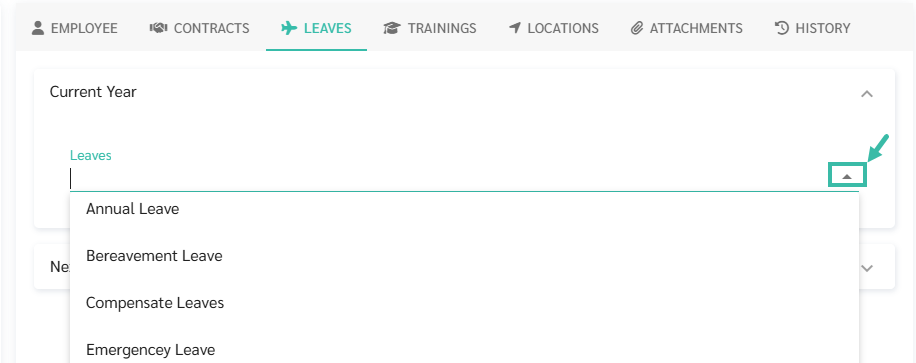
Go to the Leaves tab.

-
Click the arrow icon and select the desired leave type.
-
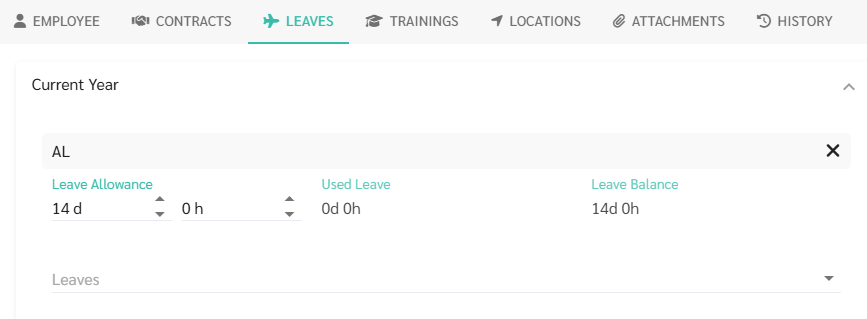
The number of leave days an employee is entitled to can be increased or decreased.
-
If an employee has accumulated leave days carried forward from the previous year, the system will display the accumulated leave days carried forward field.
If you need to correct the number of accumulated leave days carried over from the previous year, please upload the leave days for the employee.

🗨️ Note
Leave names are arranged numerically, then alphabetically (A-Z).