
Sync Biometric Data Across ADMS Devices
This feature allows you to enroll an employee’s fingerprint or face on a single device and automatically make that data available across all devices within the same group, without needing to enroll on each device separately.
When to use
- You have multiple biometric devices in your organization
- You want employees to use the same biometric data across all devices
- You want to reduce time spent on repeated enrollments
⚠️ Prerequisite: Syncing User First
Before creating a Sync Group, you must ensure that all user data from each physical device is correctly imported into the system. Please perform these steps for every device you intend to include in the group:
- Go to Finger Scanners menu.
- Select the specific Finger Scanner you want to manage.
- Click on the Device Users tab.
- Click the Sync Users button

Note: This step ensures that the system identifies all existing users on that specific device before they are grouped together. Repeat this for all scanners.
How to sync devices
-
Go to
Preference → Attendance → Finger Scanners
Select the Sync Group tab
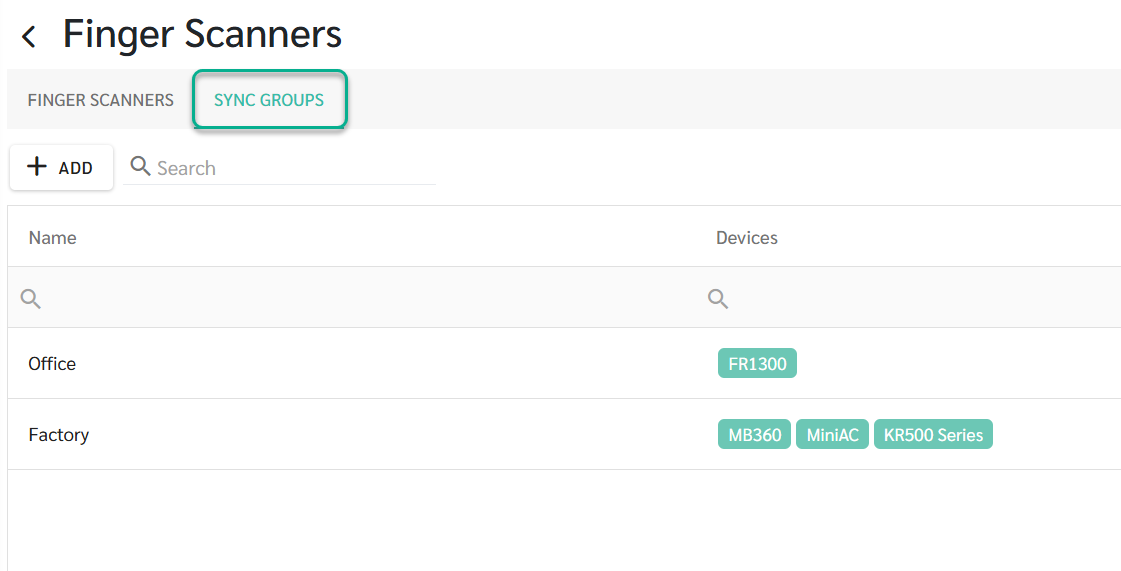
2. Click Create Sync Group
Fill in the details
- Group Name
-
Select devices to include in the group
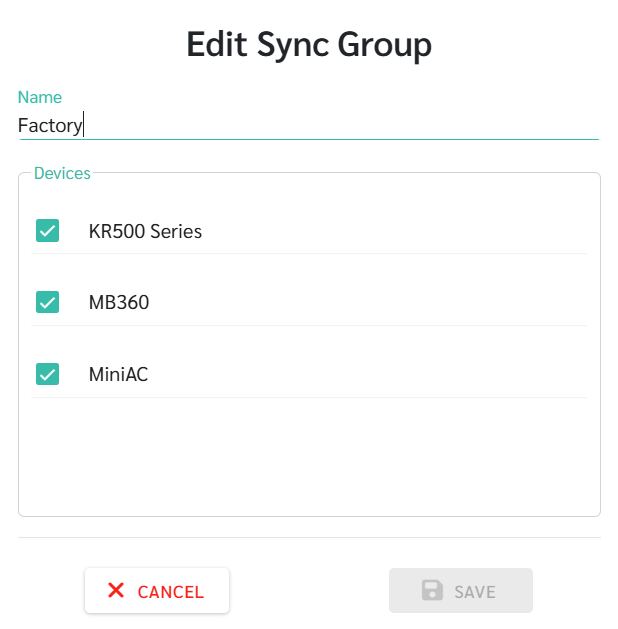
3. Click Save
When biometric data is enrolled on any device
- The system will automatically sync the data to other devices in the same group
-
All devices in the group will have the same employee dataset
Note 📝
- One device can belong to only one Sync Group.
- Only fingerprint and face are supported, while palm data is not supported.
- See ADMS Fingerscan User Management at LEARN MORE