ADMS Fingerscan User Management
📑 Table of Contents
View Device Users
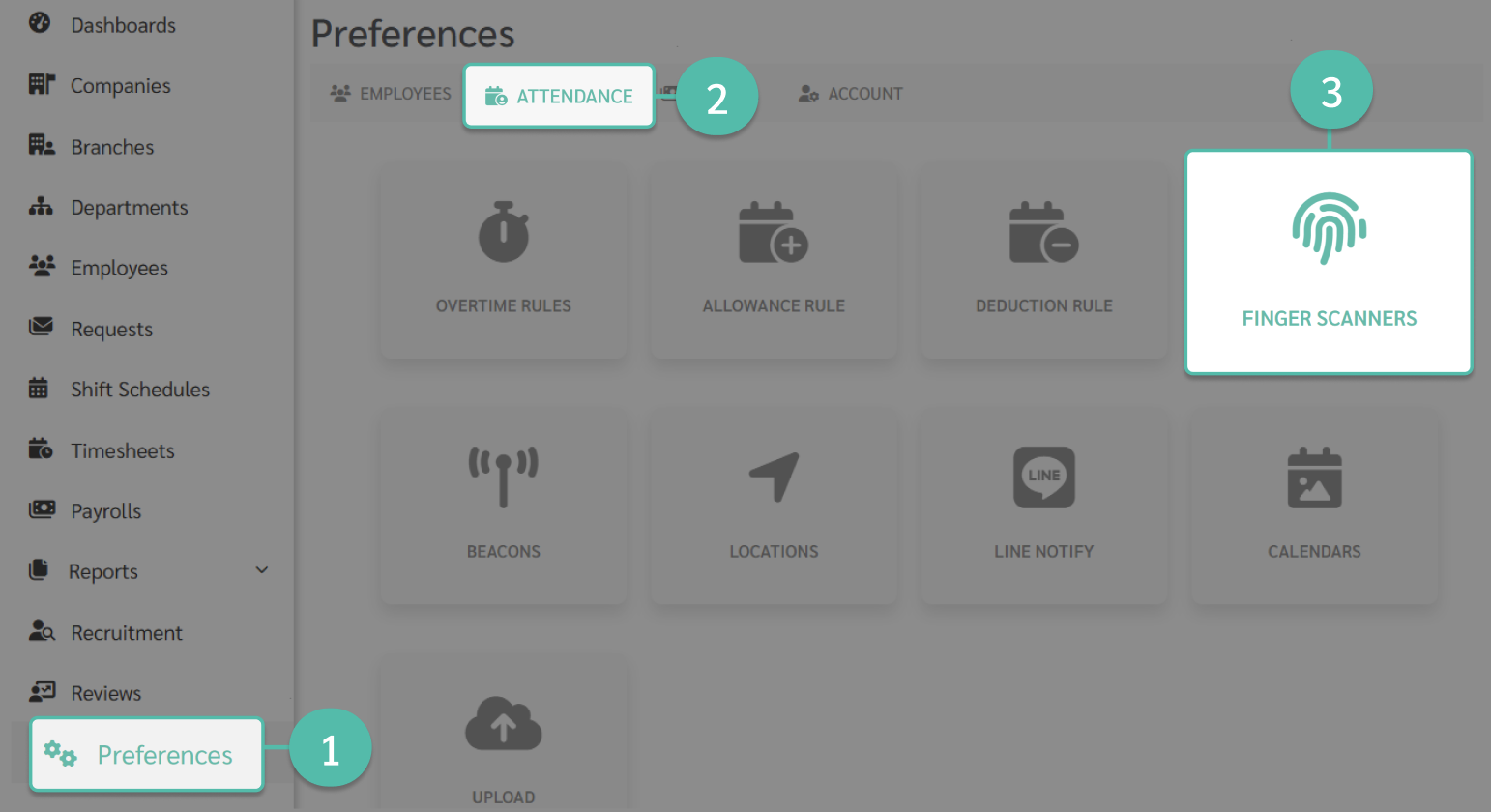
- Go to Preferences.
- Select Attendance.
-
Click Finger Scanners.
-
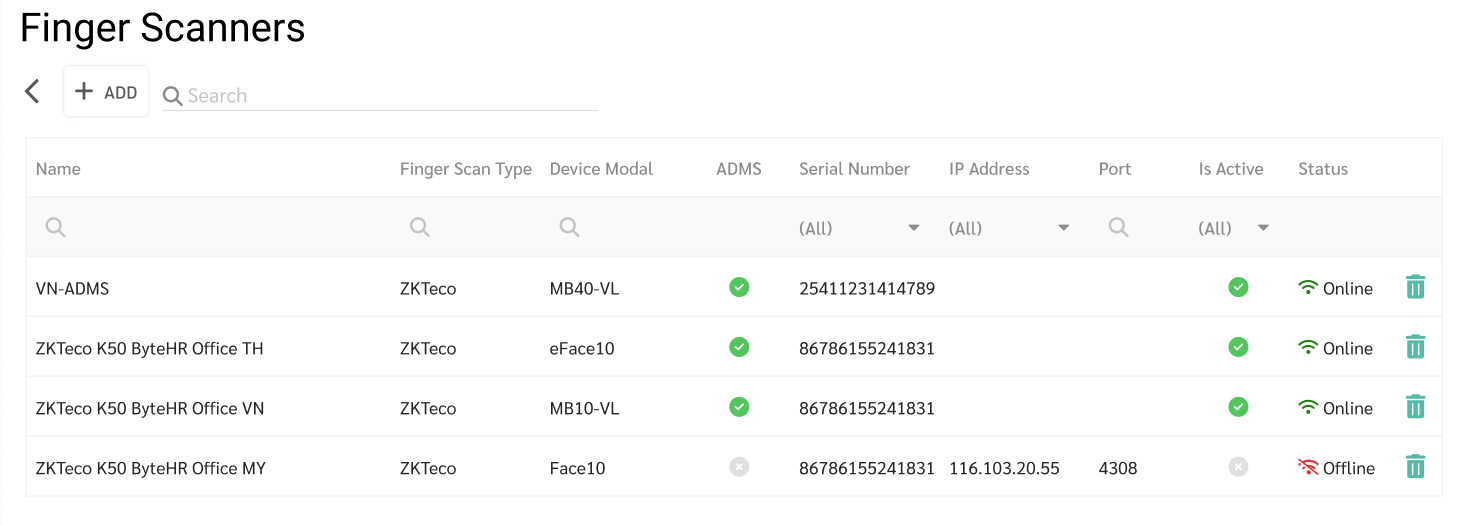
Select the desired Finger scanners.
-
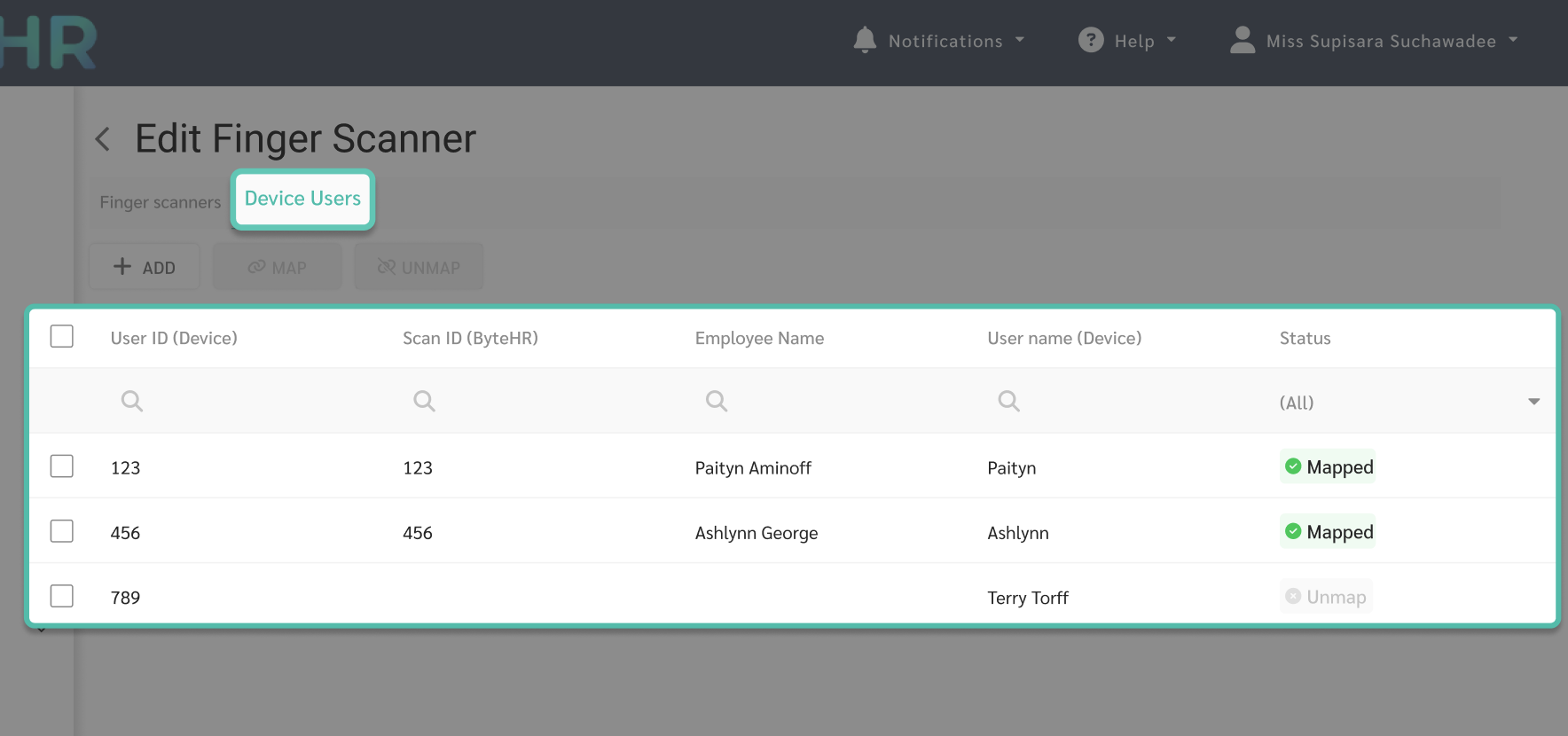
Select the "Device Users" tab. This tab will display a list of employees whose data is already synchronized with that device, as well as users whose data has not yet been synchronized.
Add Employee to the Fingerprint Scanner
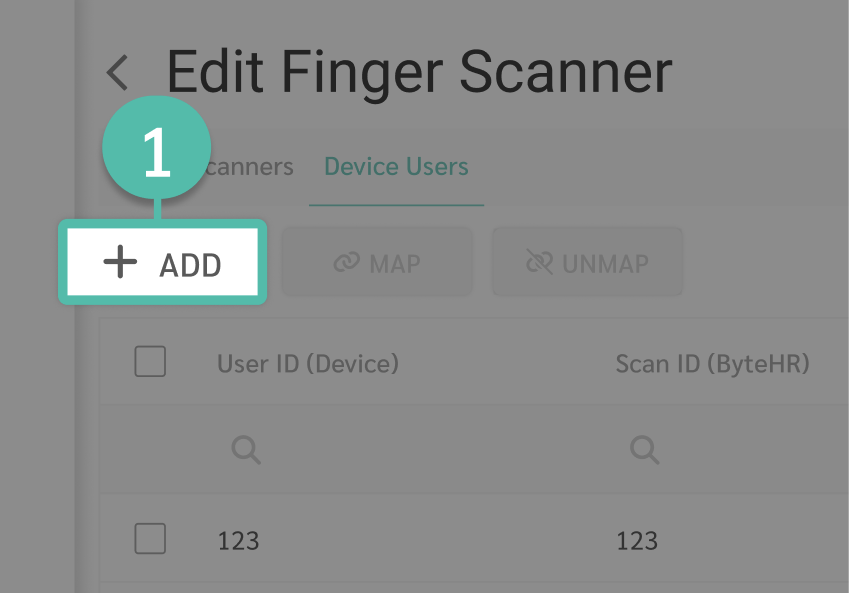
In the Device Users tab of the fingerprint scanner, you may add a new employee, following these steps:
-
Press +Add.
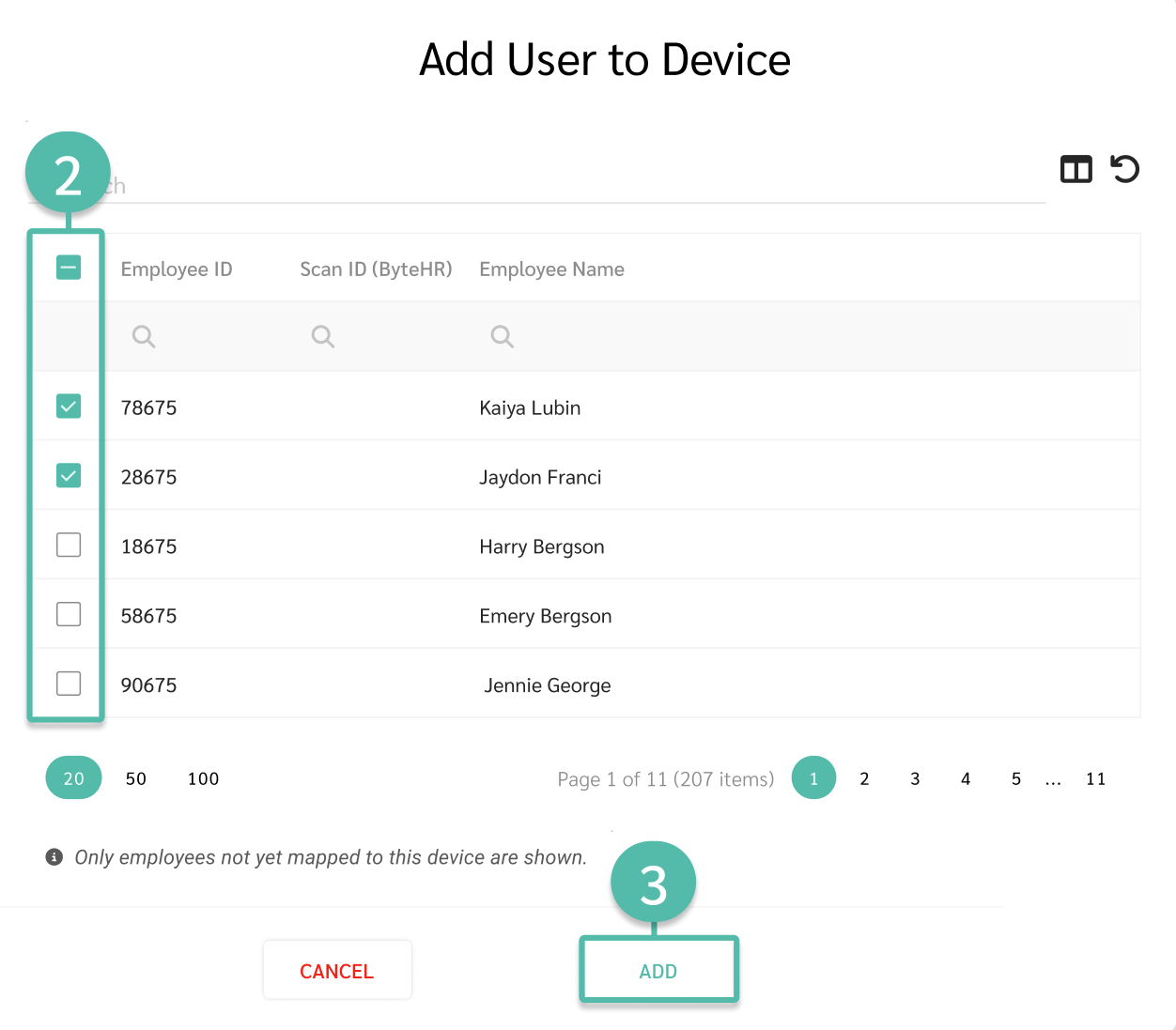
- Select the checkbox next to the employee's name you want to add.
-
Press Add.
Note: The system will display a list of employees whise fingerprint data has not yet been synchronized with the fingerprint device. This includes employees who do not have a Scan ID or those who already have a Scan ID registered in the system. The information will be displayed in the table below..
-
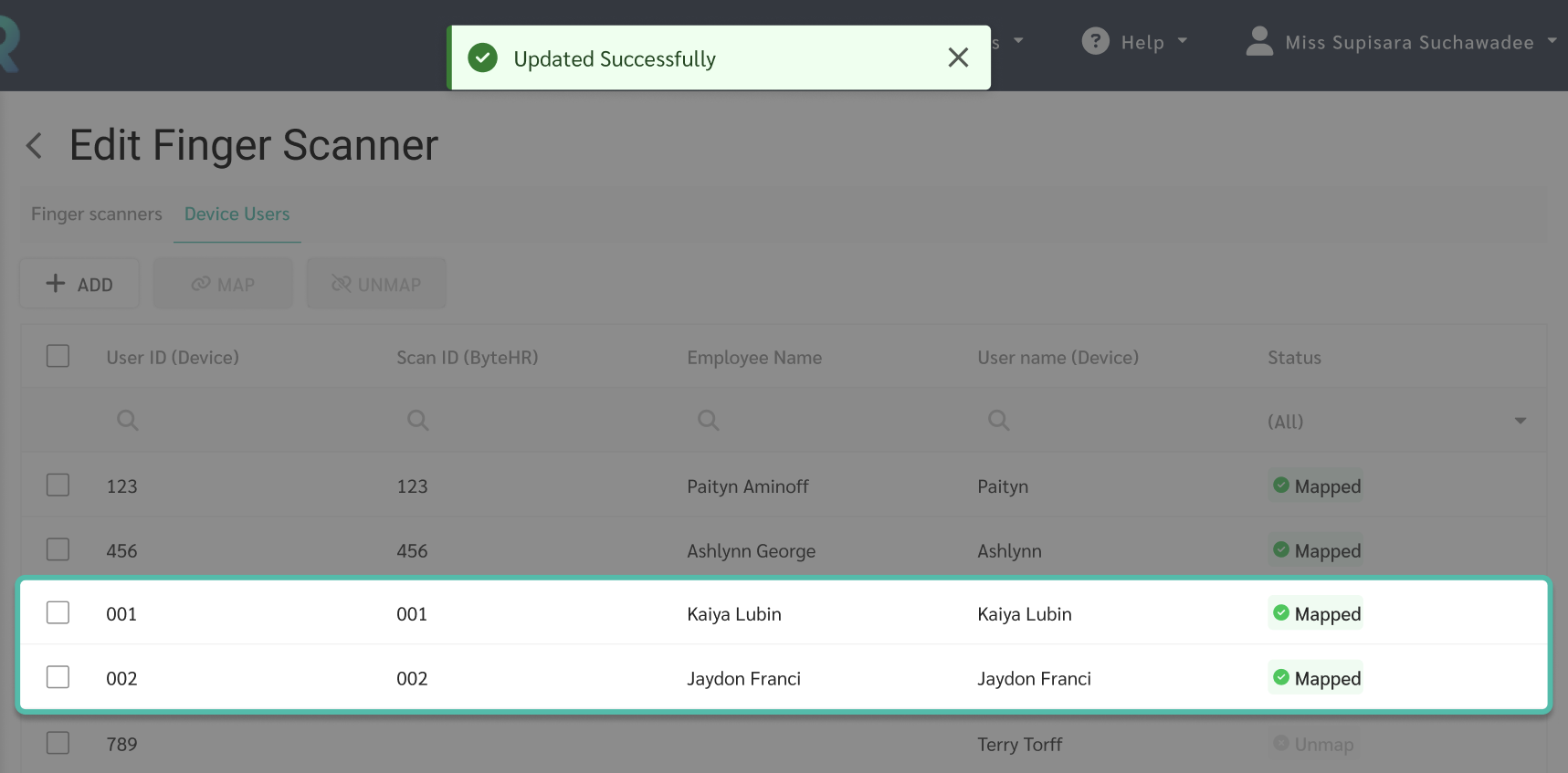
Once an employee is successfully added, the system will automatically display their fingerprint scan ID along with the status "Mapped."
Link Employee Data in the Fingerprint Scanner (Map Employee)
In the Device Users section of the fingerprint scanner, you may synchronize employee data, following these steps:
There are two cases for linking employee data:
- If the Scan ID is added to the employee details, the system will automatically synchronize the data from the fingerprint scanner with the employee list in the system. This will happen if the User Device (ID) of the fingerprint scanner matches the Scan ID.
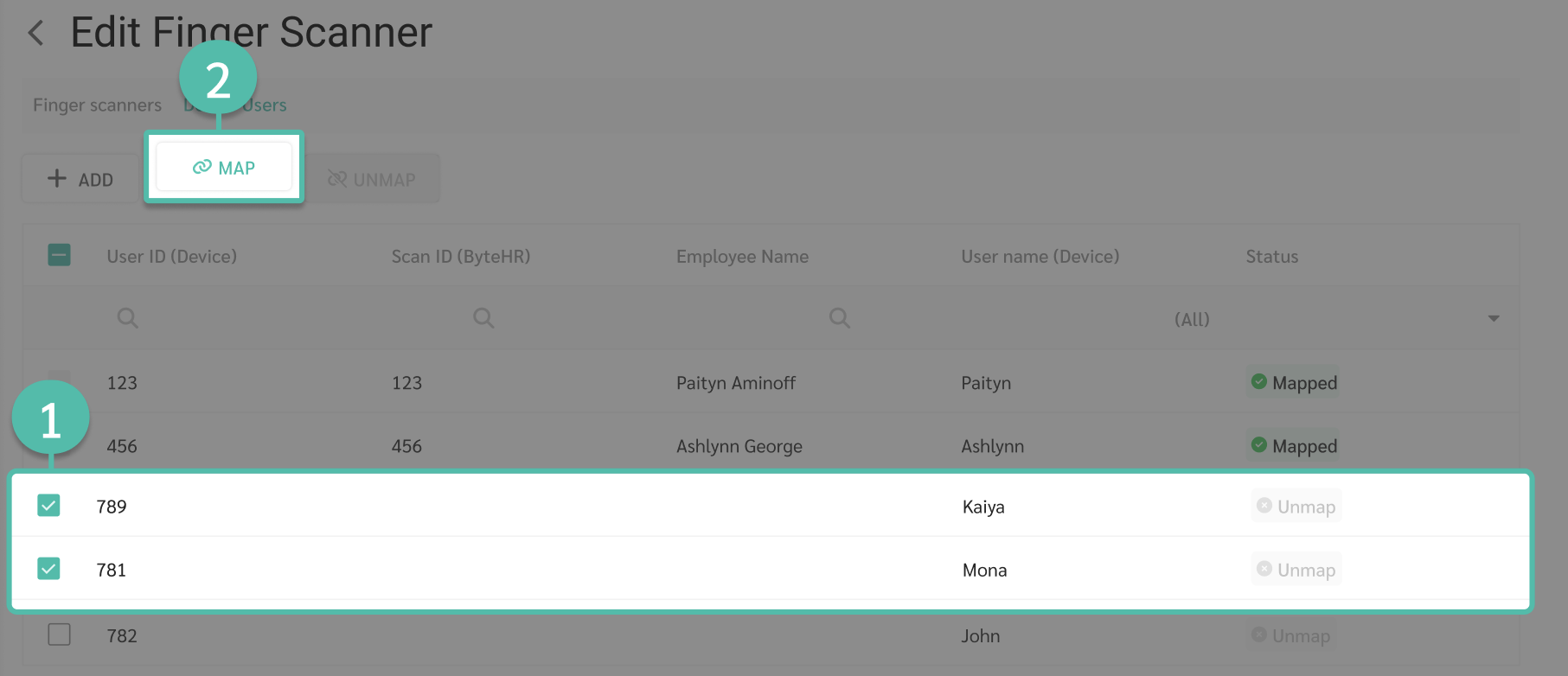
- If there is no Scan ID that has been added to an employee, the data can be linked manually on the "Device (User)" page as follows:
- Select the employee name whose status is "Unmapped".
-
Click Sync (Map).
-
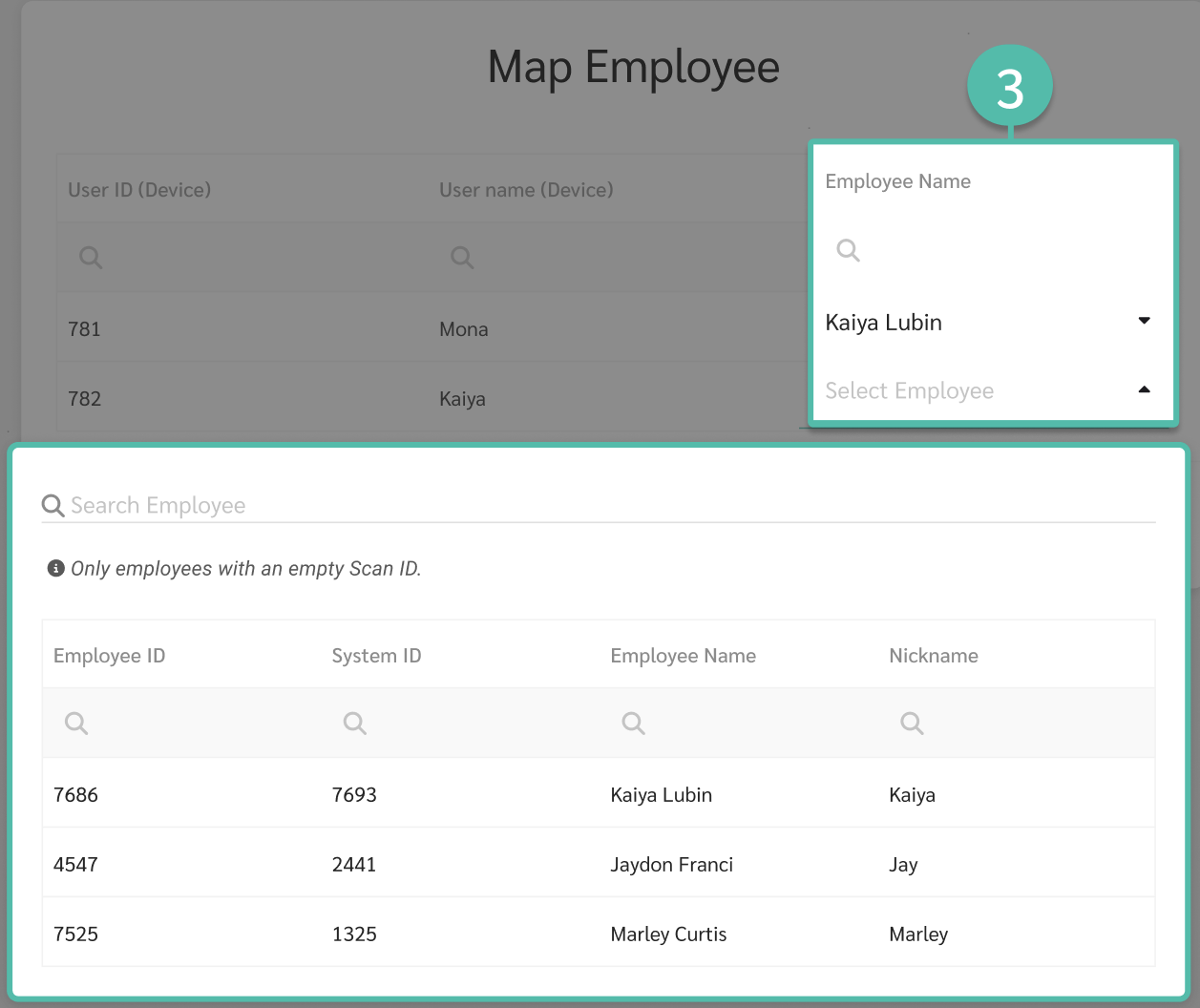
Click to select the employee name from the table below, which is data from the ByteHR system, making sure to select the one that matches the data in the fingerprint scanner.
Note: The "Employee Name" column in the system dropdown will only display the names of employees who do not yet have a Scan ID. If you do not find the desired employee, you must go to the employee details and delete the Scan ID -> click Save. Then, on the Employee Data Linking page, you will find that employee in the dropdown.
-
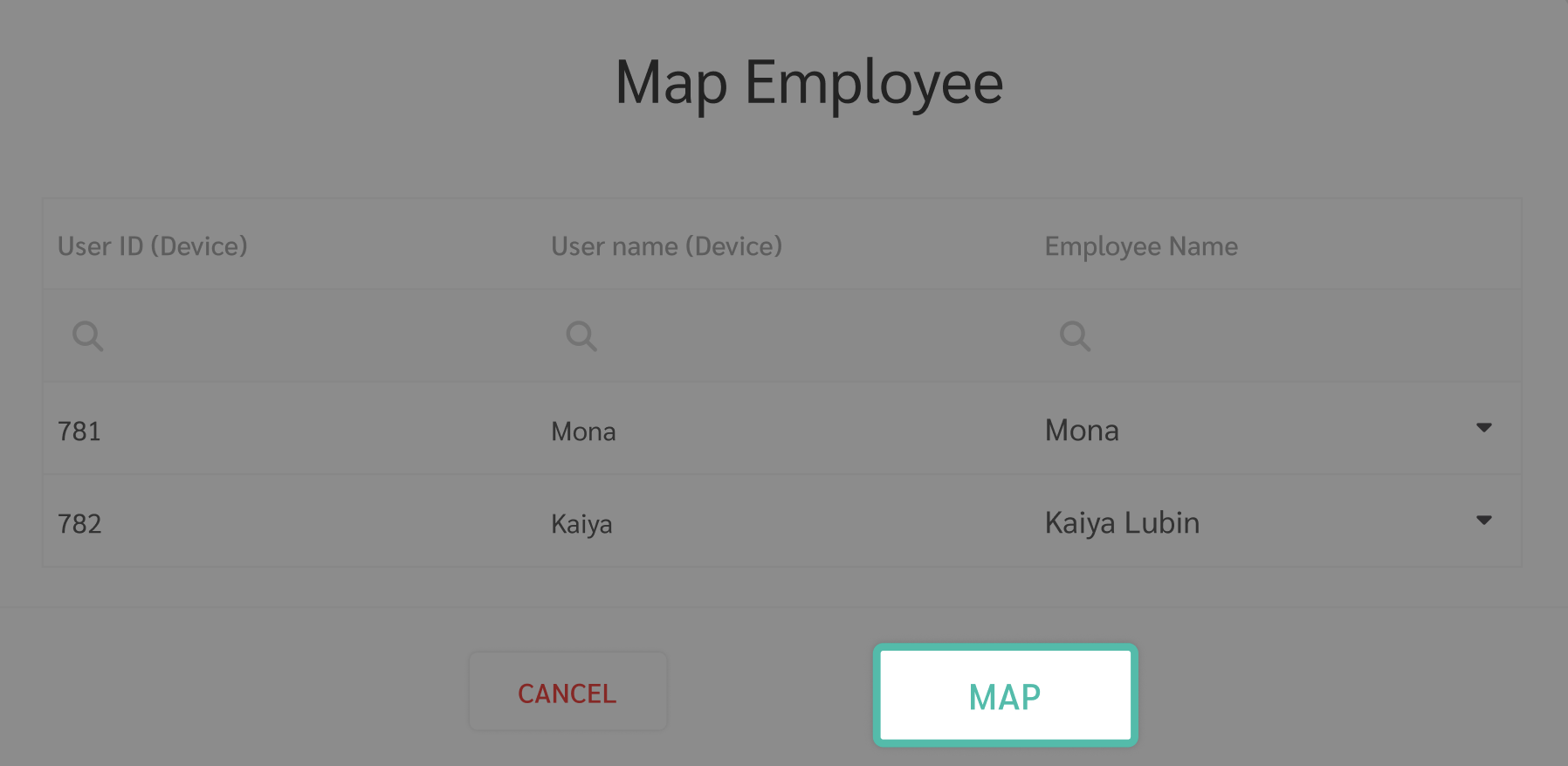
Click Sync (Map)
Note: When syncing employee data (Map), the system will only display the names of employees who do not yet have a fingerprint scan ID. To sync data for employees who already have a fingerprint scan ID, you must remove that ID from that employee's details page first. Only then will the employee's data be syncable.
-
When you press "Sync Data (Map)," the system will take a moment to process and will show the status as "Syncing Data (Mapping)."

-
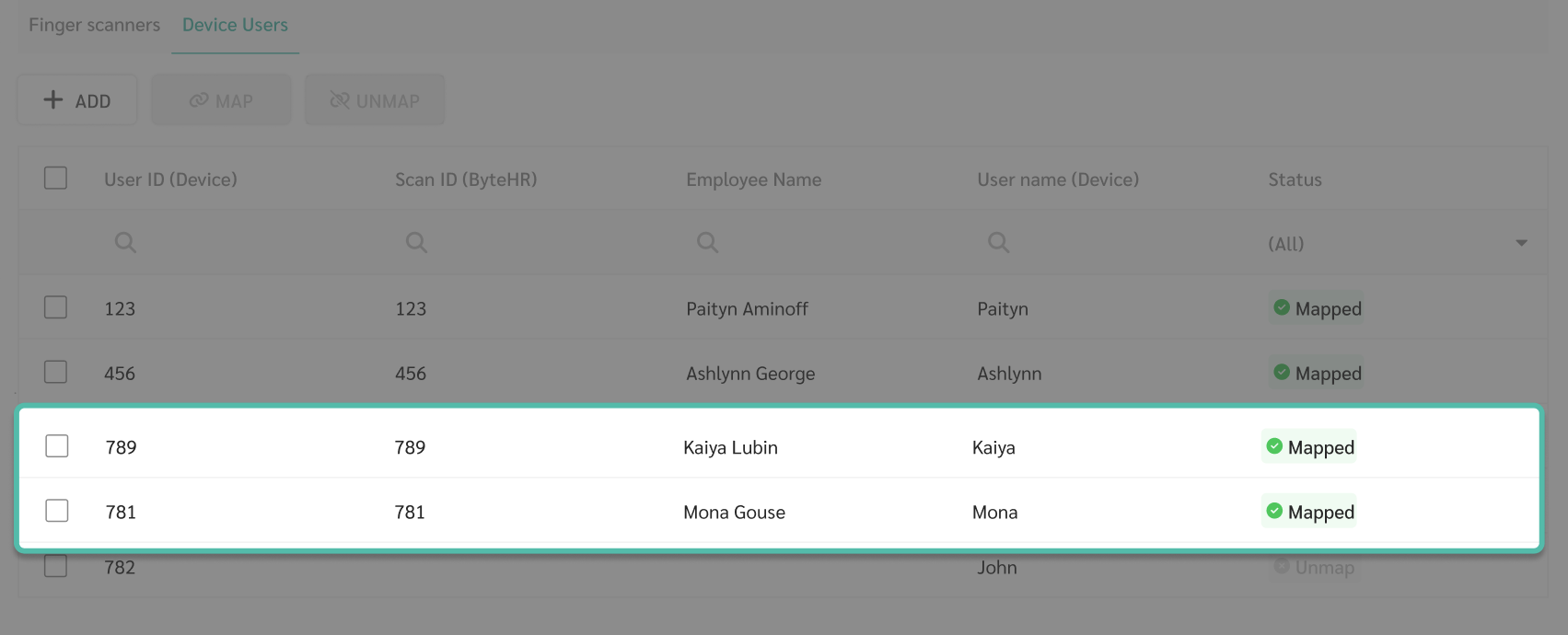
Once the process is complete, the employee's name will change to "Mapped".

- Once the data synchronization is complete, the employee's information will be updated as follows:
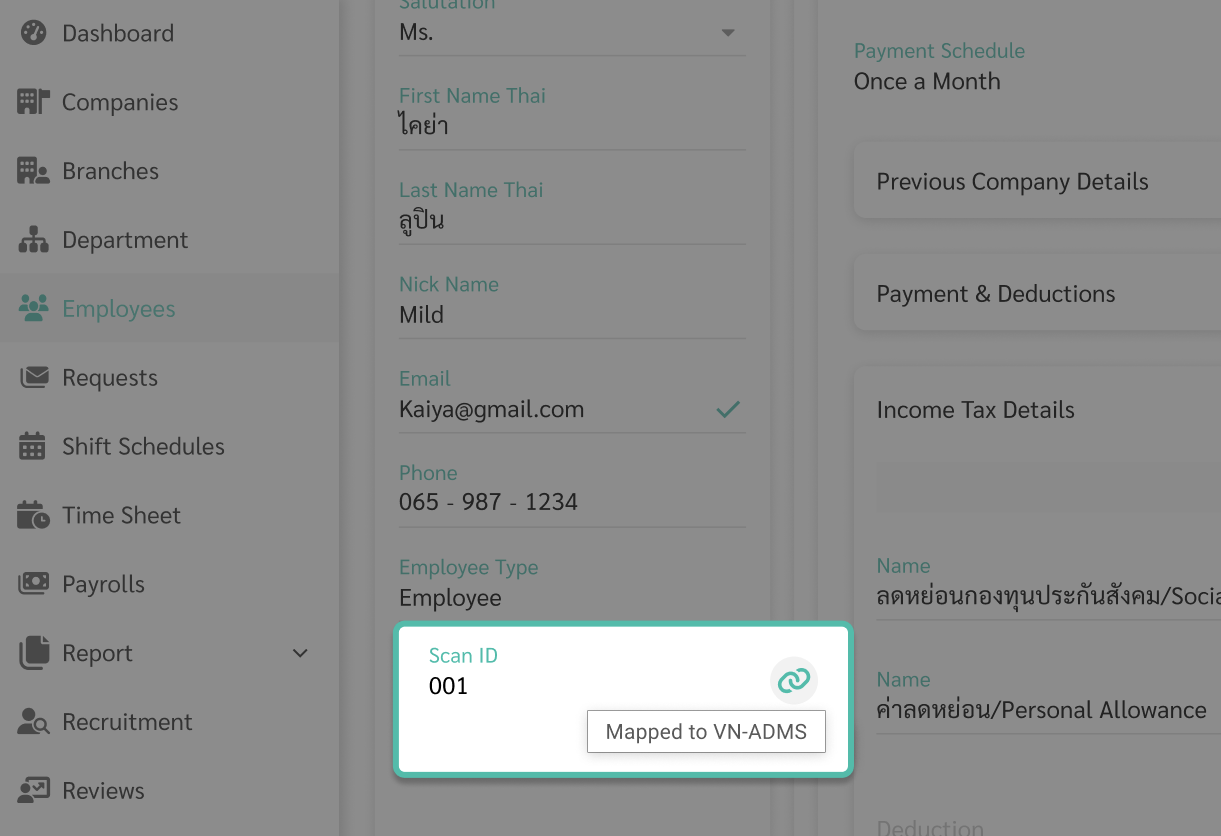
- On the Employee Details page, the Scan ID section will automatically update according to the Device User ID in the fingerprint scanner.
-
The system will then synchronize data with other fingerprint scanners. If the User ID (Device) in the fingerprint scanner matches, the system will automatically synchronize the data.
-
Deleting Employee Data from the Fingerprint Scanner (Unmap Employee)
In the event that an employee transfers branches or resigns, you can choose to unlink the employee's data from the fingerprint scanner. Select the scanner that the employee's data is currently linked to. Then, in the Device Users tab of the fingerprint scanner, follow these steps:
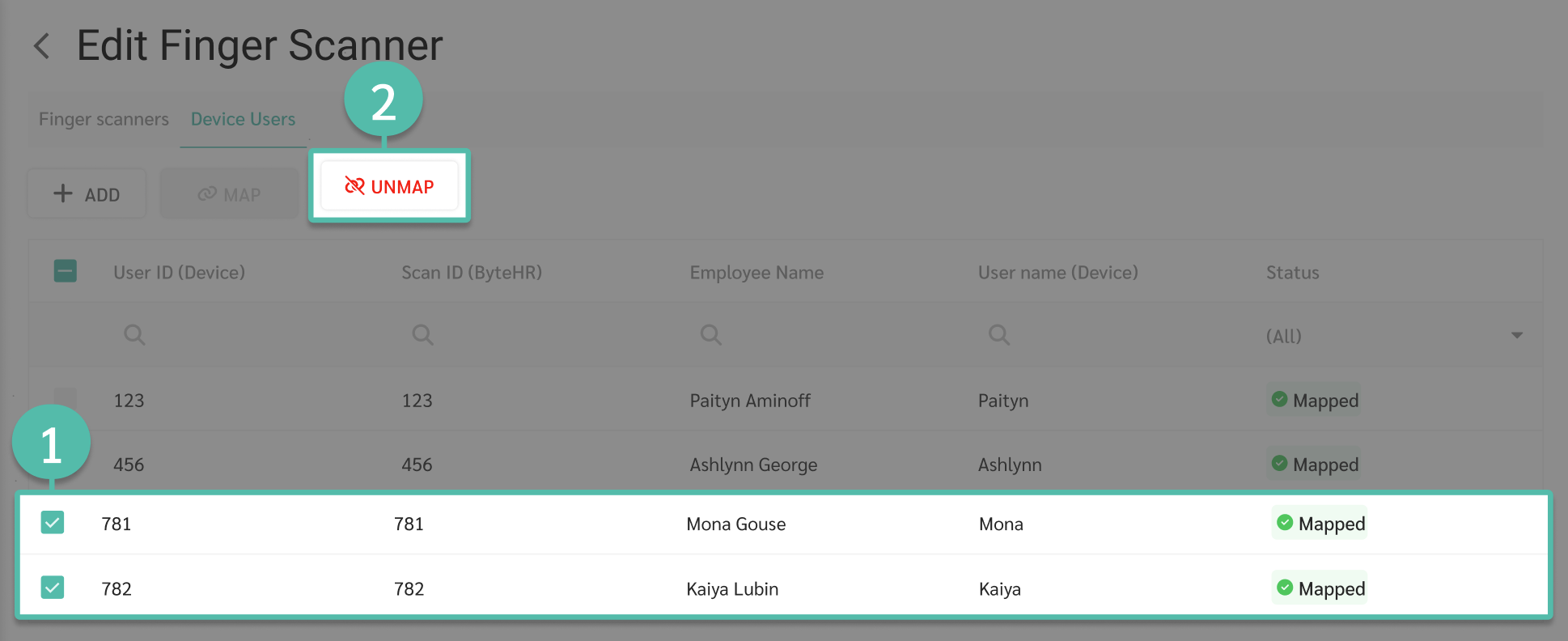
- Select the employee name whose status is "Mapped".
-
Click Unmap.
-
Review the employee information you wish to unmap and click Unmap.
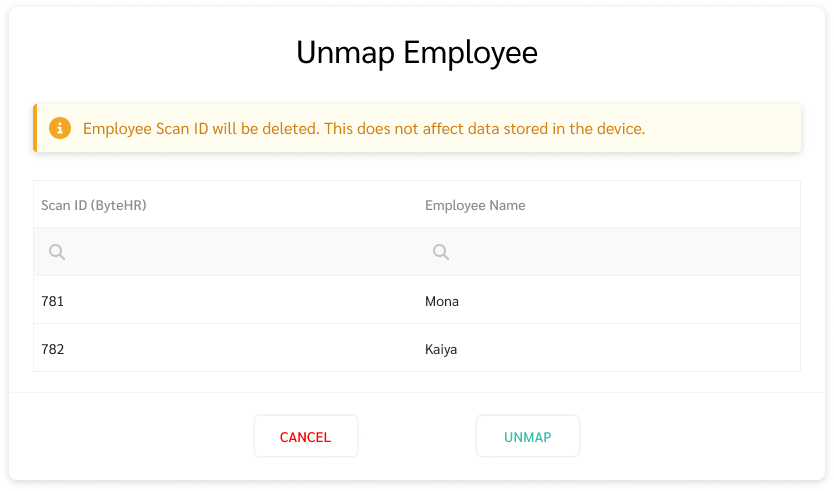
-
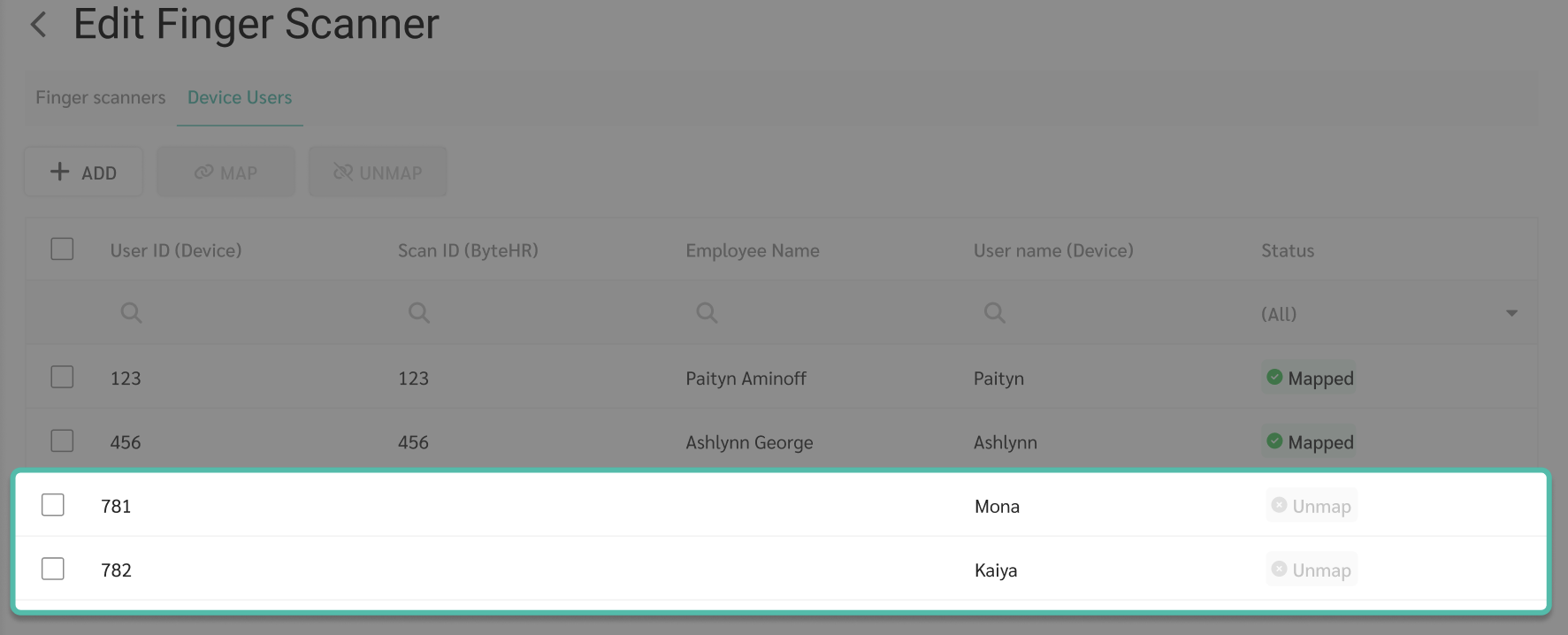
The system will take a moment to process and will show the status as "Unmapping".

-
Once the process is complete, the employee's name will change to "Unmapped".

-
- Once the data synchronization is successfully terminated, the employee's data will be updated as follows:
- On the Employee Details page, the Scan ID section will be removed.
-
If there are other fingerprint scanners that the employee is connected to, the system will automatically unmap those devices, but this will not affect the data stored on those scanners.
📃 Note
- The fingerprint scanner must be ADMS-compatible to connect between the fingerprint scanner and the employee list.
- Once the fingerprint scan codes have been successfully linked, the scan ID cannot be edited until the link is disconnected. This can be observed on the employee's details page, under the Scan ID section. Hovering over the chain icon will show which fingerprint scanners the employee's data is linked to.
-