
Payment Rules
You can set up Payment Rules to specify that employees receive wages for Public Holidays or Weekly Days Off if they are unable to work.
How to create Payment Rules.
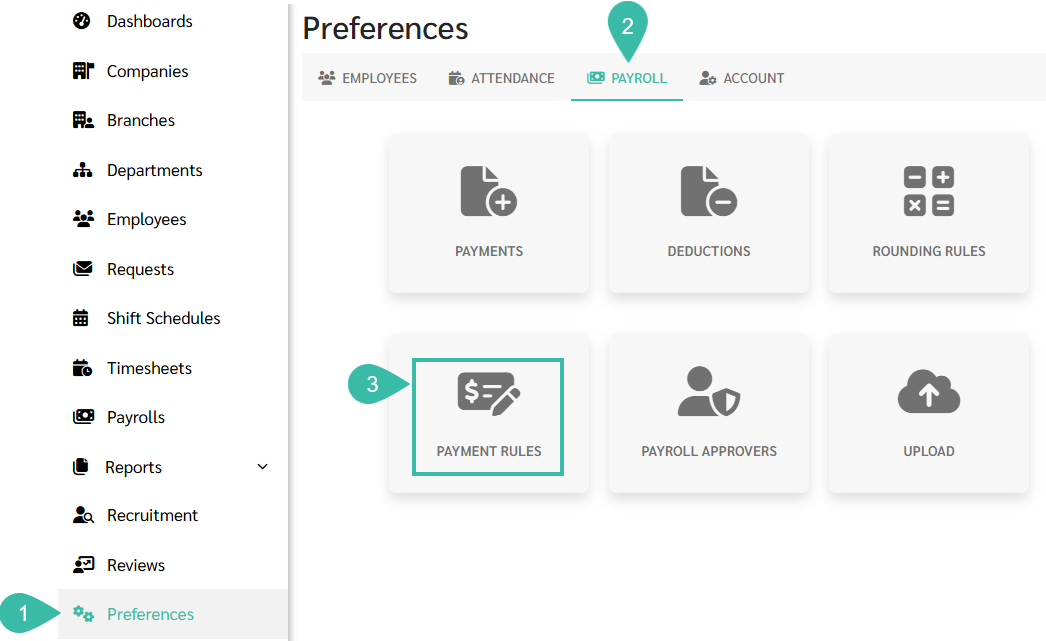
- Go to Preferences.
- Click Payroll.
-
Select Payment Rules.
-
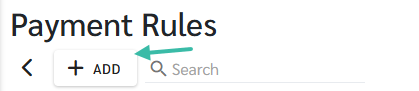
Click Add.
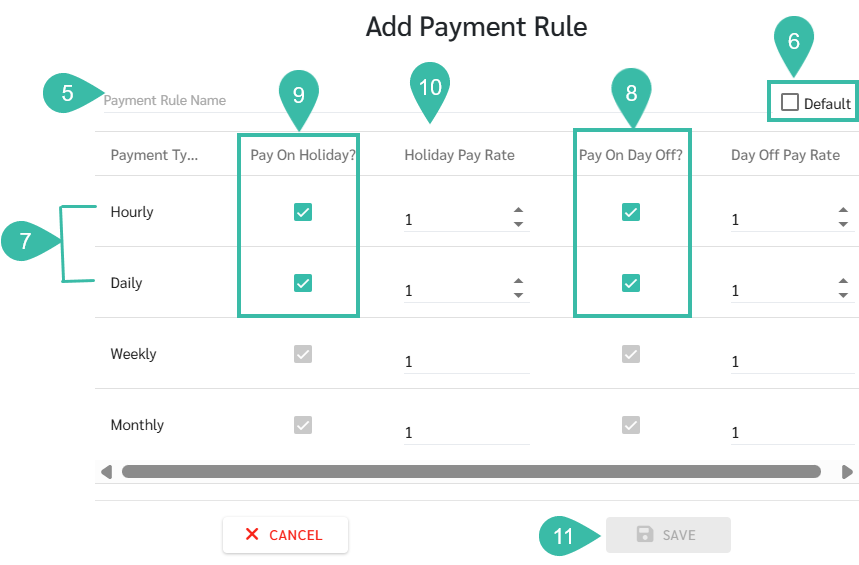
- Name the Payment Rule.
- Check the "Default" box if you want to set this payment rule as the default for all companies.
- The system will display a table showing the payment rule settings for each employee type. The types that can be edited include Daily and Hourly employees.
- To allow employees to receive pay for weekly days off that they don't work, check the "Pay On Day Off" checkbox.
- To ensure employees receive pay for public holidays even if they don't work, check the "Pay On Holiday" checkbox.
- You can specify the pay rate for holidays in the "Holiday Pay Rate" or "Day Off Pay Rate" fields, such as paying one-time wage or double-time wage, etc.
-
Once completed, click Save.
- Once the payment rules have been configured, the payment rules must be selected every time in the payroll settings at the company or branch.
- In Payroll Settings, you can select Payment Rules.

Note
Monthly paid employees cannot opt out of pay for Public Holidays and weekends, nor can they set specific wage rates for working on Public Holidays and Days Off. The system will automatically pay double wages for public holidays and Days Off.