Upload Public Holidays
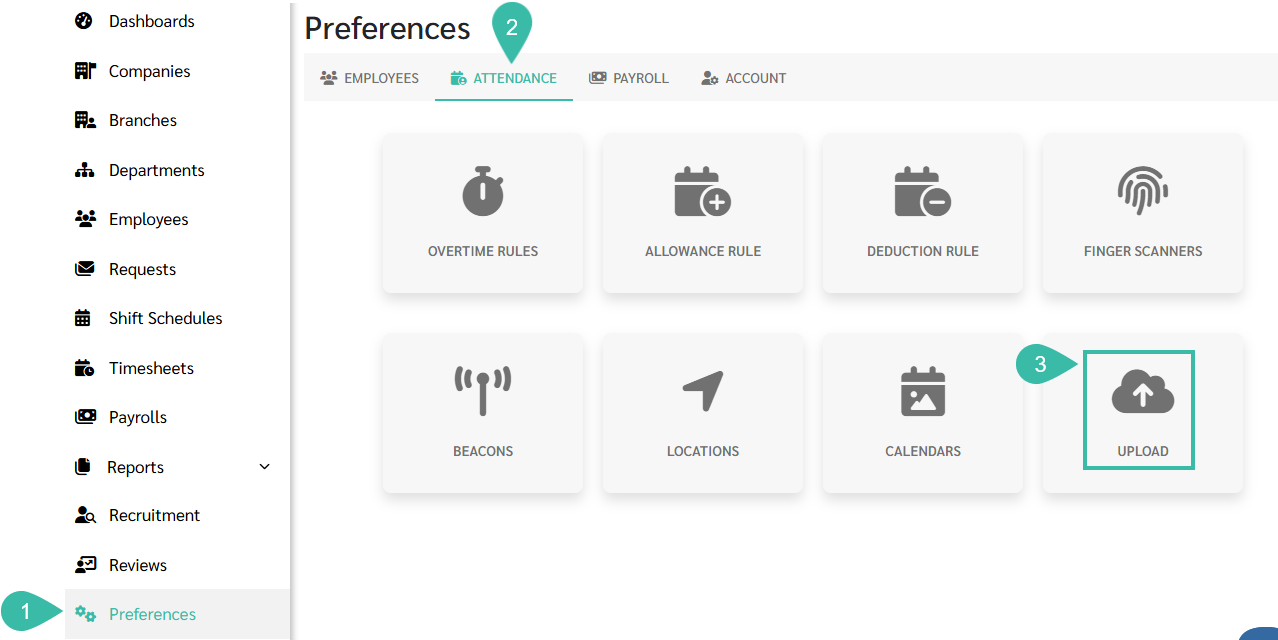
How to Upload Public Holidays:
- Go to Preferences.
- Select Attendance.
-
Select Upload.
-
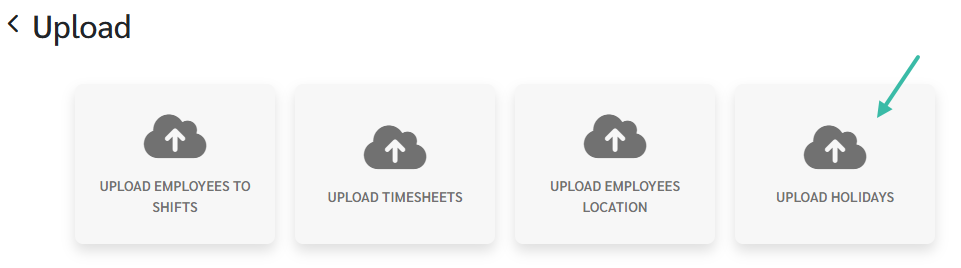
Click Upload Holidays.
-
Click Template to download the Upload Holidays Template to fill in the Holidays.
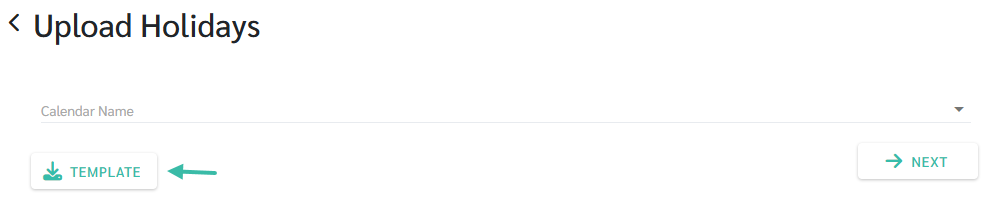
- To upload, select Calendar Name
-
Click Next.

-
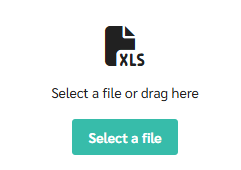
Click Select File and choose the file you want to upload.
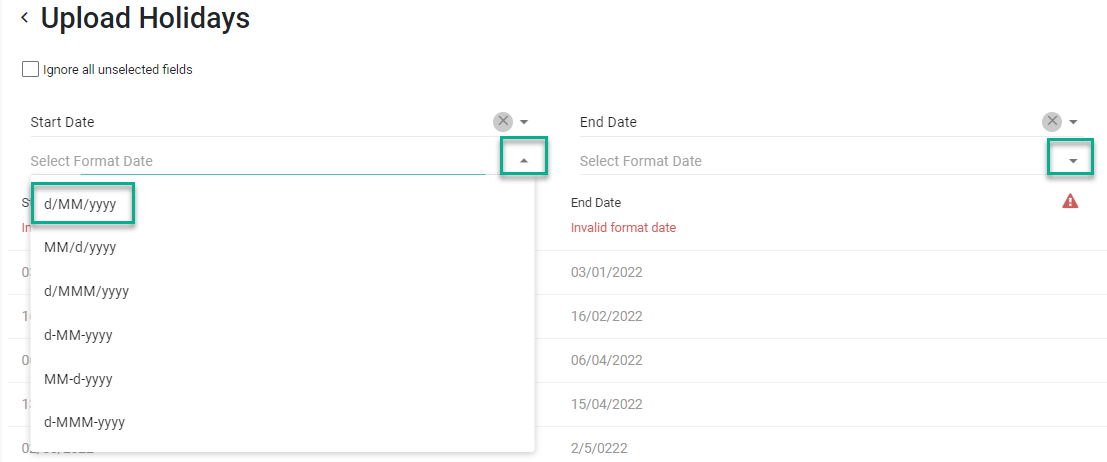
- Verify the information and match the columns correctly.
-
Select the Start Date and End Date format that matches the template by clicking the arrow icon.
- Click Upload.
-
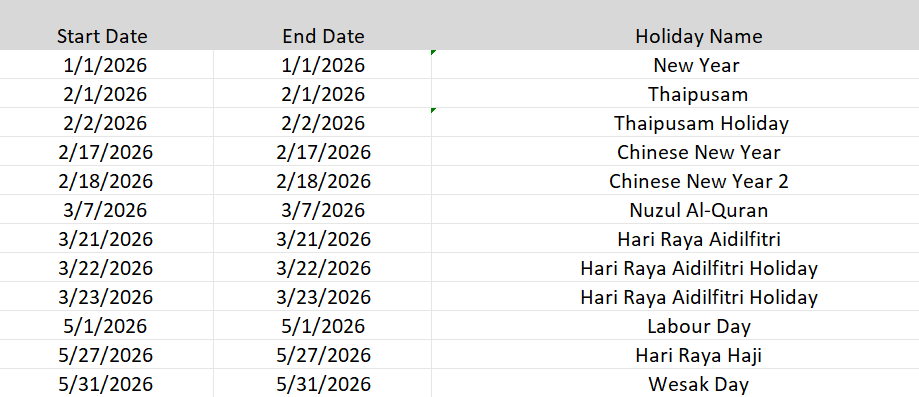
Completing the Upload Holidays Template:
- Start Date: Enter the Start Date of the Public Holiday.
- End Date: Enter the End Date of the Public Holiday.
-
Holiday Name: Enter the name of the public holiday.
Example: