
Upload Employee Locations
How to Upload Employee Locations:
When you need to add multiple locations to the employment contracts for multiple employees, there are two ways to upload a location for each employee:
- Upload the location on the Employees page:
- Go to the Employees tab.
-
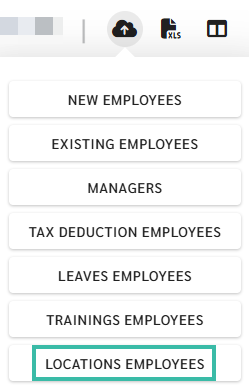
Click the Upload Employees icon.

-
Select Locations Employees
- Select the Company to which you want to upload employees locations.
-
Click Next.

-
Select a file to upload.
-
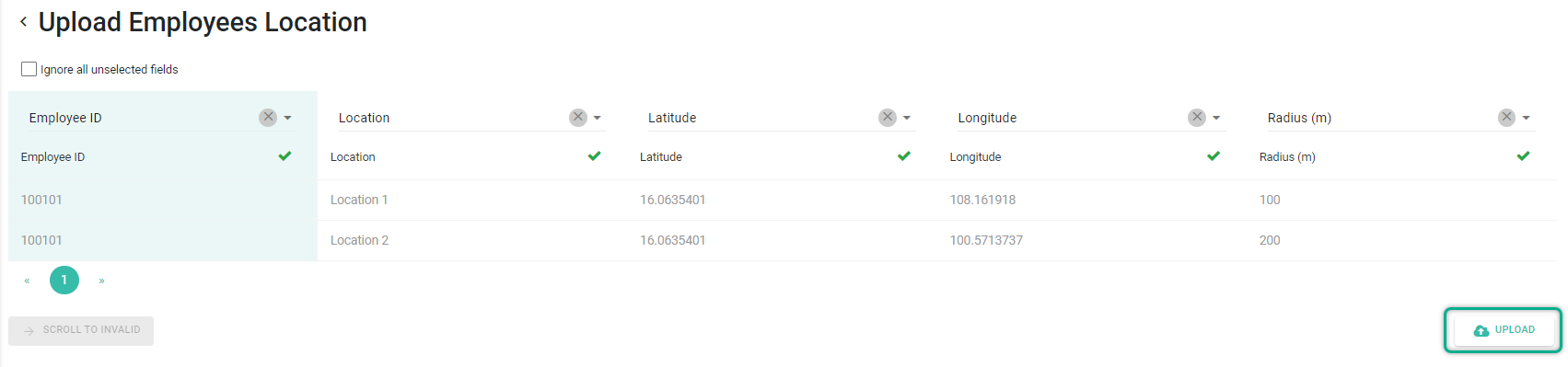
Match the fields and click Upload.
- Upload the location under the Preferences tab:
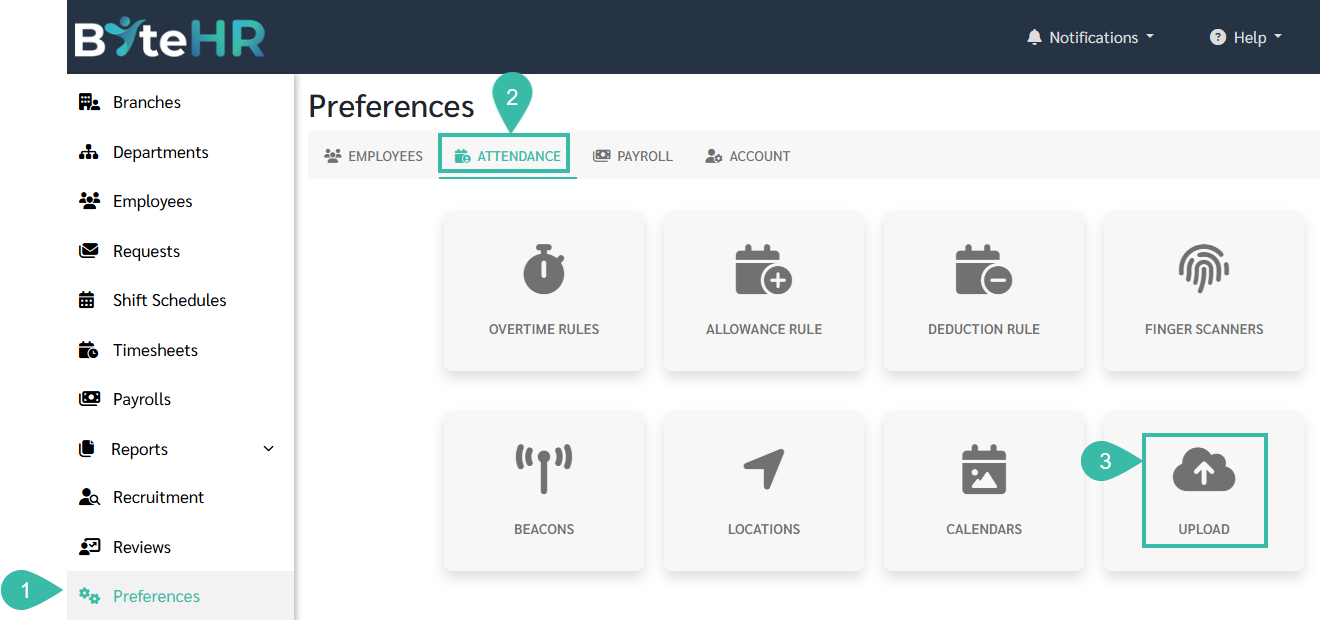
- Go to Preferences tab.
- Select Attendance.
-
Click Upload.
-
Click Upload Employees Location.
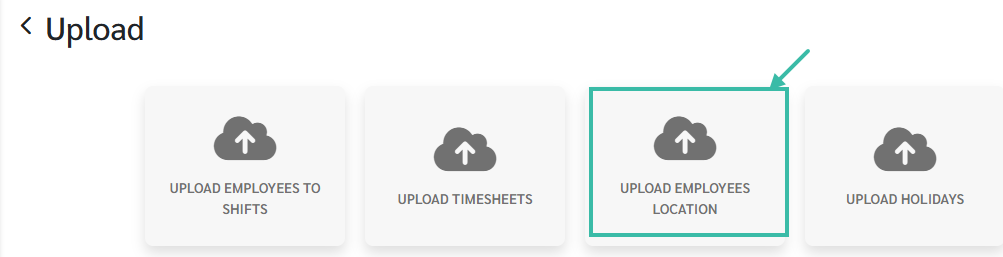
- Select the Company to which you would like to upload employee locations.
-
Click Next.

-
Select a file to upload.
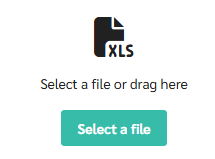
-
Match the fields and click Upload.

- The information in the employee location upload template includes:
- Employee ID
- Location Name: You can define your own location name for each position, such as Head Office, Onsite 1 Onsite 2.
- Street Address: You can specify the address of the location, such as Lingkaran Syed Putra, Mid Valley City, 59200 Kuala Lumpur, Wilayah Persekutuan Kuala Lumpur
- Latitude & Longitude:
- You can find latitude and longitude using Google Maps.
- Latitude: The first group of numbers after the @ symbol.
-
Longitude: The second group of numbers is the longitude.
Example: Mid Valley Megamall Latitude: 3.1175628, Longitude: 101.6748324

- Radius (m) This defines the radius (horizontal) of the location where check-ins are possible.
-
For example, setting a radius of 100 meters.
If someone checks in within the specified radius, the system will display the location according to the name you have set.
-
- Example of a template with completed information.
-
Upload the location information for employee ID 2468:
Location Name: Head Office
Address: Lingkaran Syed Putra, Mid Valley City, 59200 Kuala Lumpur, Wilayah Persekutuan Kuala Lumpur
Latitude: 3.1175628
Longitude: 101.6748324
Radius: 100 meters



-
