Upload Shift Time for Day Off
💬 Note:
If you need to change the start and end times for weekly holidays, in addition to directly editing the shift schedule, you can also do so by uploading a template
How to Upload a Template:
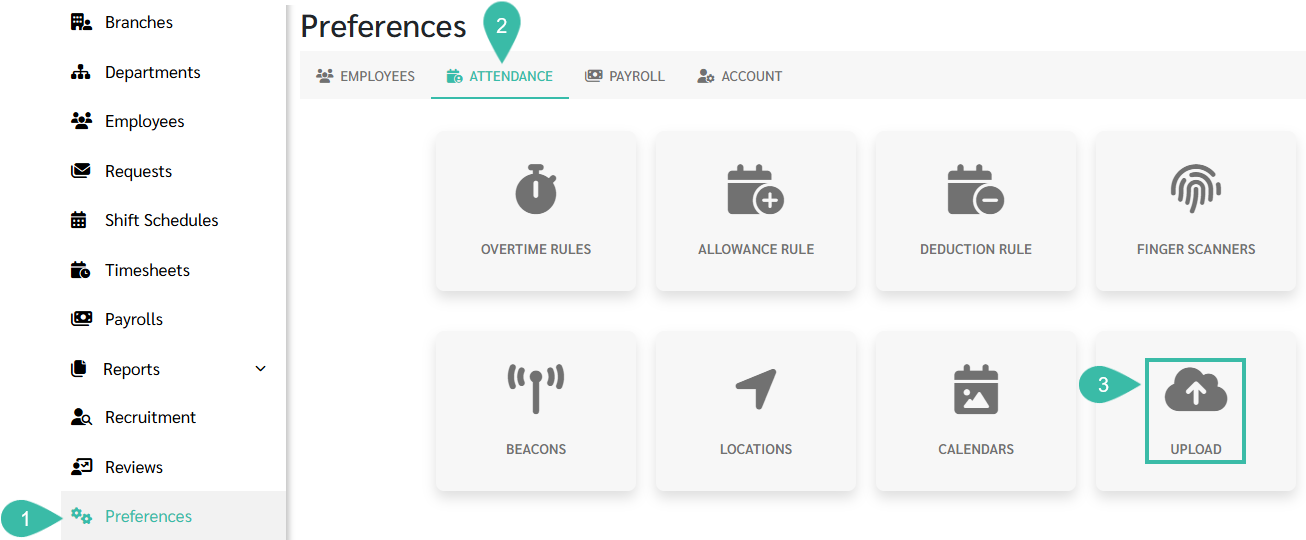
- Go to Preferences tab.
- Select Attendance.
-
Click Upload.
-
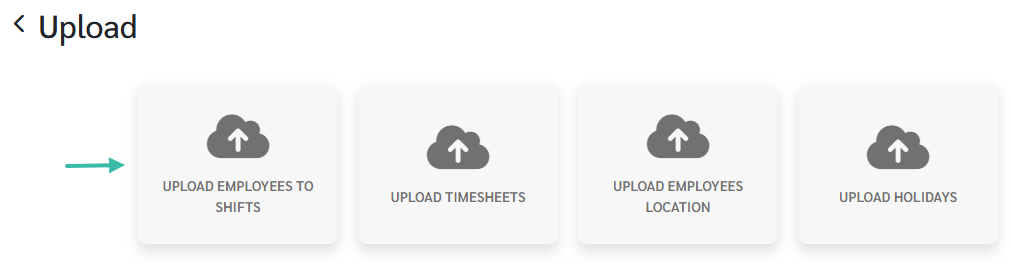
Select Upload Employees to Shifts.
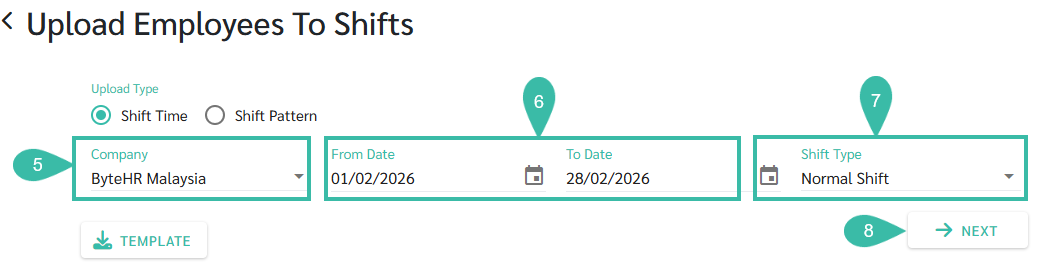
- Select the Company that you would like to Upload Employees to Shifts.
- Choose the upload date range (From Date and To Date).
- Select Shift Type: Normal Shift or Flexible Shift.
-
Click Next.
-
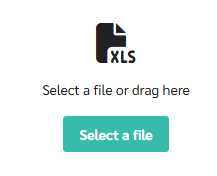
Click Select a File to Upload.
-
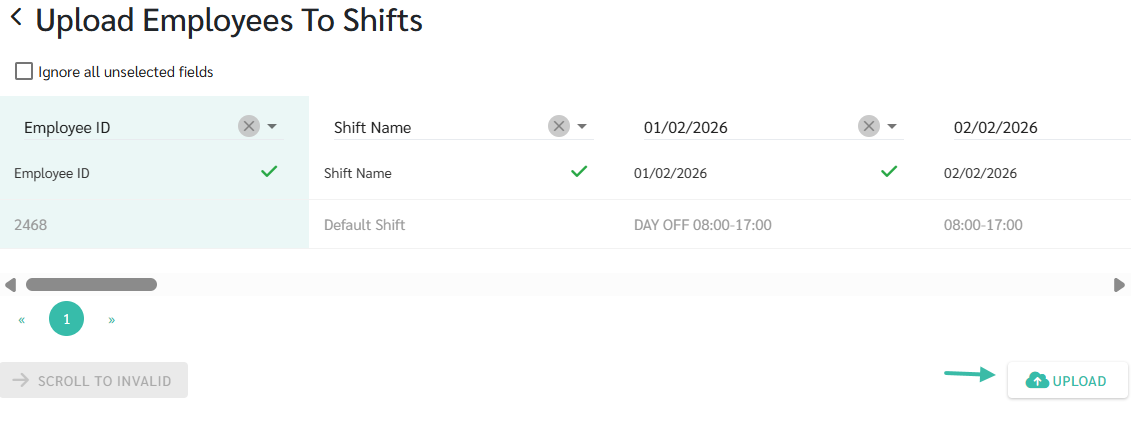
Match the fields and then click Upload.
💬 Note
This is to upload template for employees to shift schedules.
To change to a Day Off while keeping the shift time the same, enter "DAY OFF".
To change to a Day Off and change the shift time as well, enter "DAY OFF hh:mm-hh:mm", e.g.,
DAY OFF 10:00-17:00.
💬 Note
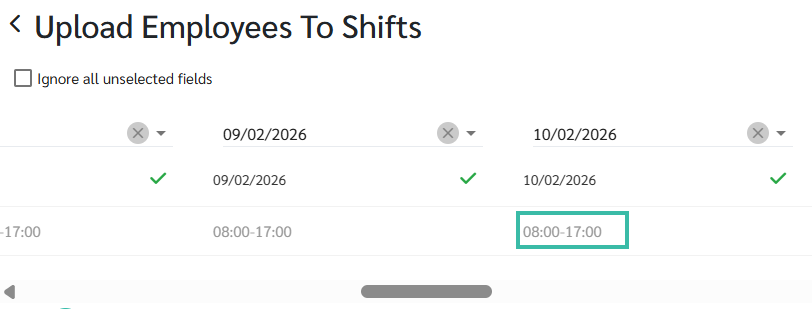
After selecting the file to upload, you can still edit the time or weekly day off by clicking on the time.
For example,
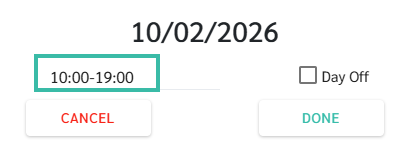
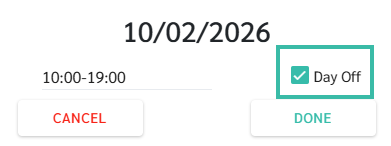
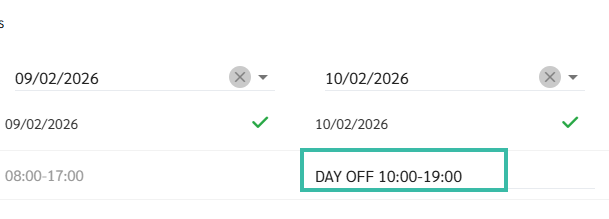
In the template, if the shift time is 08:00-17:00 on 10/02/2026, and you want to change it to 10:00-19:00 and set it as a weekly Day Off:
-
Click on the time field
-
Edit the time to 10:00-19:00.
-
Tick the Day Off checkbox.
-
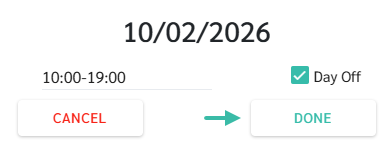
Then click the button. Done.
How to Download and Fill In the Template:
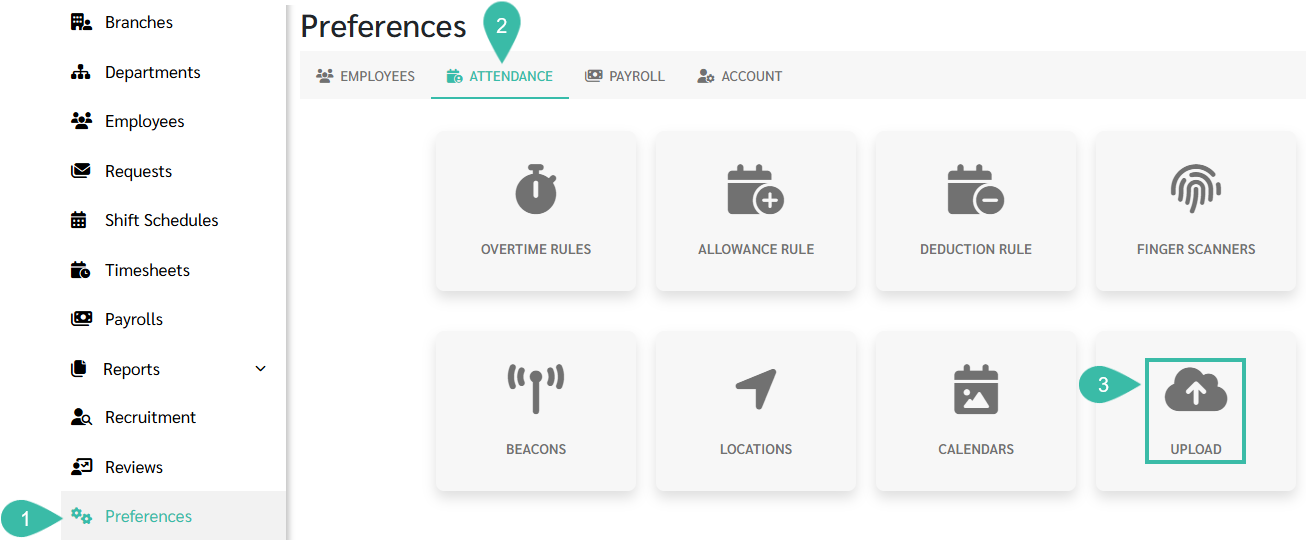
- Go to Preferences tab.
- Select Attendance.
-
Click Upload.
-
Select Upload Employees to Shifts.
- Fill in the following details:
- Company: To which you would like to Upload employees to Shift.
- Upload Date Range: Select the desired upload dates (From Date and To Date).
- If Upload Type is Shift Time, select the Shift Type:
- Normal Shift
-
Flexible Shift
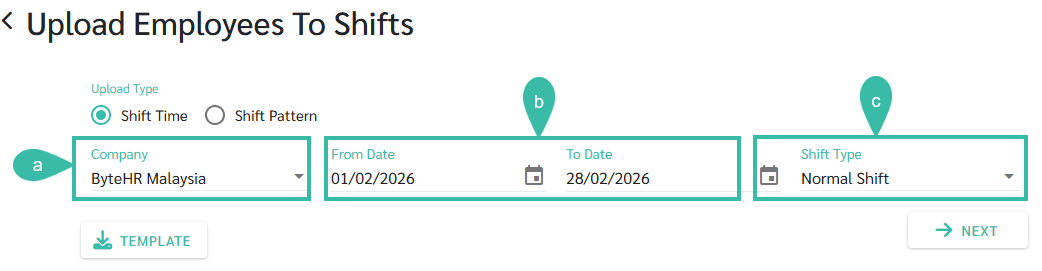
- Click Template.
-
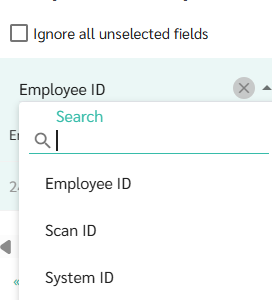
Enter Employee ID/ Scan ID/ System ID.
-
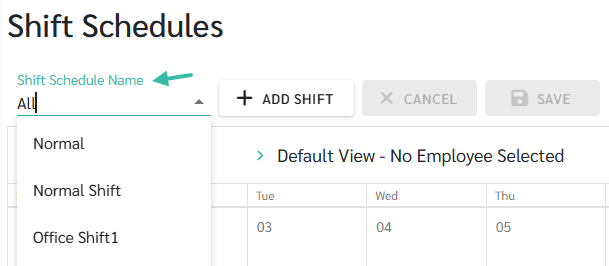
Enter Shift Schedule Name.
E.g., Shift Schedule Name = Normal Shift
-
The dates will be automatically displayed in the Template according to the specified From Date and To Date.

- Fill in the Shift Time:
- If you need to edit the shift time, Please enter the shift start and end times, e.g., 10:00-19:00.
- If you want to change it to a weekly Day Off while keeping the original shift times, enter DAY OFF.
- If you want to change it to a weekly Day Off and also change the shift times, enter DAY OFF and the shift start and end times, e.g., DAY OFF 10:30-17:30
-
Example:
Shift Schedule Name: Default Shift
Start Time: 08:00
End Time: 17:00
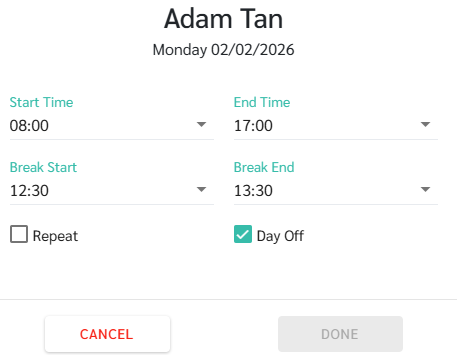
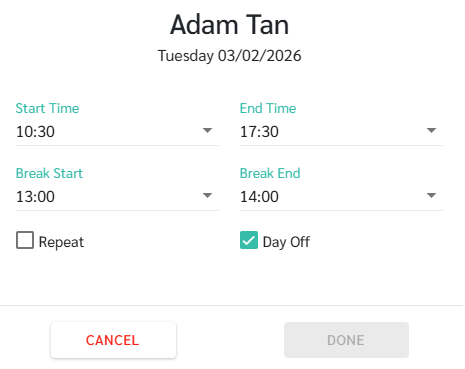
Upload employees to the Shift Schedule to change the Shifts for 02/02/2026 and 03/02/2026
- Change 02/02/2026 to a weekly Day Off, and keep the shift start and end times the default values in the shift schedule.
-
03/02/2026, will be changed to a weekly Day Off, and the start and end times of the shift will be changed to 10:30-17:30.

-
-
After successful upload, the shift schedule will be updated as follows: