
Upload Employees to Shift
How to Upload Employees to Shift Schedules.
- Go to Shift Schedules tab.
-
Click Upload.

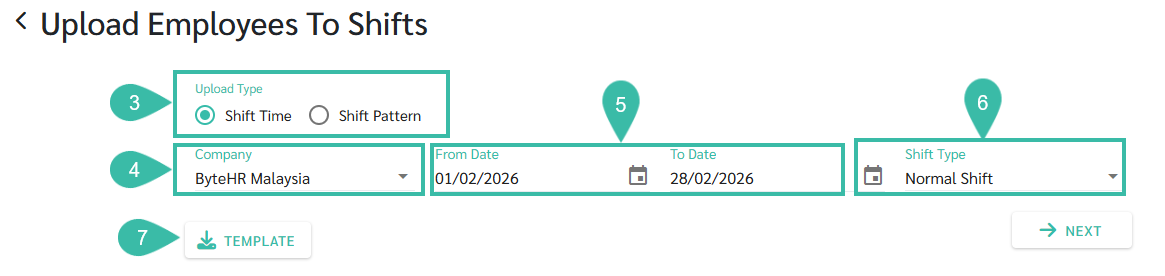
- Select the upload type:
- Shift Time
- Shift Pattern
- Select the Company to which you want to upload Shift Schedule.
- Select the dates in the "From Date" to "To Date" fields for uploading employees to the shift schedule.
- For Upload Type: Shift Time, you can select the following Shift Type:
- Normal Shift
- Flexible Shift
-
Click Template to download the template for the chosen Upload Type.
-
Sample of Template for Upload Type: Shift Time

-
Sample of Template for Upload Type: Shift Pattern

-
Sample of Template for Shift Type: Flexible Shift

-
- Fill in the details in the template and save the file.
-
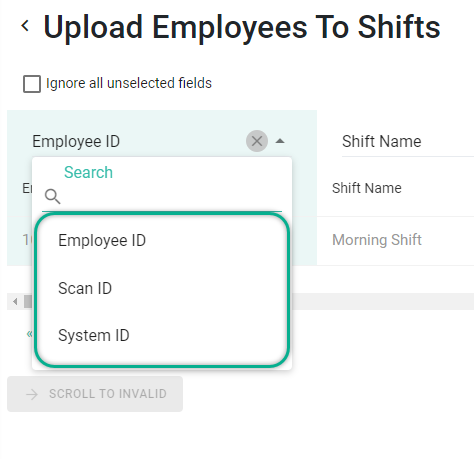
The Employee ID field can be entered as Employee ID, Scan ID (fingerprint code), or System ID. Select the column that matches the information in the template when uploading the template into the system.
-
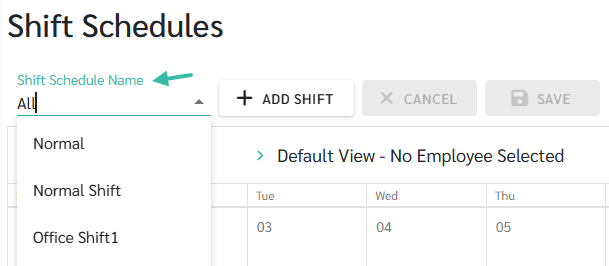
Shift Name in the Template refers to the Shift Schedule Name the employee belongs to.
- Daily Work Hours:
-
For uploading template Employee Shift Time.
Enter the Start Time and End Time, e.g., 08:00-17:00, 15:00-23:00. **No spaces.**
-
For uploading template Employee Shift Pattern
Enter the Shift Pattern name , e.g., Shift Pattern A.
-
For uploading template employee Shift Time Flex
Enter the working hours per day, e.g., 09:00 means 9 hours.
-
-
For weekly days off, add "DAY OFF" in front, then add their work hours/patterns accordingly.
Because this affects Overtime calculations for weekly holidays, if you do not enter a start and end time for the weekly holiday, the system will display the start and end times according to the original shift schedule.
-
Shift Time Template
E.g. DAY OFF 08:00-17:00
-
Shift Pattern Template
E.g. DAY OFF Shift Pattern A
-
Flexible Shift Time Template
DAY OFF 09:00
-
- Example of completed templates:
-
Shift Time template

-
Shift Pattern template.

-
Flexible Shift template.

-
-
-
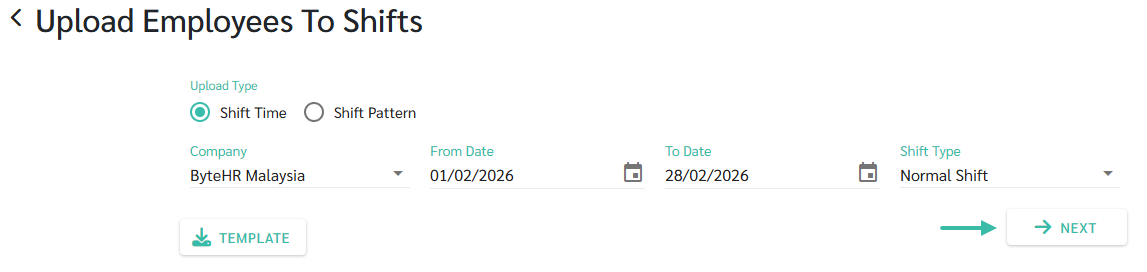
Once the template is completed, click Next.
-
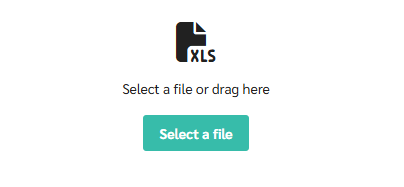
Select the file you wish to upload.
-
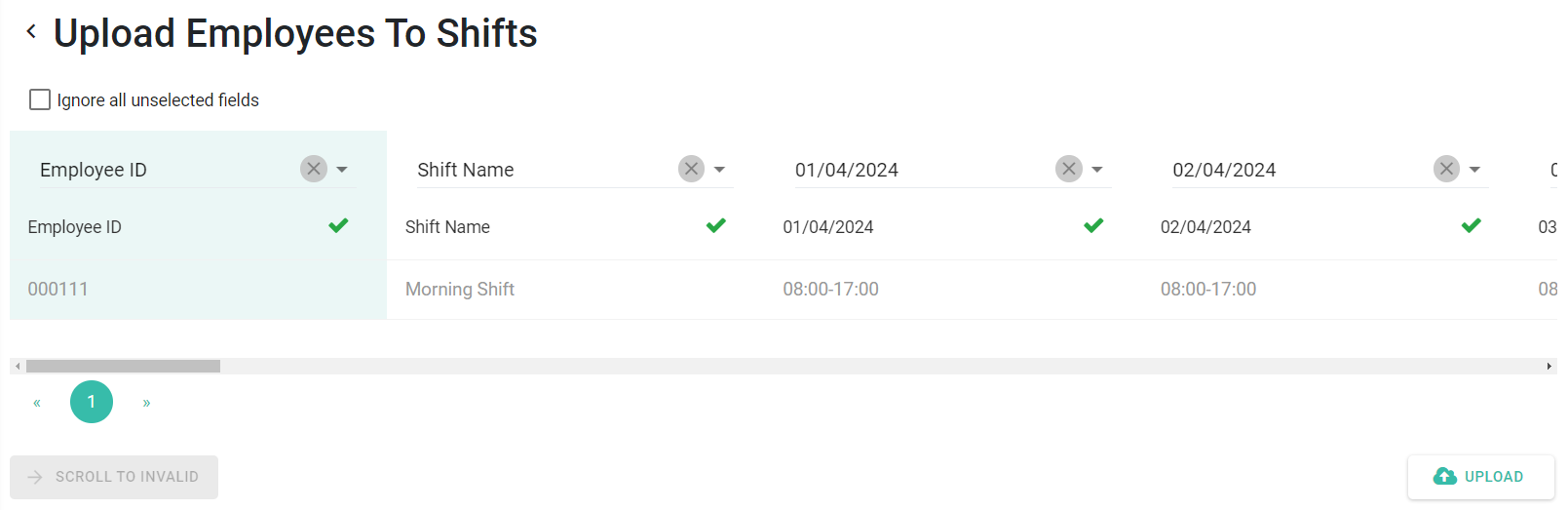
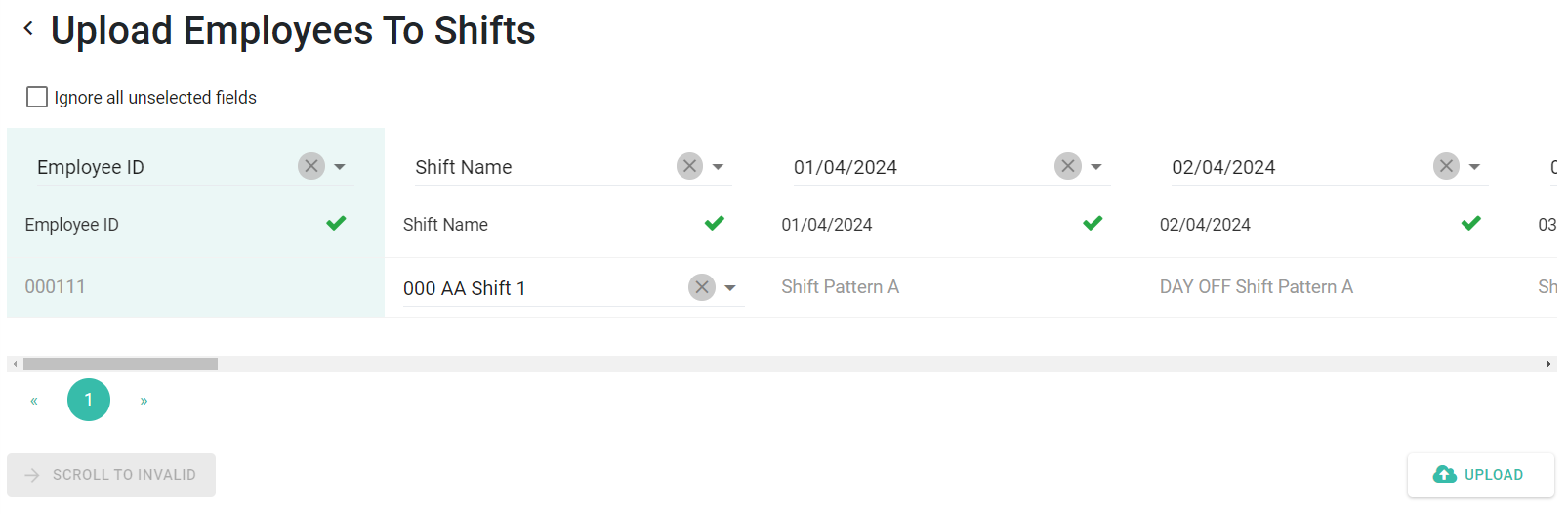
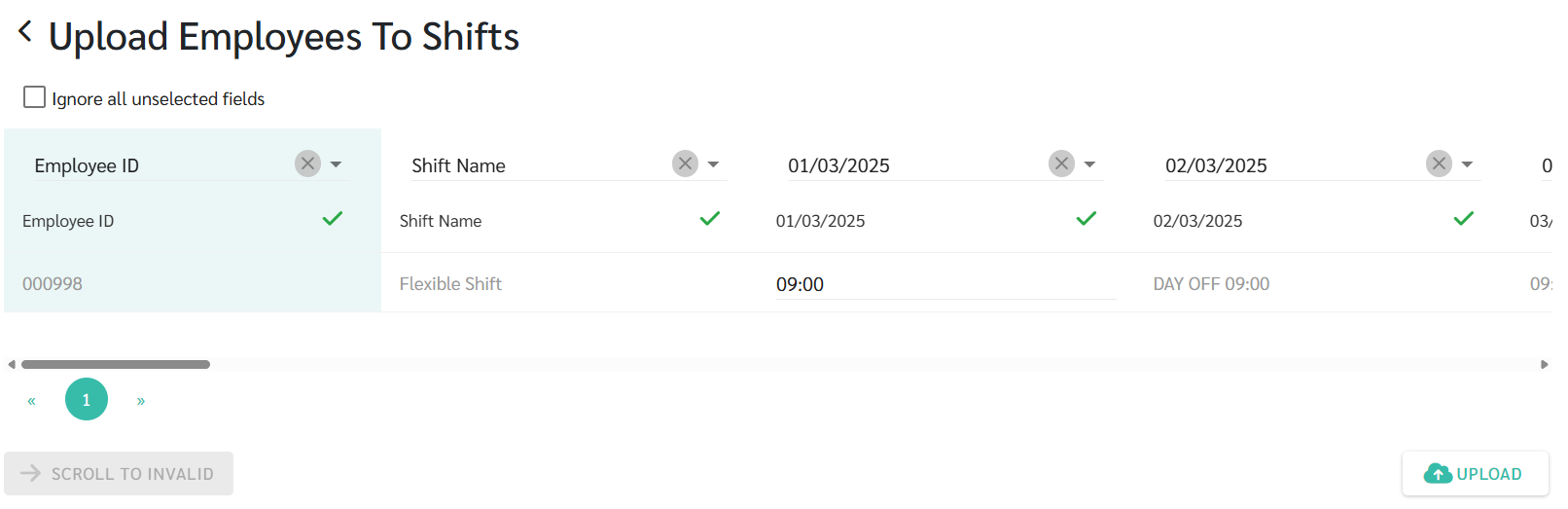
Match the fields correctly and click Upload.
*If you click "Ignore all unselected fields," the system will skip fields that do not have data entered.
- Example of uploading employee to Shift:
-
Shift Time
-
Shift Pattern
-
Flexible Shift
-
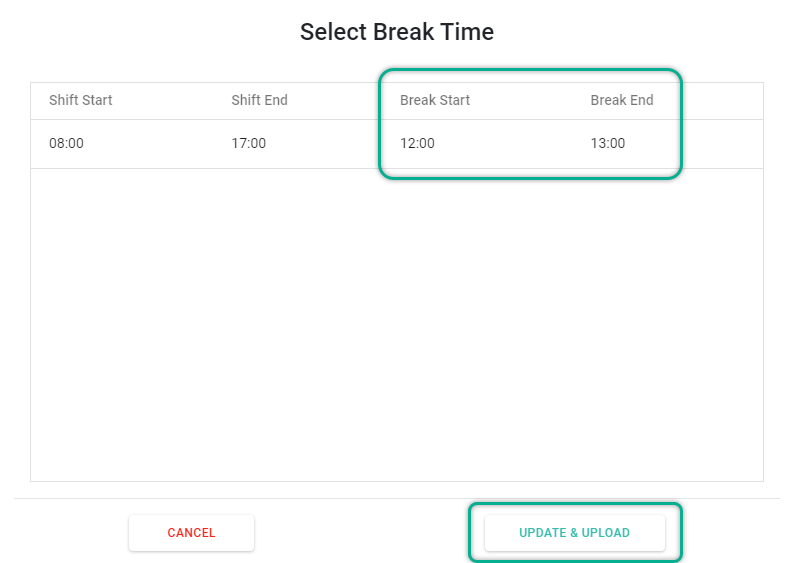
- For Shift Time uploads, when you click the Upload button, the system will prompt you to select the Break Start Time and Break End Time.
-
Once you have made your selection, click the Update & Upload button.
💡Tips
If the admin has already created a shift pattern, the start and end times uploaded to the template will match the times in the created shift pattern.
The system will automatically add the break start and break end times.