eCheckin BLE Beacon ***Add On***
How to Set Up Beacons:
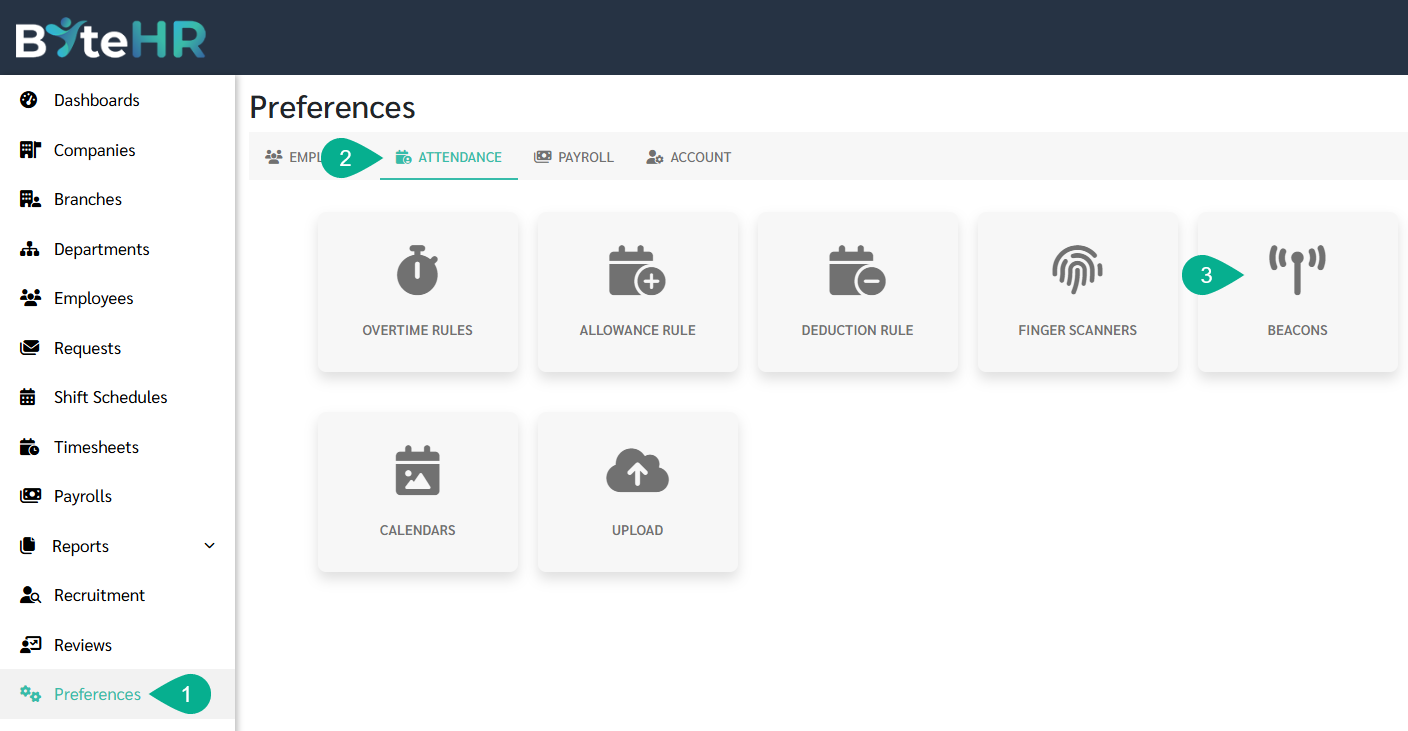
- Go to Preferences tab.
- Click Attendance.
-
Select Beacons.
-
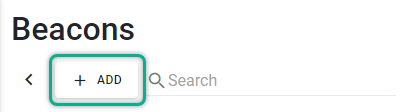
Click + Add to add Beacon information.
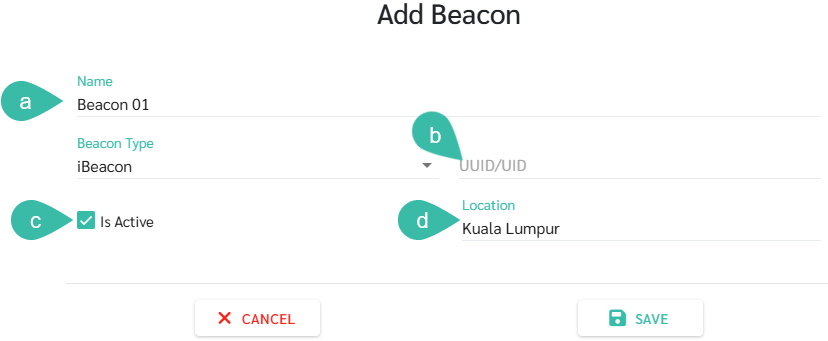
- Fill in the following details:
- Name: Add the device Name (**Required field**)
-
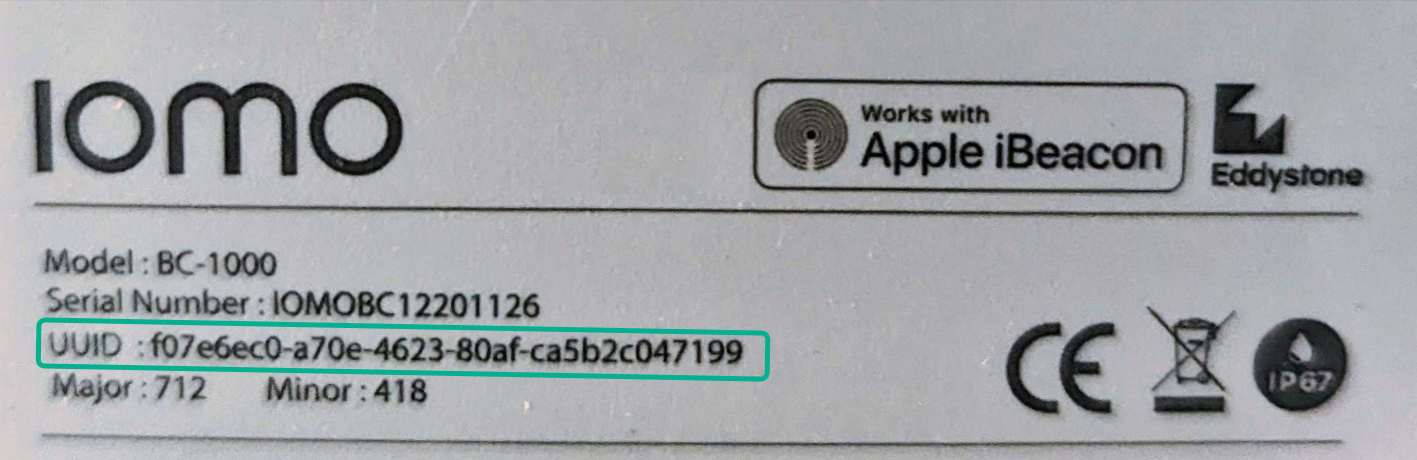
UUID/UID: Enter the UUID/UID of the beacon device. You can check this on the back of the beacon device.
-
Tick the "(Is Active)" checkbox.
Note: If not enabled, this beacon device cannot be selected in eCheckin settings.
-
Location: Enter the location name.
The location name will be displayed in the Location Timestamp Report.
-
Click Save to save the information added. Next, the admin can set up eCheckin type Beacon in the Branch tab.

🗨️ Note
The beacon we recommend is the IOMO Beacon BC-1000 model.
How to Set Up eCheckin Scan Option Beacon in the Branch tab:
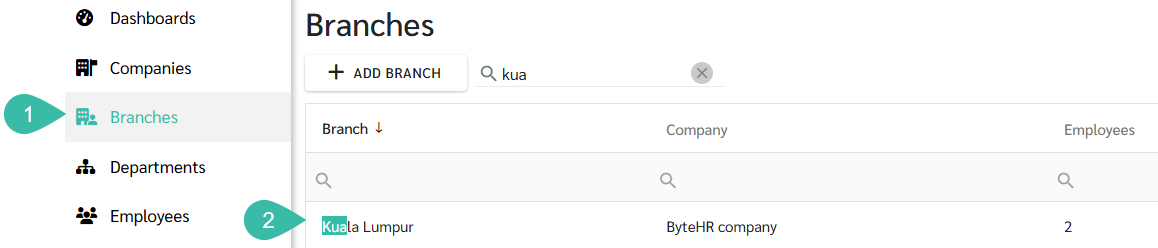
- Navigate to Branch tab.
-
Select the desired branch to access the Branch Detail page.
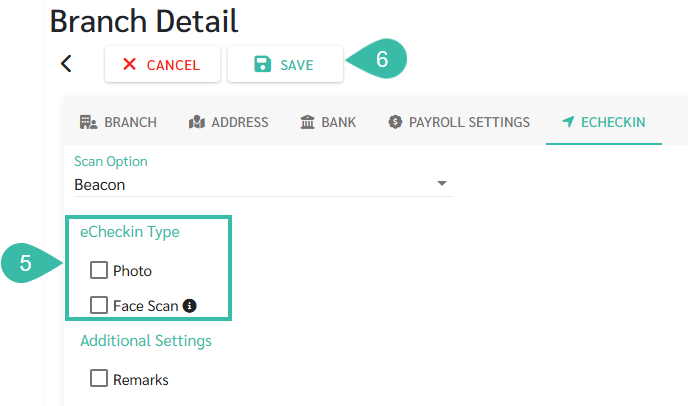
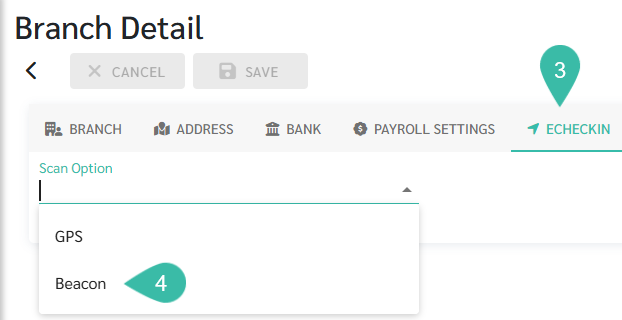
- Click E-Checkin.
-
Select the Scan Option as Beacon.
- Enable the eCheckin Type as needed.
-
Click Save to save the changes.