
Adding Public Holidays to an Existing Calendar
💬 Note:
If a calendar is already attached to your Shift Schedule and you don't want to create a new one, but want to add public holidays for next year, you can do so by uploading the calendar (Upload Calendars) or adding the holiday (+Add Holiday) one day at a time.
How to Upload Calendars:
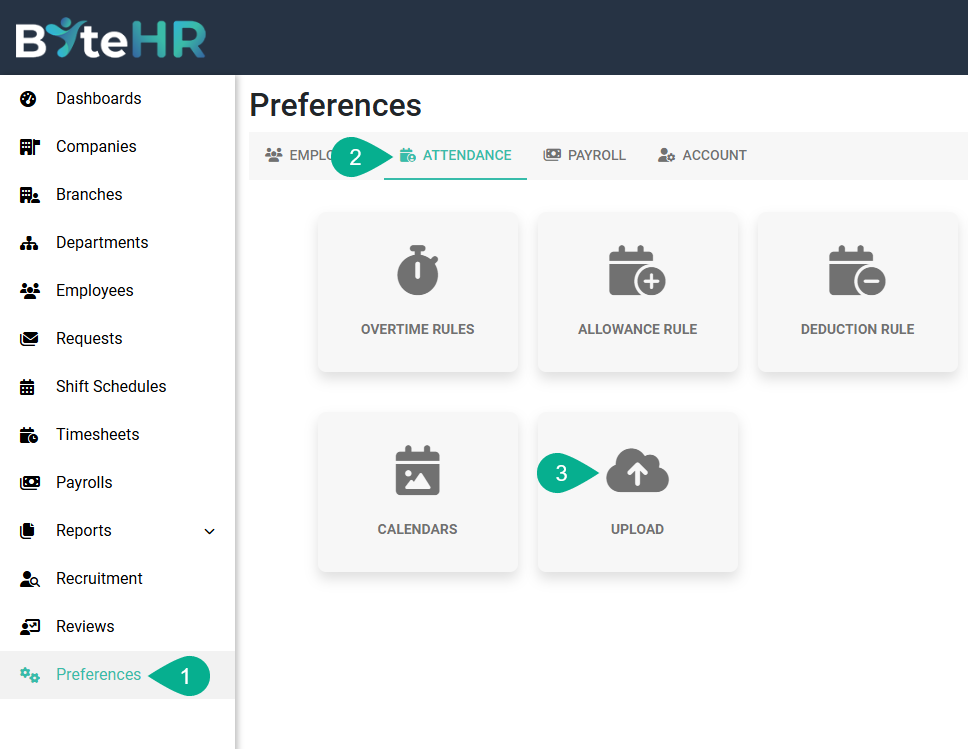
- Go to Preferences tab.
- Select Attendance.
-
Click Uploads.
-
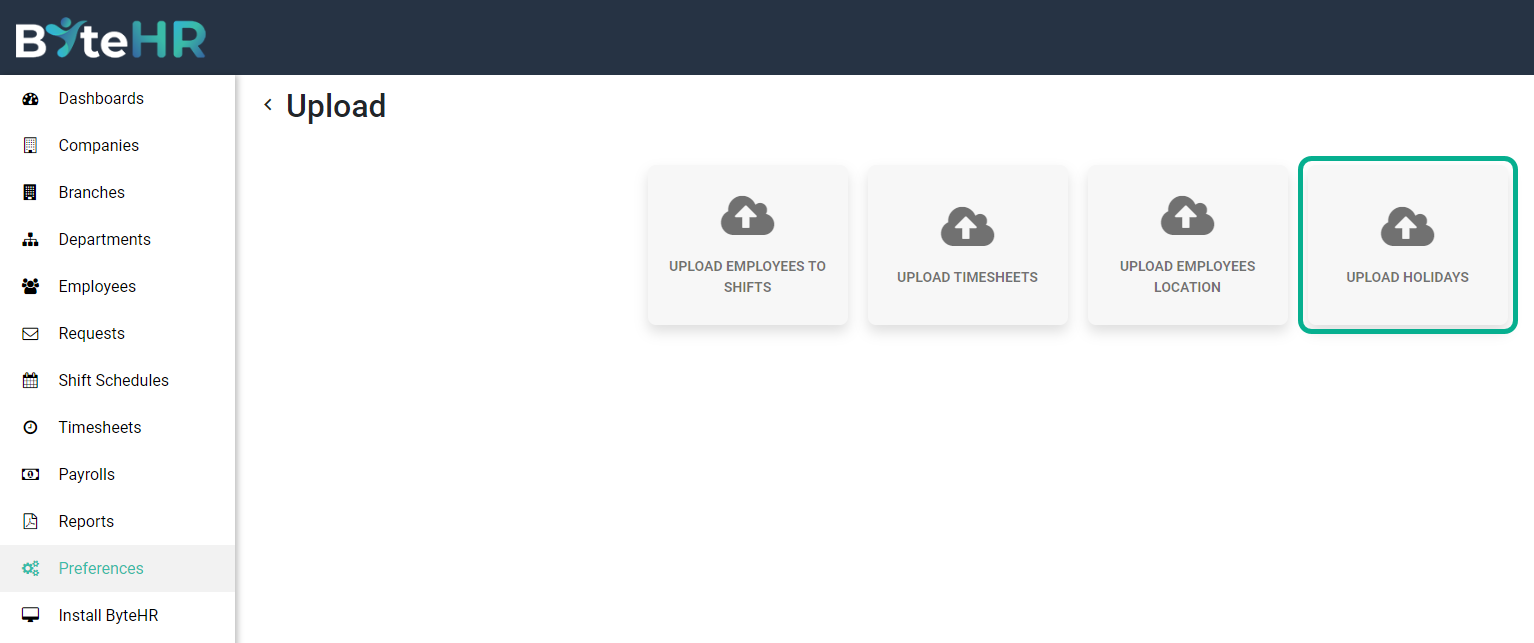
Click Upload Holidays.
- Select the Existing calendar Name to add the holidays in the Calendar Name field.
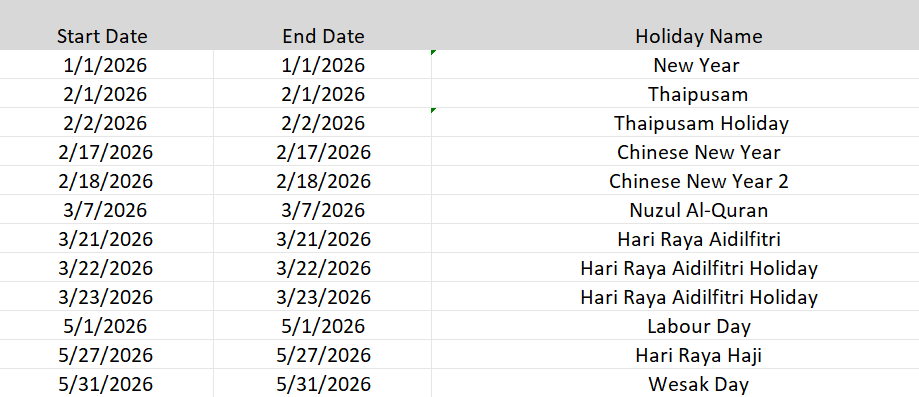
- Click Template to download the template and fill in the holidays for the following year.
-
Click Next to upload the file.

Example Excel file for uploading holidays for 2026
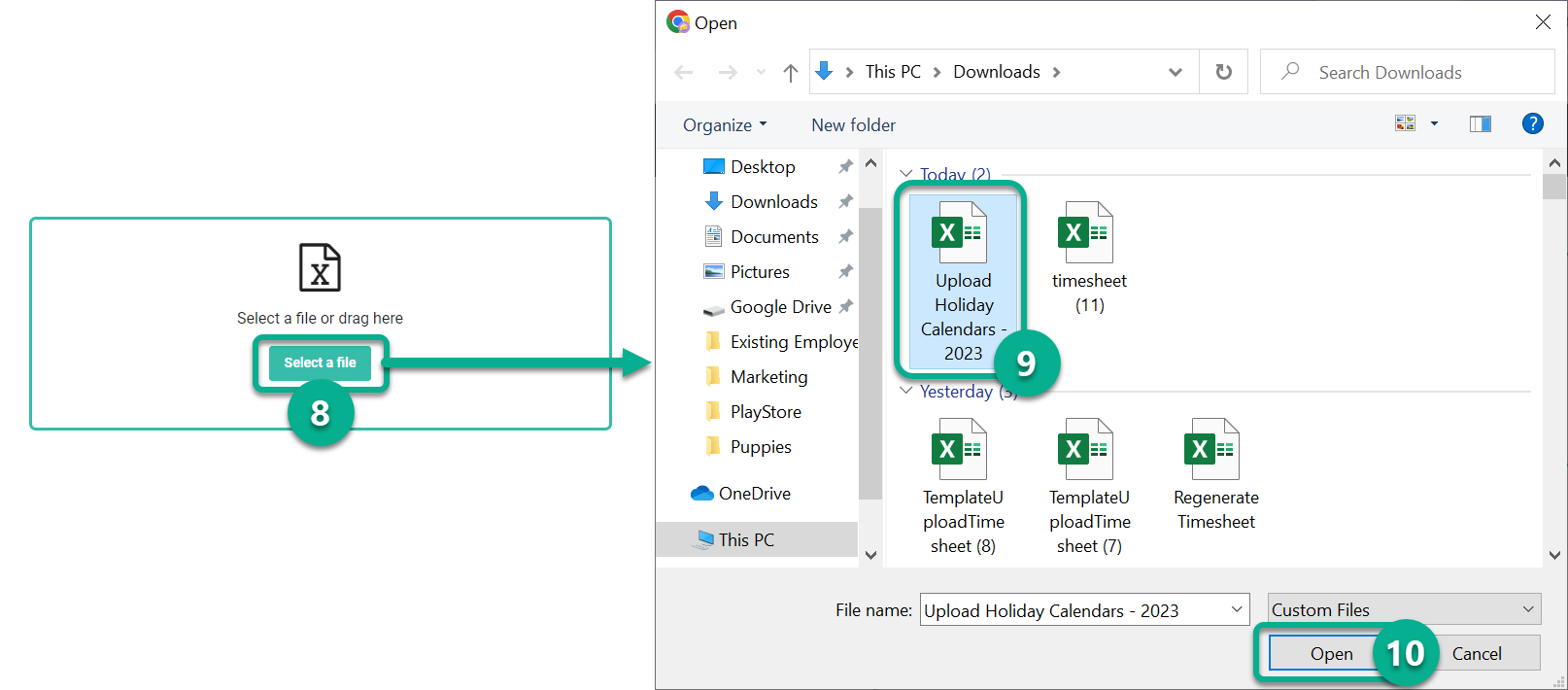
- Click Select File. A window will open allowing you to select a file from your computer.
- Click the desired Excel file to upload.
-
Click Open. This will take you to a data matching page.
- Select the correct date format for your file.
-
After the information is correct, a checkmark will appear. Then click Upload.
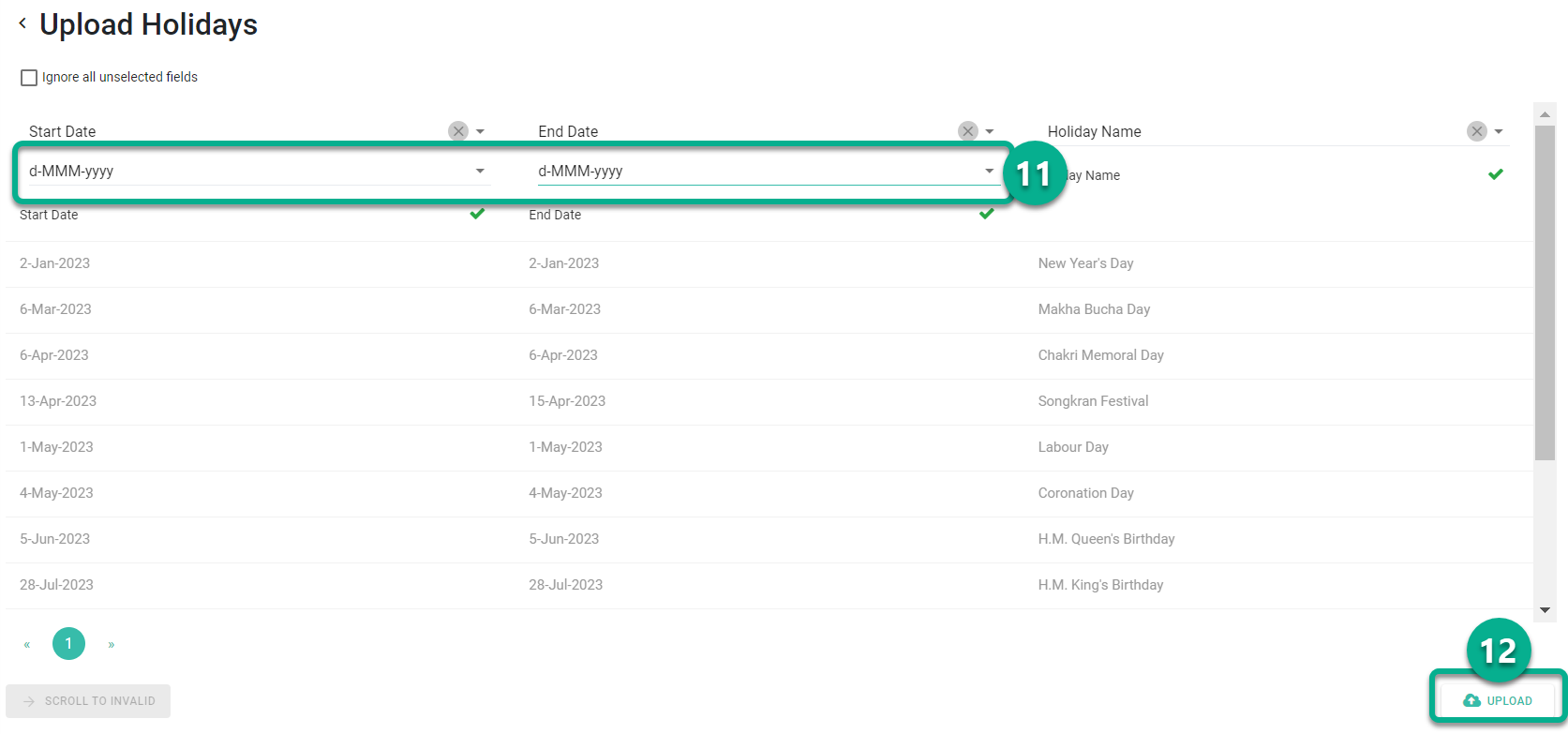
- Your calendar will be updated. Employees listed in the attached calendar's shift schedule will be able to see your updated holidays via the mobile application.
🚩Note
1. If there are repeated yearly public holidays, you cannot upload new holidays with the same day and month.
For example, if there is a repeating "New Year" holiday (01/01/2023), you cannot upload "New Year 2024" (01/01/2024) because the system considers January 1st a public holiday every year.
How to Add Public Holidays to the Existing Calendar
- Go to Preferences.
- Select Attendance.
-
Click Calendars.
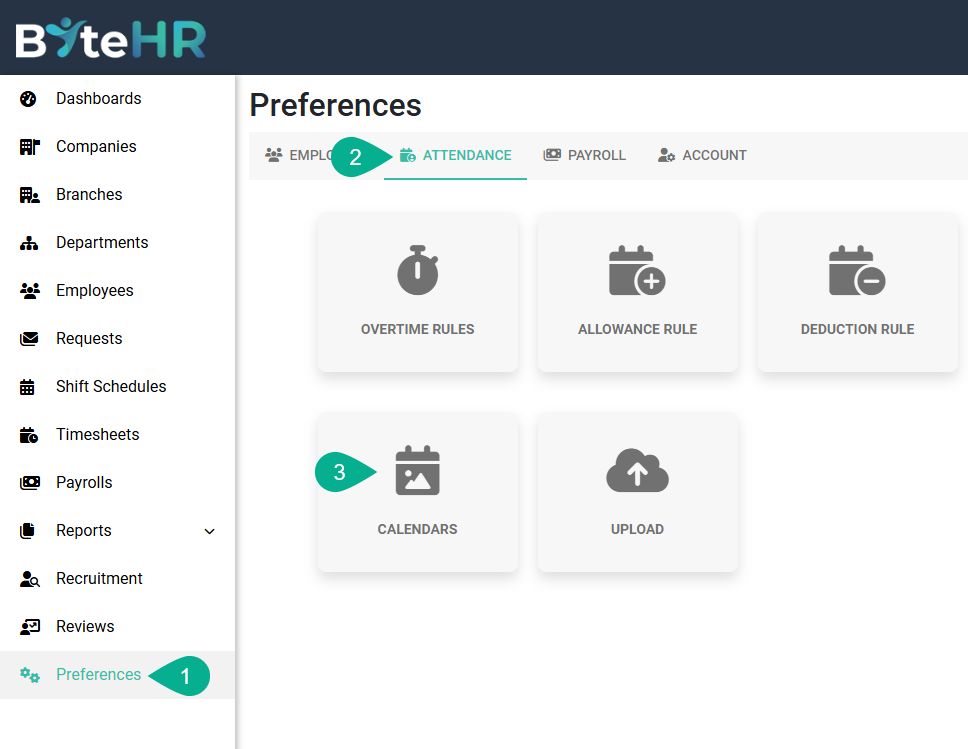
-
Select a Calendar to add Public Holiday.
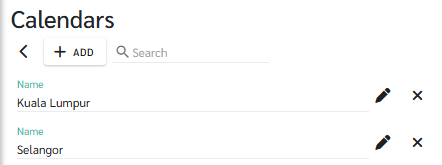
-
Click + Add Holiday.
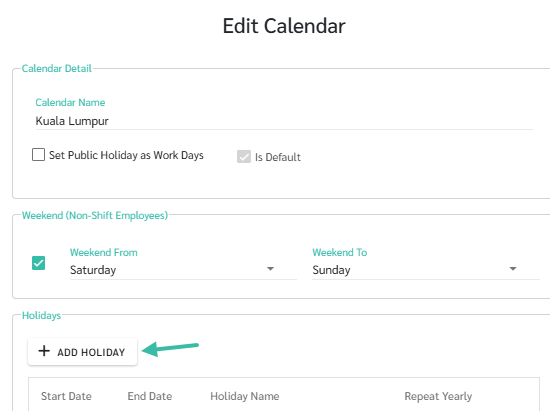
-
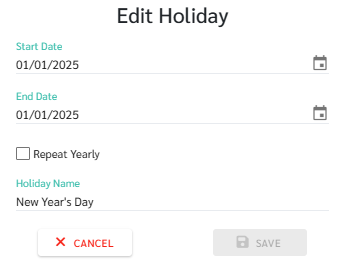
Enter the day/month/year of the public holiday in the Start Date, End Time, and Holiday Name fields.
-
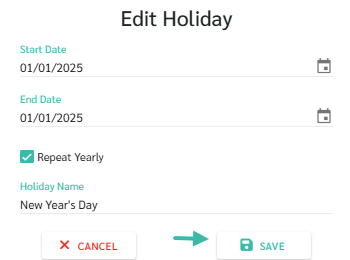
If the public holiday occurs on the same date every year, such as New Year's Day which falls on January 1st, you can tick the Repeat Yearly checkbox. The system will treat the specified date as a public holiday every year.

-
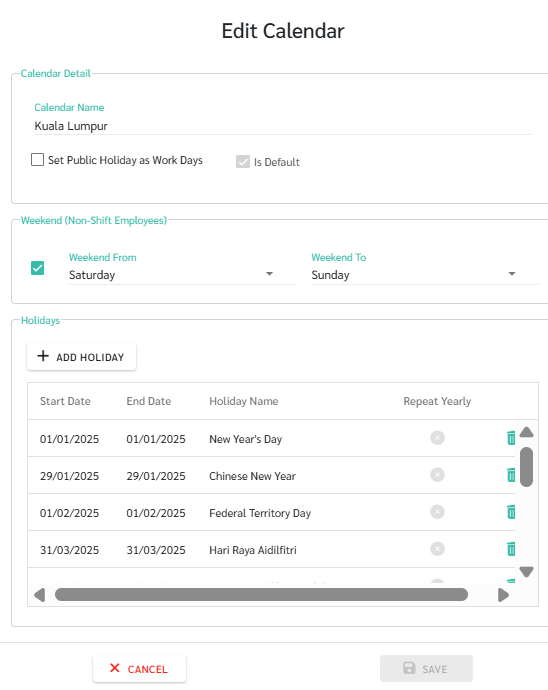
Click Save. The system will save the Added Public Holiday in the Calendar table.
-
Add all the holidays according to your company's policy for the entire year.
-
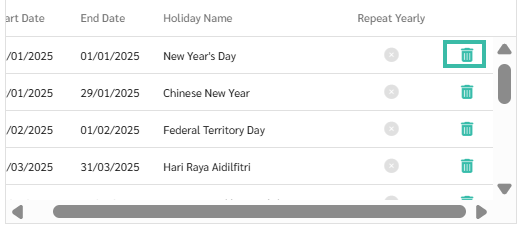
If you added a holiday incorrectly and want to delete it, click the trash icon to delete the incorrectly added holiday.
-
Click Save.

- Your calendar will be updated. Employees listed in the attached calendar's Shift Schedule will be able to see your updated holidays via the mobile application.
-
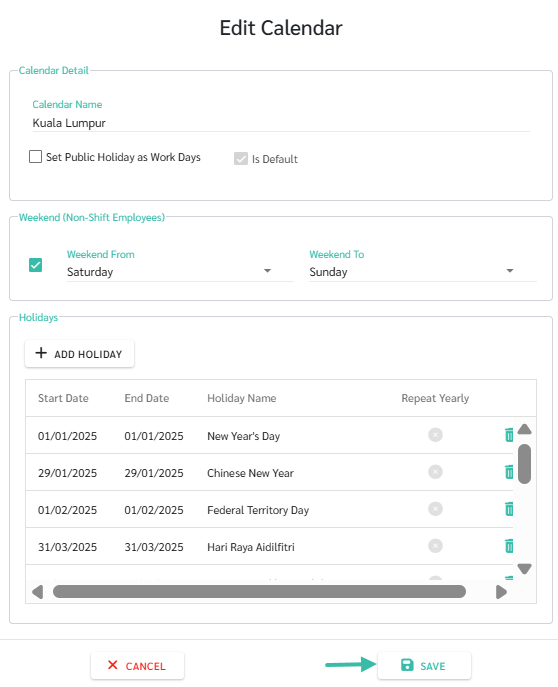
An example of completed adding the Public Holidays in the Calendar.
⚠️ Caution:
If you have multiple calendars attached to your Shift Schedule, you must update all of them.