
Add Public Holidays Calendar
How to Create a Public Holiday Calendar.
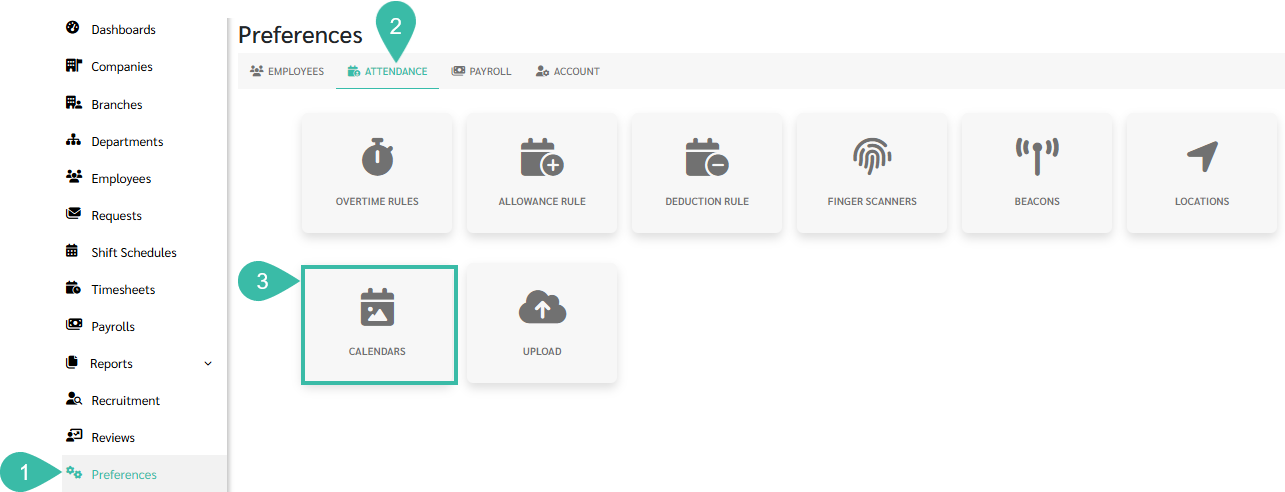
- Go to the Preferences tab.
- Select Attendance.
-
Click Calendars.
-
Click Add.

- A pop-up window will appear for adding Public Holidays in the Calendar.
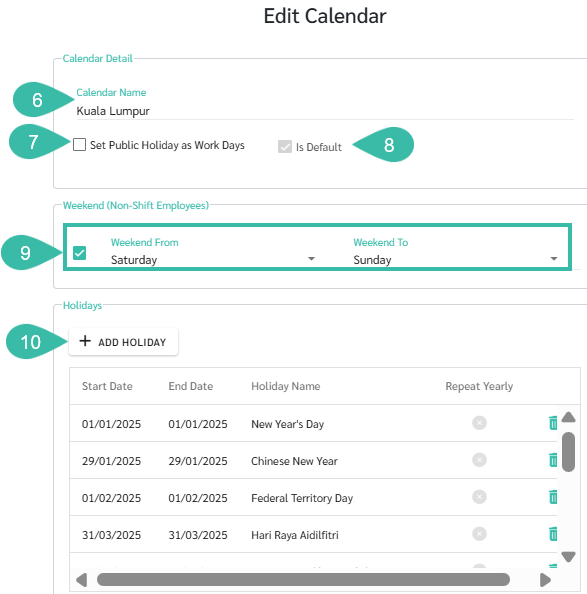
- Set a Calendar Name.
- To set public holidays as normal working days, check the "Set Public Holiday as Work Days" checkbox.
-
To make this holiday calendar the default for all newly created Shift Schedules, check the "Is Default" checkbox.
For employees without shift schedules, weekly and public holiday information will be based on the calendar that is checked as the default.
- You can specify weekly days off for employees who do not have Shift Schedules. Tick the "Weekend (Non-Shift Employees)" checkbox and select your preferred weekly day off.
-
Click + Add Holiday.
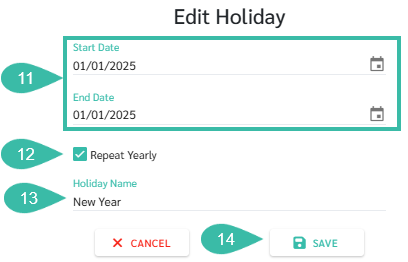
- Enter the date (day/month/year) of the public holiday in the Start Date and End Date fields.
- If a public holiday falls on the same date every year, such as New Year's Day which falls on January 1st every year, you can check the "Repeat Yearly" checkbox. The system will then consider the specified date as a public holiday every year.
- Enter the name of the public holiday in the "Holiday Name" field.
-
Click Save.
-
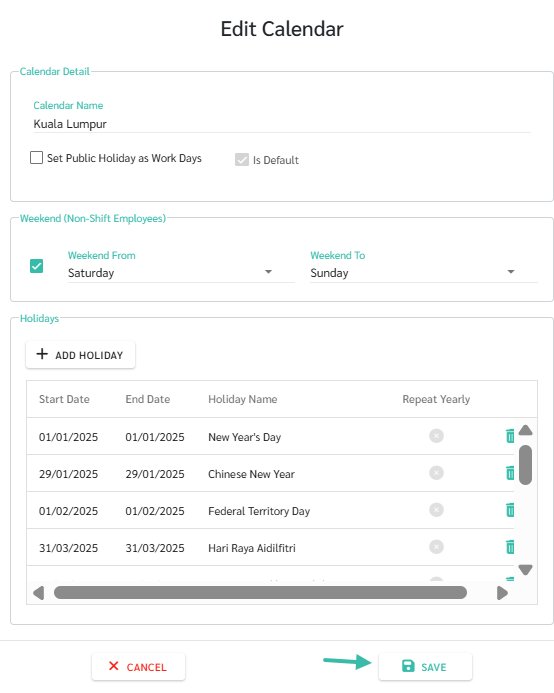
You can check the public holidays in the list. Once you have finished adding public holidays, click Save to save the calendar.
-
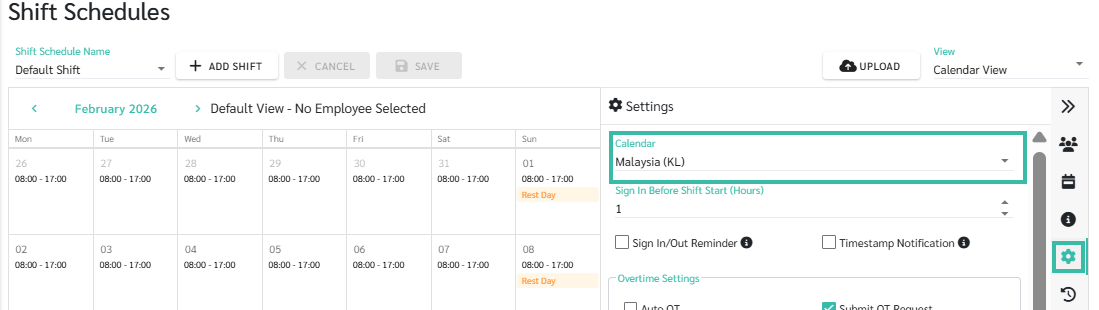
Once the calendar has been saved, the shift schedule must be configured to use the created calendar so that the system displays public holidays from the calendar.
⚠️ Caution
Public holidays for the following year can be added to the existing calendar, or a new calendar can be created instead. However, if a new calendar is created, it must be attached to the Shift Schedule as well, because the system will read the public holidays according to the attached calendar.