
How to Check the ADMS Finger Scanner Connection
💬 Note
If the fingerprint scanner fails to connect to the ADMS, the system will display that the fingerprint scanner is offline.

Initial troubleshooting if ADMS connection is unsuccessful:
- The fingerprint scanner must be turned on. If the fingerprint scanner is not turned on, the system will not be able to connect and synchronize data from the scanner.
- The LAN and WiFi connections to the scanner are working normally.
-
If the fingerprint scanner is successfully connected to the internet, the connection symbol will be displayed in green.

- If the connection fails, the symbol will be red.
-
-
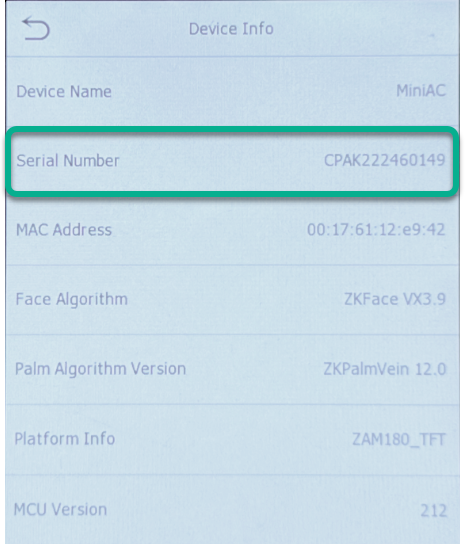
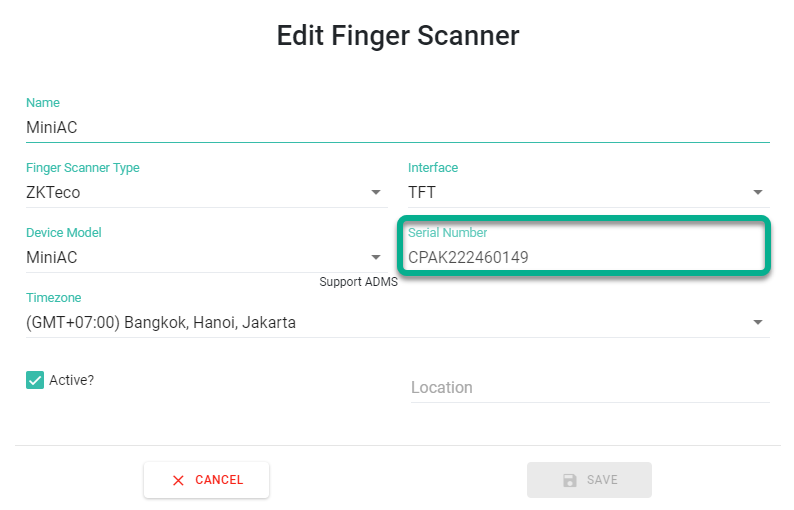
Verify that the fingerprint scanner's serial number matches the one in the system. You can find the serial number on the box or in the Device Info menu on the fingerprint scanner.
You can check the serial number displayed in the system at Settings -> Fingerprint Scanner -> Look at the Serial Number column.
- Verify that the server address is correct.
- If the fingerprint scanner is connected to the server address, the connection symbol will be displayed in green.
- You can check the server address on the fingerprint scanner in Cloud Server Settings -> Enable Domain Name -> Enter the server address as sync.byte-hr.com/ClientID.
-
If the server address connection is successful, the fingerprint scanner will display a symbol.

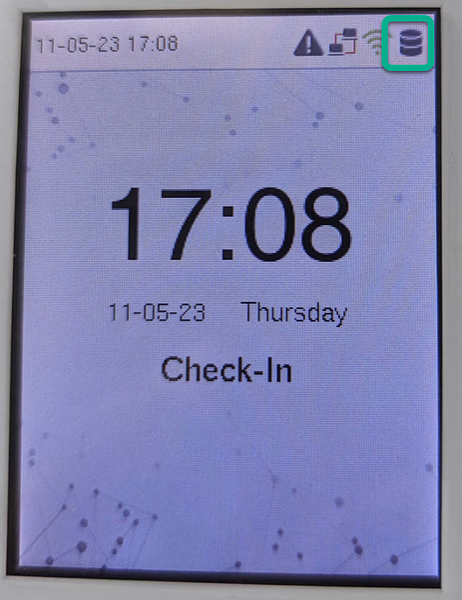
-
In the ByteHR app, the fingerprint scanner menu will be displayed in the Status column.




🏷️ Case
If the server address is incorrect, the fingerprint scanner will display a symbol.

Please check that your spelling and Client ID are correct.