
Sync ADMS Finger Scanners
🔍 Note
Adding a fingerprint scanner to a customer account requires the Real-Time Sync Finger Scanner function.
ZKTeco fingerprint scanner models that support ADMS include:
1. Aio20
2. eFace10
3. MB10-VL or Bio30
4. MB40-VL or Bio40
5. MB660
6. MiniAC
7. MiniAC Plus
8. S922
9. SmartAC1
10. SmartAC2
11. SpeedFace-V3Ls
Step 1: Add a Fingerprint Scanner in the System
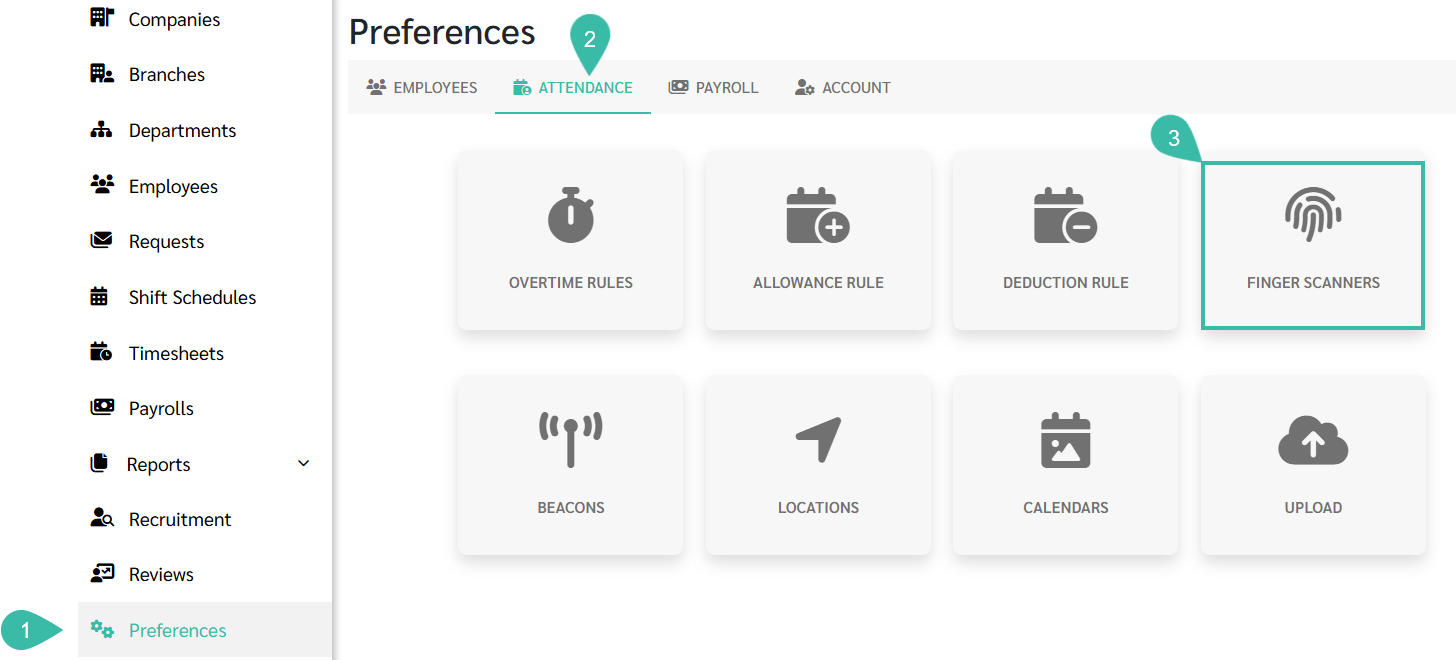
- Go to the Preferences tab.
- Select Attendance.
-
Click Finger Scanners.
-
Click "+ Add" to add the fingerprint Scanner in the system.

Refer to Add Finger Scanners to learn more.
Step 2: Configure the Fingerprint Scanner.
The Fingerprint Scanner settings will allow ByteHR to retrieve Timestamps data directly from the device to the Application.
- Go to the main menu of the fingerprint scanner.
-
Click Communication Settings (COMM.) to configure the network (Wi-Fi / Ethernet) and cloud server settings (Cloud Server Settings).
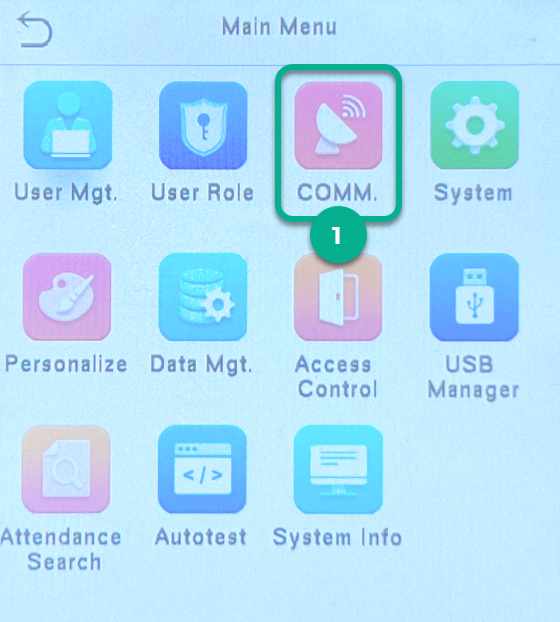
- Configuring the device's internet connection.
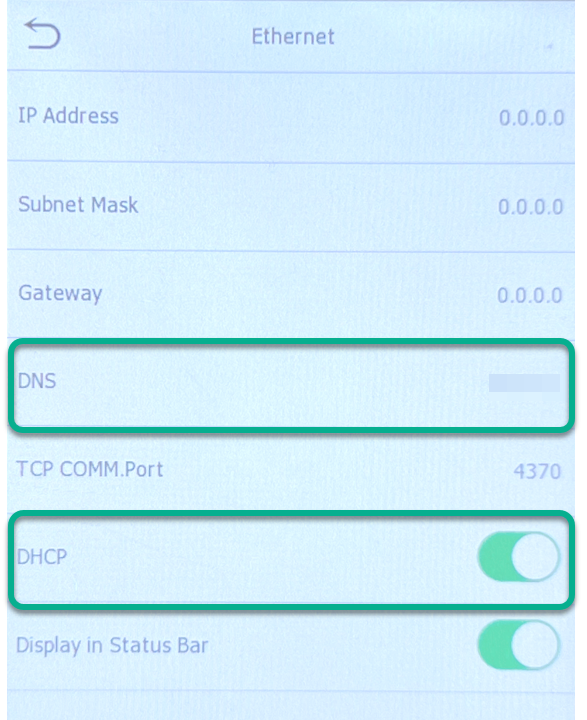
- If the fingerprint scanner does not support Wi-Fi, configure the network (Ethernet).
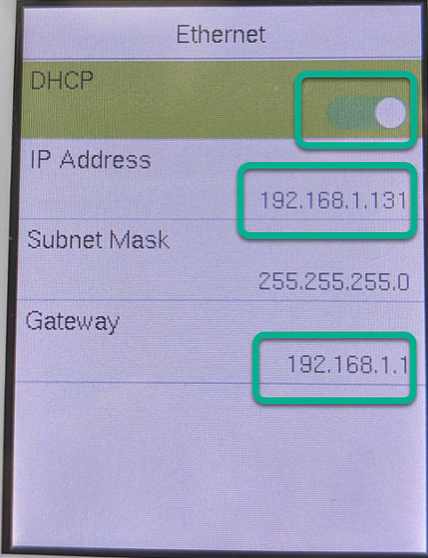
- Turn on DHCP and connect the scanner to the LAN cable.
-
Ensure the DNS matches the computer where the scanner was first added.
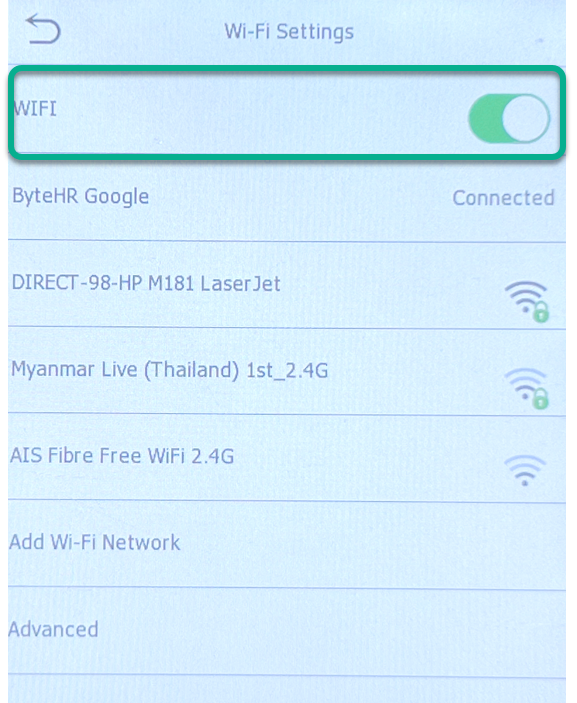
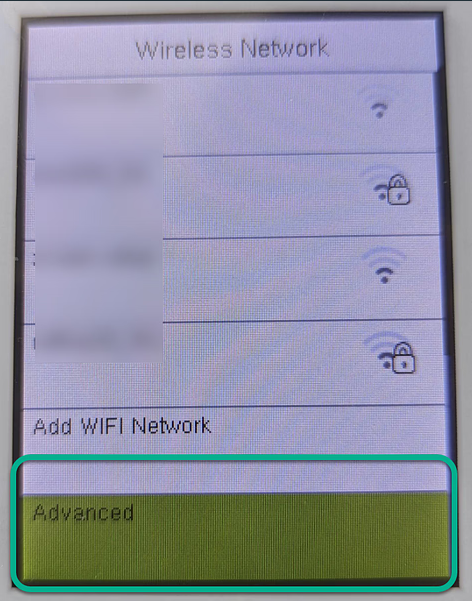
- If the scanner supports Wi-Fi, configure the Wi-Fi settings.
-
Turn on Wi-Fi and connect to the Wi-Fi network that matches the computer that was used to add the scanner for the first time.
-
Select the Advanced menu.
-
Enable DHCP and verify that the IP address and gateway are updated to numerical format.
-
- If the fingerprint scanner does not support Wi-Fi, configure the network (Ethernet).
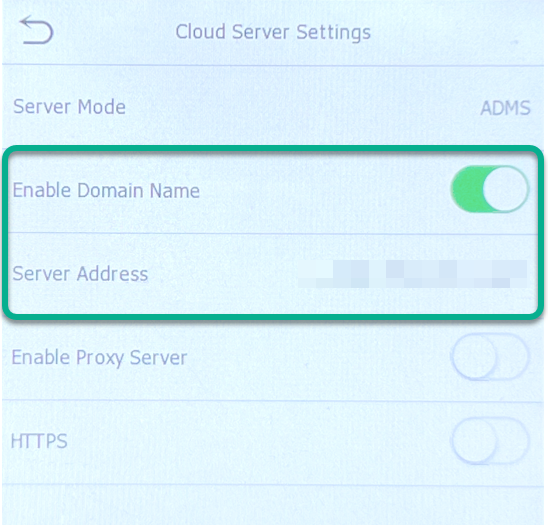
- Cloud Server Settings
- Enable Domain Name
-
Enter the server address as sync.byte-hr.com/ClientID.
💬 Note
You can request your ClientID via chat.
🏷️Case
Even after configuring the settings above, if the fingerprint scanner still doesn't connect to ByteHR:
- Please turn the scanner off and then on again.
Step 3: ByteHR Retrieves Data from the Fingerprint Scanner.
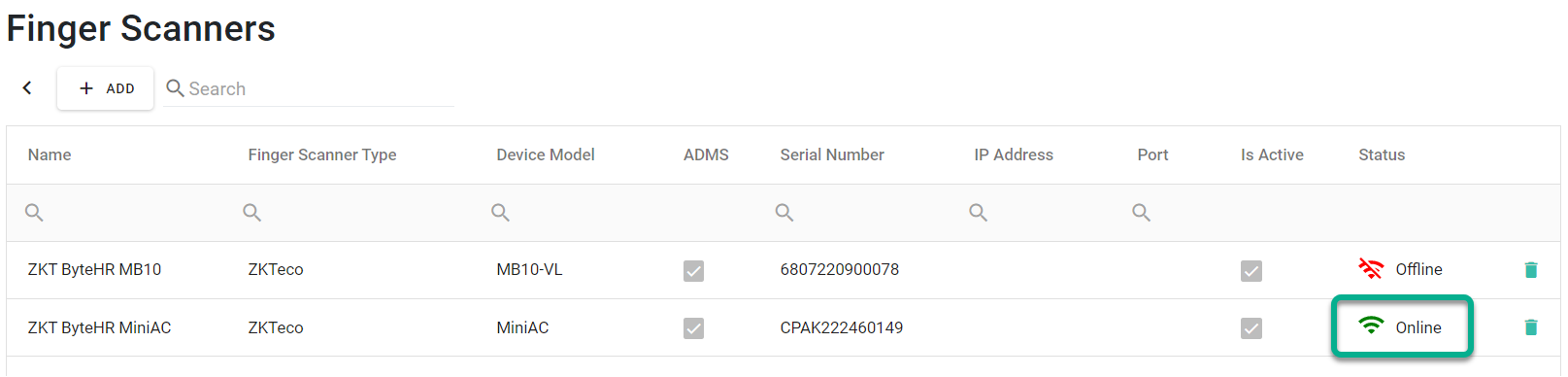
- Once the setup in Step 2 is complete, the system will show that the configured Fingerprint Scanner is Online.
- The system pulls data from the fingerprint scanner in real time into the Timesheet.
-
If the fingerprint scanner is turned off, the system will show that the fingerprint scanner is offline.
🏷️Case
If the fingerprint scanner has not been previously connected to ByteHR.
ByteHR will only update timesheets for the past 31 days using data from fingerprint scanners.
To have ByteHR update data beyond one month, regenerate timesheets. The system will use historical data from the fingerprint scanner to update the timesheets according to the selected time period.
📃Note
Once the fingerprint scan data has been retrieved into the ByteHR system, the admin can check the fingerprint scan information in the Reports menu -> Standard Reports -> Time Attendance Reports -> Location Timestamp