
Add Finger Scanners
🔍 Note
There are two methods to automatically sync attendance data from a Fingerprint Scanner to ByteHR.
- Via Web App
- Available only for ZKTeco fingerprint Scanners that support ADMS.
- Data is synced in real time.
- The system will display the scanner status as Online once Connected.
- Via Desktop Application
- Supports ZKTeco fingerprint scanners only.
- Data sync depends on the desktop application configuration.
🏷️ Case
For data synchronization via the web app, the system will show that the fingerprint scanner is online.
Time attendance data via fingerprint scanning is automatically updated in real-time on ByteHR.
How to Add a Fingerprint Scanner
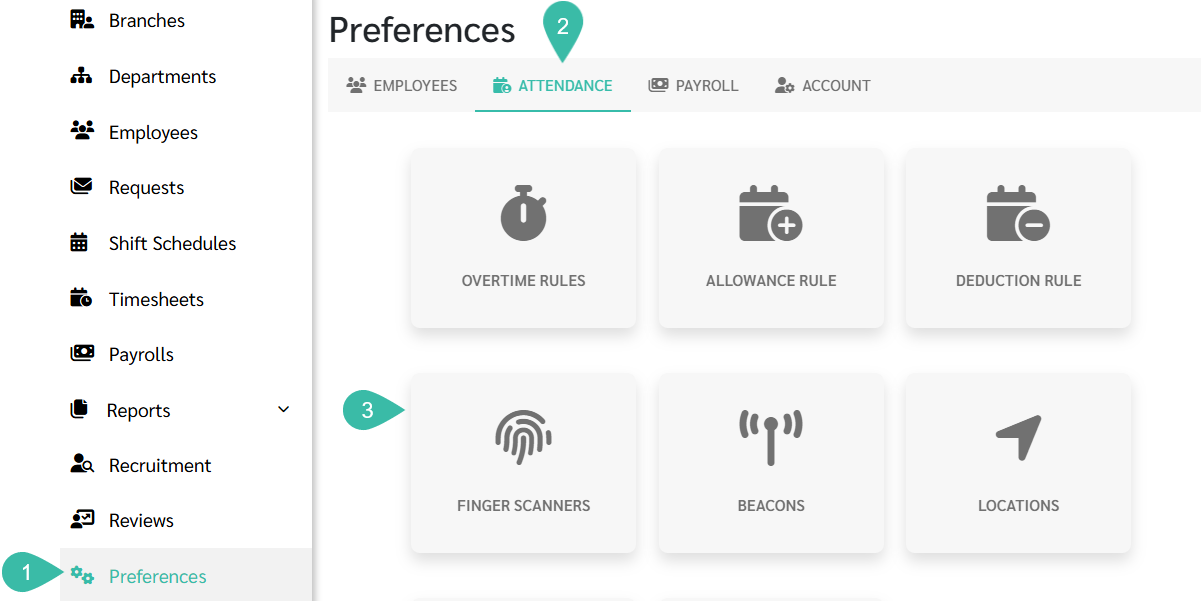
- Go to the Preferences.
- Select Attendance.
-
Click Finger Scanners.
-
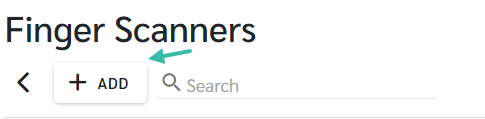
Click + Add.
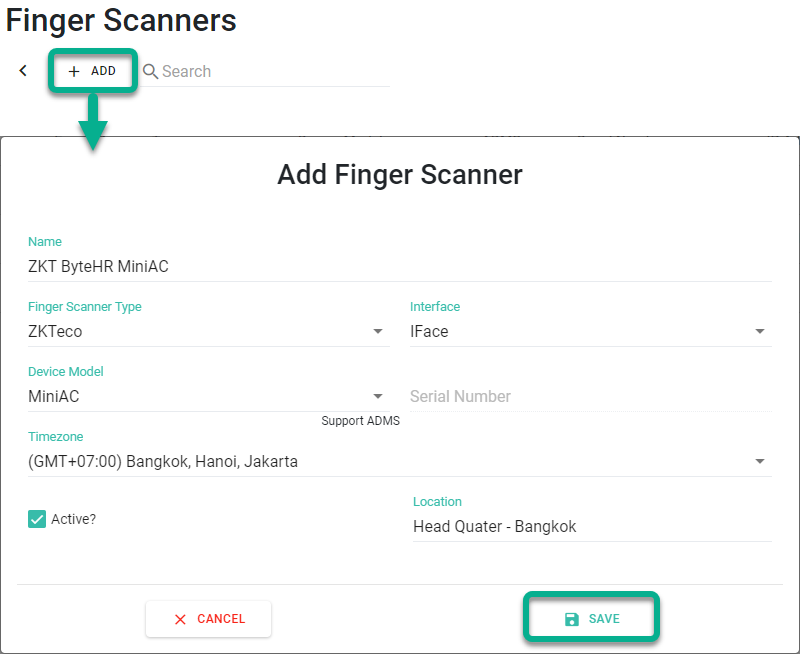
- Enter the name of the Fingerprint Scanner in the Name field.
- Select the type of Fingerprint Scanner you are using and fill in the required fields.
- Tick the "Active?" checkbox to activate the Fingerprint Scanner.
- Click Save.
Pricing of the Real-Time Sync Finger Scanner depends on the number of employees in your package and will be prorated based on your billing cycle.
- If the Device Supports ADMS:
- You will be required to fill in:
- Interface
- Device Model
- Time Zone
- Location (Optional) and will be displayed in the Timestamp report at that location.
- The system will not allow manual entry of the serial number.
- Once configured, the system will automatically retrieve the serial number from the device.
- You will be required to fill in:
- If the Device Does Not Support ADMS:
- You will need to manually enter:
- Serial Number (Optional)
- IP Address
- Port
- Time Zone
- Location (Optional) and will be displayed in the Timestamp report at that location.
- You will need to manually enter: