
Set Up the Display of Salary Deduction for Absences
💬 Note
Payroll is generated by approving the Timesheets. The system computes Pay based on the number of Days Worked.
By Default:
- When an employee is Absent, the system deducts the amount directly from the Salary.
- The Deduction is not displayed separately in the Deductions section.
If you would like the Absence Deduction to appear as a separate line item under Deduction in Payroll, follow the steps below:
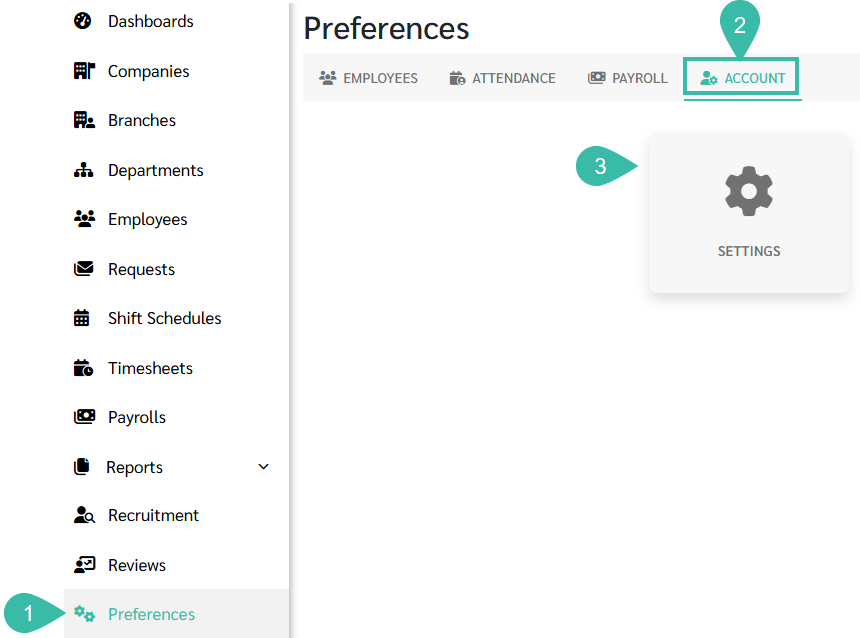
- Go to Preferences.
- Select Account.
-
Click Settings.
-
Tick the Show Deduction checkbox under Deduct Absence From Salary.

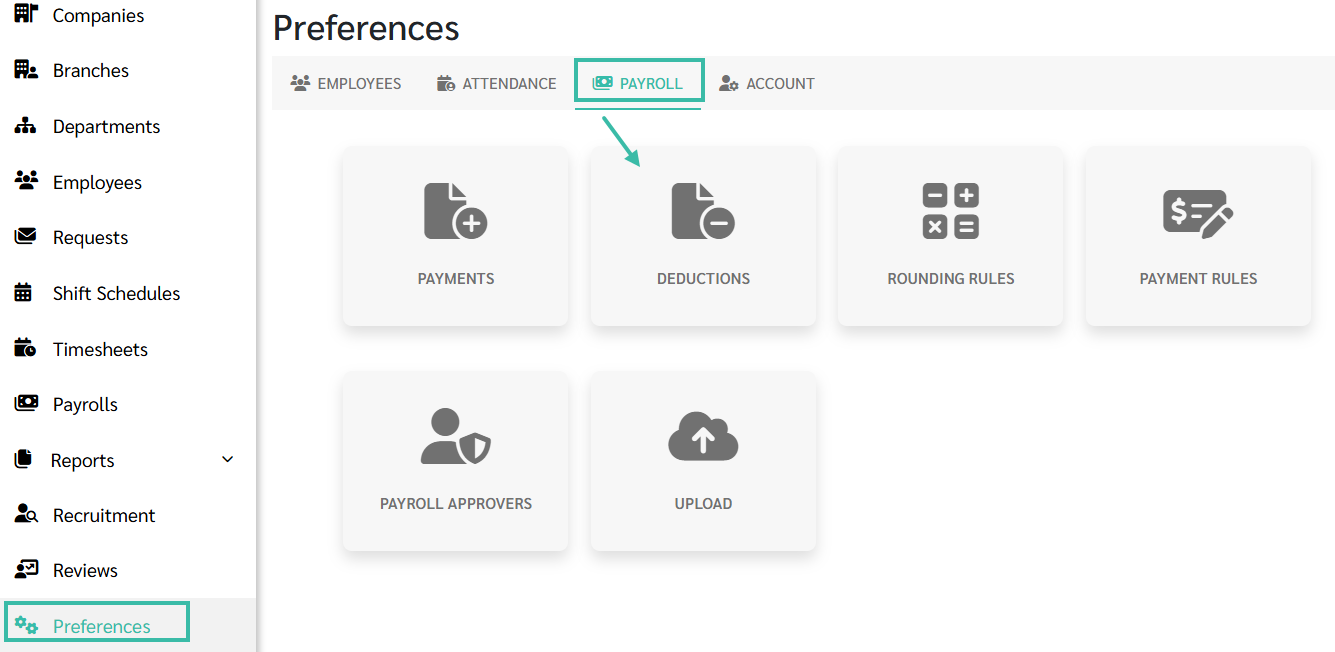
- Navigate to Preferences.
- Select Payroll.
-
Click Deductions.
-
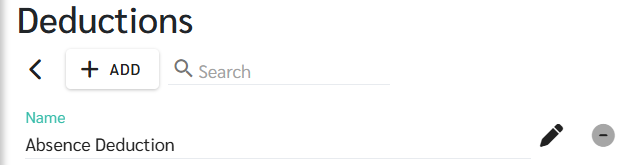
The system will display a Deduction Name: Absence Deduction.
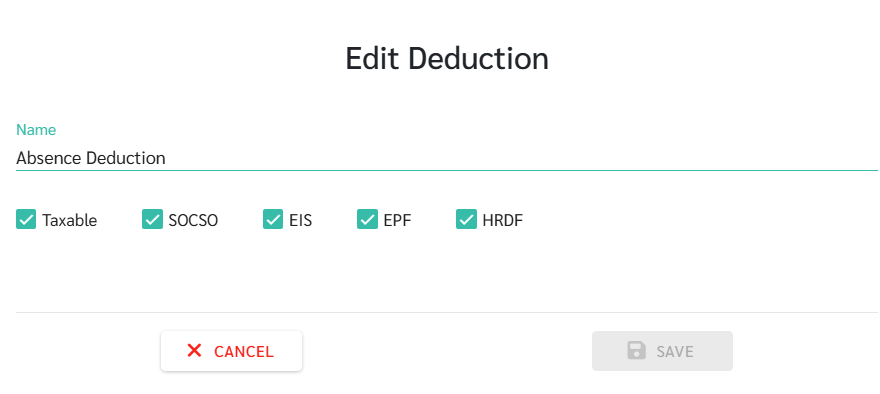
- You may configure the following on statutory contribution:
- Taxable
- SOCSO
- EIS
- EPF
-
HRDF
- When Show Deduction is enabled:
-
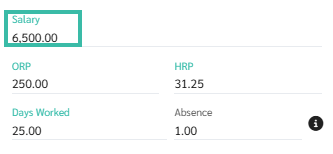
The employee's salary will be shown according to the Employment Contract.
-
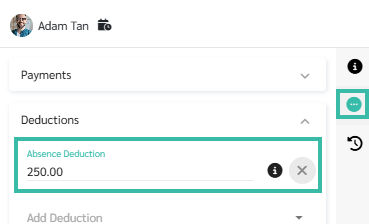
Absence and Unpaid Leave amounts will appear separately under the Deduction section.
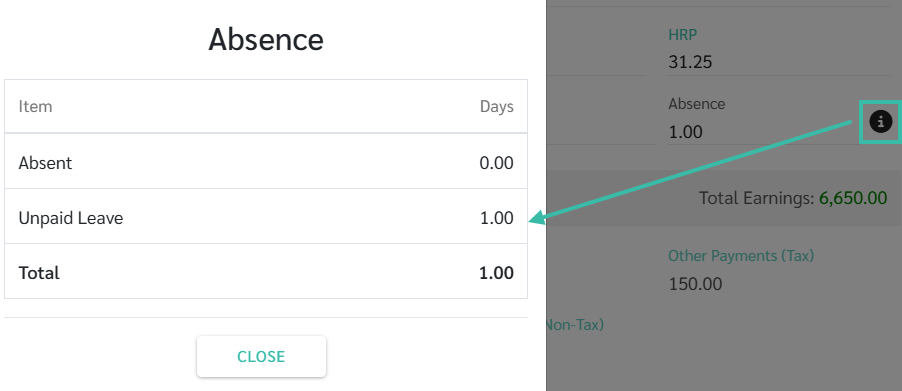
- You can click the Absence field to view:
- Number of Absent days in the Payroll period.
-
Number of Unpaid Leave days in the Payroll period.
-
⚠️ Caution:
- The Absence Deduction item cannot be deleted from the system.
- If you do not want the Deduction to be displayed separately:
- Go to Preferences - > Select Account -> Click Settings -> Untick the Show Deduction checkbox under Deduct Absence From Salary
- When disabled:
- The Deduction will not be shown in Payroll calculation, the Salary will be deducted accordingly.
- The Absence Deduction will not appear in the Deduction section in the Payroll.
