
Set up Deduction Rules
Deduction Rules can be configured as below:
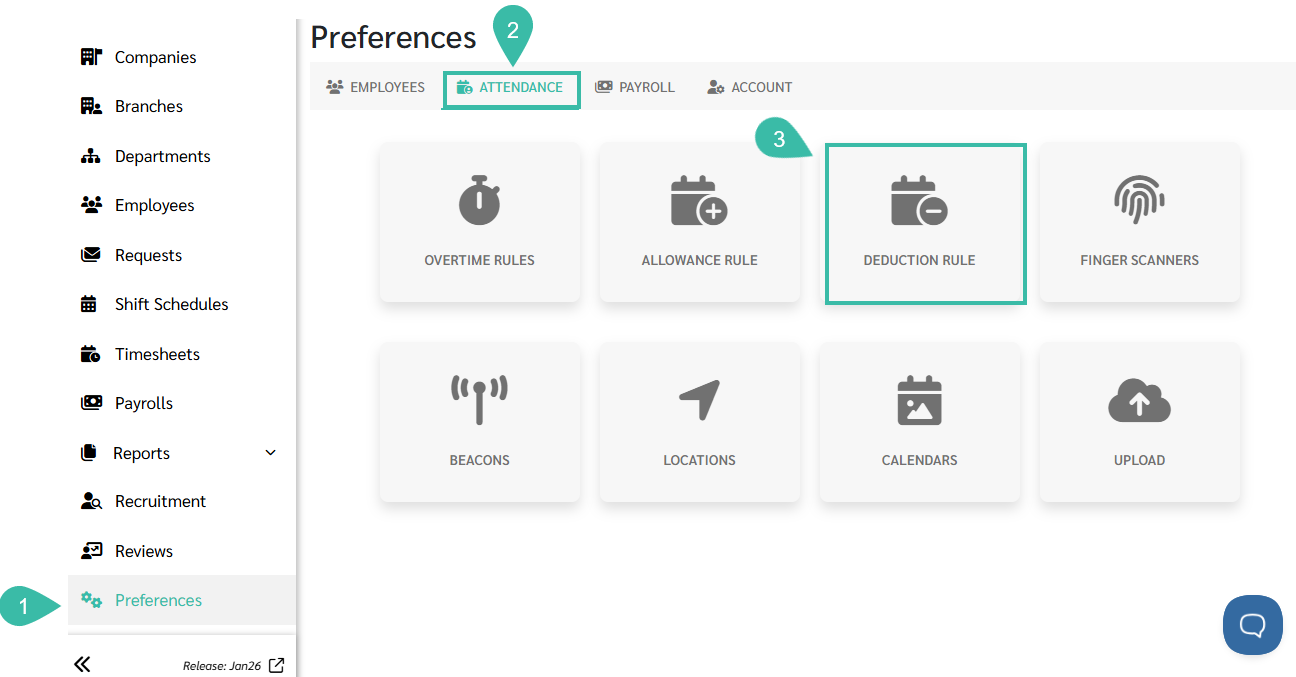
- Go to Preferences.
- Select Attendance.
-
Click Deduction Rule.
-
Click + Add.

-
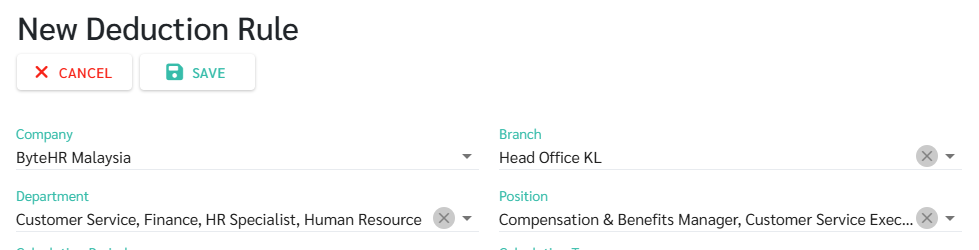
Select Company, Branch, Department, or Position.
🗨️ Note:
- If Payroll is configured at Company level, multiple branches can share the same Deduction Rule.
-
If Payroll is configured at Branch level, only one Branch can be assigned per Deduction rule.
- Select the Calculation Period:
- If the Payment Schedule is Once a Month, you can choose from three calculation periods for the Allowance payment rule:
- Per Day
- Per Month
- Per Time
- If the Payment Schedule is Twice a Month or Weekly. Four calculation periods can be selected for Allowance payment rules:
- Per Day
- Per Cycle
- Per Month
- Per Time
- If the Payment Schedule in the salary setting is twice a month or once a week, when selecting the calculation period as per day or per time, two payment schedule options can be chosen:
- Once per month
- Once per cycle
- If the Payment Schedule in the salary setting is twice a month or once a week, when selecting the calculation period as per cycle or per month, no option to select per cycle or per month will be available. Payment Schedule
- 🗨️Note: Calculation Type of Deduction Rule:
-
Per Day Calculation:
The system checks Attendance daily. If an employee is late or Out Early on a day, a Deduction is applied.
-
Per Cycle Calculation:
The system reviews Attendance within the Payroll Cycle and applies Deductions accordingly.
-
Per Month Calculation:
The system reviews Attendance for the entire month before applying Deductions.
-
Per Time Calculation:
The system calculates Deductions case-by -case for each occurrence. A deduction of 7% will be made that day.
-
- If the Payment Schedule is Once a Month, you can choose from three calculation periods for the Allowance payment rule:
- Select Calculation Type:
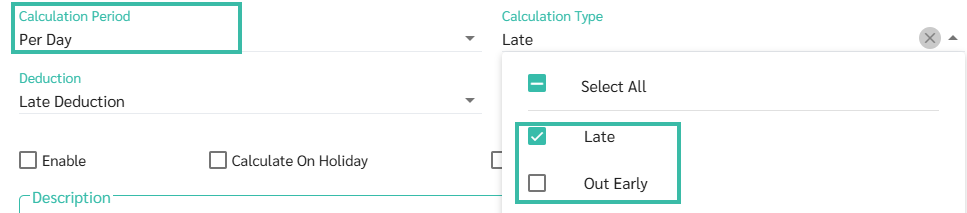
- If Calculation Period is Per Day/ Per Cycle/ Per Month, you may select Calculation Type as:
- Late
-
Out Early
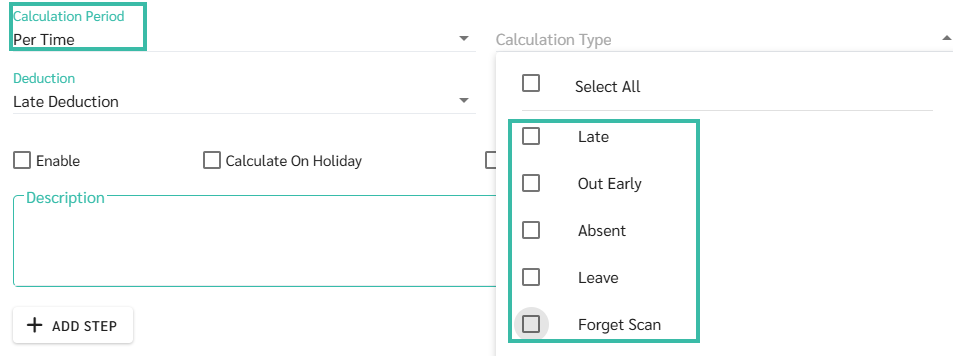
- If Calculation Period is Per Time, you may select Calculation Type as:
-
Late
You may specify the number of minutes before the Deduction begins in the Late After/out Early Before field.
Example: The system will deduct lateness if an employee signs in 15 minutes after the scheduled start time.

-
Out Early
You may specify the number of minutes before the Deduction begins in the Late After/out Early Before field.
Example: The system will deduct Out Early if an employee signs out 15 before the scheduled end time.

- Absent
- Leave
-
Forgot to Scan.
-
- More than one Calculation Type can be selected.
- If a Deduction Rule for "Forget Scan" is created:
- The system treats the day as a Working day.
- The employee is paid.
- The Deductions is applied based on defined settings.
- If no Rule is created:
- The system treats the day as Absence.
- No salary will be paid.
- Attendance data be reviewed in Timesheet under Total Worked/ Total Absent/ Total Unpaid Leave..
- If a Deduction Rule for "Forget Scan" is created:
- If Calculation Period is Per Day/ Per Cycle/ Per Month, you may select Calculation Type as:
-
Select the Deduction Name for the deduction rule.

-
Enable the Deduction rule by ticking the Enable box.

-
Tick Calculate on Holiday to apply deductions on Public Holidays.
Applicable only for Late and Out Early.

-
Tick the Calculate On Day Off to apply Deductions on Weekly day off. Applicable only for Late and Out Early.
- Tick Include Shift Break if you want the system to calculate Lateness or Out Early during break times.
- If Late is selected, the system checks Lateness after Shift Start Time and after Break Time.
- If Out Early is selected, the system checks Out Early before Break and before Shift End Time.
-
Note
To calculate during Break Time, a total of 4 time entries are required (Clock in -> Break Out -> Break In -> Clock Out.
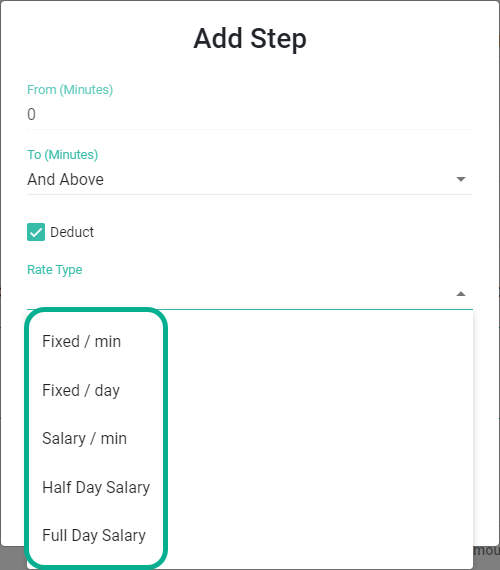
- Click "Add Step" to specify the Deduction amount. There are five types of deduction rates that can be defined:
- Deduction per minute (Fixed / min)
- Deduction per day (Fixed / day)
- Deduction based on salary per minute (Salary / min)
- Deduction based on half-day salary (Half Day Salary)
-
Deduction based on full-day salary (Full Day Salary).
You may configure Deduction tiers:
0-5 minutes late No Deduction
5-15 minutes: RM 1 Fixed Deduction per minute.
15-30 minutes: Half-day salary Deduction.
30 minutes and Above: Full-day salary Deduction.
📢 Important Note:
The system will compare Lateness minutes against the defined tiers and apply the corresponding Deduction.
Example:
An employee is late by 17 mins. Based on the Deduction tier above, half a day's salary will be deducted.
- Once settings are complete, click Save.

📃Note
- Deduction calculations are processed using the Approved Timesheet payroll method.
- If Deductions are not reflected after generating Payroll, please verify the Payroll processing method.