
Setting Allowance Rules for Shift Allowance
For companies with a Shift Allowance payments for employees, the admin can create a Allowance Rule and select the desired Shift Schedule and Shift Pattern so that the system will automatically calculate and pay the Allowance to employees.
How to Create a Shift Allowance Rule:
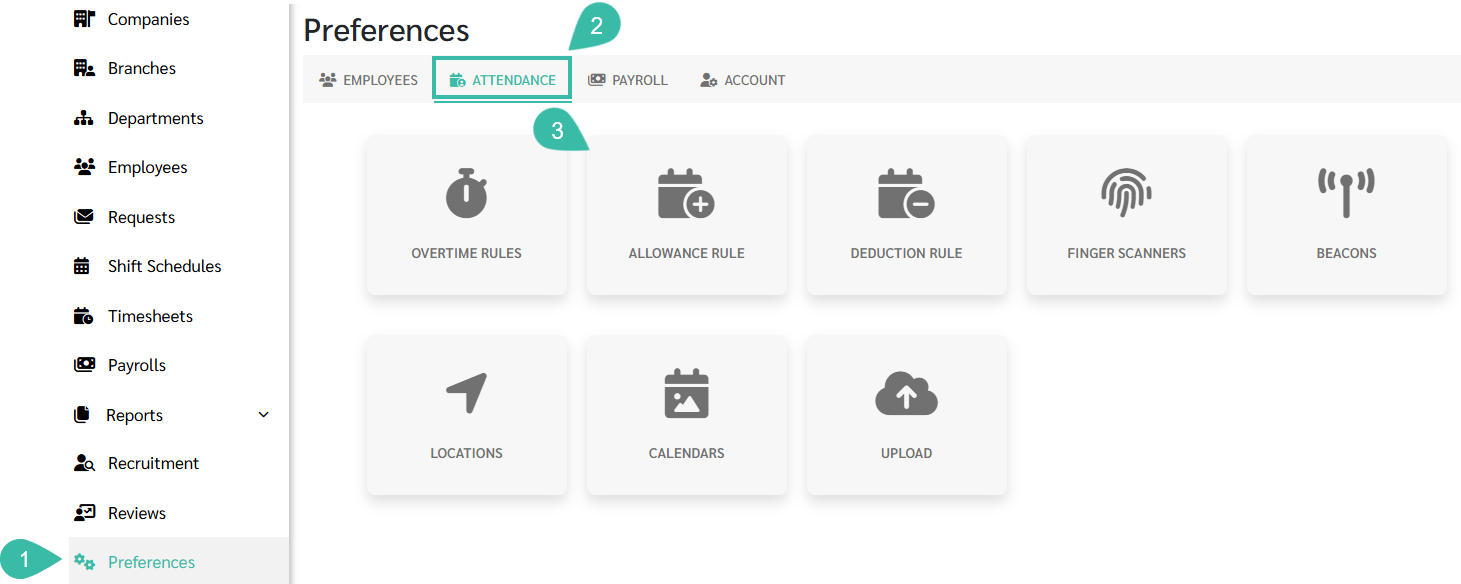
- Go to Preferences.
- Select the Attendance tab.
-
Go to Allowance Rule.
-
Click "+ Add".

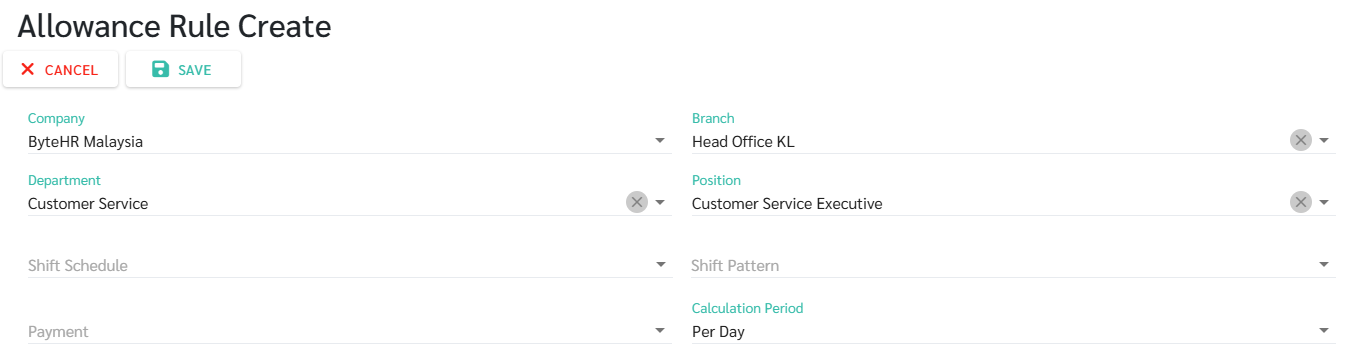
- Select Company, Branch, Department, or Position
- If Payroll Setting is configured under Company, multiple branches can be selected to set the Allowance rule simultaneously.
-
If Payroll Setting is configured under Branch, multiple branches cannot be selected to set the Allowance rule. Only one branch can be selected for one Payment Type.
-
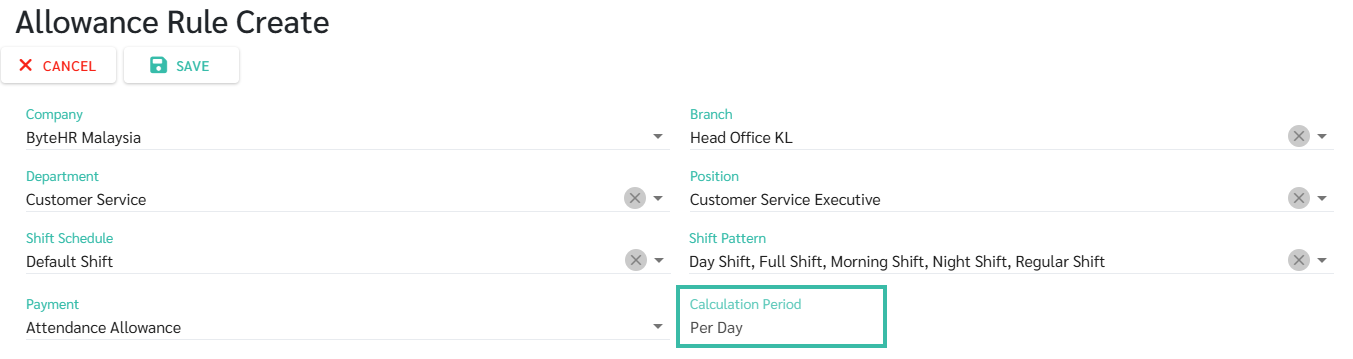
Select Shift Schedules.
🗨️ Important Note:
Once a Shift Schedule is selected, the Calculation Period field will be set to the default "Per Day" and cannot be changed. The Monthly Payment field will also be set to the default "fixed" and cannot be changed.
-
Select Shift Pattern.
🗨️ Important Note:
- In one Allowance rule, the admin can select multiple Shift Patterns.
- If the admin does not select any Shift Patterns, the system will apply this rule to all Shift Patterns.
- If the admin does not select any Shift Patterns, employees in the schedule but whose working hours do not match any Shift Pattern will still receive their benefits as usual.
- Select Payment for Allowance payments.
-
The Calculation Period will be set to the default "per day".
-
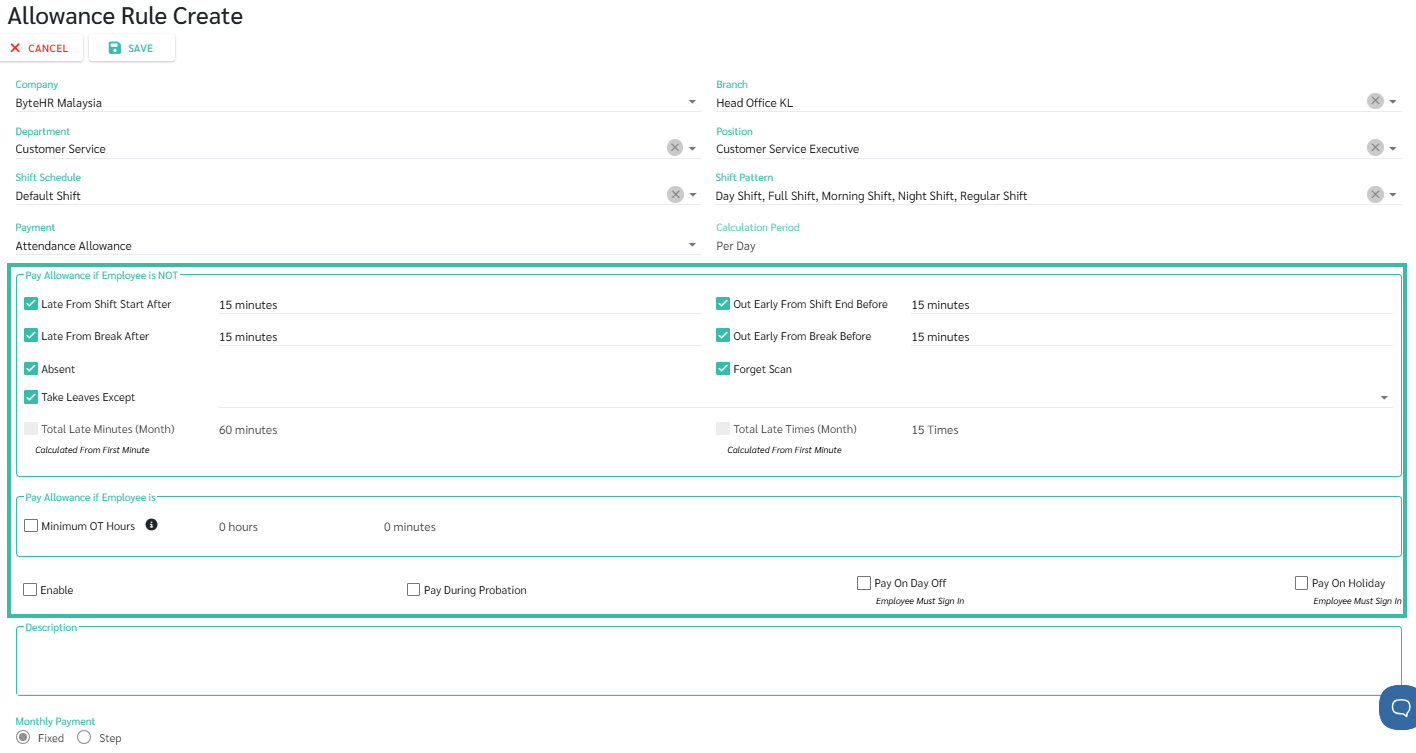
Set up any exceptions.
In the Allowance payment system, the following can be configured
-
Late from Shift Start After:
The number of minutes after the shift start time can be set and defined for calculation.
-
Out Early from Shift End Before:
The number of minutes before the shift end time can be set and defined for calculation.
-
Late from Break After:
The number of minutes after the break time can be set and defined for calculation.
-
Out Early from Break Before:
The number of minutes before the break time can be set and defined for calculation.
-
Absent:
If there is no sign-in or sign-out on a normal workday, it will be shown as absent (AB) in the Timesheet.
-
Forget to Scan.
Sign in but no sign out on a normal workday. This will show as Invalid data in the Timesheet.
-
Leave Exceptions:
If exceptions for leave are set, such as vacation leave, the employee will still be entitled to Allowance if they take Leave.
-
Enable:
Check the Enable box if you want the system to calculate Allowance according to the configured Allowance Rules. Do not check the Enable box if you do not want the system to calculate such Allowance.
-
Pay During Probation:
If payment during probation is enabled, the system will calculate Allowance according to the normal Allowance payment rules as for employees who have passed their probationary period.
-
Pay on Day Off:
If the calculation period is per day and you want the system to calculate Allowance on weekends/days off as if it were a normal workday, enable this option. Pay on Weekly Days Off.
-
Pay on Public Holidays.
If the calculation period is per day and you want the system to calculate Allowance payments for public holidays as if they were normal working days, enable the "Pay on Holiday" option.
-
-
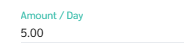
Define the amount of Allowance payment to be received. Enter the amount the employee will
receive each day.
📢 Important Note:
The system will automatically calculate Allowance payment rules for employees only if payroll is generated from approved Timesheet data. If payroll is generated by pulling data from Employment Contracts, the system will not calculate Allowance payment rules for employees.