
Set up Allowance Rules
The Allowance Rules can be configured following the steps below:
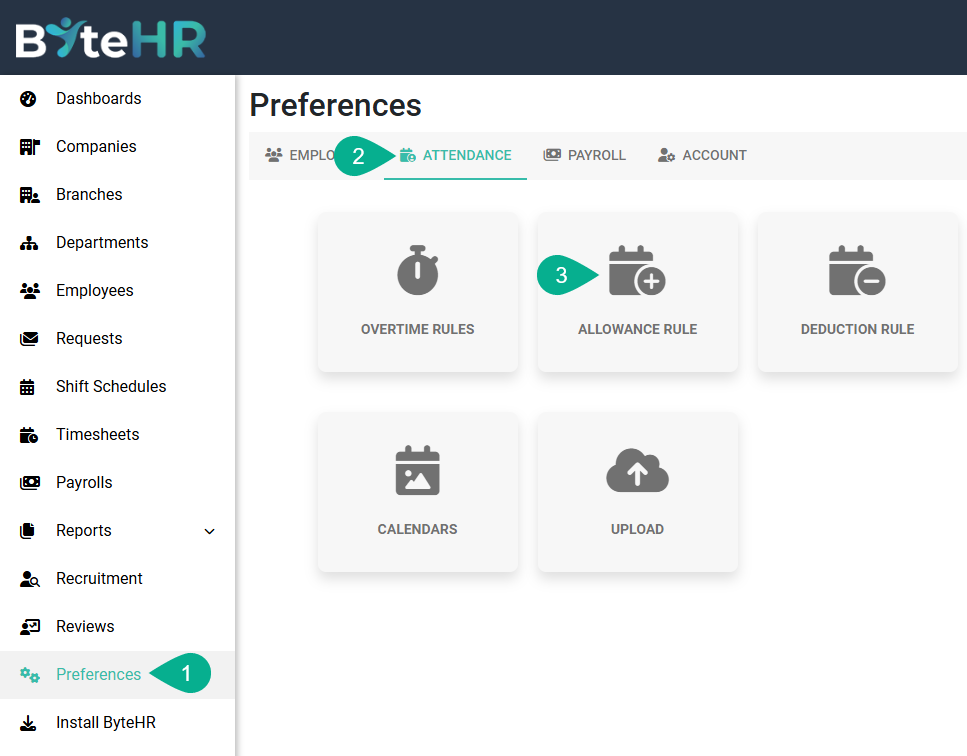
- Go to Preferences tab.
- Select Attendance.
-
Go to Allowance Rules.
-
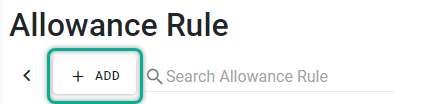
Click on + Add.
- Select Company, Branch, Department, or Position.
- When setting up Company payroll, you can select multiple branches to set up Allowance payment rules simultaneously.
-
When setting up Branch payroll, you cannot select multiple branches to set up Allowance payment rules; you can only select one Branch.
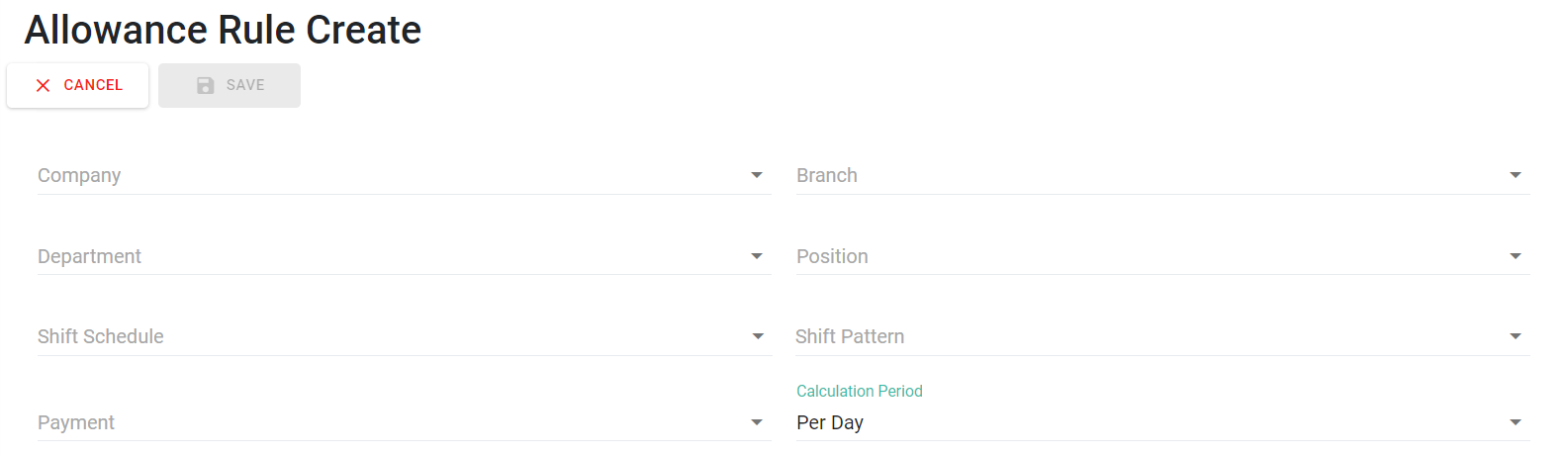
- Select Shift Schedules and Shift Pattern if you want to create Allowance Payment rules related to employee shift schedules.
- Select the Payment for Allowance Rules.
- Select the Calculation Period.
- If the Payment Schedule is once a month, there are two options for calculating the Allowance payment period:
- Per Day
- Per Month
- If the Payment Schedule is twice a month or weekly, there are three options for calculating the Allowance payment period:
- Per Day
- Per Cycle
- Per Month
- If the Payment Schedule is on a per-day basis, you can choose from two options for calculating the Allowance payment period:
- Once per month
- Once per cycle
- If the calculation period is set to per cycle or per month, a payment schedule cannot be selected.
-
Per Day:
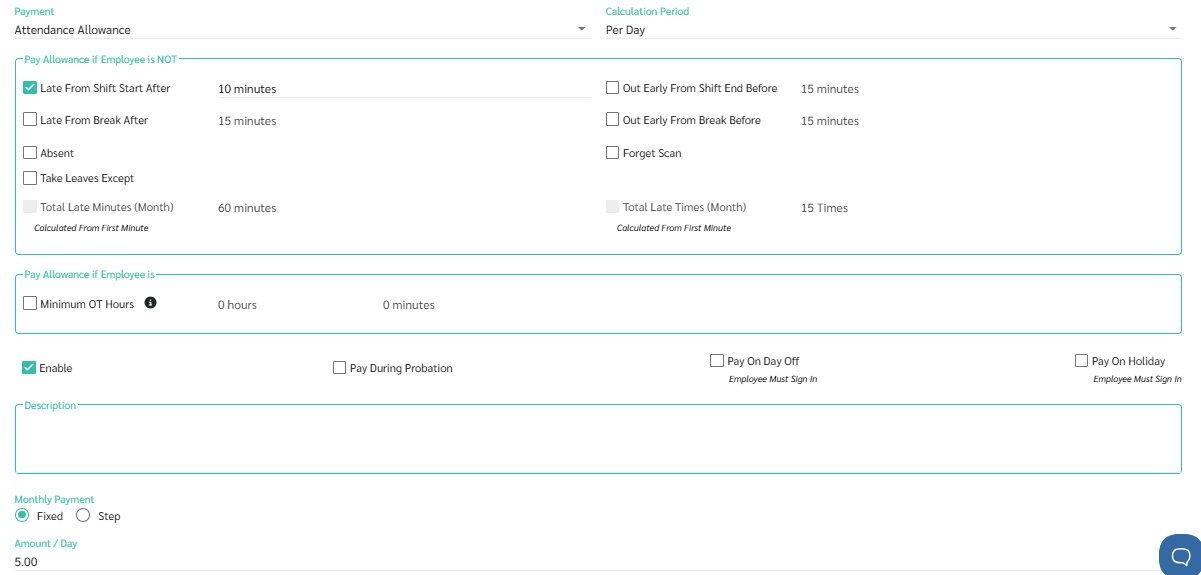
If set to "Per Day," the system will check the data daily. If a day does not violate the specified exceptions, the Allowance payment will be received on that day.
Example: Payment = Attendance Allowance.
Payment = RM 5 per day.
Late From Shift Start After = 10 minutes.
Shift schedule 08:00 - 17:00.
06/05/2025 sign in 08:08 will receive a RM 5 Attendance Allowance.
07/05/2025 sign in 08:11 will not receive an Attendance Allowance.
-
Per Cycle.
If set to "Per Cycle," the system will check the data in that cycle to see if there are any days that violate the conditions specified in the exceptions. If there are, that cycle will not receive the welfare payment.
-
Per-Month.
If set to "Per Month," the system will check the data for the entire month to see if there are any days within that month that violate the conditions specified in the exceptions. If there are, the Allowance payment will not be received in that month.
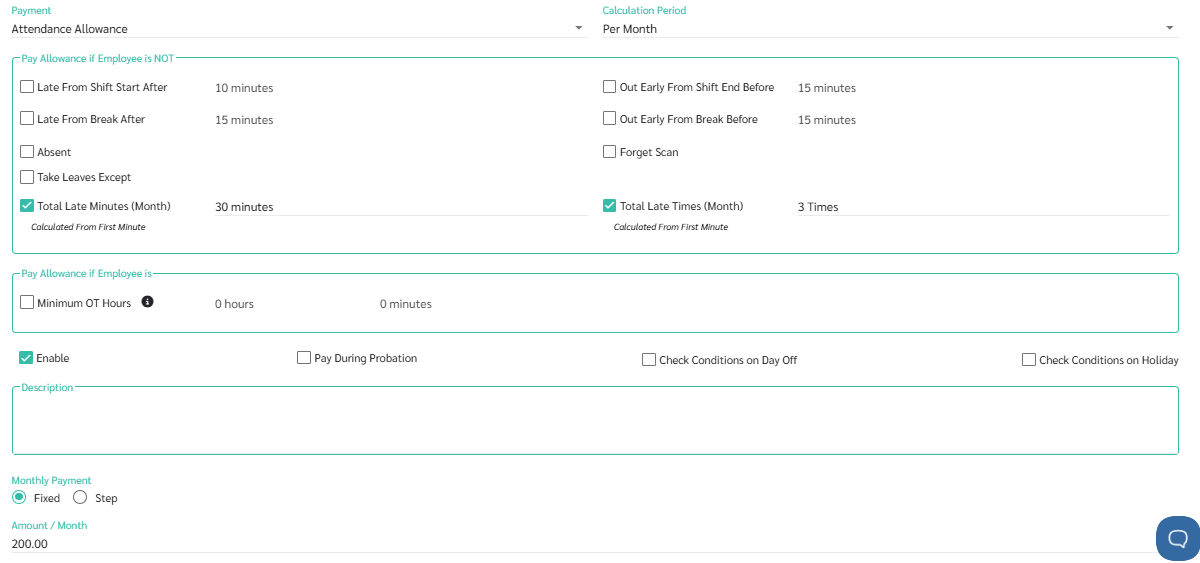
example
Payment = Attendance Allowance
Payment = RM 200 per month
Total late Minutes (Month) = 30 minutes
Total Late Times (Month) = 3 times.
If you are late 5 times in a month, totalling 20 minutes, you will not receive your attendance Allowance.
If you are late three times within the month, totalling 18 minutes, you will receive a RM 200 Attendance Allowance.
- If the Payment Schedule is once a month, there are two options for calculating the Allowance payment period:
- Set up a rule that prohibits employees from doing certain things.
-
Late From Shift Start After: A policy that allows you to specify how many minutes after the start time an employee will not receive Allowance.
example
Shift schedule: 08:00 - 17:00, break 12:00 - 13:00
Set "Late arrival after shift start time = 15 minutes".
If you sign in at 08:08, it will not be considered a violation of the terms and conditions.
If you sign in at 08:15, it will not be considered a violation of the terms and conditions.
Signing in at 08:16 will be considered a violation of the terms and conditions.
-
Late from Break After. It can be specified that employees will not receive Allowance if they are late after a certain minutes.
example
Shift schedule: 08:00 - 17:00, break 12:00 - 13:00
Set the "Late Arrival After Break Time" to 10 minutes.
If you sign in at 12:05, it will not be considered a violation of the terms and conditions.
If you sign in at 12:10, it will not be considered a violation of the terms and conditions.
Signing in at 12:11 will be considered a violation of the terms and conditions.
-
Out Early from Shift End Before: Allows you to specify how many minutes before the end of the Shift an employee will not receive Allowance.
example
Shift schedule: 08:00 - 17:00, break 12:00 - 13:00
Out Early: 15 minutes.
If you sign out at 16:50, it will not be considered a violation of the terms and conditions.
If you sign in at 16:45, it will not be considered a violation of the terms and conditions.
Sign out at 16:44 will be considered a violation of the terms and conditions.
-
Out Early from Break Time: It can be specified how many minutes before a employee leaves their break time they will not receive Allowance.
example
Shift schedule: 08:00 - 17:00, break 12:00 - 13:00
Set "Leave before break time" = 10 minutes.
If you sign out at 11:55, it will not be considered a violation of the terms and conditions.
If you sign in at 16:50, it will not be considered a violation of the terms and conditions.
Signing in at 16:49 will be considered a violation of the terms and conditions.
- Absent means that a person fails to sign in and sign out on a normal workday. This will be shown as "AB" in the timesheet and is considered a violation of the terms and conditions.
- Forget Scan means signing in but not signing out on a normal workday. This will show as invalid data in the timesheet and is considered a violation of the terms and conditions.
-
Use leave days, and you can exclude certain types of leave (Take Leaves, Except Some Leave Type).
If leave types are excluded, such as vacation leave, and an employee takes vacation, they are still considered to have violated the terms and conditions.
-
Total Late Minutes (month)
refers to the total number of minutes late for the entire month.
*Note : If the calculation method is per cycle, the total number of minutes late will be changed to Total Late Minutes (Cycle) instead.
example
Shift schedule 08:00 - 17:00
05/04/2021 sign in 08:08
07/04/2021 sign in 08:17
20/04/2021 sign in 08:22
Therefore, Total Late Minutes for April 2021 = 8 + 17 + 22 = 47 minutes.
-
Total Late Times (month)refers to the total number of times someone was late for the entire month.
*Note : If the calculation method is per cycle, the total number of lateness will change to Total Late Times (cycle) instead.
example
Shift schedule 08:00 - 17:00
05/04/2021 sign in 08:08
07/04/2021 sign in 08:17
20/04/2021 sign in 08:22
Total lateness for the month = 3 times
example
If the "Late From Shift Start After" setting is set to 10 minutes,
for a shift schedule of 08:00 - 17:00:
05/04/2025 sign in 08:08 --> not late;
07/04/2025 sign in 08:17 --> late;
20/04/2025 sign in 08:22 --> late.
Total lateness for the month = 3 times.
-
- Set conditions that employees must follow.
-
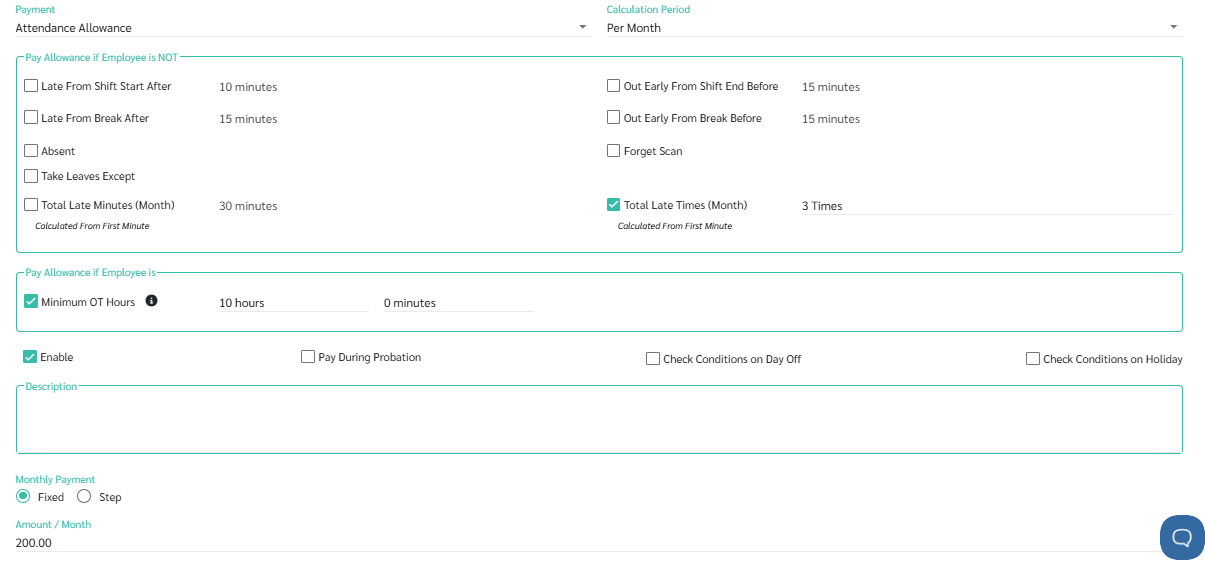
Minimum OT Hours
This refers to the number of overtime hours an employee must have in their schedule to be entitled for Allowance.
The system will calculate based on the cut off date for Allowance payment regulations, and this overtime hour count will include OT Compensate Hours.
example
Set the minimum overtime hours to 10 hours.
The cut off date for Allowance payment rules is the end of the current period.
The employee has:
3 hours of OT 1.5 on 23/12/2025,
3 hours of OT Compensate Hours on 24/12/2025, and
5 hours of OT 2.0 on 25/12/2025.
This employee will receive Allowance because the total OT hours = 11 hours.
If any employee has less than 10 hours of overtime, that employee will not receive Allowance payment.
-
- To check the conditions for weekly days off, if the calculation period is per month and you want the system to check if weekly days off meet the set conditions like normal working days, enable the "Check Conditions on Day Off" option.
-
Check the conditions on Public Holidays.
If the calculation period is set to per month and you want the system to calculate holiday Allowance payments as if they were normal working days, enable the "Check Conditions on Holiday" option.
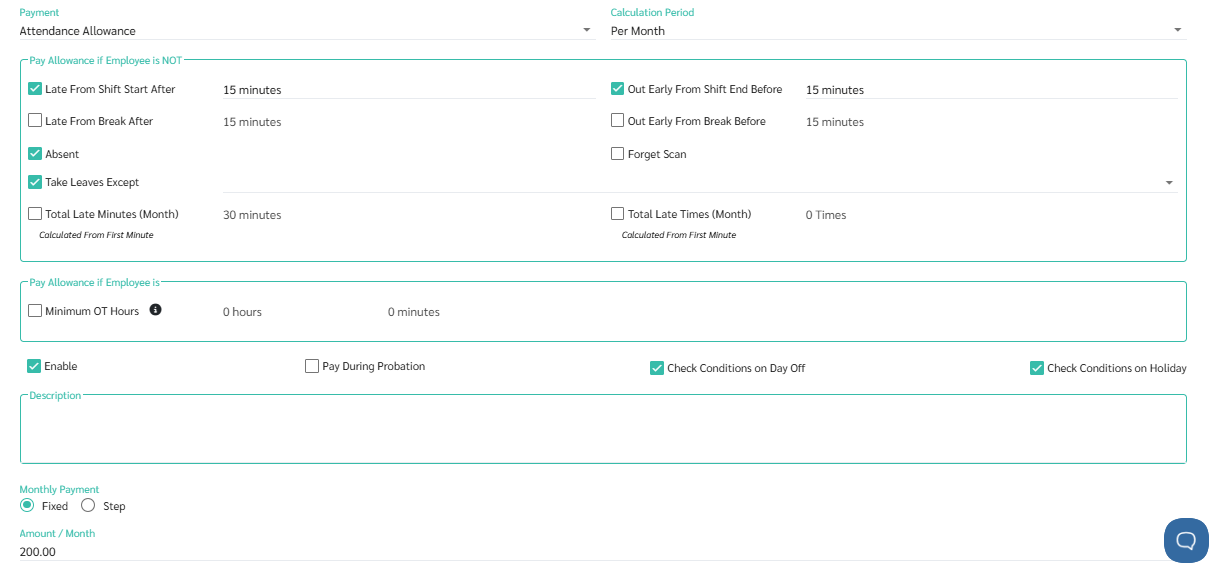
example
Attendance Allowance of RM 200 per month is provided, and employees are required to:
Late From Shift Start After: 15 mins
Out Early From Shift End Before: 15 mins
No absences from work.
No leave
These conditions, including cases of work on weekends and/or public holidays,
can be set in the Allowance payment rules as follows:
-
Pay on Day Off
If the calculation period is set to per day and you want the system to calculate Allowance payments for weekly holidays, enable the "Pay on Day Off" option.
However, the system will only calculate Allowance payments and deductions for weekly holidays when you sign in for work.
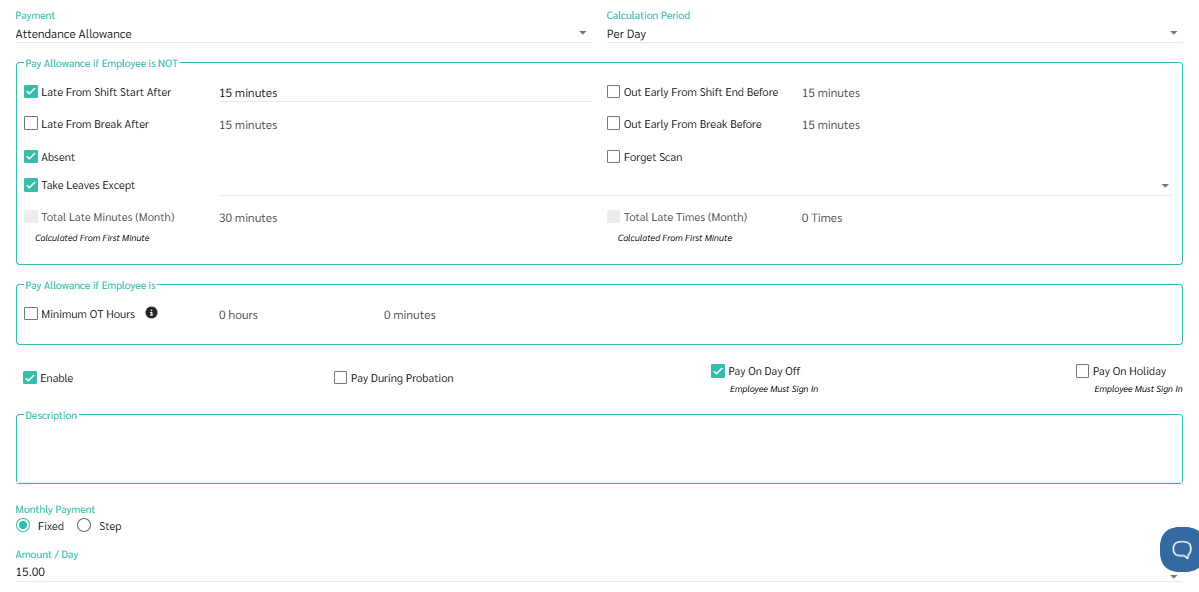
example
A Attendance Allowance of RM 15 per day is provided, which employees must:
Travel allowance will be paid only for days actually worked, including weekends and public holidays.
Late From Shift Start After: 15 mins
No absences from work.
No leave
The following settings can be configured in the Allowance payment rules:
-
Pay on Public Holidays
If the calculation period is on a per-day basis and you want the system to calculate Allowance payments for public holidays, enable the "Pay on Holiday" option.
However, the system will only calculate Allowance payments and deductions for public holidays once you have signed in for work.
example
A Attendance Allowance of RM 15 per day is provided, when employees:
Late From Shift Start After: 15 mins
Out Early From Shift End Before: 15 mins
No absences from work.
No leave
And they do not pay Attendance Allowances on weekly holidays and public holidays.
The following settings can be configured in the Allowance payment rules:
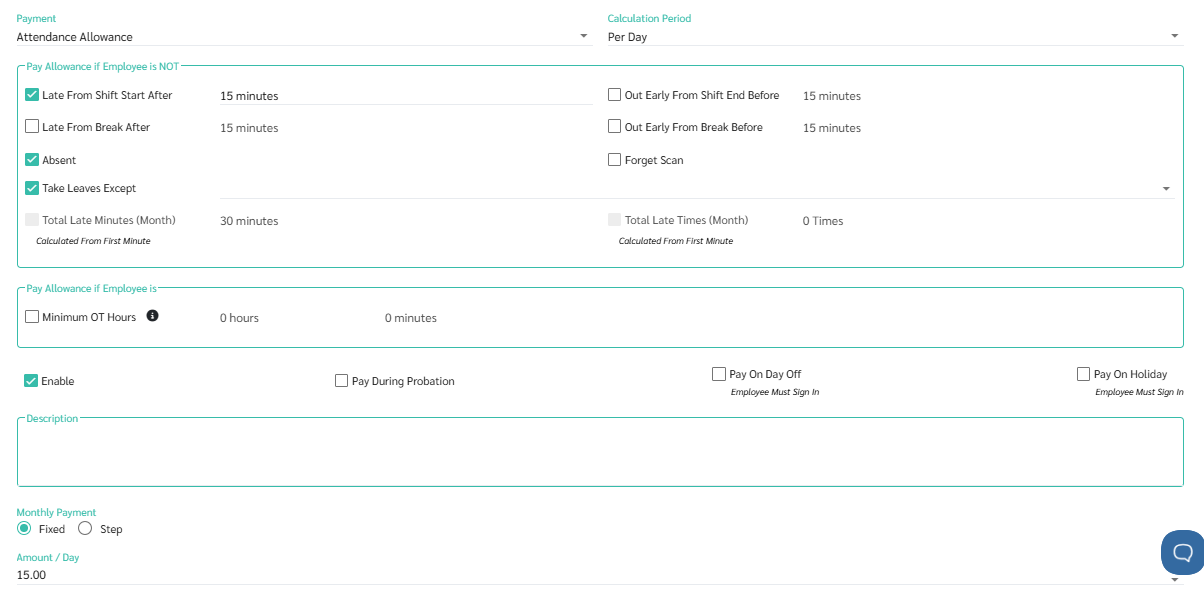
- Tick the "Enable" box if you want the system to calculate Allowance payments according to the configured Allowance payment rules. If you do not want the system to calculate these Allowance payments, do not tick the "Enable" button.
-
Pay during probation
If the system is configured to pay Allowance during the probationary period, the Allowance will be calculated according to the normal Allowance payment rules, just like for employees who have passed their probationary period.
If the system is configured to prevent payment during the probationary period, the system will calculate the employee's Allowance after they successfully pass the probationary period. However, if the date the employee passes the probationary period falls within the payroll cycle, the system will begin calculating the Allowance in the next payroll cycle.
- Determine the amount of Allowance Payment to be received per month or per period, which comes in two types:
- Fixed-rate Allowance payment: The amount of Allowance payment received will be the same each month/cycle if the payment criteria are met.
-
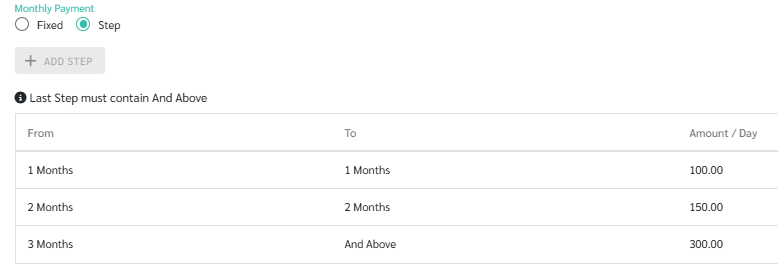
Step: The amount of Allowance received increases in steps if certain payment conditions are met.
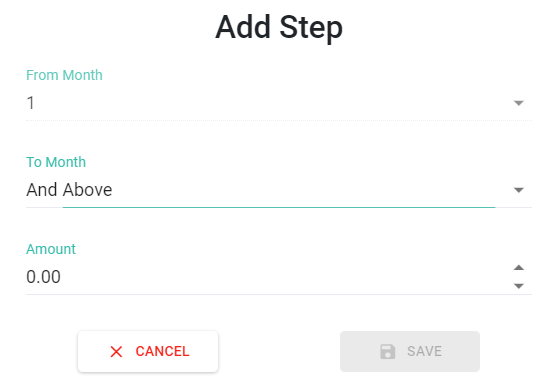
For example, Attendance bonus: if you don't come late, don't miss work, and don't take leave, you'll get RM100 in the first month, RM 150 in the second month, and RM300 from the third month onwards, and so on.
📃 Note
Allowance payment rules can only be calculated using the Approve Timesheet method in payroll processing. If the system does not calculate the Allowance payment rules after processing the payroll, please review the payroll processing method.