
Overtime Cut Off Date Setting
Normally, when setting up payroll, the Overtime cut-off date is the same as the Salary cut-off date. However, admin may configure a different Overtime Cut-Off date from the Salary Cut-Off date by following the below steps:
-
Go to Company / Branch.
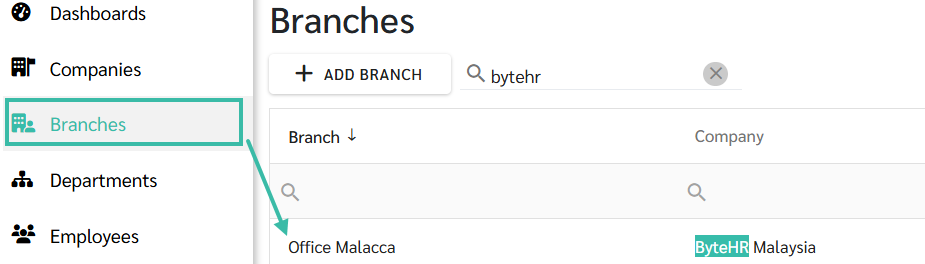
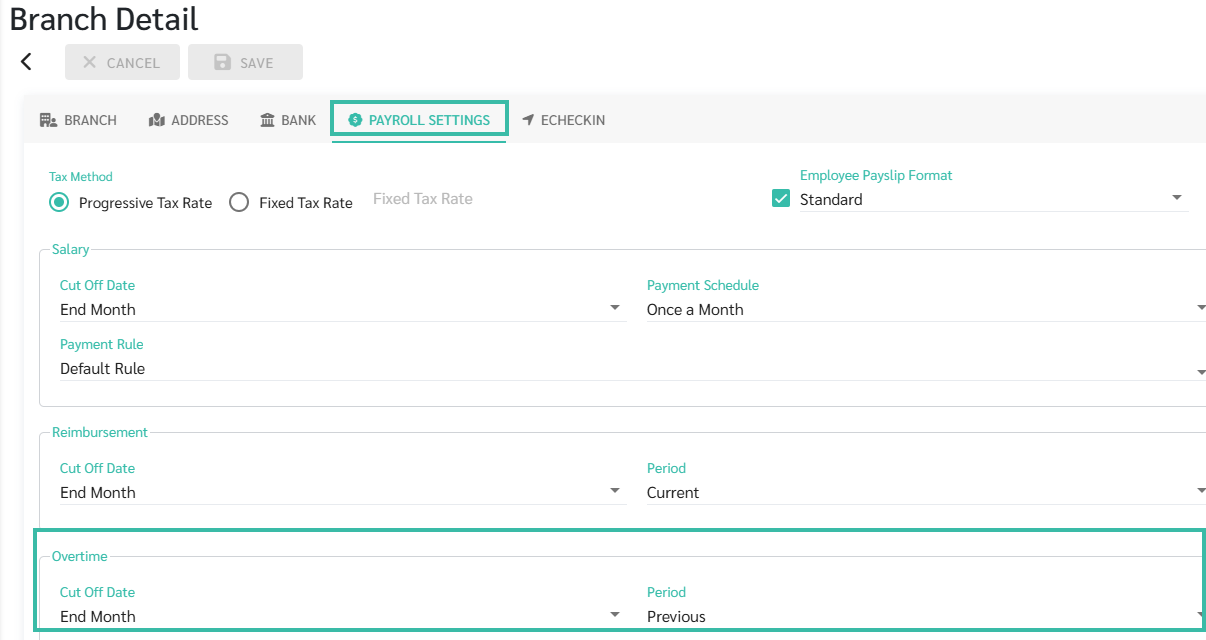
- Go to Payroll Setting.
- Scroll to Overtime section and configure the following fields:
- Cut-Off Date: Click the drop-down menu and select the desired Overtime Cut-Off Date.
-
Period: Click the drop-down menu and select the applicable Overtime period.
-
Click Save to apply the changes.
Example:
Salary Cut Off Date: End Month
Payment Schedule: Once a Month
Overtime Cut Off Date: End Month
Overtime Period: Previous
-
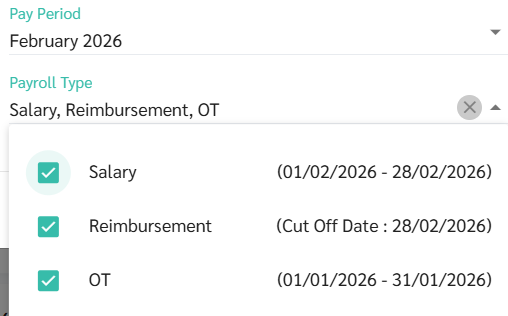
The Payroll will show:
Salary Period: 01/02 2026 - 28/02/2026
Overtime Period: 01/01/2026 - 31/01/2026
This allows the Overtime from the previous month to be processed in the current payroll cycle.
-
💬 Note
- The Overtime Cut-Off configuration will take effect when Timesheets are Approved for Payroll processing.
- After selecting the Payroll period, the system will automatically display the below items based on the configurations defined in the Payroll Settings under Company/Branch:
- The Payroll Period, and
- The Overtime Period