
Add Custom Fields
If additional employee information is required (e.g. Emergency Contact Details, Backup Email Addresses, Blood Type) admin can create Custom Fields beyond the system's predefined fields.
To Add a Custom Field:
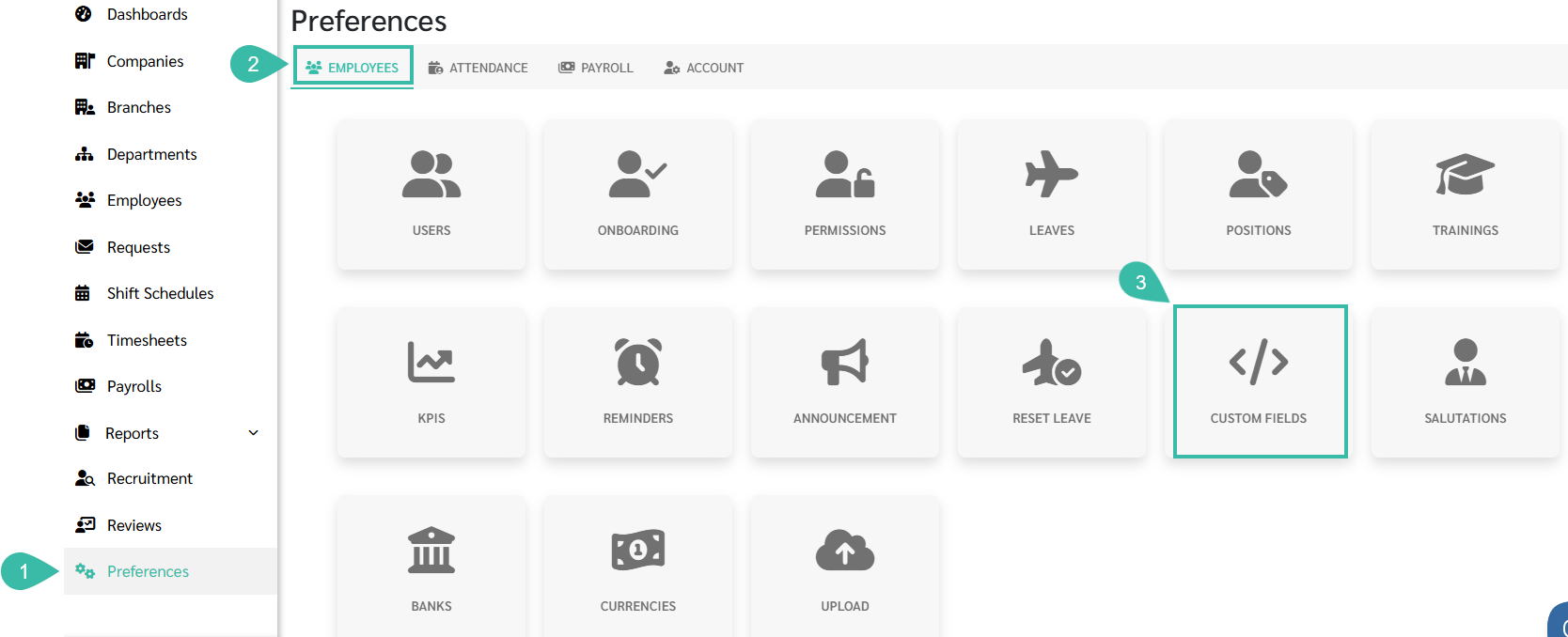
- Go to the Preferences tab.
- Click Employee.
-
Select Custom Fields.
-
Click + Add to create a new custom field.

-
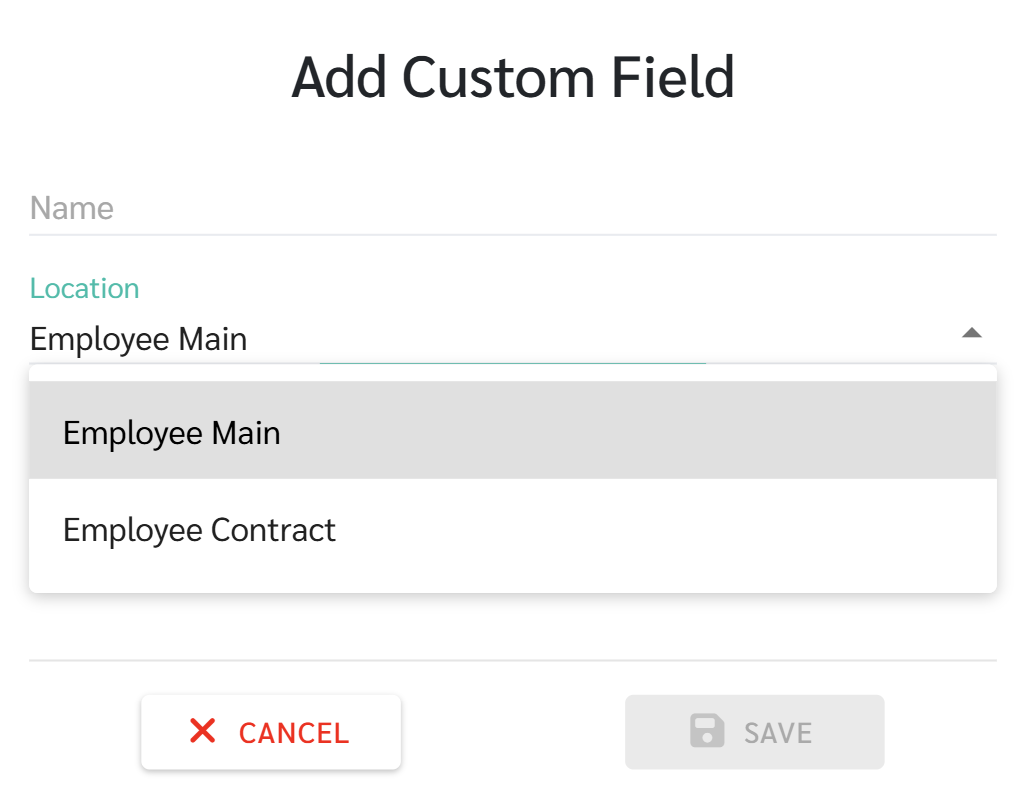
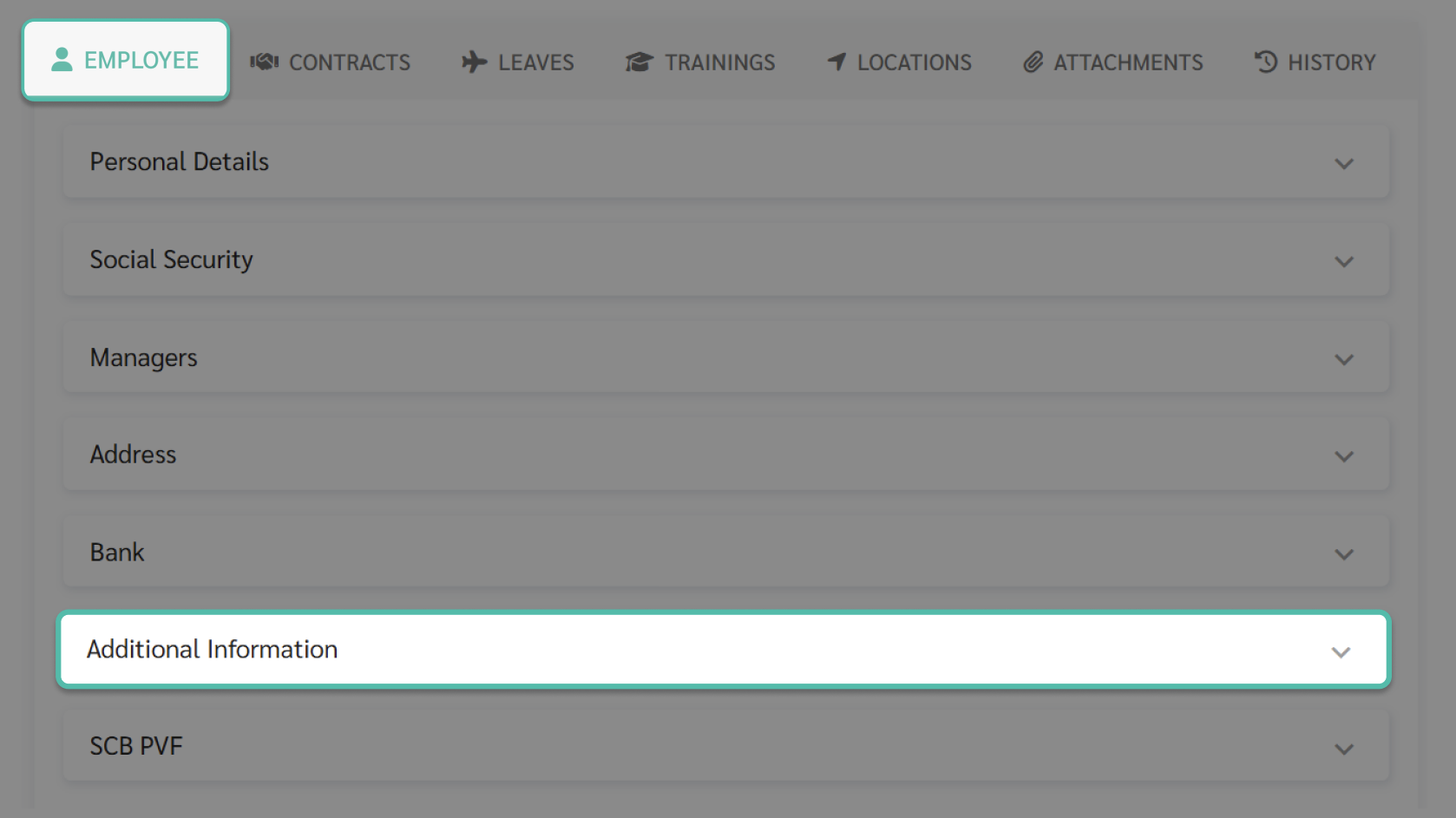
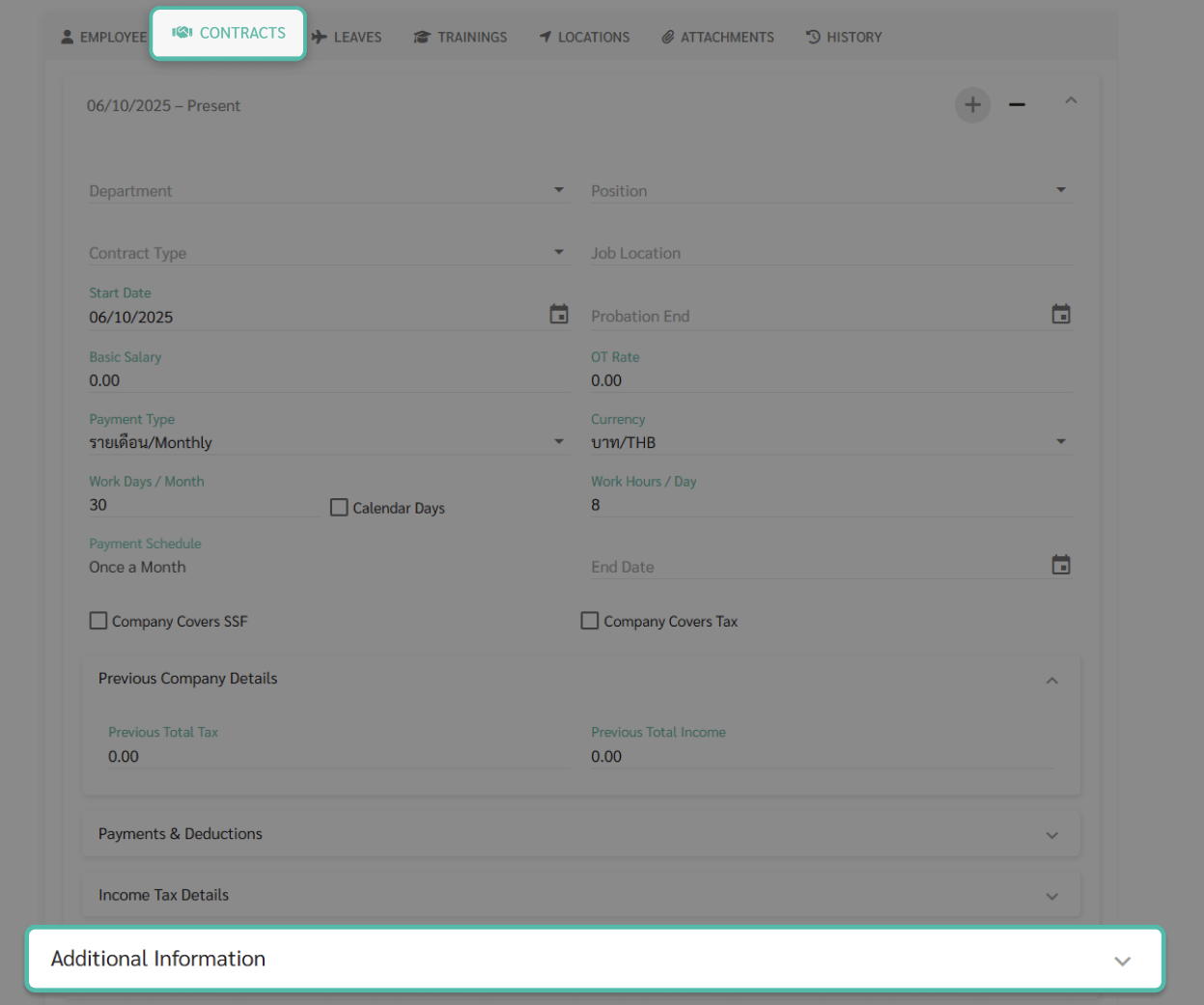
Select where the Custom Field should be displayed: Employee Main page or the Employee Contract page.
-
Employee Main page
-
Contract page
-
- Select the Field Type:
-
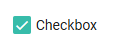
Checkbox: Displays a checkbox that can be ticked.
Example.
-
Date: Displays a field for recording data in date format. When selected, admins can configure reminders for this field in the Reminder menu.
Example.

-
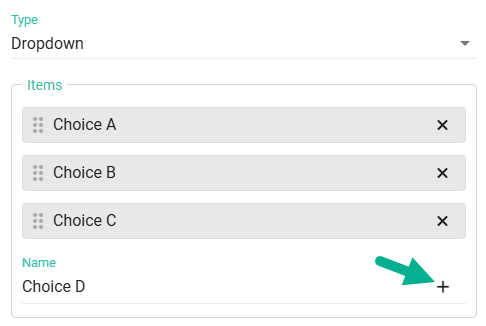
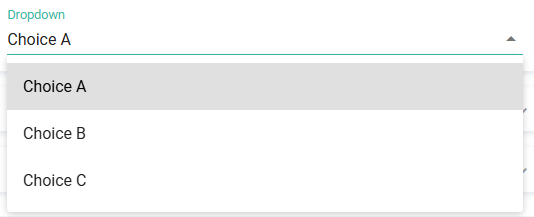
Dropdown: Displays a dropdown list where you can select the desired option.
Admins must add the options to be displayed in the dropdown list by entering the option name and clicking the "+" button to add more options.
Example
-
Email: Display a field for entering email-format data. The entered data must be in email format only.
Example

-
Number: Display a field for entering numeric data. Only numbers are allowed, and leading zeros are not permitted.
Example

-
Text: Display a free-text field. Any characters can be entered, such as consonants, numbers, or special characters.
Example

-
-
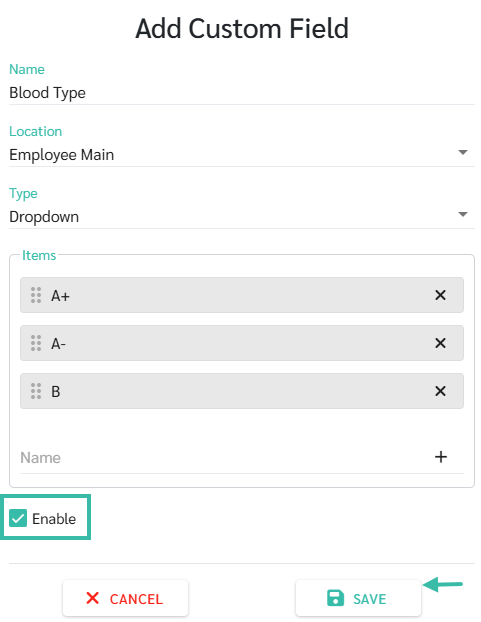
Once all settings are configured, tick "Enable" and click "Save" to apply the Custom Field.
📃Note
The maximum number of fields that can be created depends on the customer's package:
- Starter = 10 fields
- Basic = 20 fields
- Standard = 30 fields
- Premium = 40 fields