
Creating Positions
🔍 Note:
There are 3 ways to create a new position in ByteHR:
-
Employee Contract:
Enter the Position name directly in the "Position" field of the Employee's Contract.
The system will automatically create the New Position.
-
Upload New Employees/Existing Employees:
Upload New Employees or Existing Employees template by entering the Position name in the "Position" column.
The system will automatically create a new position.
-
Preferences tab:
Manually add a new position in the Preferences tab (Preferences - Positions).
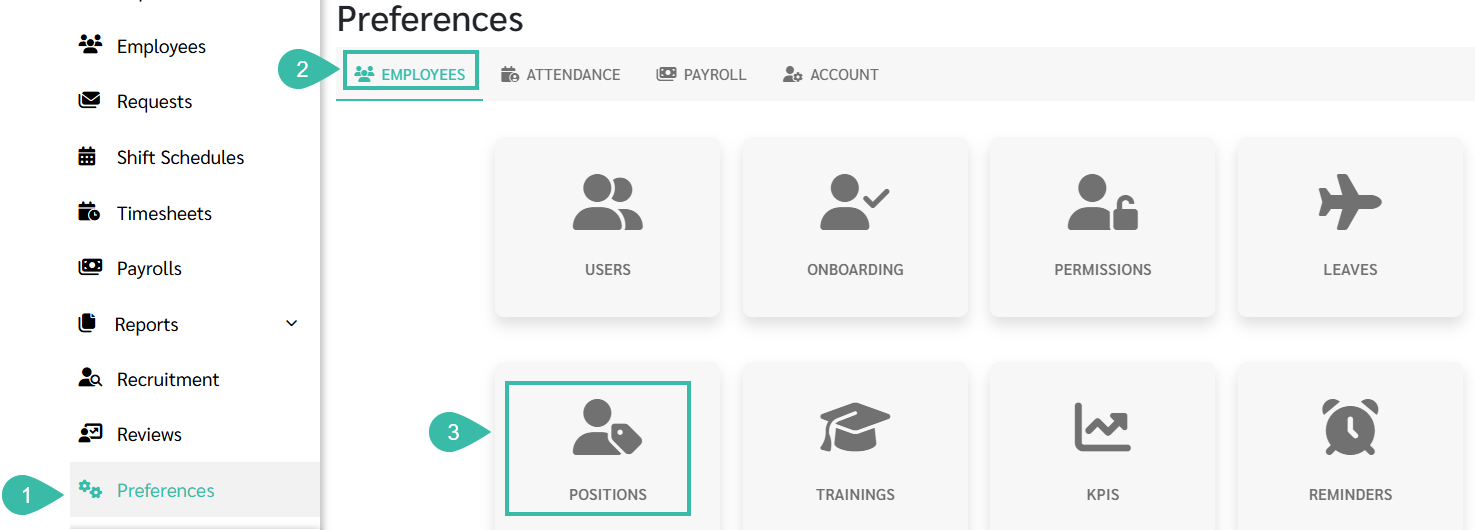
To Create a New Position in the Preferences Tab, Follow the steps below:
- Navigate to the Preferences tab.
- Select Employees.
-
Click Positions.
-
Click + Add.

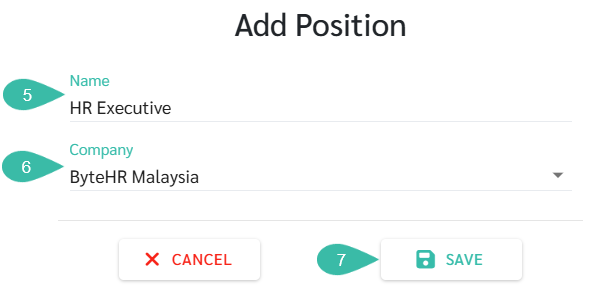
- Enter the Position Name in the Name field.
- Select the Company where this position should be available.
-
Click Save.
- You can now assign the Position in the Employee's contract under the Position filed.
⚠️ Caution:
Before deleting a Position, ensure that it is not assigned to any employee, including both current and previous Contracts.