
Set Reminder for Birthday
How to Set Reminder for Birthday
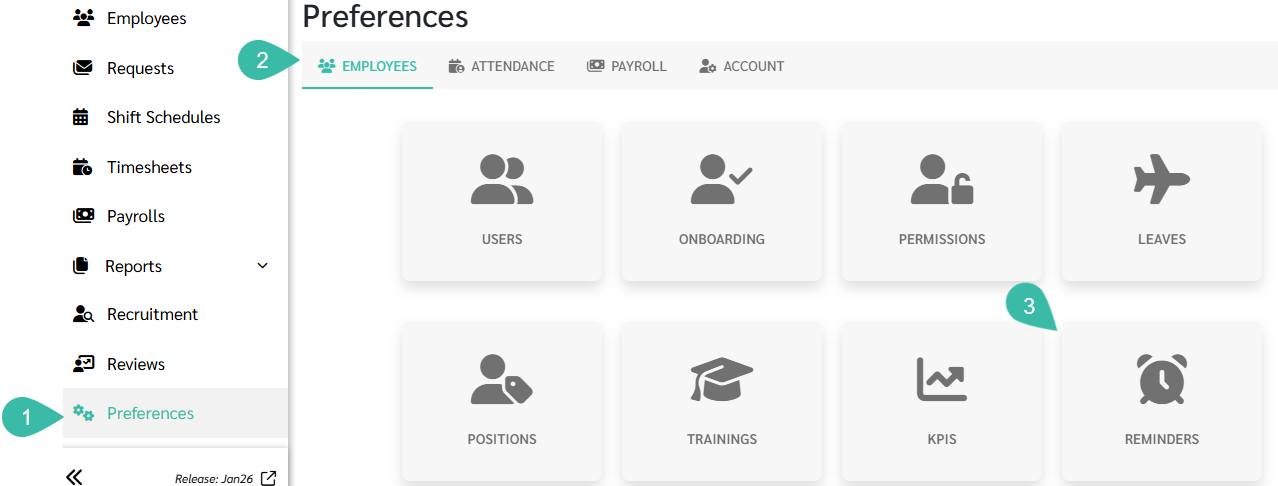
- Go to the Preferences tab.
- Select Employees.
-
Click Reminders.
-
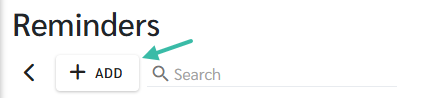
Click +Add.
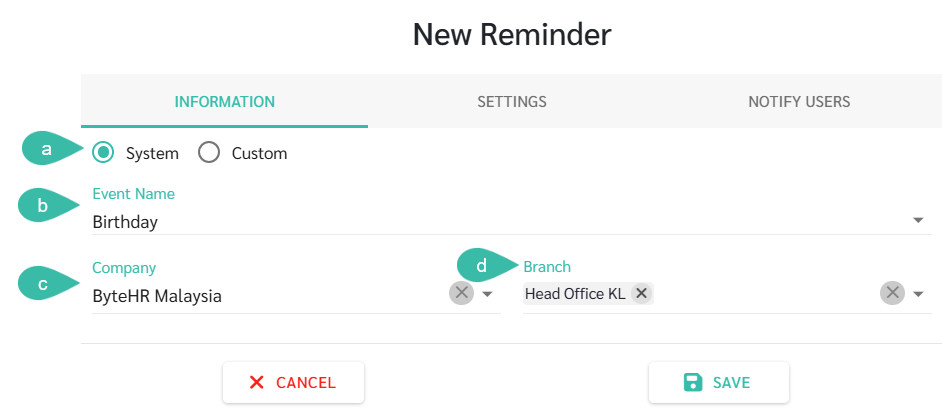
- In the Information tab:
- Select System.
- Select the Event Name as Birthday from the dropdown list.
- Select Company.
-
Select the Branch of the employee whose birthday you want to receive notifications for.
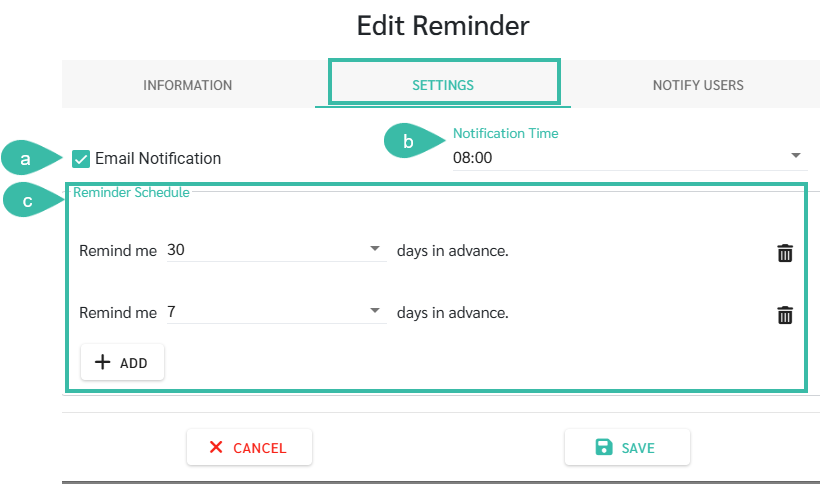
- In the Settings tab:
- Tick the Email Notification checkbox, if you want to receive email notifications.
- Select Notification Time.
- Set Reminder Schedule.
- You can specify the desired number of days in advance for reminders, such as 30 days in advance, 7 days in advance, etc.
- If your desired date is not in the options, you can enter the desired number. The maximum number of days in advance you can set is 180 days.
-
To set up multiple reminders, click the + Add button. You can send up to 3 notifications. For example, the first notification can be sent 30 days in advance, followed by another 7 days in advance, and then a final notification 1 day in advance.
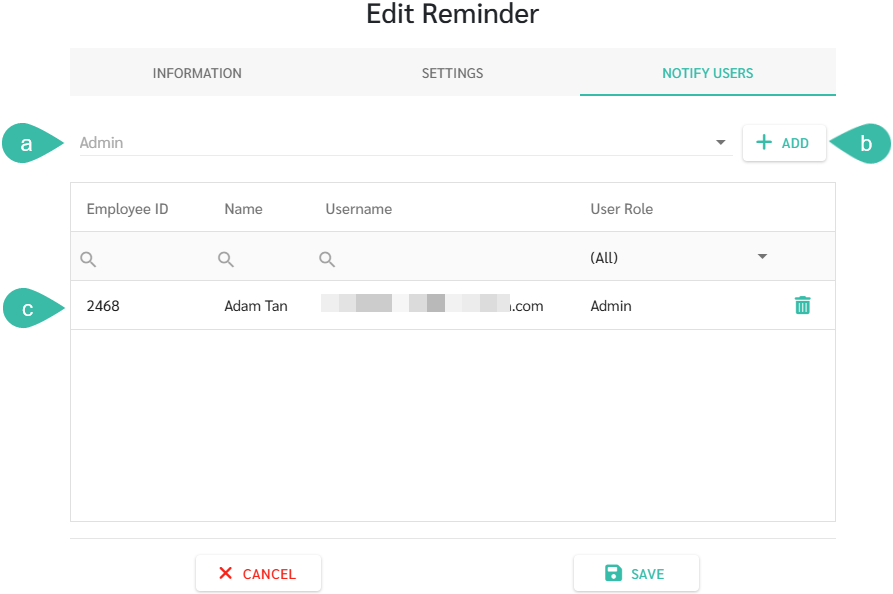
- In the Notify Users tab:
- Click Admin and select the admin's username who you want to receive this notification from
- Click +Add.
-
The admin's username will be displayed in the table below.
-
Click Save to save the notification settings.
-
The system will then notify the selected admin via the application and email when an employee's birthday falls within the set period
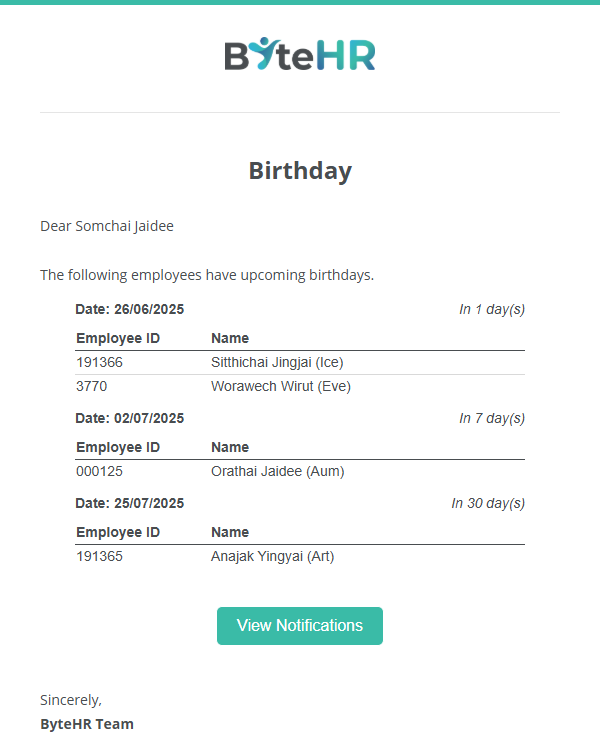
Example of an employee birthday notification via email:
Note
Currently, this Reminder notification setting is only available for system admins. It is not yet possible to set up notifications for managers.