Set Reminder for Probation End
Employee notifications, such as alerts when an employee is nearing the end of their Probation period,
can be configured by the admin to send notifications via the system and email the Reminders in the Preferences under Reminder.
How to Set Reminder for Probation End Date
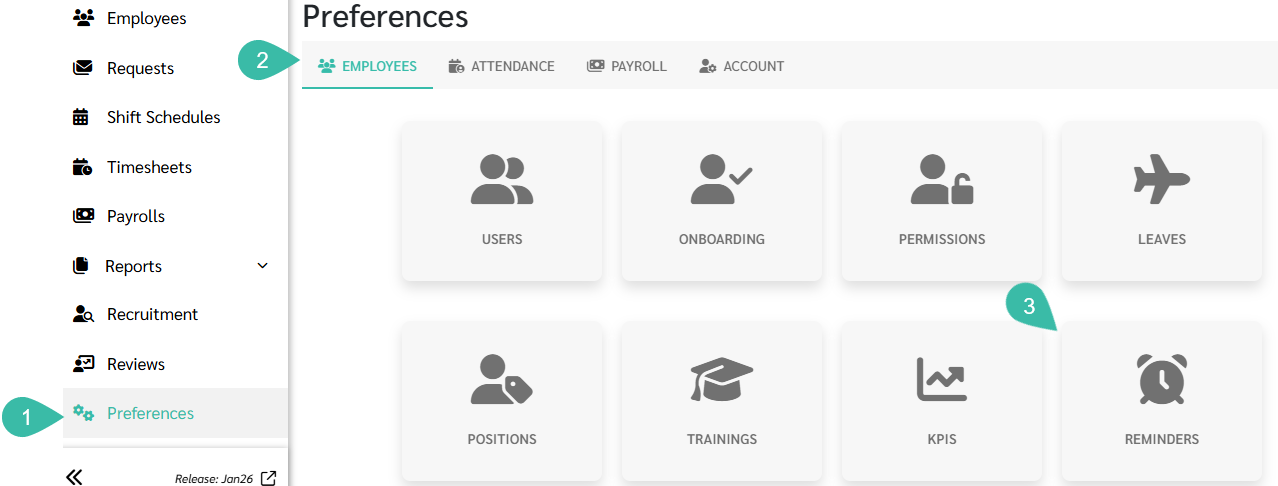
- Go to the Preferences tab.
- Select Employees.
-
Click Reminders.
-
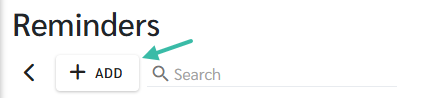
Click +Add.
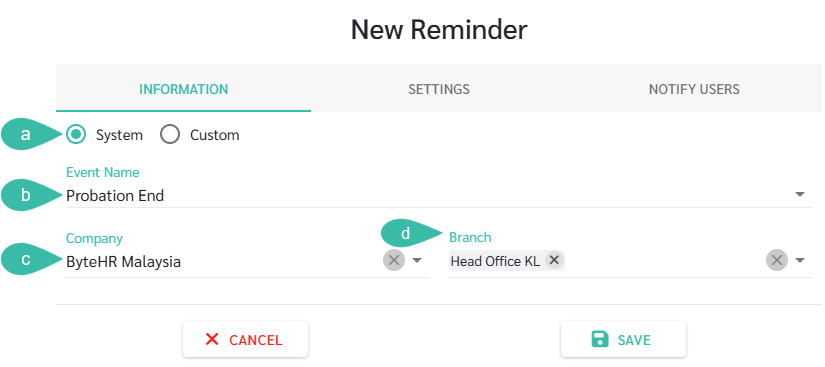
- In the Information tab:
- Select System.
- Select Event Name as Probation End from the dropdown list.
- Select Company.
-
Select the branch of the employee whose probationary period the administrator wants to receive notifications for.
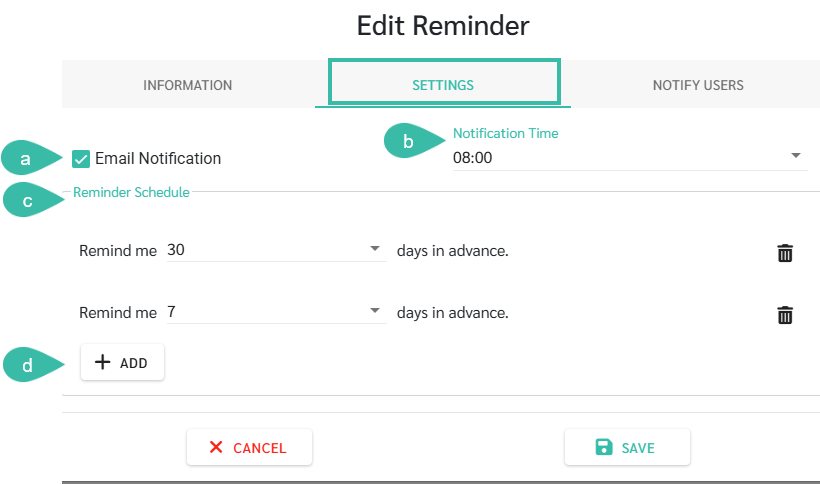
- In the Settings tab:
- Set Email Notification to On/Off.
- Select Notification Time.
- Set Reminder Schedule.
- Select the desired notification date, such as 30 days in advance, 7 days in advance, etc.
- If the desired date is not in the options, you can enter the desired number. The maximum number of days in advance you can send a notification is 180 days.
-
To receive multiple notifications, press the "Add" button. You can send a maximum of 3 notifications. For example, send the first notification 30 days in advance, then another 7 days in advance, and then another 1 day in advance.
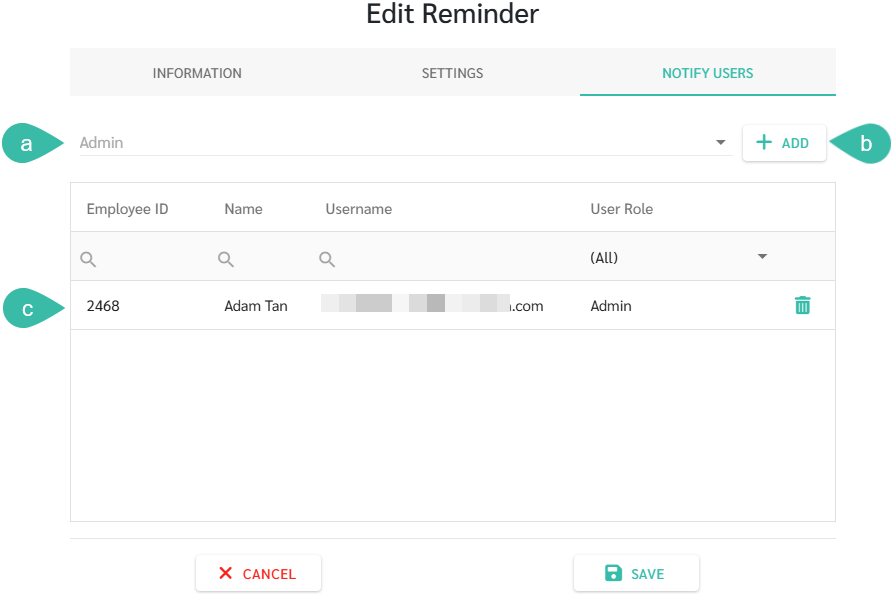
- In the Notify Users tab:
- Click "Admin" and select the username of the admin you want to receive this notification from.
- Click "+Add".
-
The admin's username will be displayed in the table below.
- Click "Save" to save the notification settings.
-
The system will then notify the selected admin via the application and email when an employee's Probation period ends within the set timeframe.
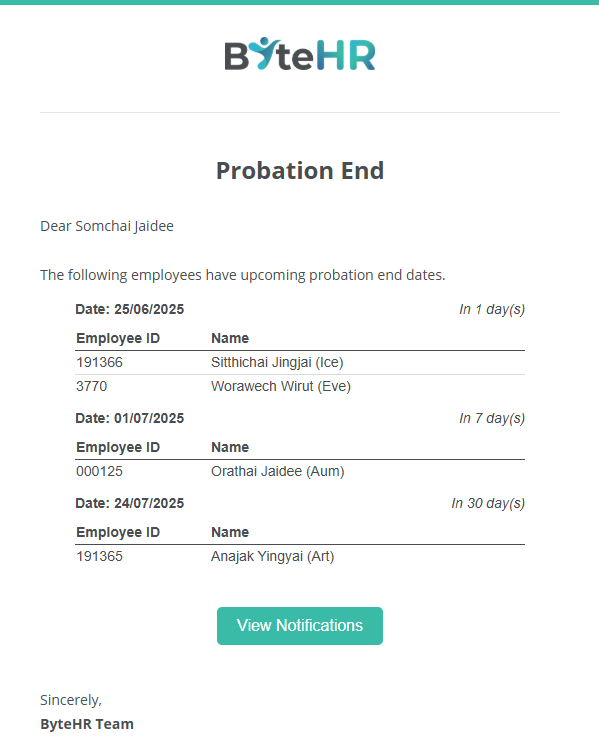
For an example of a probationary period end notification via email: