
Cancel a Leave Type for a Branch
To cancel a Leave Type for a specific Branch, follow the steps below:
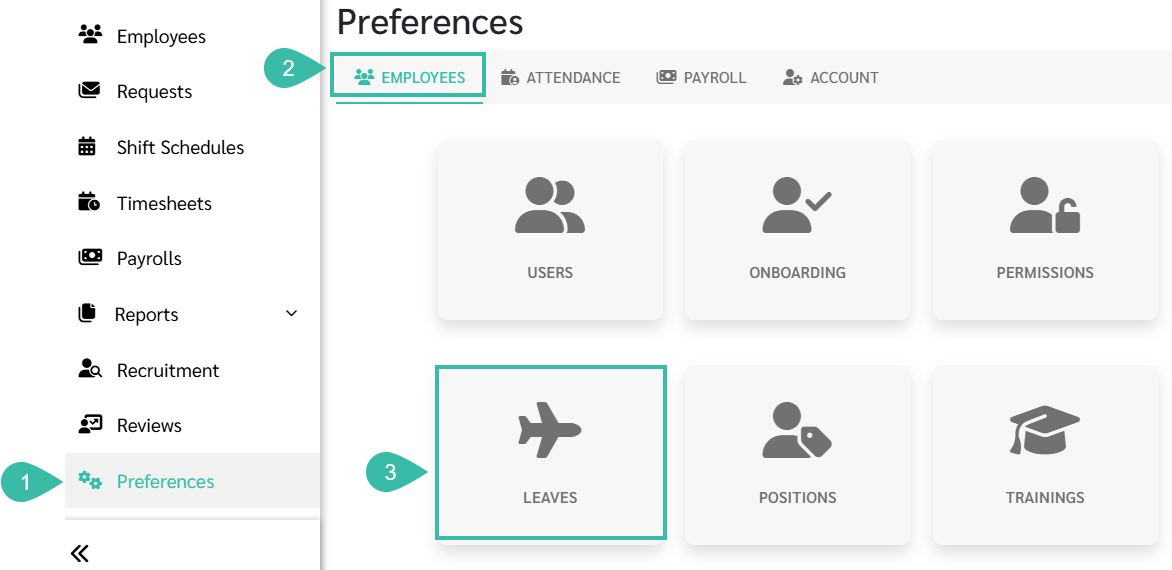
- Go to Preferences tab.
- Select Employees.
-
Click Leaves.
-
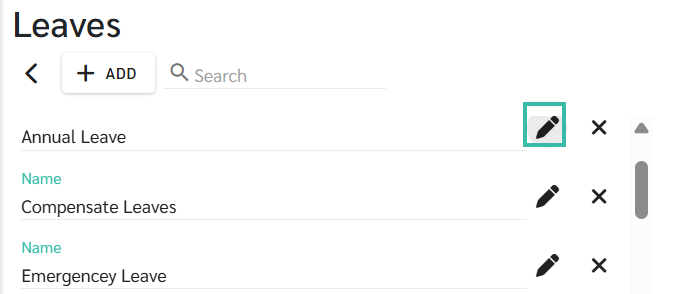
Locate the Leave type that you want to cancel for a specific branch and click edit.
-
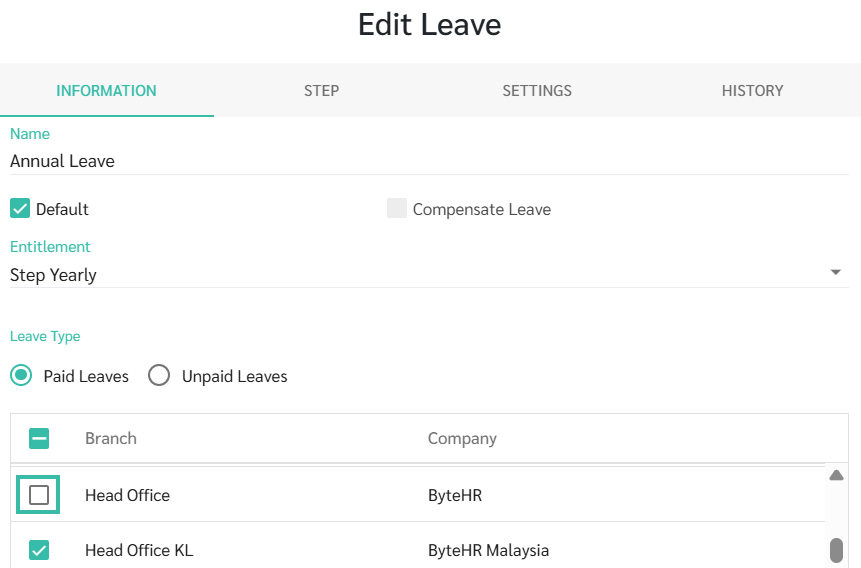
Under Branch, uncheck the box for the branch where you want to disable this Leave Type.
- Click Save.
📢 Important Note
- The Leave types must be disabled per branch individually. If all branches are unchecked at the same time, the system will still treat the Leave Type as active for all employees.
-
Once a Branch is disabled, the system will prompt you with the message: Do you want to remove this Leave from Employee Contract?
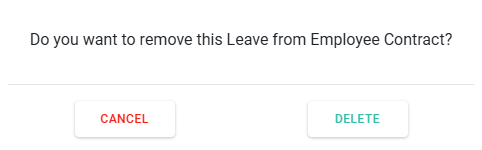
- If you select Delete option:
- Removes the Leave Type from the Employment Contract of employees in the selected branch.
- Employees in that branch will no longer be able to request this Leave Type.
- If Leave requests for this Leave Type is is "Submitted" status, managers can still approve or reject them. However, remaining Leave balances will not be updated, as the Leave Type is no longer part of the employee's contract.
- When a new employee is added to a Branch where this Leave Type has been removed, the Leave Type will not be added to their employment contract.
